
Manage your Glee workspace from Claude and ChatGPT
TTushar Kumar Shaha30 Oct 2026
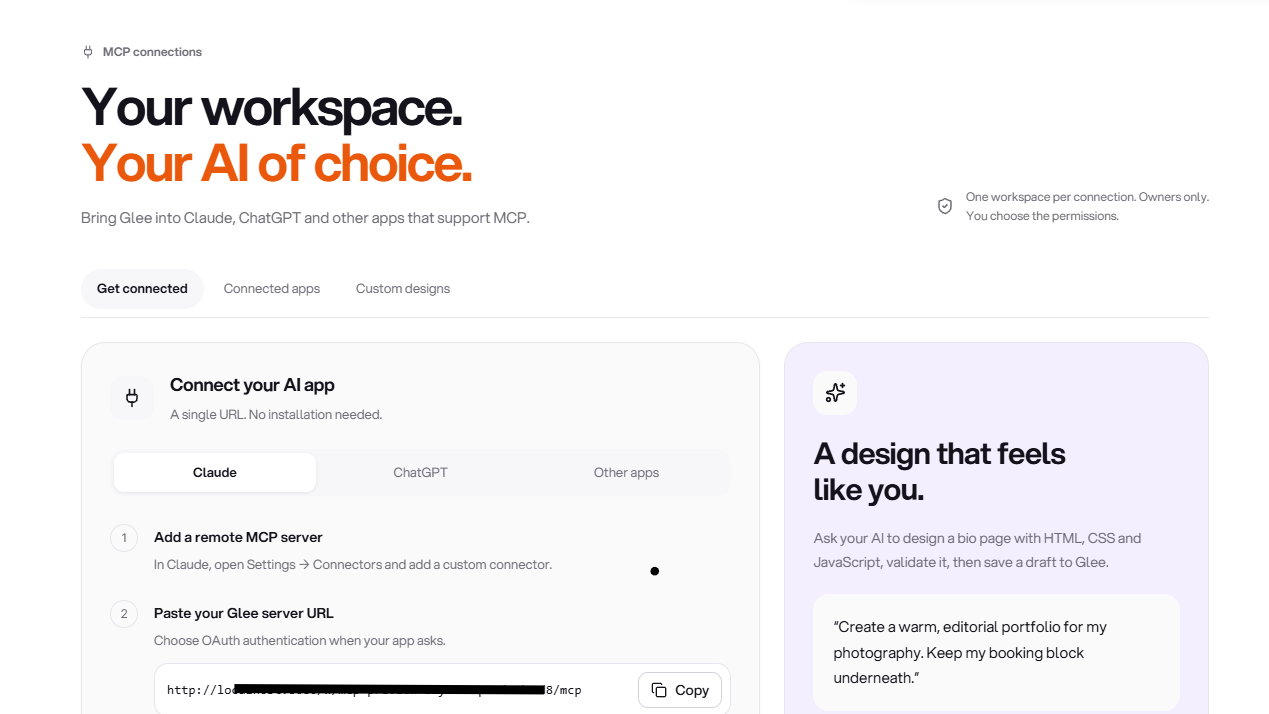
Glee now connects to Claude, ChatGPT and other AI apps that support remote MCP connections. You can work on your workspace from the assistant you already use, with access to the Glee tools you choose to enable.
Describe what you want to do in a conversation: prepare a new bio page, update a link, create a QR code or check how your content is performing. Your connected assistant can read the relevant workspace information and use Glee tools to carry out supported tasks.
One connection, one workspace
Every connection is tied to a single workspace. Connect the workspace for your own brand, a client or a separate project, and the assistant works within that workspace’s data and permissions.
If you manage several workspaces, create a separate connection for each one you want to use. Connecting one workspace does not give the assistant access to the others.
Tools for your everyday work
Depending on the permissions you grant, a connected assistant can help with:
•
Bio pages: find the right page, read its content and prepare supported content or design updates.
•
Short links and QR codes: create and manage sharing assets without moving between several screens.
•
Bookings and audience: work with supported scheduling and contact-management tools in the connected workspace.
•
Email drafts: prepare supported email content for review.
•
Analytics: retrieve performance information to help answer questions about your pages and links.
The tools available to the assistant follow the permissions granted to that connection. Account and workspace settings are excluded.
You choose the access
MCP connections are available to workspace owners. Team members cannot create them. During setup, review the requested permissions and choose the access you want to give the connected app.
You can see existing connections under Connected apps and revoke a connection when you no longer need it. Keep separate connections for separate tools so you can manage their access individually.
Review changes before they go live
Creating or saving a draft does not publish it. You can return to Glee to inspect the result before making it public. The assistant is instructed to ask for explicit approval before publishing content, deleting data or sending an email; those actions also require the corresponding permission.
For example, ask it to review your current page and prepare revised copy, then open Glee to check the draft. Or ask for a new campaign link and QR code, review the destination and options, and share them when ready.
Get connected
Open MCP connections in the workspace you want to use. Follow the connection guide for your AI app, complete the authorization flow and review the permissions. Once connected, start by asking the assistant to show the workspace and available pages so you can choose where to work.
Your AI app must support remote MCP connections. Availability and setup options depend on the app and your plan with that provider.
Get updates like this by email
One email when something ships. Nothing in between.