
Contacts page, email campaigns & Resend integration
KKawsar Hossain31 May 2026
Contacts
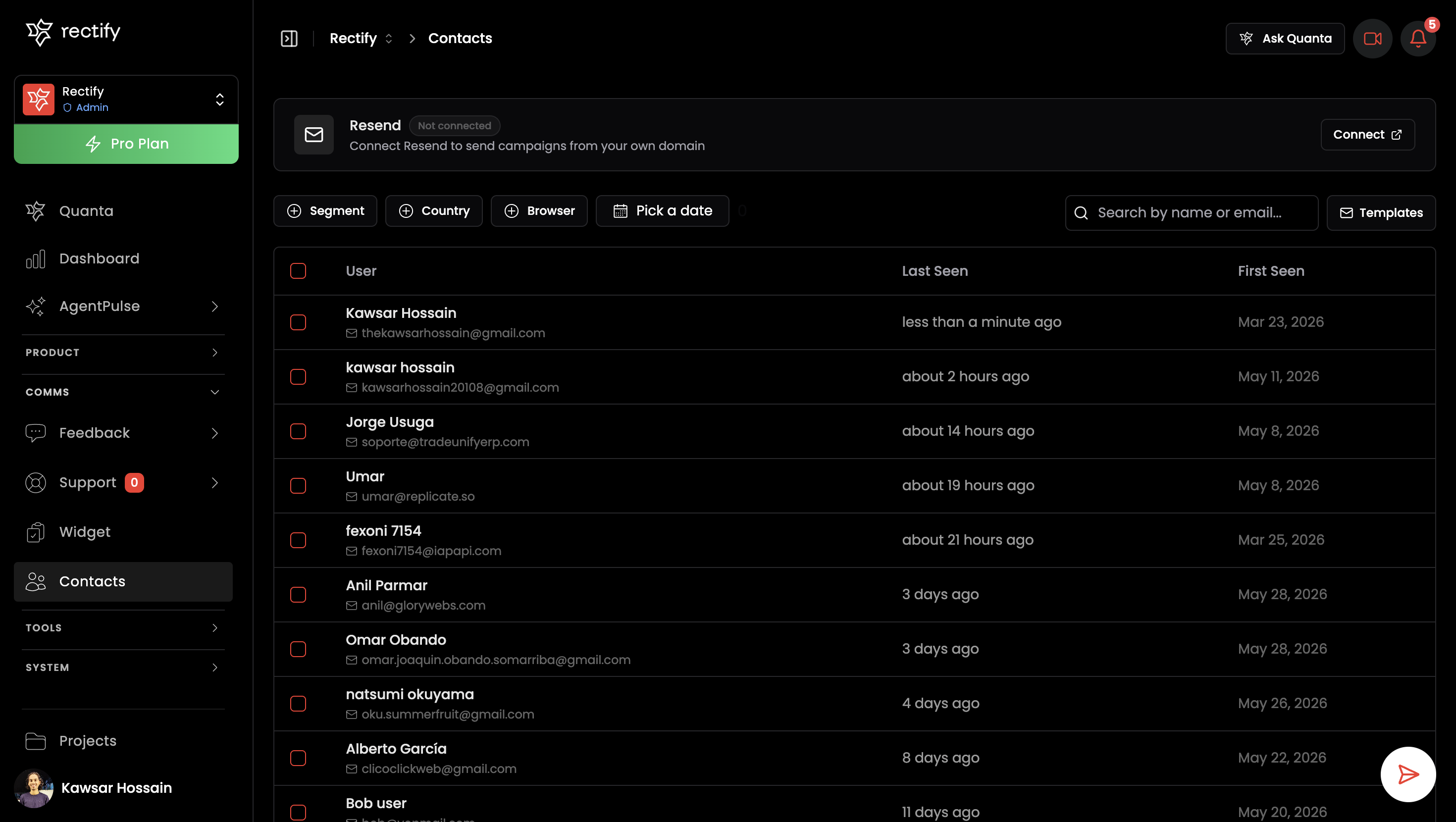
You now have a dedicated Contacts page under each project. It surfaces every visitor who has provided an email address, giving you a filterable, searchable list you can act on directly.
What's in it
•
Infinite-scroll table: loads contacts as you scroll, no manual pagination
•
Filters: slice by Segment, Country, Browser, and date range; reset with one click
•
Search: find a contact by name or email instantly
•
Row selection: check one or many contacts, then hit Continue to open the campaign sheet
Sending a campaign
Select the contacts you want to reach, choose a template, optionally edit the subject and message inline, and send. If you edit a custom template you can either Send Once (without saving) or Save & Send to persist the changes for next time.
Personalization variables like
{{name}} and {{email}} are listed in the sheet, click any one to copy it to your clipboard.Email branding (logo, accent color, footer) is pulled from your Notification › Email settings.
Resend integration
Rectify now integrates with Resend so campaigns go out from a verified sender on your own domain instead of a shared address.
Setup
1.
Open Integrations and find the Resend card.
2.
Paste your Resend API key (Sending access) and a verified From Email.
3.
Save you're connected.
Once connected, a nudge on the Contacts page disappears and all campaign emails route through your Resend account. You can disconnect at any time from the same Integrations card.
Email templates
Manage reusable templates from the Templates button on the Contacts page. Create up to 30 custom templates with a name, subject, and message body. Templates are shared across campaigns for the project.
Get updates like this by email
One email when something ships. Nothing in between.