A quick tour of projects, the sidebar, search, Quanta and settings, so you know where everything lives.
2 min readUpdated 24 days ago
Rectify has two levels. Your organization is your company or team: it holds your members, your plan and your projects. A project is one product or site, with its own portal, widget, monitors and inbox. Key terms in Rectify explains the other words you'll meet.
Open a project
When you sign in, Projects lists every project in your organization. Select one to open it. Every project opens on Quanta, your AI teammate.
The sidebar
Everything in a project lives in the sidebar on the left. Select a group to open it.
Group
What's inside
Set up
Your setup checklist. Owners and Admins see it until setup is finished and your script is live.
Quanta
Your AI teammate and the project's home page.
Inbox
Feedback, Session replays, Conversations, Channels and Knowledge base.
Roadmap
Roadmaps, All posts, Review queue and Changelog.
Customers
Contacts, Activity, Analytics, Heatmaps, Messaging and Surveys.
General, Members, Domain, Billing and AI providers. These apply to every project.
Get around faster
1.
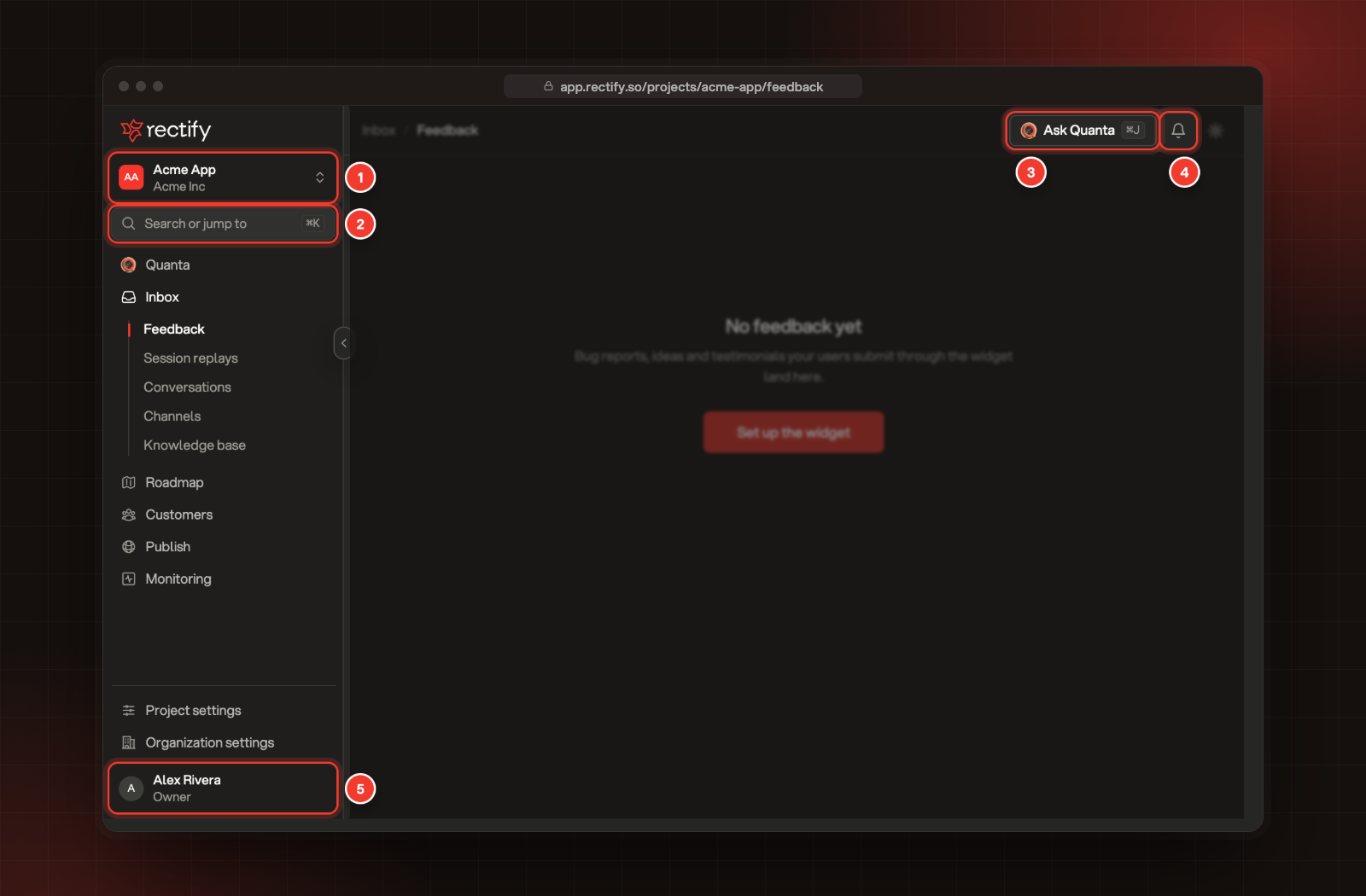
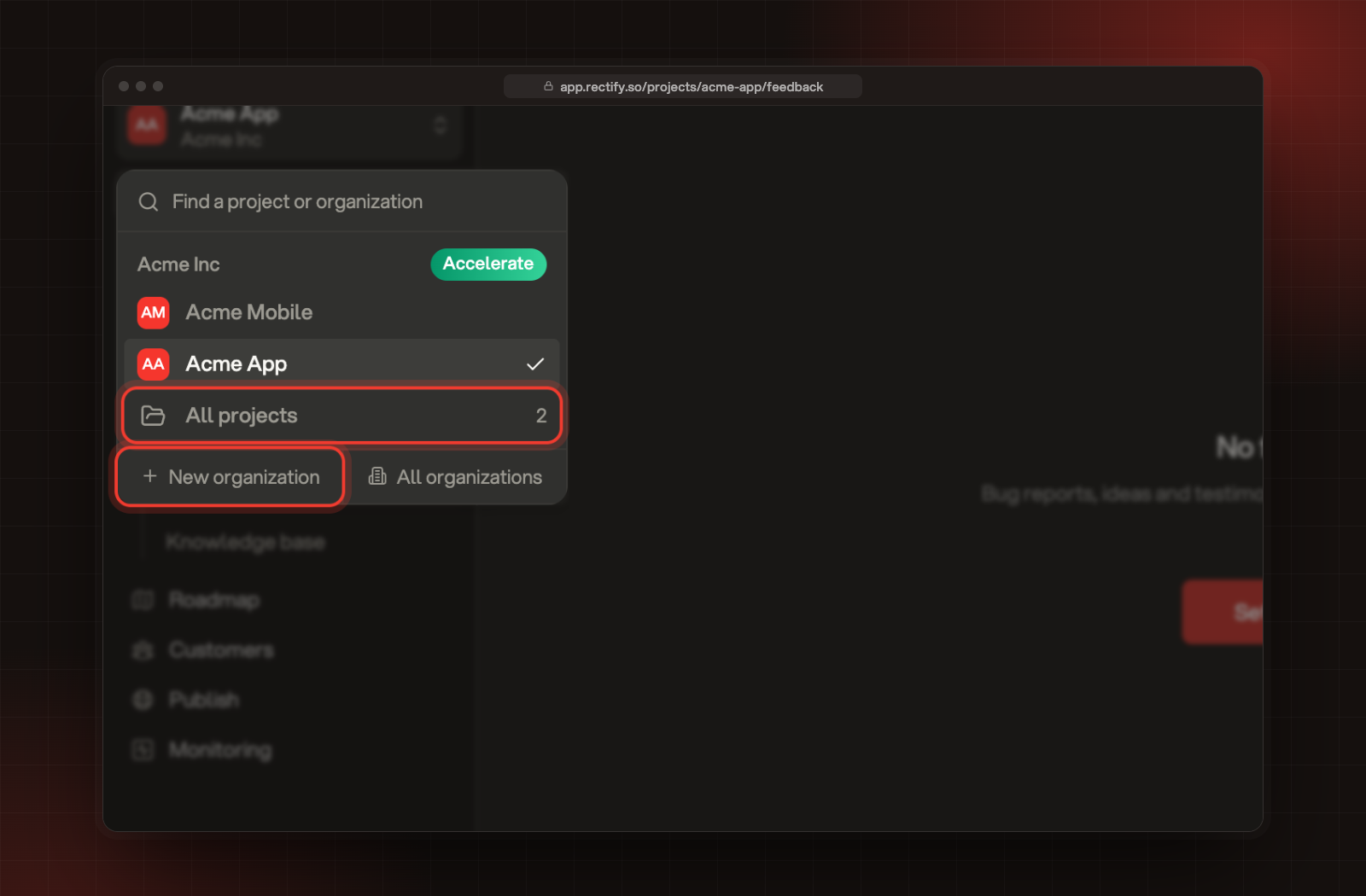
Switch project or organization: select the project name at the top of the sidebar. Search, pick another project, or select All projects. New organization and All organizations are at the bottom of the list.
2.
Search or jump to: press ⌘K on a Mac or Ctrl K on Windows, then type the name of a page.
3.
Ask Quanta: press ⌘J on a Mac or Ctrl J on Windows to ask Quanta from any project page.
4.
Notifications: the bell shows your alerts. Select Mark all read, or the gear to change which alerts you get.
5.
Your account: select your name at the bottom of the sidebar for Profile, Rewards, Notifications and Logout.
1 Switch project. 2 Search or jump to. 3 Ask Quanta. 4 Notifications. 5 Your account.
The project switcher also shows your other organizations, so you can move between them without signing out.
The project switcher, with All projects and your organizations.