
Workflow actions: what a workflow can do
Every step a workflow can take, from assigning feedback to posting in Slack, and what each one needs.
4 min readUpdated 5 days ago
Before you start. Owners, Admins and Members can add and change actions, on every plan. Actions that use another service, such as Slack, Jira or Twilio, need that service connected to the project under Project settings, Integrations.
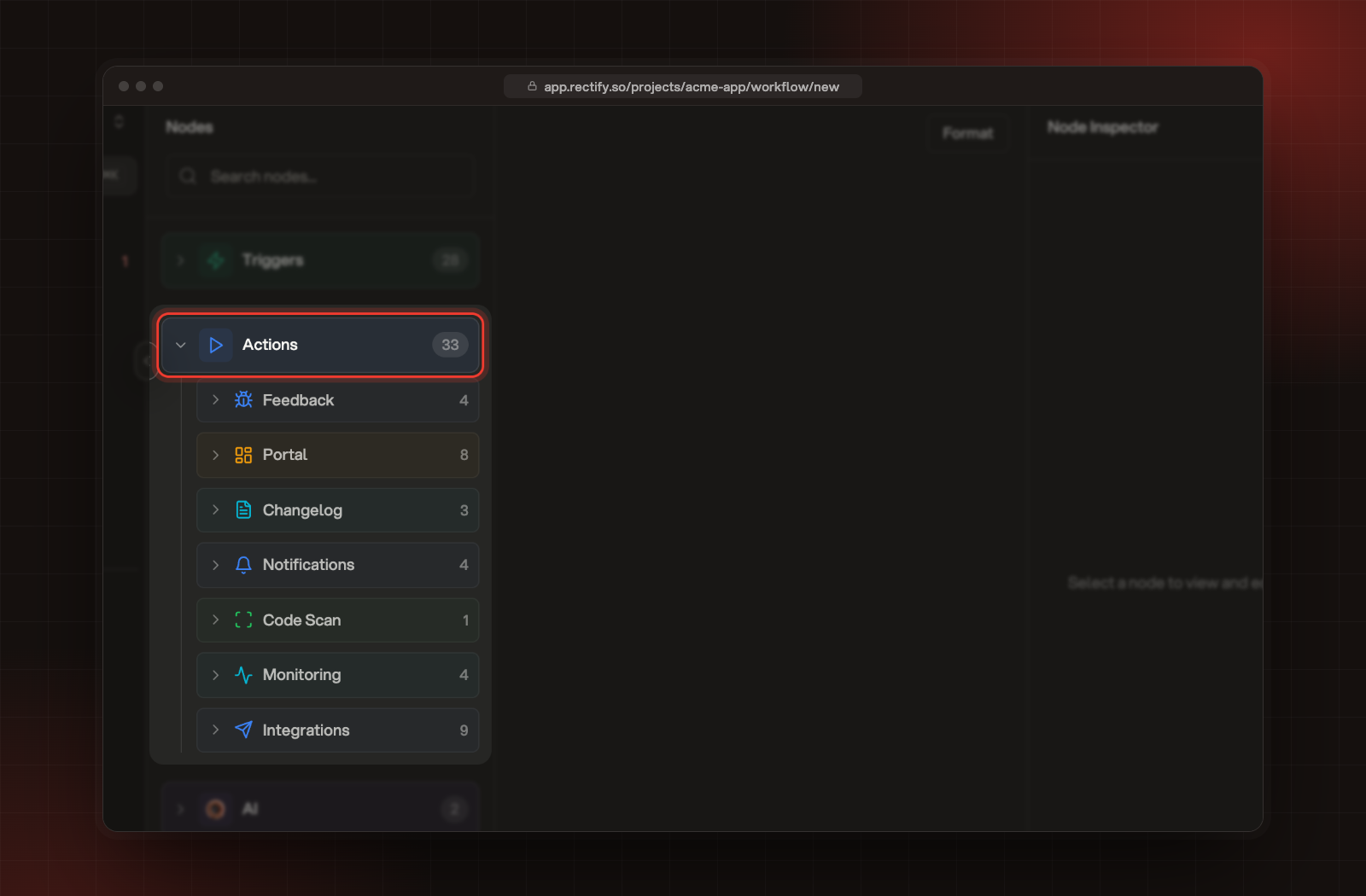
Actions are the steps that run after the trigger. In the workflow builder, open Actions under Nodes, drag one onto the canvas and connect it below the trigger or another step. Select it to fill in its settings on the right.
Feedback
When the trigger is a feedback trigger, such as Feedback Created, leave Feedback empty. The step then works on the report that started the workflow. With any other trigger, pick a report.
Portal
For Post, keep The post from the trigger to act on the post that started the workflow, or pick a post. Turn on Internal note to keep a comment for your team only. When you merge, votes and followers move onto the post you keep.
Changelog
Create Changelog Entry needs a cover image: upload one, or select Nano Banana to use an image an AI step made. Publish Changelog can publish The entry an earlier step created, and it sends the update email if the entry has notifications on. Everyone following a linked post hears about the entry.
Notifications
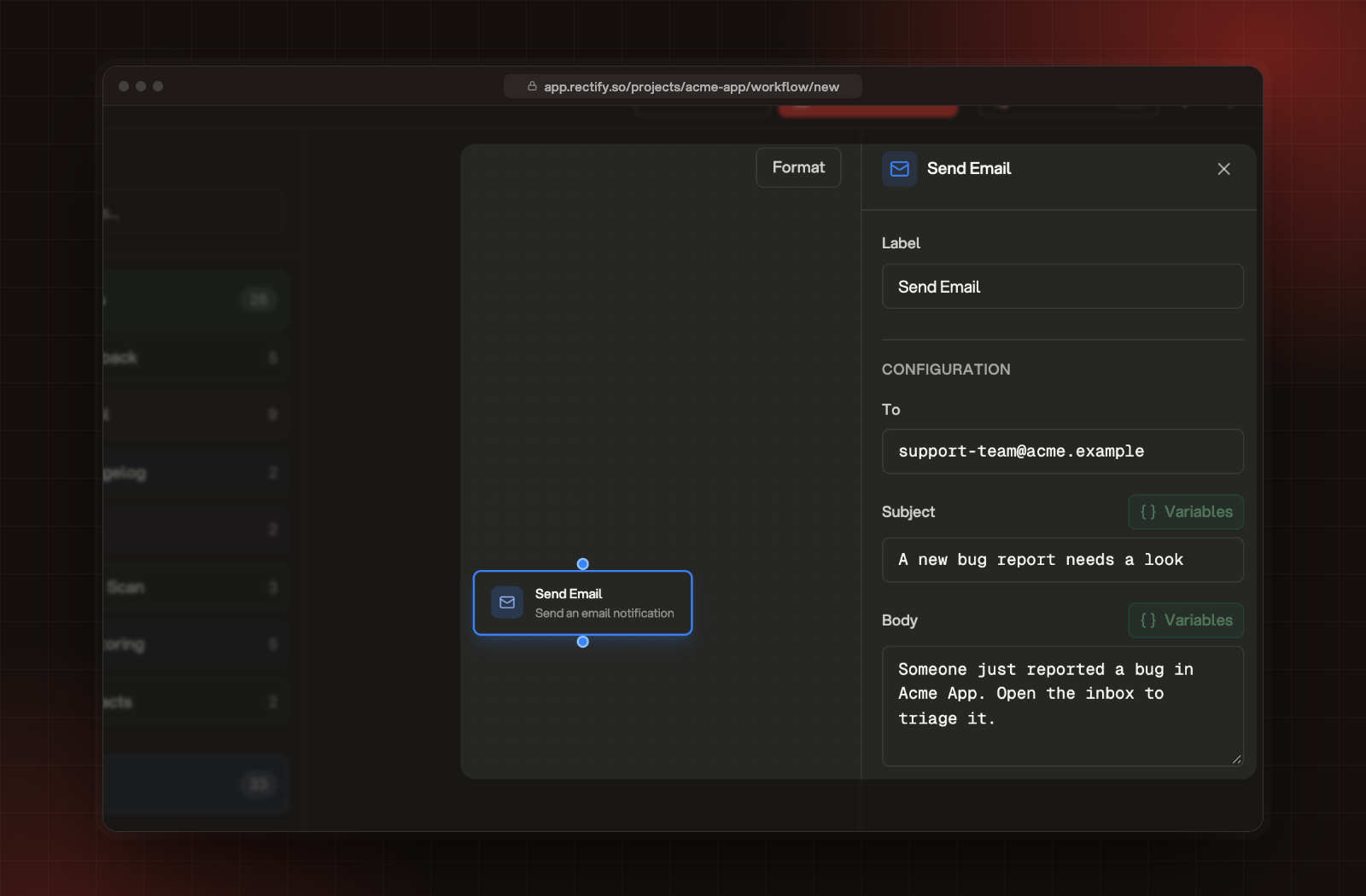
When Send Email goes to one of your project's contacts, Rectify respects their email preferences, so someone who unsubscribed doesn't get it.
Code Scan and Monitoring
Integrations
If a service isn't connected, its settings say so and offer a button to connect it.
Fill in text with details from the run
Text settings with a Variables button, such as Subject, Body or Note Message, can include details from the trigger or from earlier steps. Select Variables and pick one, and it's added where your cursor is, for example
{{trigger.feedback.title}}. Add AI steps and use data from earlier steps explains how this works.A step failed with "Slack integration not enabled for this project"
Slack isn't connected to this project. Connect it under Project settings, Integrations, then run the workflow again.
It says a Feedback node "requires a feedback ID"
The workflow's trigger isn't a feedback trigger, so the step has no report to work on. Pick a report under Feedback, or use a feedback trigger.
Was this helpful?
Your feedback shapes what we write next.
Related articles
Build your first workflow
Connect a trigger to the steps that should follow it, so routine work in your project happens on its own.
Workflow triggers: what can start a workflow
Every event that can start a workflow, and the settings that narrow down when it runs.
Test a workflow and read its runs
Run a workflow on a real report, post or monitor, then check what each step did and why a run failed.
Manage posts and votes
Add posts for your customers, keep their status and details up to date, add or remove votes, and tidy up many posts at once.