Where bug reports, ideas and testimonials come from, what each one includes, and who hears about a new one.
5 min readUpdated 2 days ago
Before you start. Feedback arrives once the Rectify widget is on your site. Everyone who can open the project can read its feedback. Session replays and technical logs depend on your plan (see the end of this article).
Your users send feedback from the widget on your site. Each report lands in Inbox, Feedback for that project, newest first.
The feedback forms in the widget
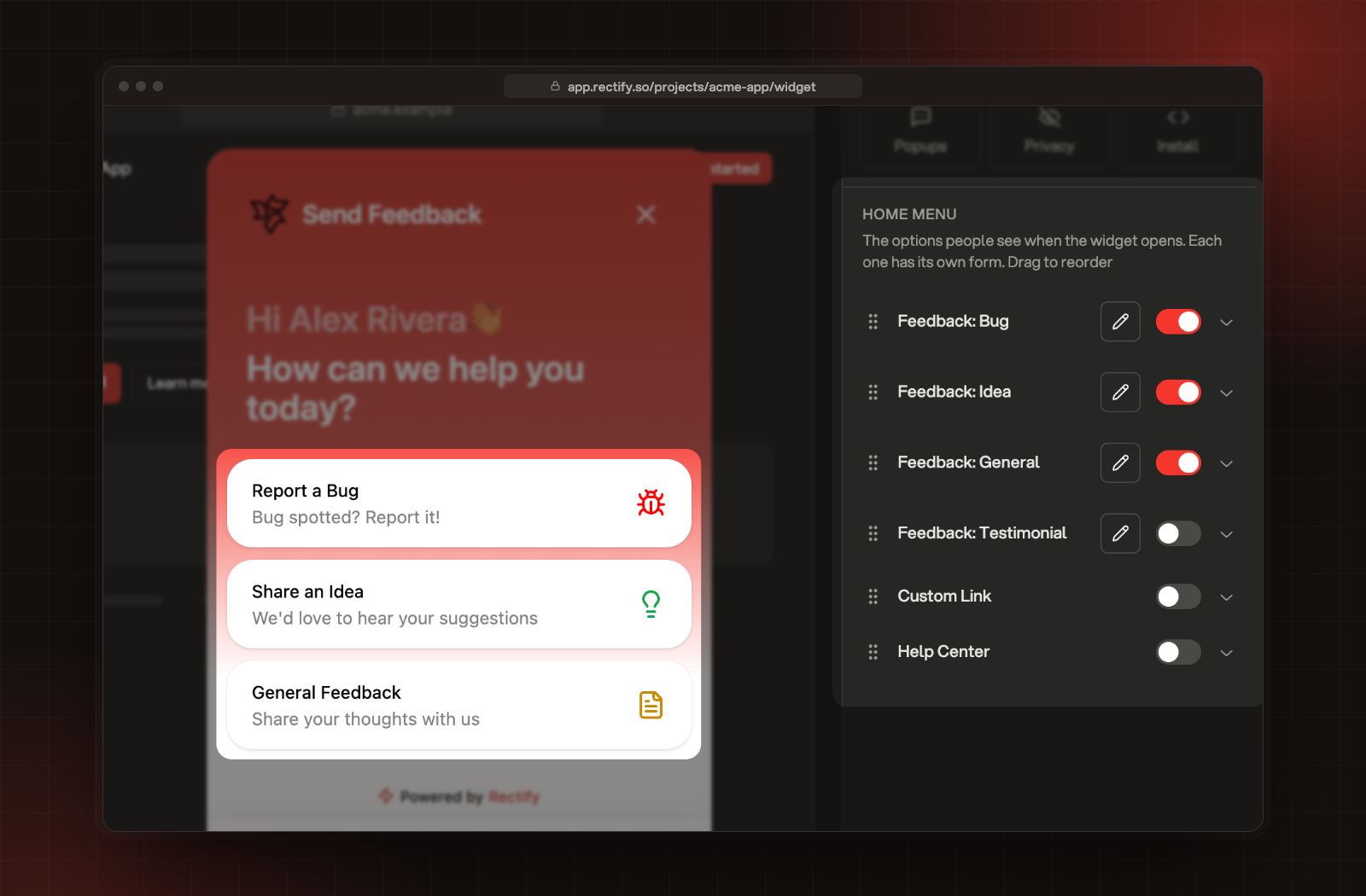
When someone opens the widget, the home screen lists your forms. Each form sends a different type of feedback.
Form in the widget
Type in your inbox
Switched on at first
Report a Bug
Bug
Yes
Share an Idea
Idea
Yes
General Feedback
General
Yes
Share Your Experience
Testimonial
No
To switch a form on or off, open Publish, then Widget, and select Home menu. Each form has its own switch, and the pencil opens Edit form, where you choose its fields.
The feedback forms in the widget, and their switches under Home menu.
Out of the box, a form asks for an email, a title and a description, all required, plus an optional category. You can also switch on a name, a rating, a priority and a checkbox. Titles can be up to 100 characters and descriptions up to 500.
People can add one of these to what they write:
•
Screenshots: up to 10, which they can mark up before sending.
•
A Loom video: one, instead of screenshots.
•
A file: one, up to 10 MB.
What each report includes
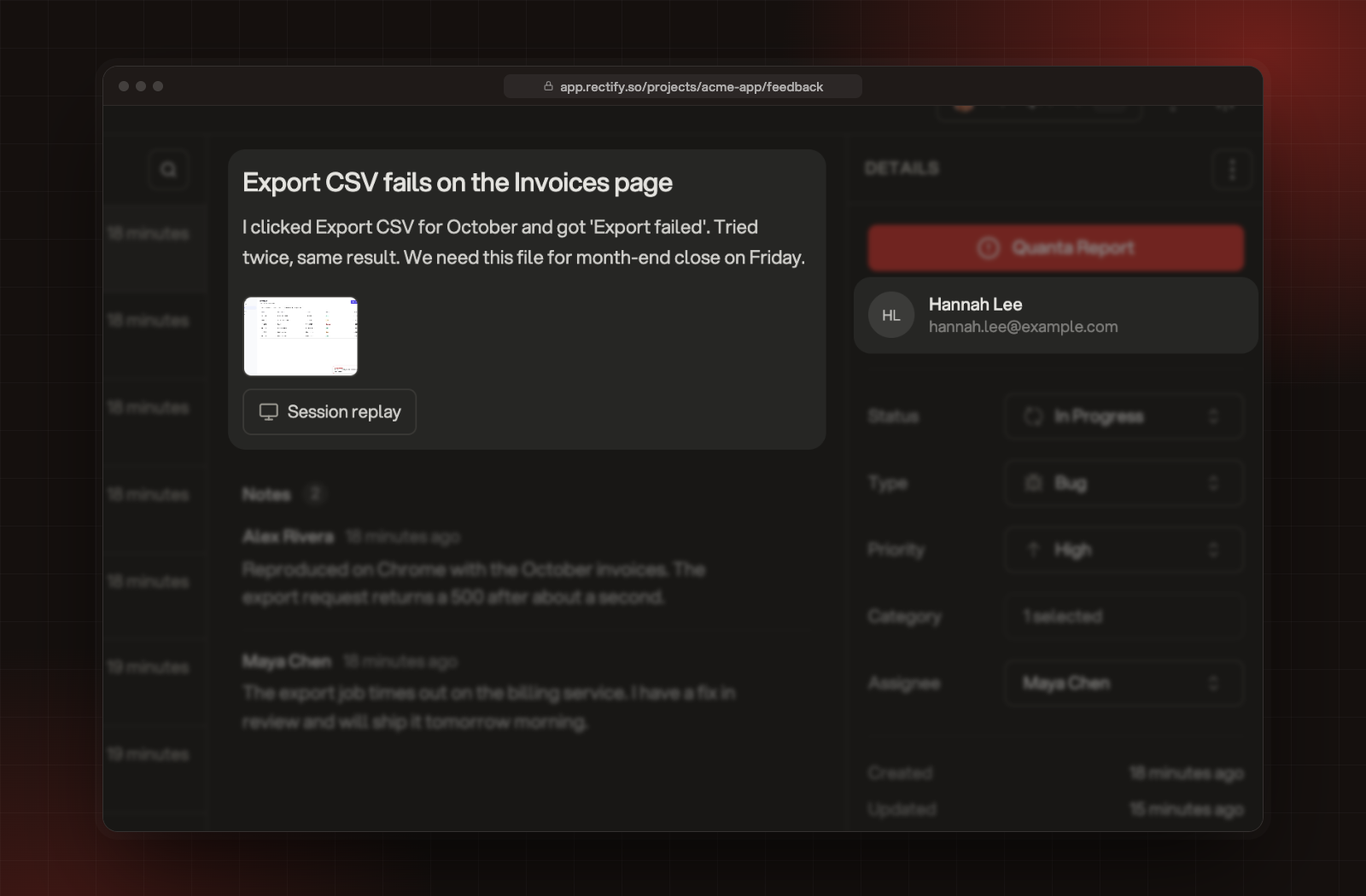
Open a report to see:
•
What they wrote: the title, the description, the star rating and the checkbox answer (shown as Form answer), if the form asked for them.
•
Their media: screenshot thumbnails, Video and Attachment.
•
Who sent it: the name and email they entered. If your site passes the signed-in user's name and email to the widget, they're filled in for them. With neither, the report shows Anonymous visitor.
•
Session replay: bug reports only. A replay of the visit before they sent it, plus console, network and click logs. Watch a session replay and its debug logs explains both.
The report, its screenshot and Session replay, and who sent it.
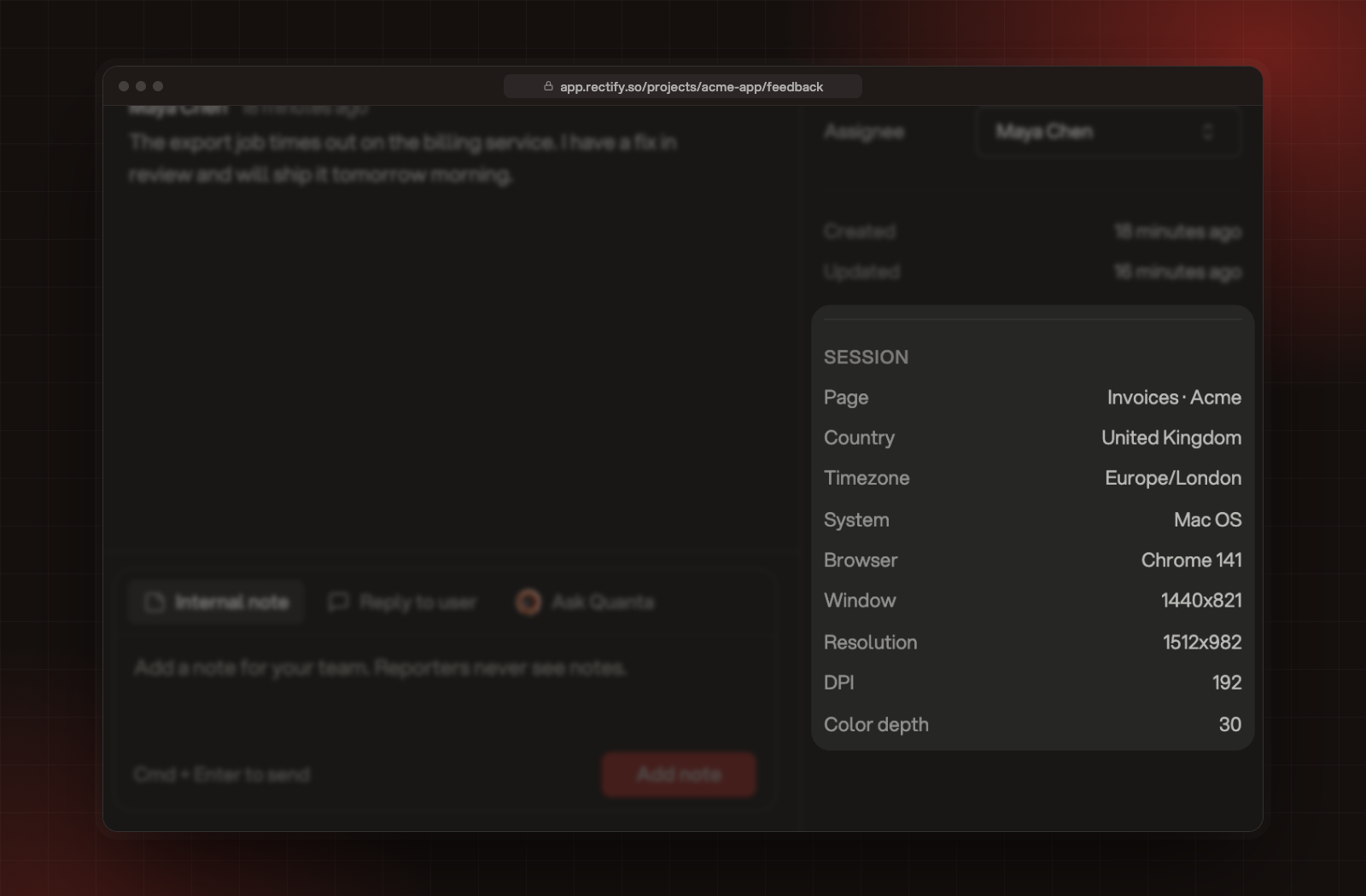
The Session section under Details shows where the report came from: the Page, Country, Timezone, System, Browser, Window size, screen Resolution, DPI and Color depth.
The page and device details under Session.
Who hears about a new report
•
Your team: everyone who can open the project gets a push notification and an email, with the project's name first. In Acme App, a bug report arrives as Acme App · New bug reported and anything else as Acme App · New feedback received. The email's subject is Acme App · New Feedback Received. Each person can switch these off under Feedback Received in their notification settings.
•
The person who sent it: if they left their email, they get a short email to say it arrived. You can edit this email, or stop sending it, under Project settings, Email notifications, Feedback Received. It's sent at first.
•
Your other tools: if you've connected a tool under Project settings, Integrations, such as Slack, Jira, Linear, GitHub or a webhook, new reports are sent there too. Each integration's settings say what it does with them.
Quanta: ask Quanta to log a bug, idea or other feedback for you. It shows what it will create and adds it once you confirm. Meet Quanta explains confirming.
•
Discord: once your Discord server is connected, people there can report bugs with /bug, and moderators can send a message to Rectify as a bug report. These land in Feedback with Discord as their Source. Ideas from Discord go to your roadmap instead. Collect ideas and bug reports from Discord explains both.
•
Not from the portal or the Chrome extension: requests on your portal go to your roadmap, and recordings from the Chrome extension go to Extension sessions. Neither adds to Feedback.
Plan limits
Idea
Build
Launch
Accelerate
Enterprise
Session replays a month
10
100
1,000
5,000
Unlimited
Console, network and action logs
No
Yes
Yes
Yes
Yes
When you reach your session replays for the month, bug reports still arrive, just without a replay. Compare plans lists every limit.
Check it worked
Open Inbox, then Feedback. The newest report sits at the top of the list and opens on the right. Until the first report arrives, the page shows No feedback yet and a Set up the widget button.
The inbox still says "No feedback yet"
Check the widget is on your site and that you're looking at the right project. The widget doesn't show on my site walks through the usual causes.
A bug report has no session replay
Replays come only with Report a Bug. Check that Record sessions is on under Publish, Widget, Privacy, and that you haven't used this month's session replays.
The person who sent feedback didn't get an email
They may have left the email field empty, or the Feedback Received email isn't being sent. Check it under Project settings, Email notifications.