Target a survey by audience and segment, limit it to some pages and devices, and decide what makes it appear and how often.
4 min readUpdated 24 days ago
Before you start. Owners, Admins and Members can change who sees a survey, on every plan. Surveys show through the Rectify script, so it needs to be on your site.
Open the survey in the editor. Each of the three tabs below has one card of settings. Select Save in the bar at the bottom when you're done. Select Guide at the top of the page to see a line of help under each setting.
Choose who sees it
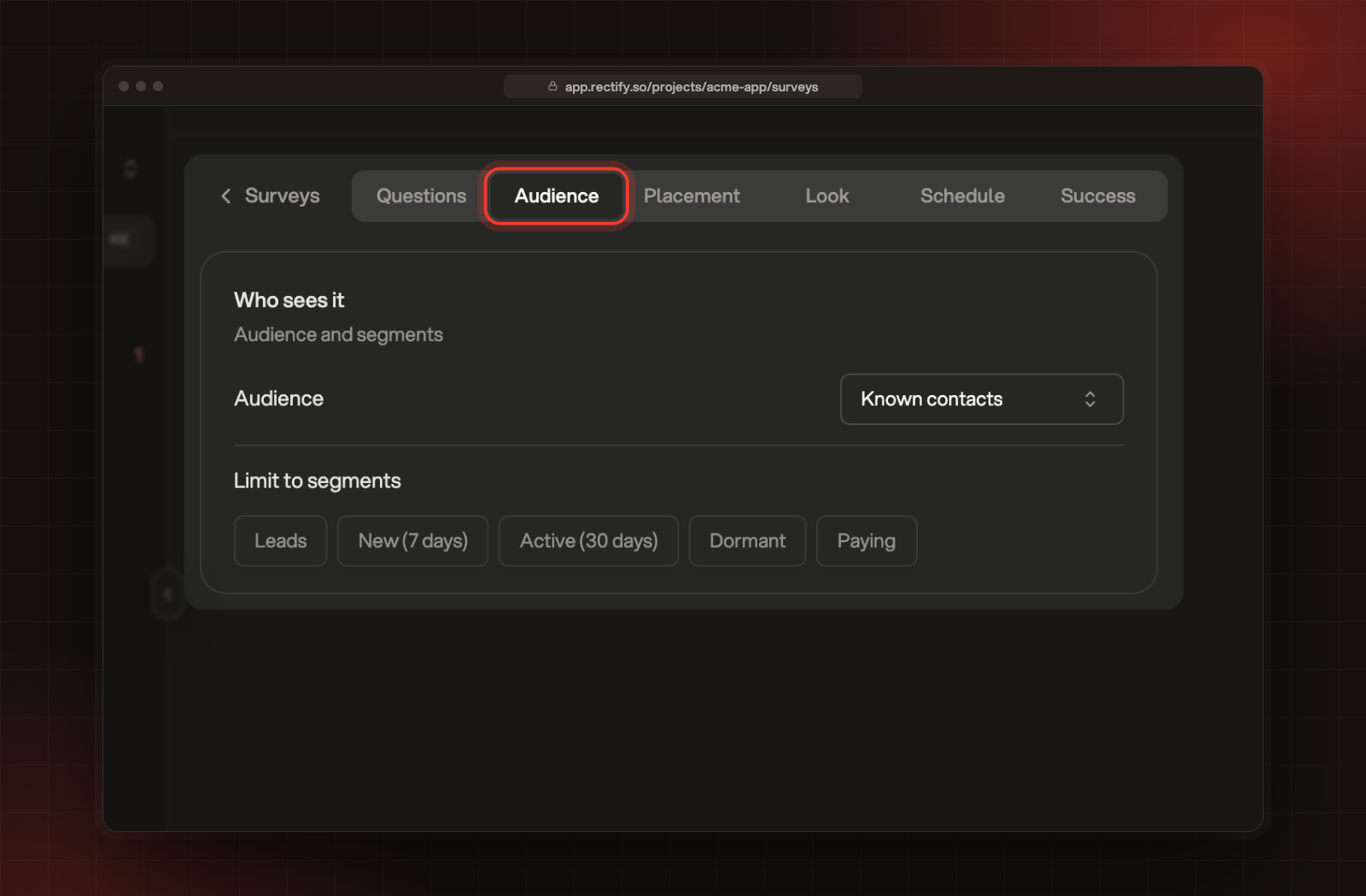
On the Audience tab, under Who sees it:
The Audience tab.
Setting
What it does
Audience
Everyone, Known contacts (visitors you've identified, with an email or a user ID) or Anonymous only.
Limit to segments
Shows it only to people in at least one of the segments you select. None selected means no segment filter. This shows once your project has segments.
Anonymous visitors are never in a segment, so don't combine Anonymous only with segments. Nobody would see the survey.
Choose where it shows
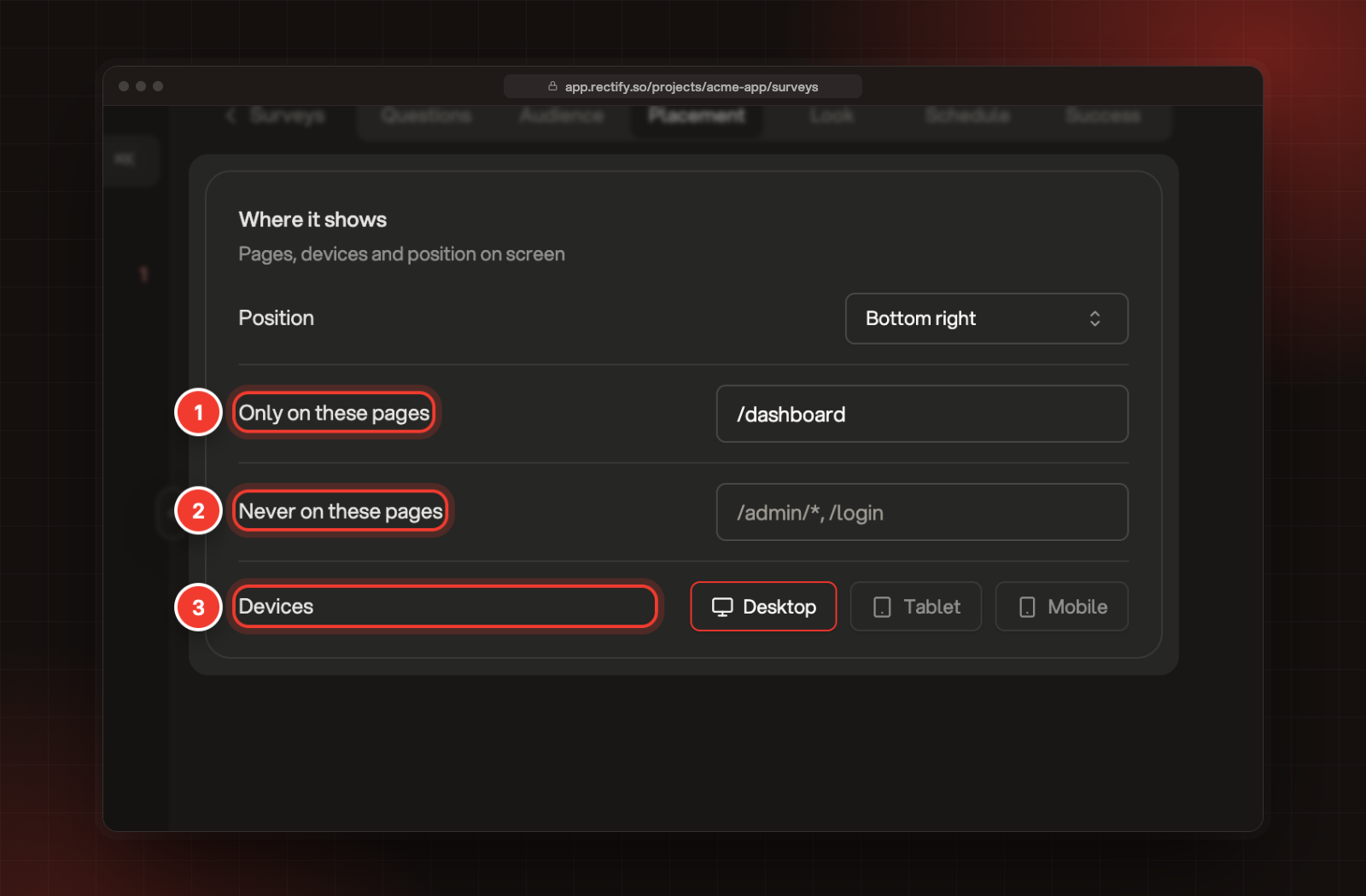
On the Placement tab, under Where it shows:
1.
Under Only on these pages, enter the pages it can show on, separated by commas. Empty means every page.
2.
Under Never on these pages, enter the pages it must not show on. This wins over the list above.
3.
Under Devices, select Desktop, Tablet or Mobile. None selected means all devices.
1 Only on these pages. 2 Never on these pages. 3 Devices.
Position sets where the card sits: Bottom right, Bottom left, Top right, Top left, Centre, Centre left, Centre right or Top bar.
Pages are matched on the part of the address after your domain, including anything after a ?:
•
/pricing matches only /pricing, not /pricing?plan=pro.
•
* matches anything within one part of the address. /docs/* matches /docs/install but not /docs/widget/install.
•
** matches across parts. /docs/** matches both.
•
Start a pattern with https:// to match the full address instead.
Capital letters don't matter. The device comes from the width of the visitor's screen: up to 480 pixels is a phone, up to 1024 is a tablet, and wider is a desktop.
Choose when it shows and how often
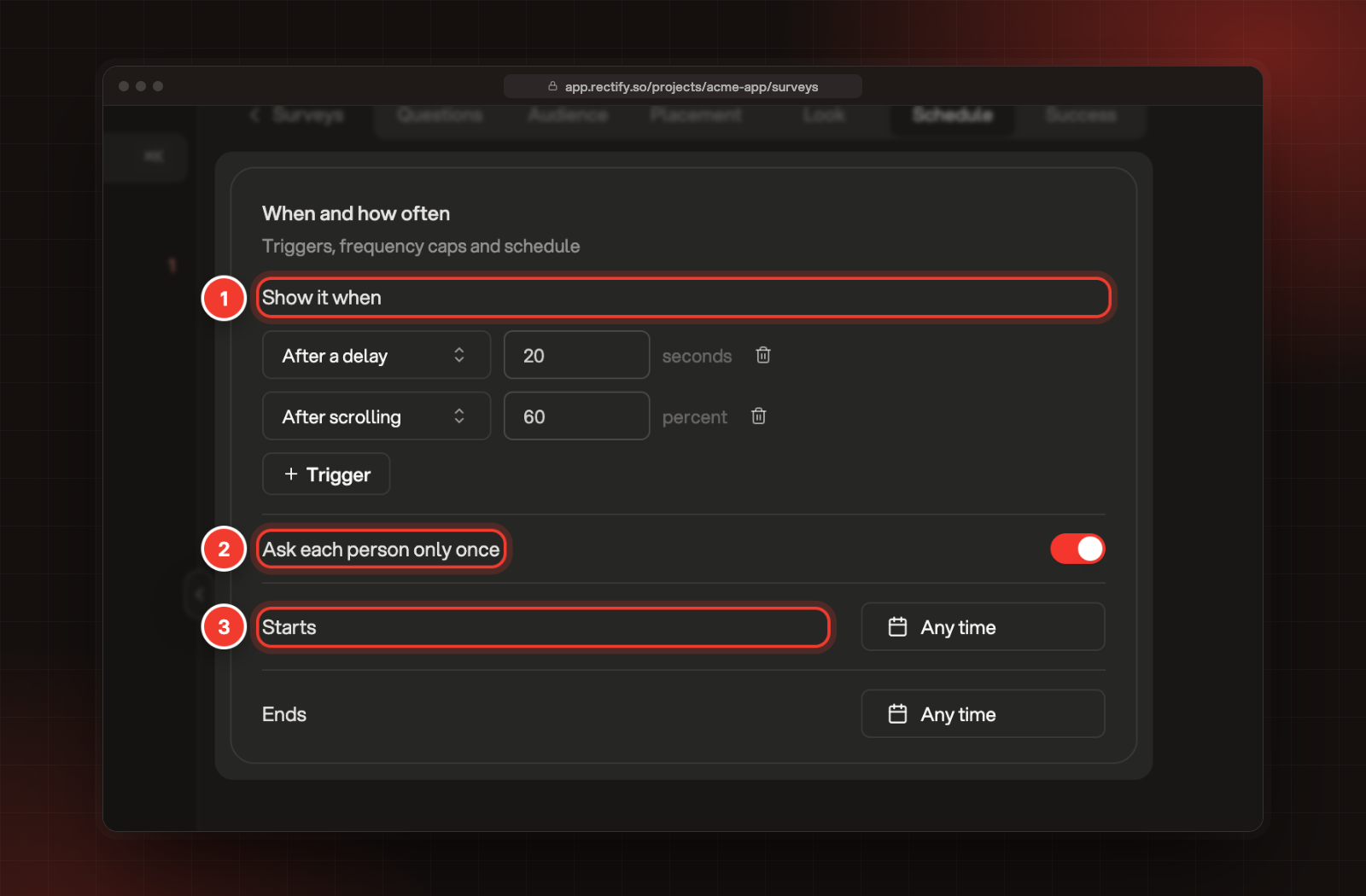
On the Schedule tab, under When and how often:
1.
Under Show it when, pick what makes the survey appear. Select Trigger to add up to three. The first one to happen shows the survey.
2.
Ask each person only once is on for new surveys. Switch it off to let the survey come back, then set how often.
3.
Optional: set Starts and Ends to run it between two dates. Leave them as Any time to run it whenever it's live.
1 Show it when. 2 Ask each person only once. 3 Starts and Ends.
Trigger
When the survey shows
Straight away
As the page loads, or after the number of seconds you enter.
After a delay
After the visitor has been on the page for the number of seconds you enter. New surveys start at 10.
After scrolling
Once the visitor scrolls down the percentage of the page you enter. It never shows on a page too short to scroll.
When leaving
When the pointer moves up out of the page, towards the address bar or close button.
After frustration
After Rage clicks, Dead clicks, Frantic scrolling or an Immediate bounce, or any of them. This needs frustration signals from analytics, which must be on for your project.
With Ask each person only once off:
•
Days before asking again: how long before it can show again. 0 means it can come back on the next visit.
•
Max times per person: how many times one person can see it. 0 means no limit. It starts at 1, so raise it to let the survey come back.
Someone who answers a survey is never asked it again. Ends runs through the end of that day.
How visitors see surveys
•
A survey shows at most once per page load. When several surveys match, the first one found shows.
•
While a survey is on screen, popup messages wait.
•
Surveys show even when you hide the widget's launcher, but not when the widget is switched off.
Troubleshooting
Nobody sees the survey
Check that it's Live, that today is between Starts and Ends, and that the page matches Only on these pages. With Known contacts, the visitor must be identified. Someone who already answered it, or already saw it as many times as you allow, isn't shown it again.
It says "This trigger will never fire until you turn analytics on"
After frustration needs analytics on for your project. Pick another trigger, or turn analytics on.