Connect your Resend account so campaigns, and if you like your other project emails, go out from an address on your own domain.
3 min readUpdated 24 days ago
Before you start. Only Owners and Admins can connect an email provider. You need a Resend account with your sending domain added and verified there. Resend is the email provider campaigns use for now.
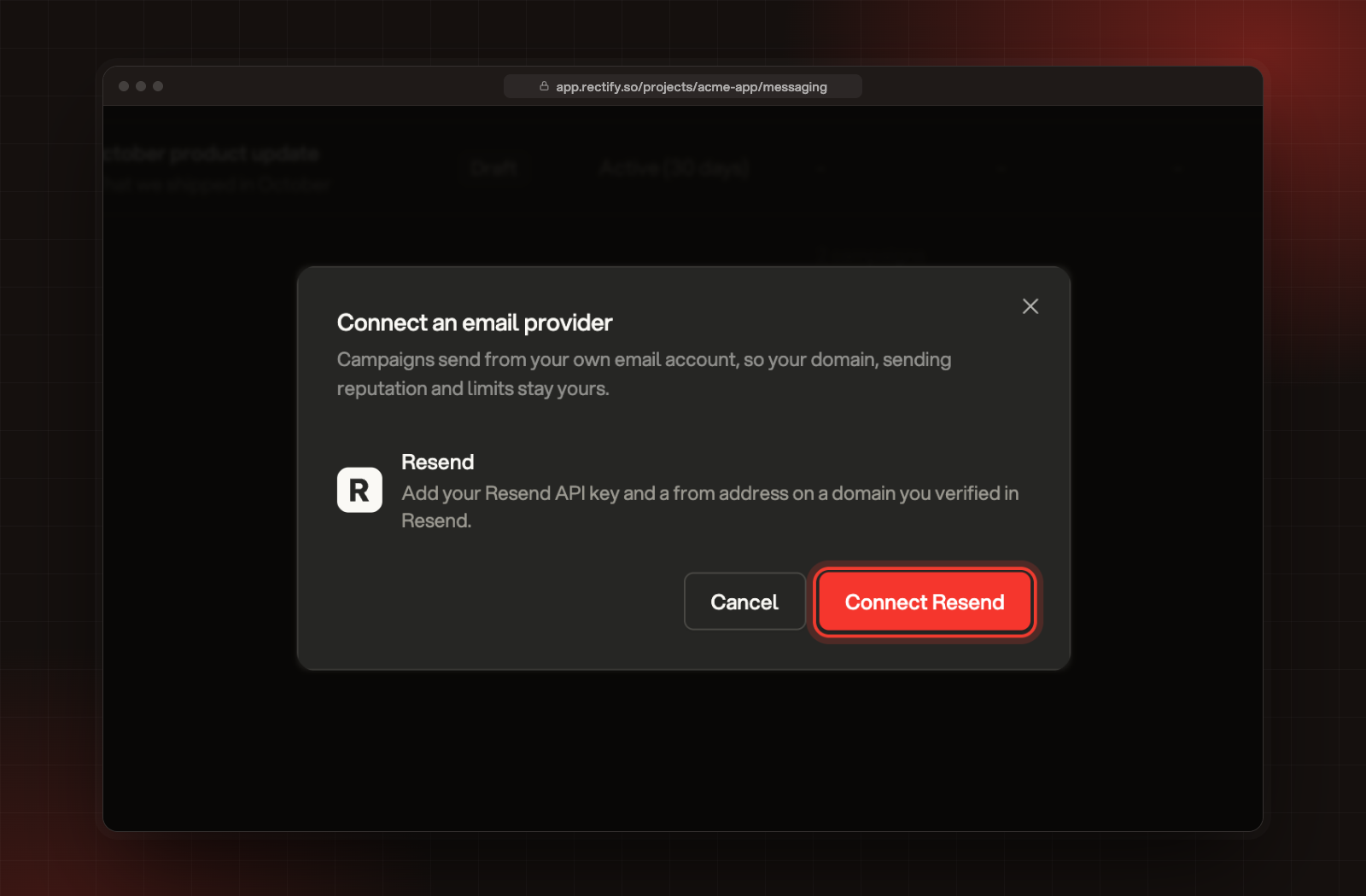
Campaigns always send from your own email account, so your domain, your sending reputation and your sending limits stay yours. Until a provider is connected, starting a campaign asks you to connect one.
Connect an email provider, shown when you start a campaign before connecting one.
Get your domain ready in Resend
1.
Sign in at resend.com.
2.
Under Domains, add your sending domain and finish verifying it.
3.
Under API Keys, create a key with Full access.
Rectify uses a full access key to set up bounce and spam complaint tracking in your Resend account. With a sending-only key, emails still go out, but bounces and complaints aren't tracked.
Connect Resend
1.
In your project, open Project settings, then Integrations.
2.
Select Resend.
3.
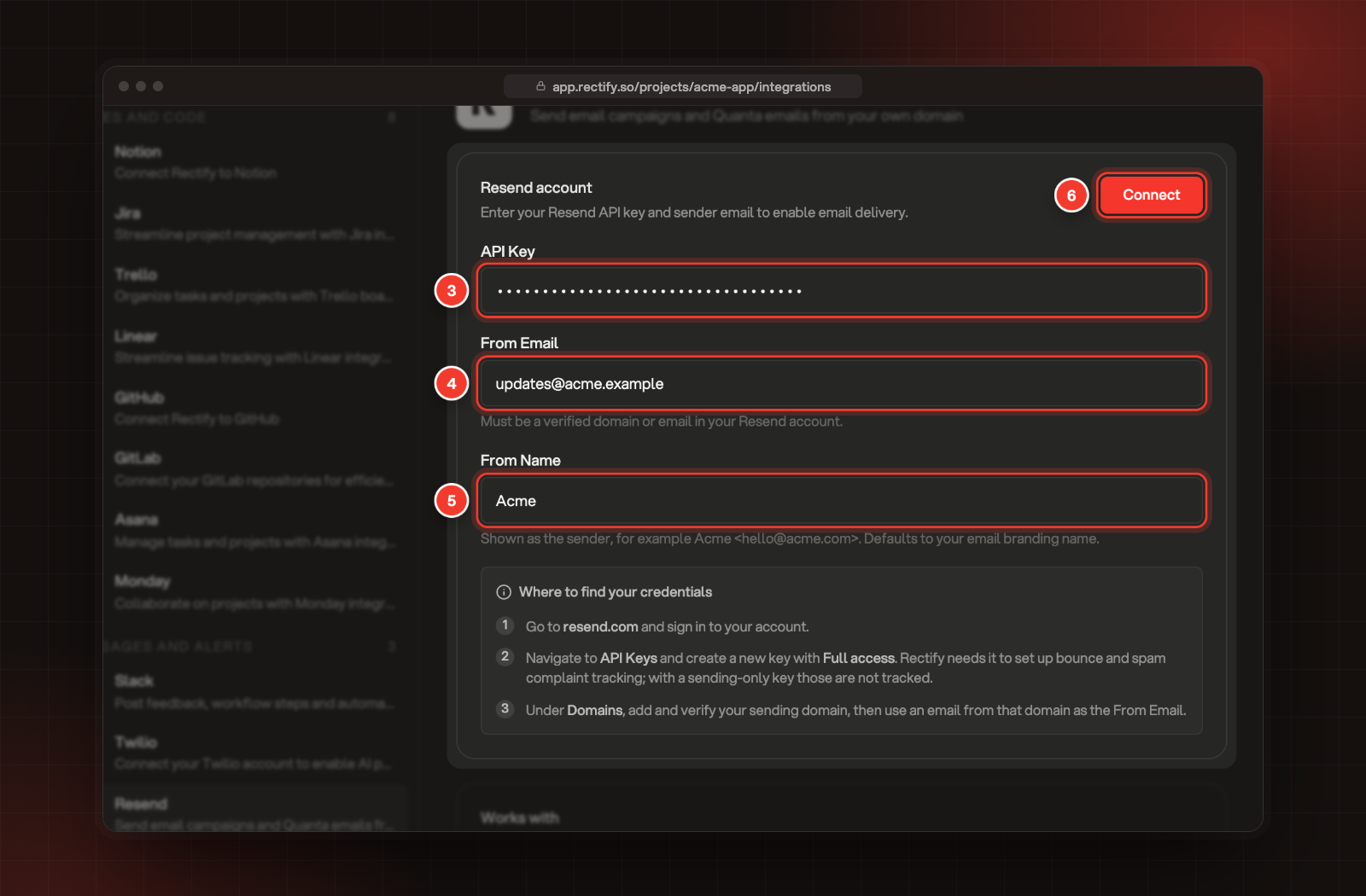
Paste your API Key.
4.
Enter the From Email. It must be on a domain you verified in Resend.
5.
Optional: enter a From Name, for example your company name. Without one, Rectify uses the name from your email branding.
6.
Select Connect.
3 API Key. 4 From Email. 5 From Name. 6 Connect.
Rectify checks the key and makes sure the domain of your From Email is added and verified in your Resend account. When it says "Resend connected successfully", you're ready to send.
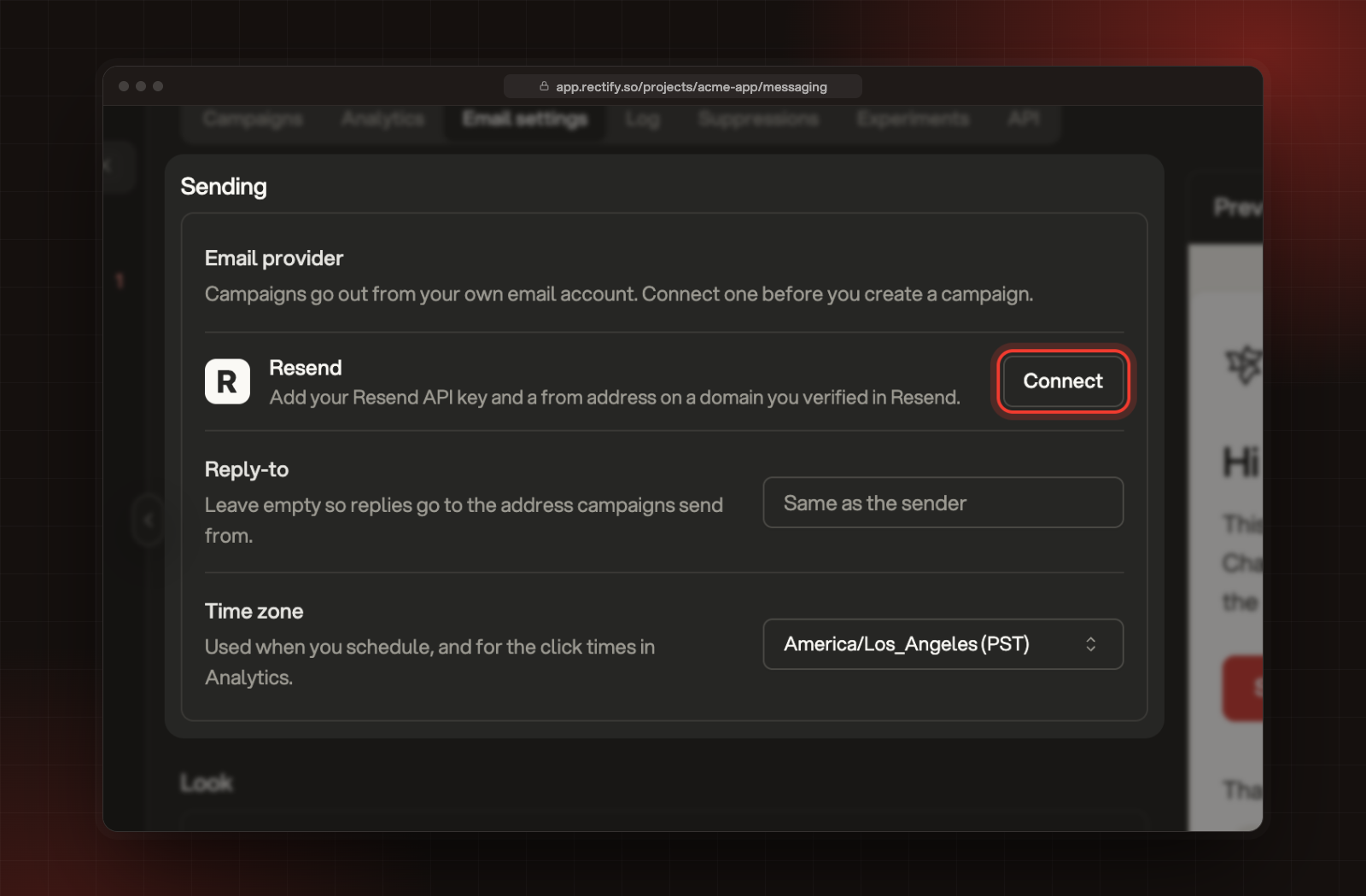
You can also reach it from Messaging: open the Email settings tab and select Connect next to Resend under Sending.
Sending on the Email settings tab, with Connect next to Resend.
Check how campaigns send
Open Messaging, then the Email settings tab. Under Sending:
Setting
What it does
Email provider
Shows Resend as Connected, with the name and address campaigns send from.
Reply-to
Where replies go. Leave it empty and replies go to the address campaigns send from.
Time zone
Used when you schedule a campaign, and for the click times in Analytics.
Each campaign can still use its own From name and Reply-to in its Email settings.
Send your other emails from your domain
Rectify sends your project's other emails itself unless you switch them over. Once Resend is connected:
1.
Open Project settings, then Email notifications, and select the General tab.
2.
Under Sending domain, switch on what should go out from your address:
•
Changelog and Quanta emails: changelog updates to subscribers, and emails Quanta sends for you.
•
Project emails: feedback, chat, mentions and portal sign-in codes sent to your users. If Resend fails, these fall back to Rectify so sign-ins keep working.
Disconnect Resend
Open Project settings, Integrations, Resend, and select Disconnect under Disconnect Resend. Rectify removes the key and the bounce tracking it set up. A campaign that's sending when you disconnect pauses, and you can resume it once a provider is connected again.
Troubleshooting
It says "Invalid Resend API key format. Should start with re_."
Copy the whole key from Resend again. Resend keys start with re_.
It says "Resend did not accept this API key. Check it and try again."
The key was deleted or mistyped. Create a new key in Resend and paste it.
It says the domain "is not added to your Resend account" or "is not verified in Resend yet"
The From Email must be on a domain in your Resend account that has finished verifying. Add or verify it under Domains in Resend, then select Connect again.
It says "Bounces and spam complaints are not tracked"
Rectify couldn't set up tracking in your Resend account, usually because the key has sending access only. Disconnect Resend and connect it again with a Full access key.