How visitors become contacts, how companies are grouped, and how to search, filter and tidy up the list.
4 min readUpdated 2 days ago
Before you start. Contacts work on every plan. Everyone in the project can view, tag, merge and delete contacts.
Contacts lists everyone the Rectify script has seen on your site, from first-time visitors to paying customers, and groups them into the companies they work for.
Where contacts come from
•
Visitors: anyone who loads a page with the Rectify script becomes a contact straight away, even before you know who they are.
•
Identified people: once you tell Rectify who someone is, with a user ID or an email, their earlier visits join their named record. They can also identify themselves by signing in to your portal or by submitting a form with an email on your site.
•
Discord: when your project is connected to Discord, everyone who sends an idea or a bug report from your server, or upvotes or follows a request there, becomes a contact named after their Discord name. They have no email address. Collect ideas and bug reports from Discord explains how.
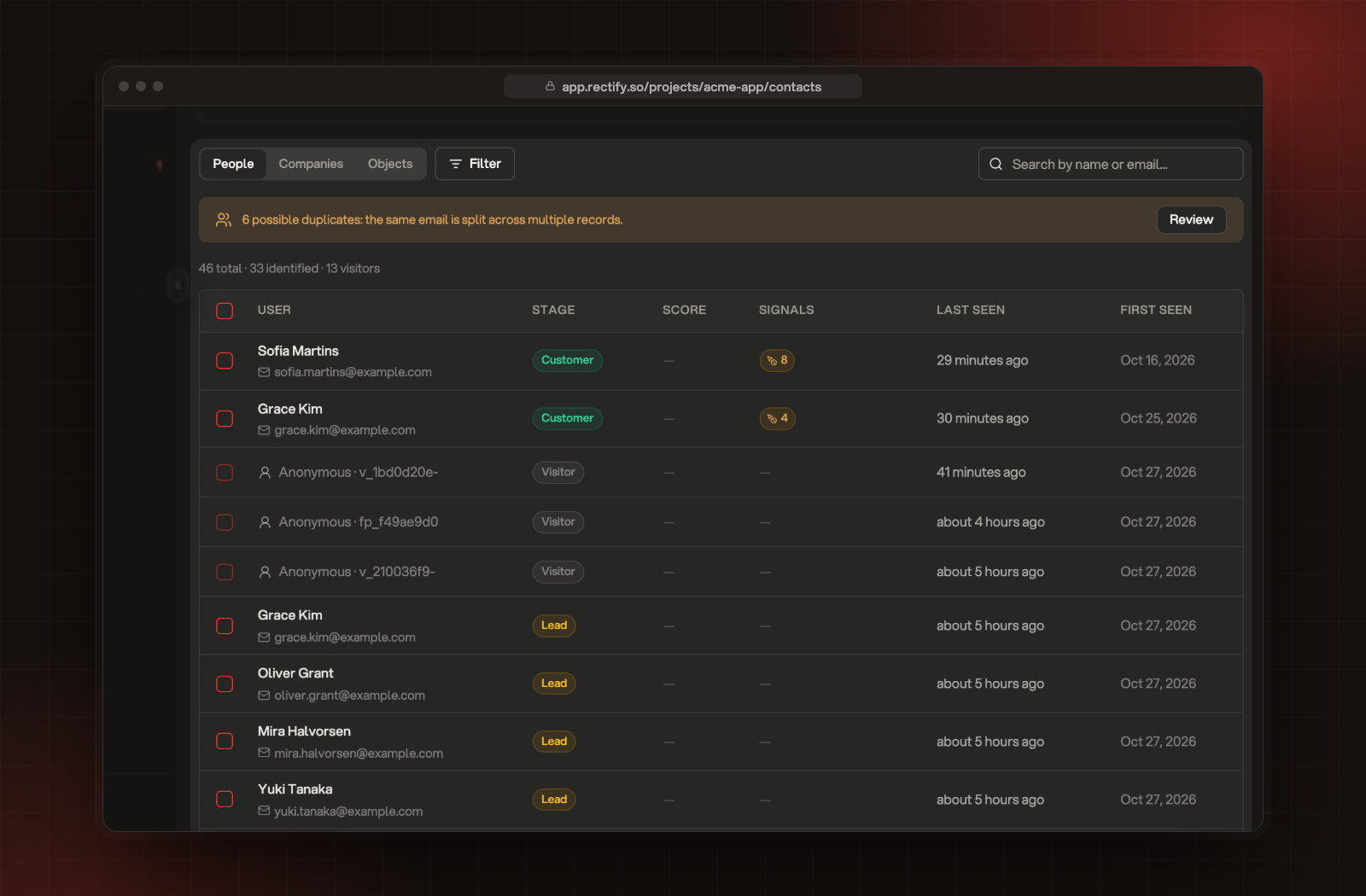
Open Contacts in the sidebar, under Customers. The People tab lists everyone, most recently seen first. The line above the list counts the total, how many are identified, and how many are anonymous visitors.
The People tab with the count line, filters and search.
Column
What it shows
User
Name and email, or Anonymous and a short ID.
Stage
Visitor, Lead, User, Customer or Churned.
Score
Their lead score, when there is one.
Signals
Rage clicks, dead clicks and other friction in the last 7 days.
Last Seen and First Seen
When they were last and first on your site.
Stage is worked out for you:
•
Customer: they or their company have a paid plan or monthly revenue (plan or mrr sent with identify).
•
Churned: their status or their company's status is churned or cancelled.
Type a name or email in Search by name or email...
2.
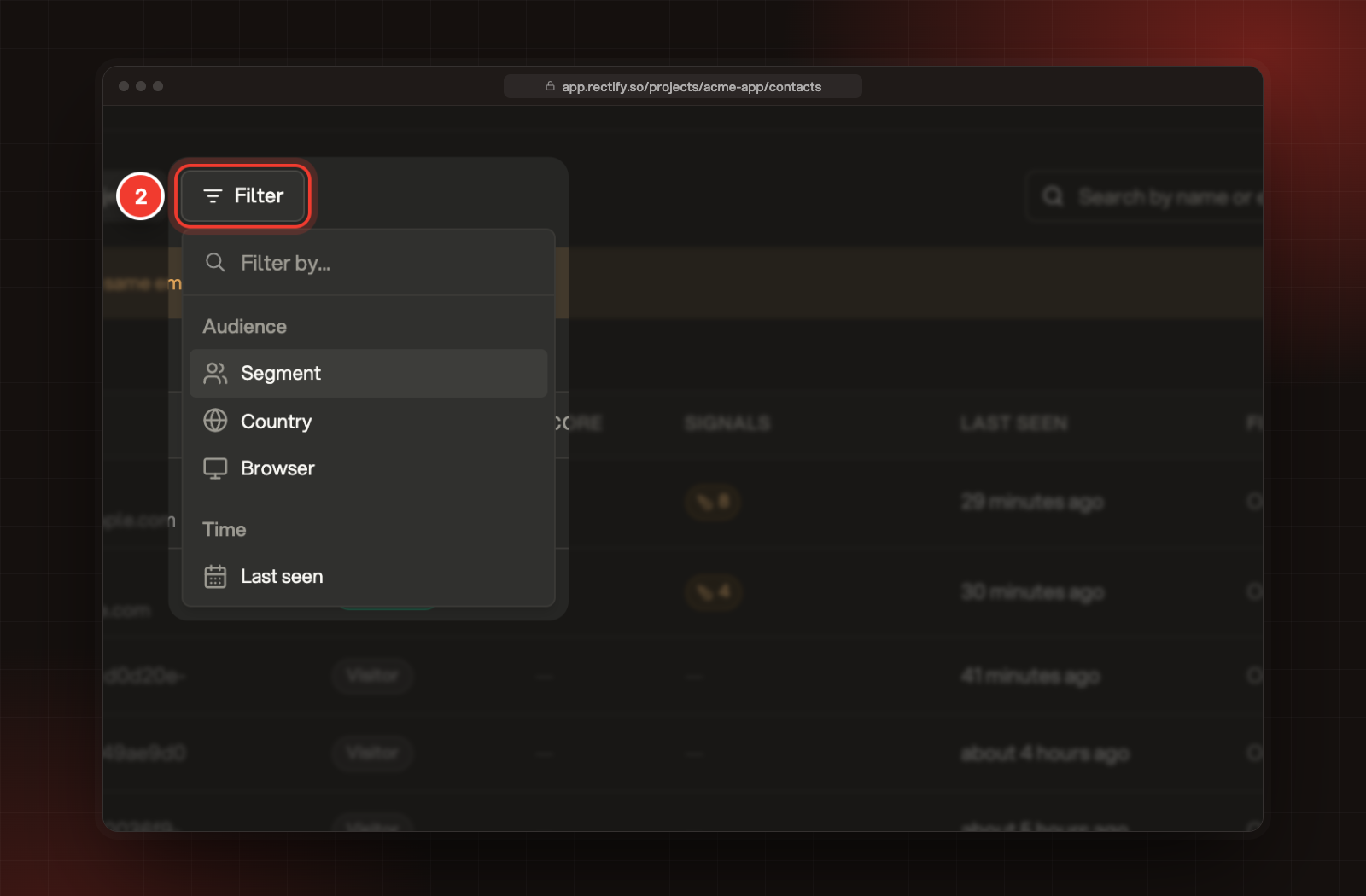
Select Filter and pick one:
•
Segment: people in one of your saved segments.
•
Country or Browser: anyone who has visited from there or with it.
•
Last seen:Today, Last 7 days, Last 30 days, Last 90 days or Custom range.
3.
To change a filter, select its pill. To clear everything, select Reset.
2 The Filter menu.
See companies
Select the Companies tab. Rectify groups people into companies in this order:
1.
The company ID you send with identify (company.id).
2.
The company domain you send (company.domain).
3.
The domain of their work email. Personal addresses such as Gmail and Outlook are left out.
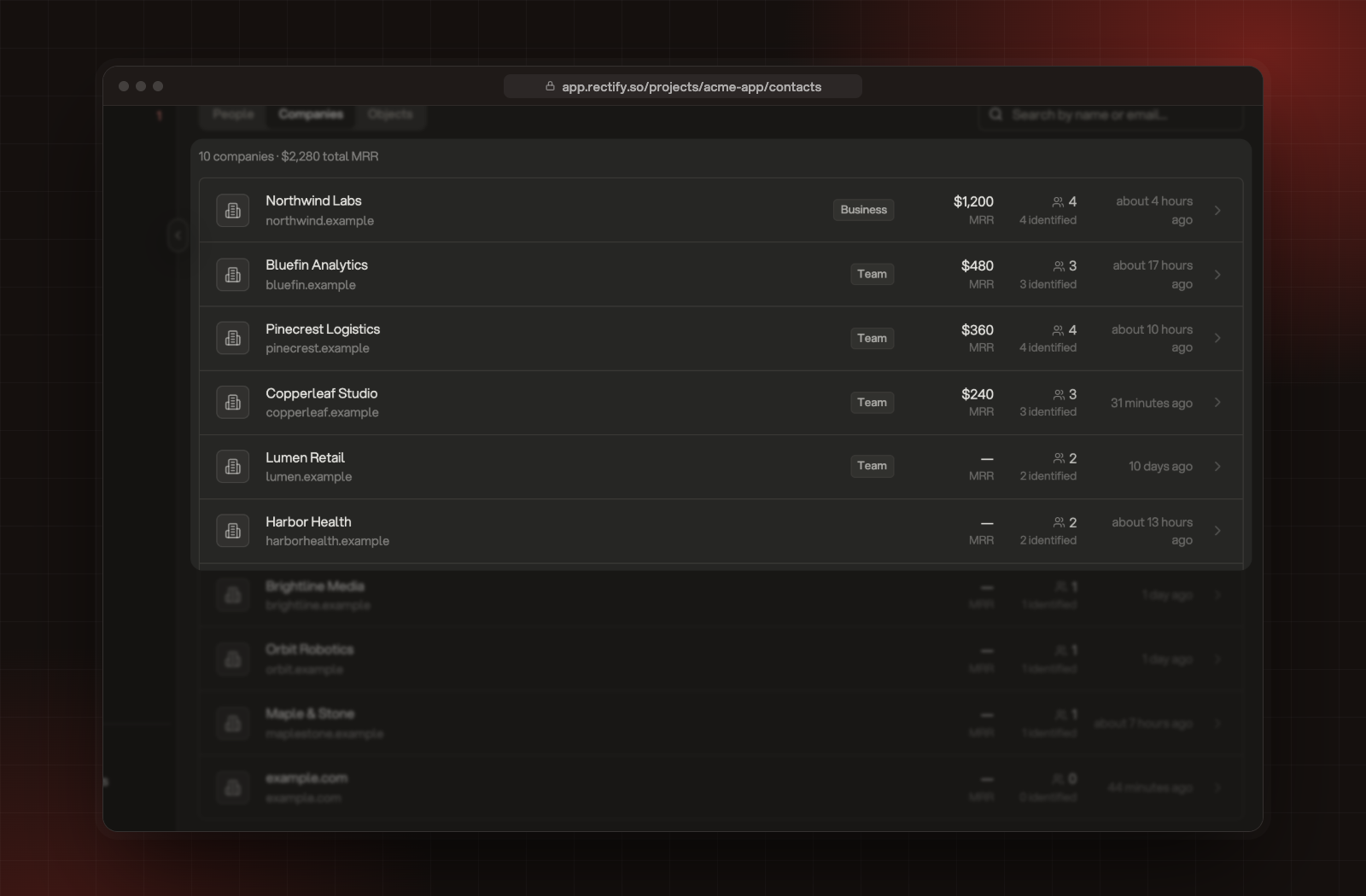
Each company shows its plan, monthly revenue (MRR), how many people you've seen from it and how many are identified, and when someone from it was last on your site. The list is sorted by MRR, and the line above it adds up the total.
The Companies tab, sorted by MRR.
Select a company to see its details and its people:
•
MRR, Plan, Seats, Members, First seen and Last seen.
•
Stage:Prospect, Trial, Customer or Churned. Rectify sets it from what you send, and you can change it. Once you change it, Rectify leaves your choice alone.
•
Tags and Notes for your team.
•
Recount, which counts the company's people again.
•
People: up to 25 people. When there are more, select View all to see everyone from the company on the People tab.
Merge duplicates
When the same email is split across more than one contact, a banner above the list reads, for example, 2 possible duplicates: the same email is split across multiple records.
1.
Select Review.
2.
Select Merge next to each email. The identified record stays, and the others fold into it.
Merging can't be undone. You can also merge two contacts by hand from a profile, with Merge.
Delete a contact
1.
Open the contact's profile.
2.
Select Delete, then Confirm delete.
Rectify erases the person and everything recorded about them, including their events on other devices and any emails waiting to be sent to them. This can't be undone.
Check it worked
The count line above People shows how many contacts you have. A company you send with identify appears on the Companies tab with its people.
I see "No Contacts Yet"
The Rectify script isn't on your site yet, or nobody has visited since you added it. Select Let's GO! for the install steps.
A company shows up as its domain name
Rectify grouped these people by their email domain because you didn't send a company name. Send company.name with identify and the name appears.
Someone with a Gmail address has no company
Personal email domains never form companies. Send a company with identify to put them in one.