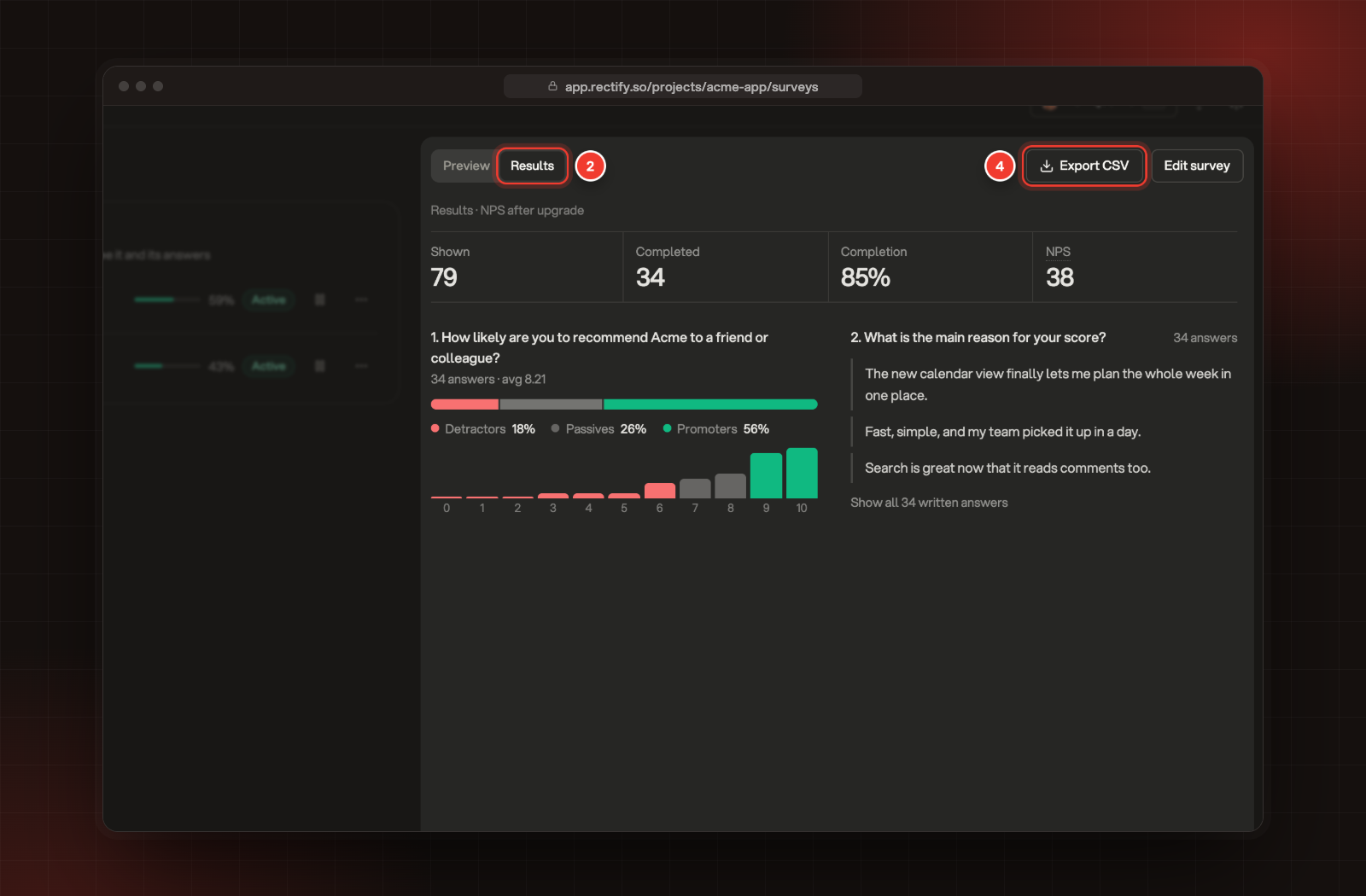
See how many people saw and finished a survey, your NPS and satisfaction scores, every answer, and export the responses as a CSV.
3 min readUpdated 24 days ago
Before you start. Everyone on your team can read and export survey results, on every plan.
Open the results
1.
In your project, open Customers, then Surveys, and select the Surveys tab. Select a survey in the list.
2.
Select Results above the survey preview. On a narrow screen, the results open under the survey in the list.
3.
Read the numbers at the top, then each question's answers below.
4.
To take the answers elsewhere, select Export CSV.
2 Results. 4 Export CSV.
What the numbers mean
Number
What it counts
Shown
How many times the survey was shown.
Completed
How many people answered to the end.
Completion
Of the people who answered at least one question, the share who finished.
NPS
Promoters (9 to 10) minus detractors (0 to 6), as a percentage. It shows when the survey has an NPS question. Point at it to see how many answers it comes from.
CSAT
The share of people who rated 4 or 5 out of 5. It shows when the survey has a Satisfaction question.
The bar in the survey list is different: it shows completed answers as a share of the times the survey was shown.
Only finished responses count in the scores and in each question's answers. Unfinished ones count toward Completion and appear in the export.
Each question's answers
Each question shows how many people answered it, and for scales, the average.
Question type
What you see
NPS
The share of Detractors, Passives and Promoters, and how many people picked each score from 0 to 10.
Satisfaction, Effort and Rating
How many people picked each score.
Pick one, Pick many and Yes / No
How many people picked each option, most picked first.
Free text and Email
The three newest answers.
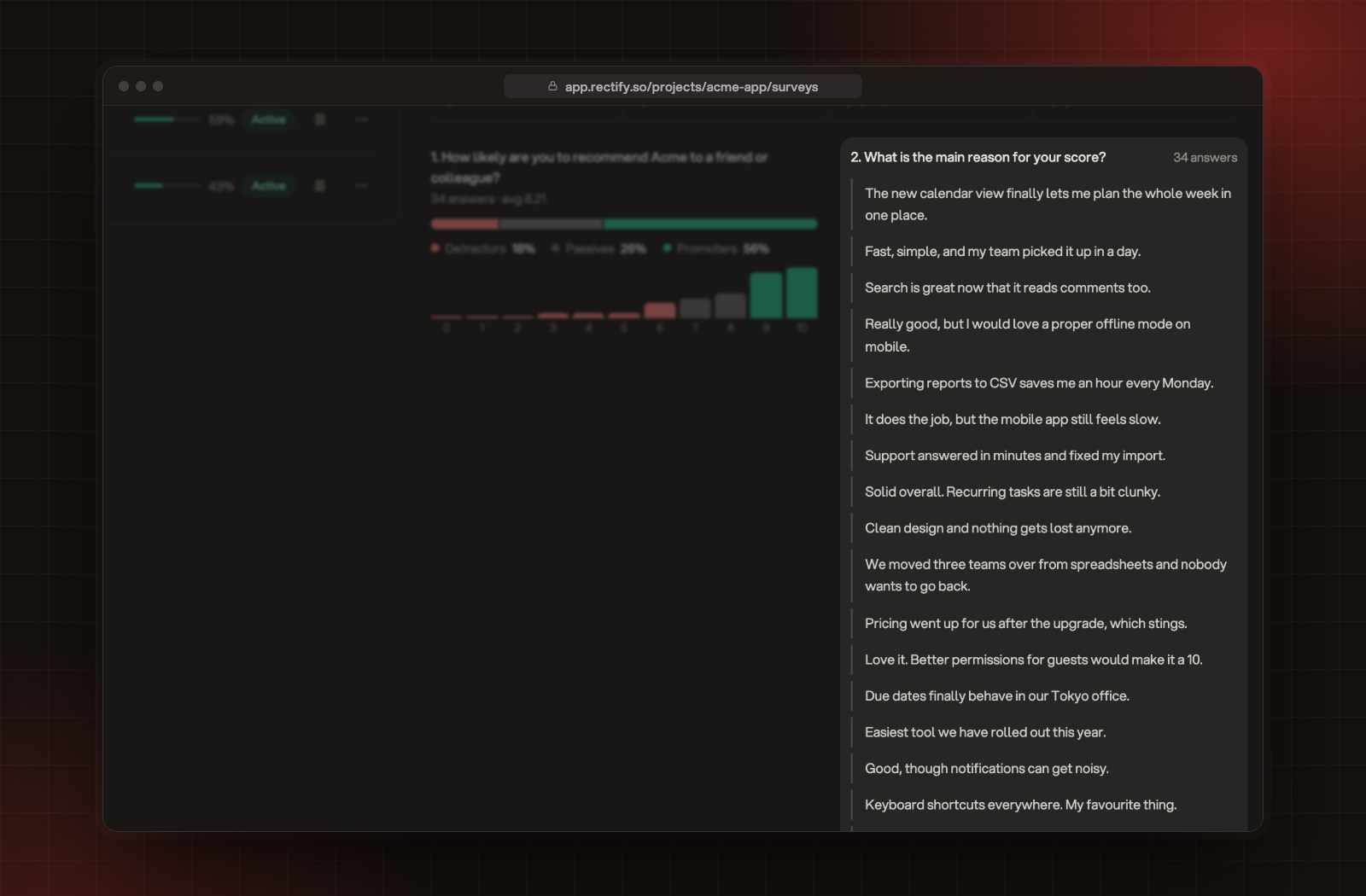
To read more written answers, select Show all and the number of answers under the question. Rectify shows up to the 100 newest. The export has every one.
The written answers to an NPS follow-up question.
Export the responses
Export CSV shows once a survey has at least one finished response. The file has one row per person, newest first, including people who didn't finish. Its columns are Response id, Visitor id, Started at, Completed at, Completed (yes or no) and Page, then one column for each question. When someone picked several options, they're separated by semicolons.
Troubleshooting
It says "No answers yet"
Nobody has finished the survey yet. Below it, Rectify tells you why:
•
"This survey is a draft. Publish it and answers appear here as visitors respond." Select Publish to put it live.