
How integrations work
What each integration does, when Rectify sends things to your other tools, who can connect them, and how to pause or disconnect one.
5 min readUpdated 2 days ago
Before you start. Integrations don't need a paid plan. Everyone who can open a project can connect, change and pause its integrations. Only Owners and Admins can disconnect one. Resend goes further: only Owners and Admins can connect it, turn it on or off, or remove it.
Integrations connect a Rectify project to the tools your team already uses, such as GitHub, Jira or Slack. Each project has its own: connecting Slack in one project doesn't connect it in your other projects.
Find your integrations
Open Project settings, then Integrations.
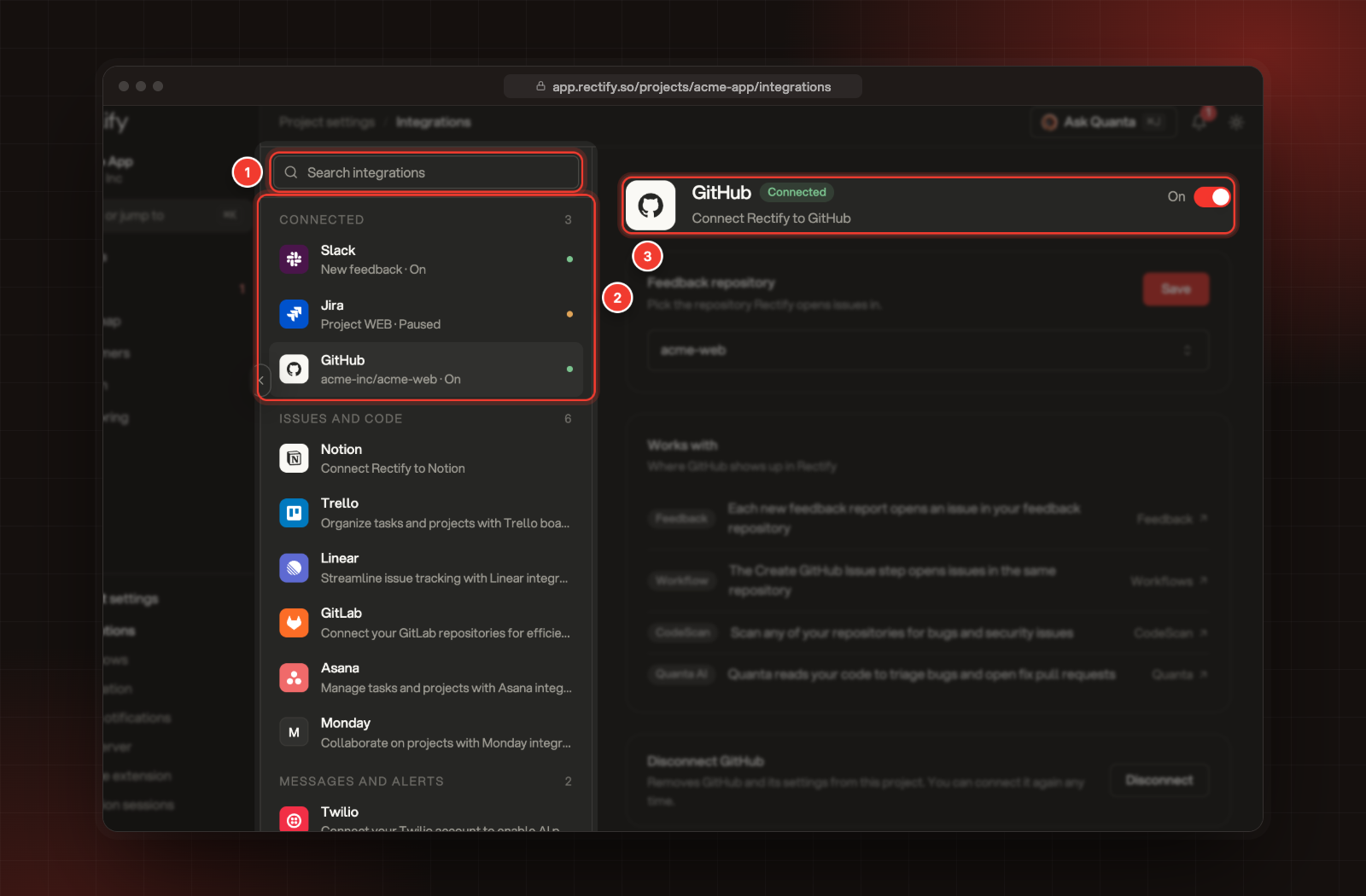
The list on the left has every integration:
•
Search integrations finds one by its name, what it does, its group, or a feature it works with, such as "Workflow".
•
Connected sits at the top and holds everything connected in this project. Each one shows its setting, such as a repository or project, and whether it's On (green dot) or Paused (amber dot).
•
The rest are grouped into Issues and code, Messages and alerts, Automation and Customer tools.
Select an integration to open it on the right. Until it's connected, you see Connect and a Works with card that lists where it shows up in Rectify. Once it's connected, you see its status, its settings and a way to disconnect it.
What each integration does
Each integration has its own setup guide:
•
Most of the integrations that create issues, cards or tasks also add a step to Workflows, such as Create Jira Issue or Send to Slack. The step uses the same connection and the same project, board or channel.
When Rectify sends things
•
Issue trackers and task tools get each new feedback report once, as soon as it arrives. Every type of report is sent. Changes made later, in Rectify or in the other tool, aren't synced either way.
•
Slack and Webhook send each new report by default. You can pick other events instead, such as a status change or a new contact.
•
Workflow steps only send something when a workflow runs.
•
Discord works both ways. People in your server send ideas and bug reports into Rectify, and Rectify posts cards and changelog entries and sends DMs as things change.
Reports that arrived before you connected an integration aren't sent.
Pause or disconnect an integration
•
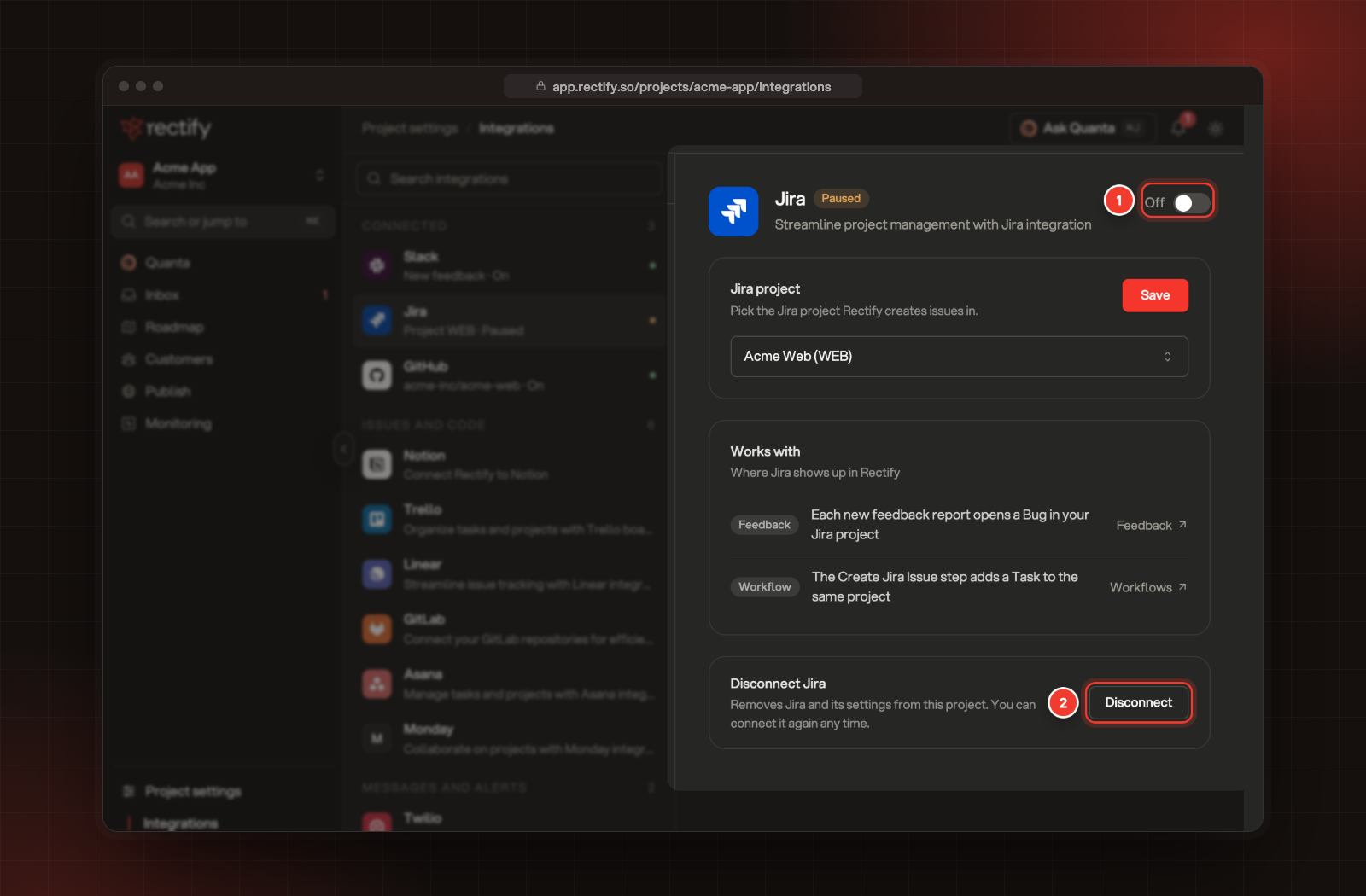
Pause: turn the switch at the top of the integration to Off. Nothing is sent, and workflow steps that use it fail, until you turn it back On. Your settings stay as they are, and the list shows Paused.
•
Disconnect: select Disconnect at the bottom. The integration and its settings are removed from this project straight away, with no confirmation. You can connect it again any time. Only Owners and Admins see Disconnect.
Troubleshooting
I connected a tool but nothing arrives
Check that the integration shows On in the list, and that its settings point where you expect, such as the right repository or project. The account you connected with must be able to create issues there. Only reports that arrive after you connect are sent.
A workflow run fails with "... integration not enabled for this project"
The integration the step uses is turned off or isn't connected in this project. Turn it On, or connect it, and run the workflow again.
Resend's buttons are greyed out
Only Owners and Admins can connect Resend, turn it on or off, or remove it. Ask one of them to do it.
I don't see Disconnect
Only Owners and Admins can disconnect an integration. Ask one of them, or turn the integration Off to pause it.
Read next
Was this helpful?
Your feedback shapes what we write next.
Related articles
Connect Trello, Asana or Monday.com
Turn every new feedback report into a Trello card, an Asana task or a Monday.com item on the board or project you pick.
Connect Slack
Post new feedback, or the events you choose, to a Slack channel, and use the same channel for workflow steps and alerts.
Connect Jira
Connect your Jira Cloud site so each new feedback report opens a Bug in the Jira project you choose.
Connect Zapier or Pabbly Connect
Start a Zap or a Pabbly Connect workflow from every new feedback report, and pass it on to thousands of other apps.