Change your name, photo and password, sign out other devices, and choose which alerts reach you.
2 min readUpdated 5 days ago
Your profile
Select your name at the bottom of the sidebar, then Profile. Your profile is the same in every organization you belong to.
•
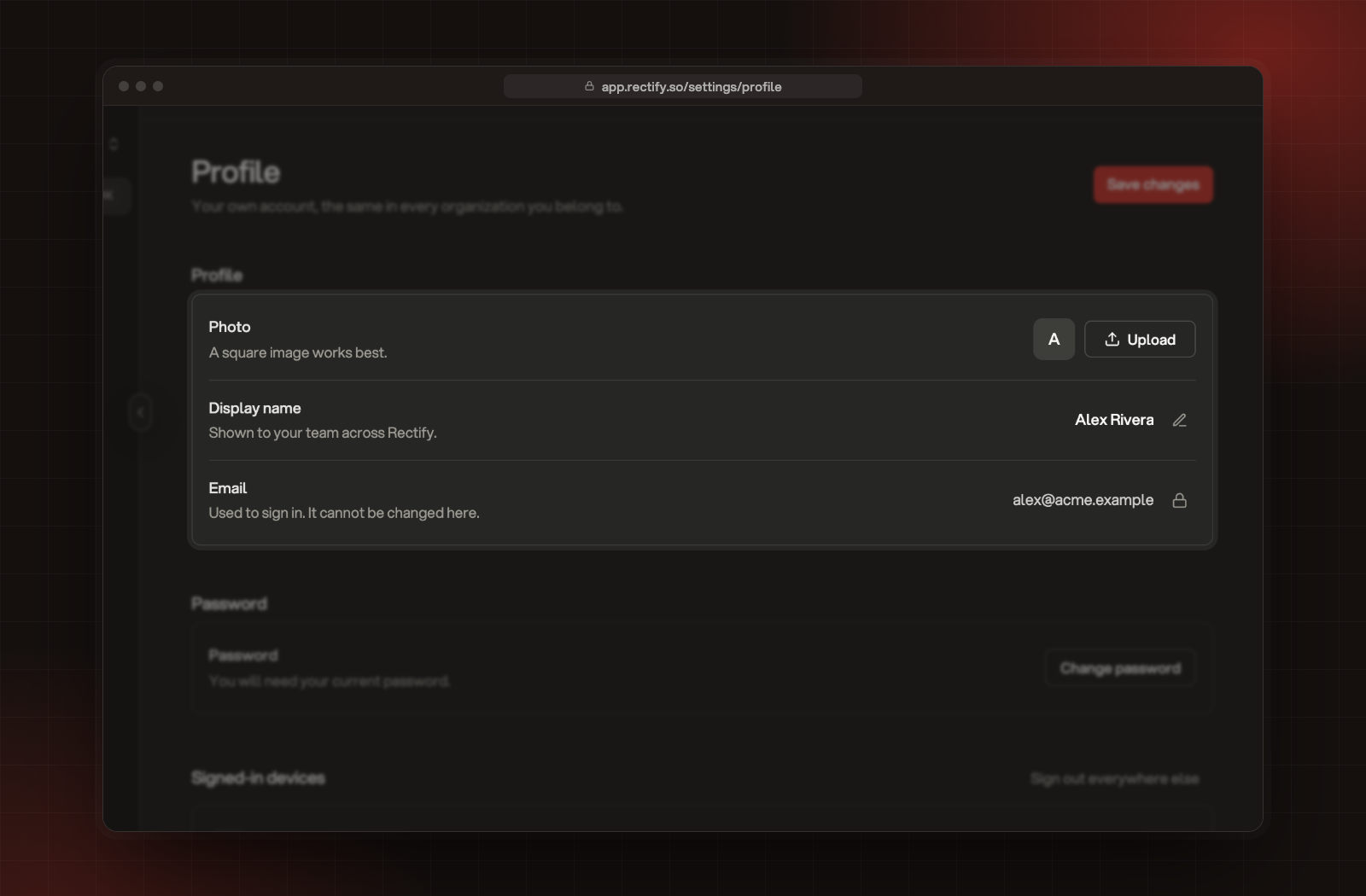
Photo: select Upload or Remove. It saves straight away.
•
Display name: the name your team sees. Select Save changes after you edit it.
•
Email: the address you sign in with. It can't be changed here.
Photo, Display name and Email on the Profile page.
Change your password
1.
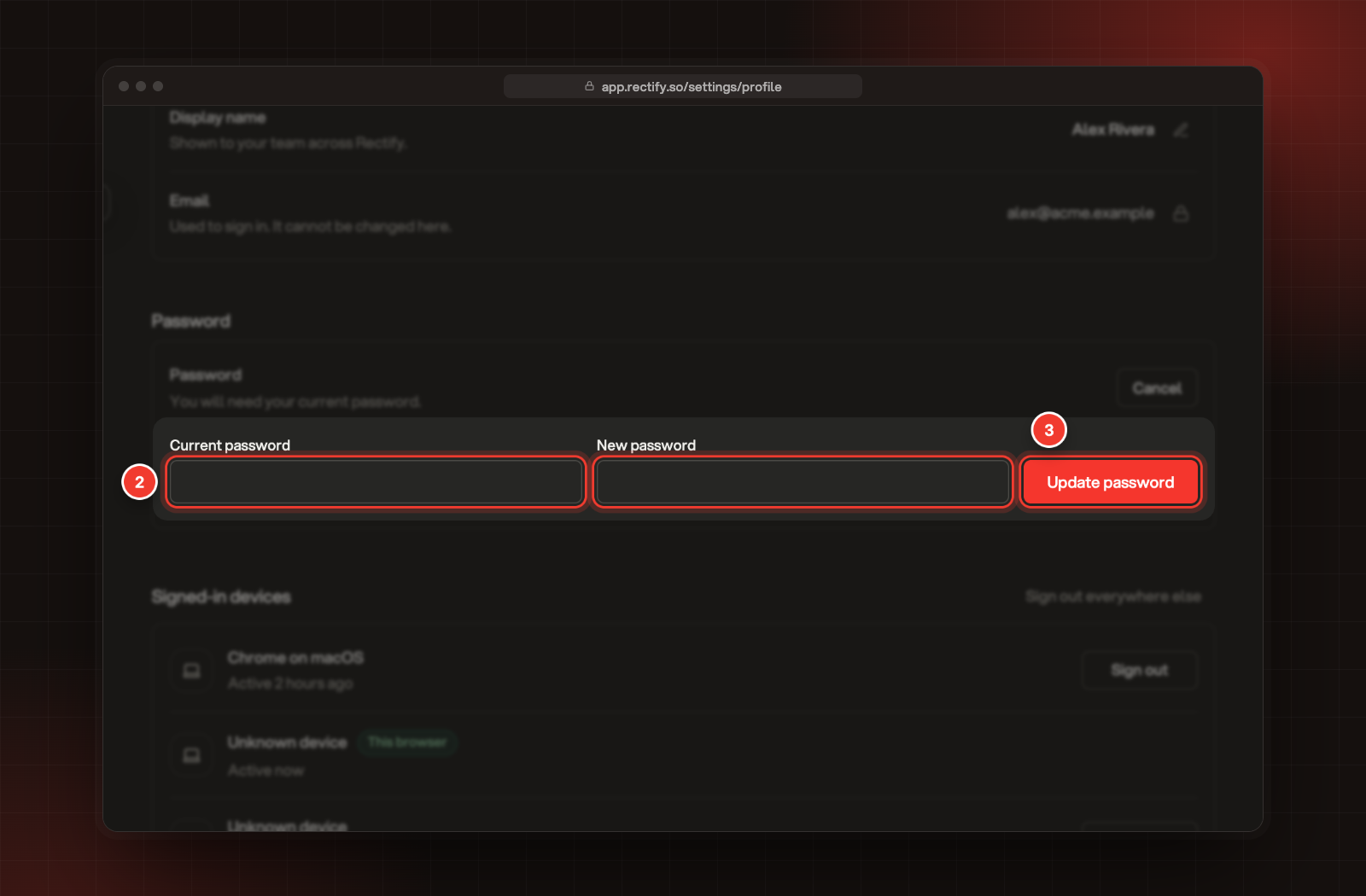
Under Password, select Change password.
2.
Enter your Current password and a New password.
3.
Select Update password.
2 Current and new password. 3 Update password.
Changing your password signs you out on every other device.
Sign out other devices
Signed-in devices lists the browsers and Chrome extension connections signed in to your account. Select Sign out on a row to end that session (Disconnect for an extension), or Sign out everywhere else to keep only the browser you're using.
Choose your notifications
Select your name at the bottom of the sidebar, then Notifications. These settings only change what you receive, and you set them for each organization you belong to.
•
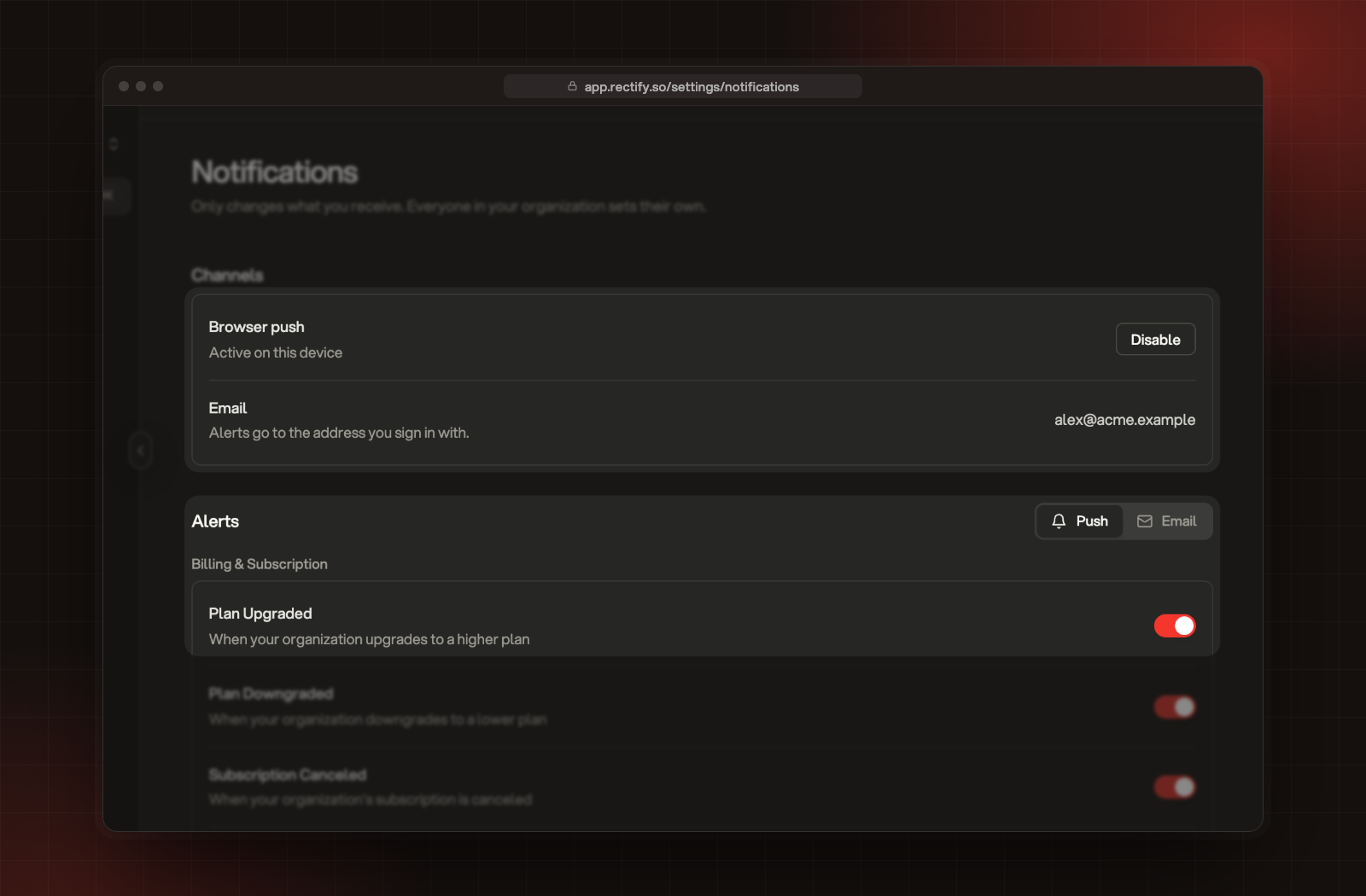
Browser push: select Enable to get alerts in this browser, or Disable to stop them here. Each browser has its own setting. If it says Off for this organization on all your devices, push was turned off for the whole organization, for example in the mobile app. Select Enable to turn it back on.
•
Email: email alerts go to the address you sign in with.
•
Alerts: in the Push and Email tabs, switch individual alerts on or off. They start switched on, apart from four push alerts: Member Invited, Role Changed, Workflow Completed and New Reaction on Changelog. The Push tab works once Browser push is enabled in this browser.
Channels and Alerts on the Notifications page.
If Browser push says it's blocked, click the padlock in your address bar and set Notifications to Allow, then select Enable again.
The emails your customers receive, such as feedback confirmations, are set for each project under Project settings, Email notifications.