Hold a shortcut in any text box on the web and talk. Rectify turns what you say into text where your cursor is.
3 min readUpdated 24 days ago
Before you start. Sign in to the extension and pick a project. You need a microphone. On the free Idea plan, voice typing is limited to 30 minutes a month, shared with dictation in Quanta; paid plans have no limit. Your audio goes to Rectify and its speech-to-text provider to become text, and Rectify doesn't keep it.
Allow the microphone
Chrome asks once before Rectify can use your microphone. On the welcome tab that opened when you installed the extension, select Allow microphone under Voice typing uses your microphone, then allow it when Chrome asks.
If you skipped that step, Rectify shows Rectify can't use your microphone yet the first time you try. Select Allow microphone in that message to go back to the welcome tab.
Type with your voice
1.
Click in the text box where you want the text.
2.
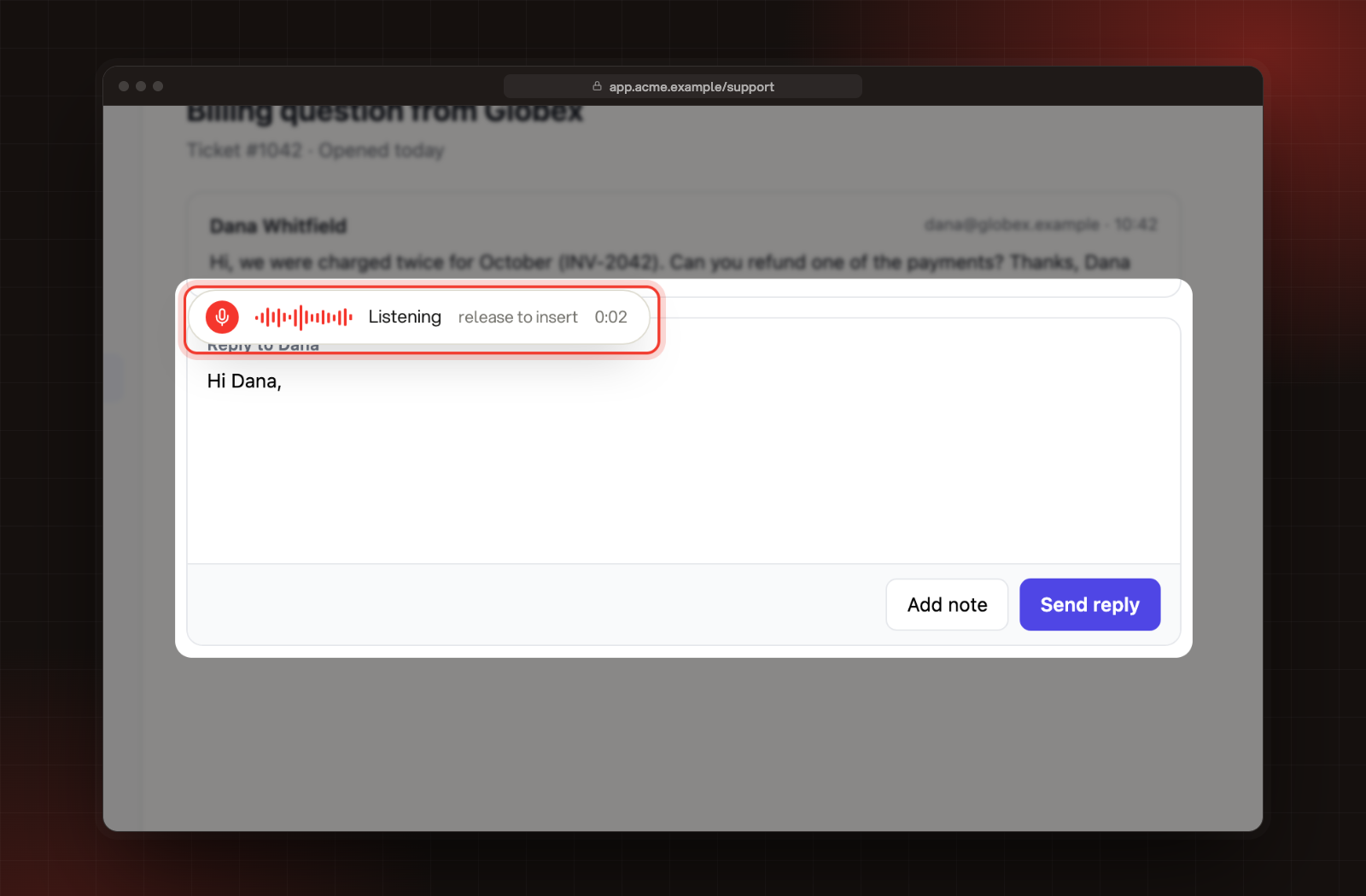
Press and hold Ctrl+Space. After a moment, a bar next to your cursor says Listening. Ctrl is the Control key on a Mac too.
The Listening bar, with release to insert and the time.
3.
Say what you want to write.
4.
Let go of the keys. The bar says Writing it down, then your words appear where your cursor was.
A quick tap doesn't start listening, so you need to hold the keys. Each take can last up to 2 minutes; at 2 minutes Rectify stops and writes what it heard. To throw a take away, press Esc while you're still holding the keys.
Voice typing works in text fields, text areas and editors on any website. It doesn't work in password fields.
Use a mic button instead
1.
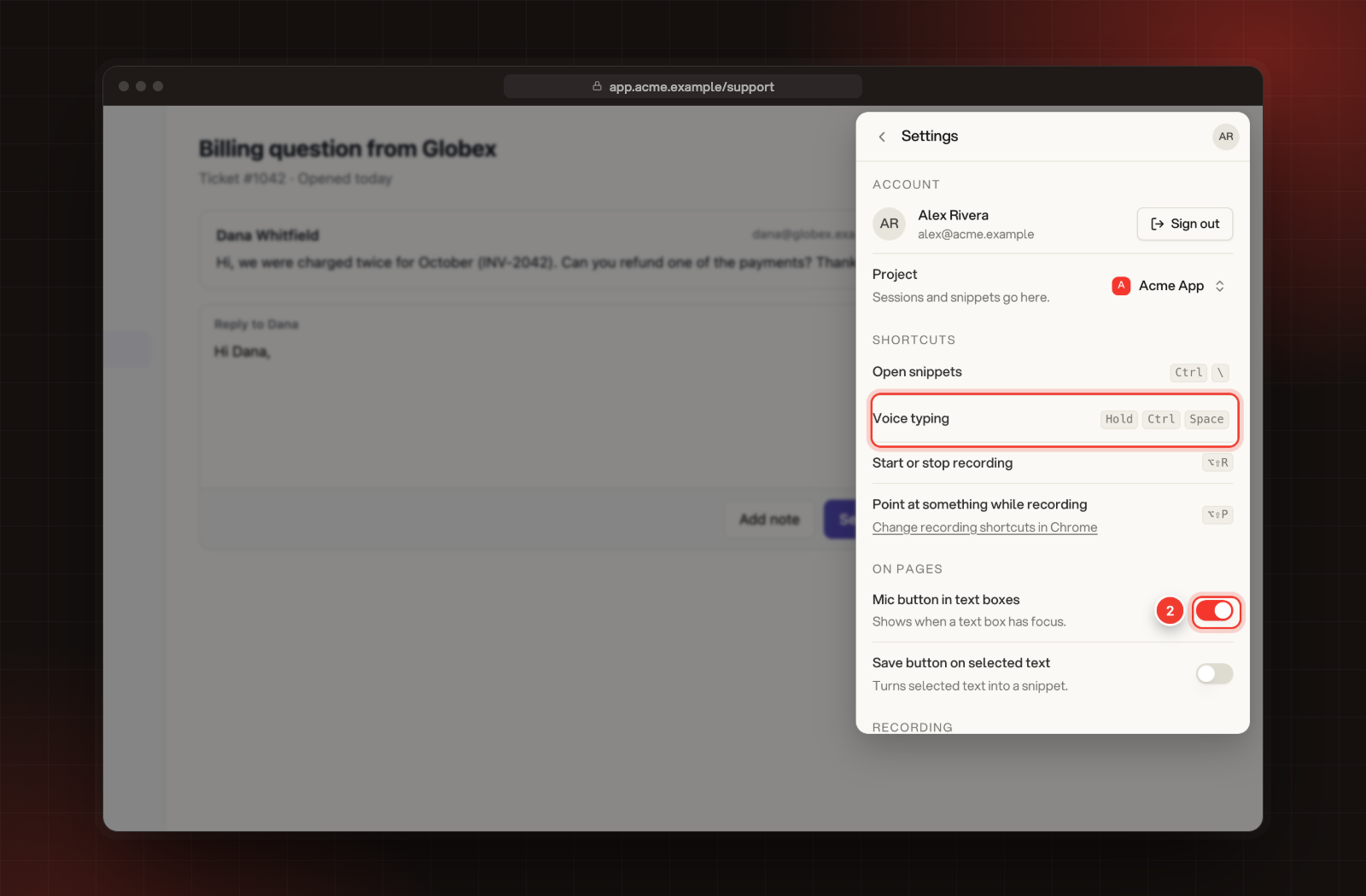
Open the Rectify popup and select the gear for Settings.
2.
Turn on Mic button in text boxes.
2 Mic button in text boxes, under On pages. The Voice typing shortcut is under Shortcuts.
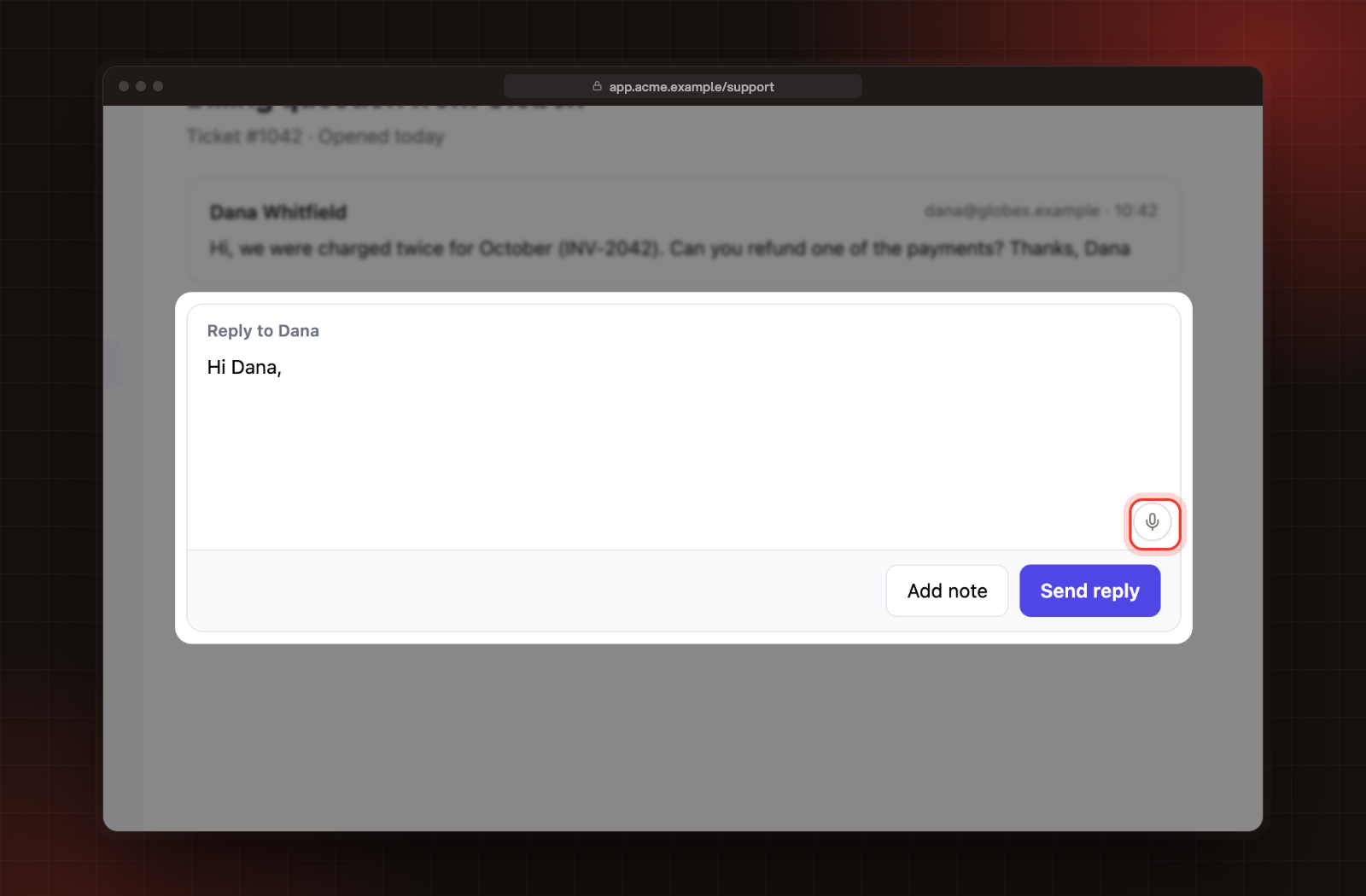
A mic button now shows inside a text box when you click into it. Select it to start listening, then select it again to stop and insert your words.
The mic button in the corner of a text box.
Change the shortcut or turn it off
In Settings, under Shortcuts, select the keys next to Voice typing, then press the new combination. It needs at least one of Ctrl, Alt, Shift or ⌘, plus one other key. Press Esc to keep the old one.
To turn voice typing off, use its switch under On every page in the popup. The shortcut and the mic button stop working until you turn it back on.
It says "Chrome blocked the microphone for Rectify"
The microphone was blocked for the extension. On the welcome tab, select Open site settings, set Microphone to allow, then come back and try again.
It says "The microphone didn't start"
Check that a microphone is connected, then try again.
It says "Nothing was recorded"
Keep holding the keys while you talk, and let go only when you've finished.
It says "Voice typing limit reached for this month"
You've used the 30 minutes included with the Idea plan this month. It resets on the 1st, or upgrade for unlimited voice typing.
Ctrl+Space does something else on my computer
Another app or your system may use the same keys. Pick a different shortcut in Settings, under Shortcuts.