Connect GitHub, pick a repository and branch, and get a report on bugs, security vulnerabilities and code smells.
3 min readUpdated 24 days ago
Before you start. Code Scan needs the Build plan or higher and a GitHub repository. Anyone on your team who can open the project can connect GitHub and start a scan. Only Owners and Admins can delete a scan or disconnect GitHub.
Code Scan reads the whole branch you pick and reports bugs, security vulnerabilities and code smells, each pointed at the file and line.
Connect GitHub
You only do this once per project.
1.
Open Monitoring, then CodeScan.
2.
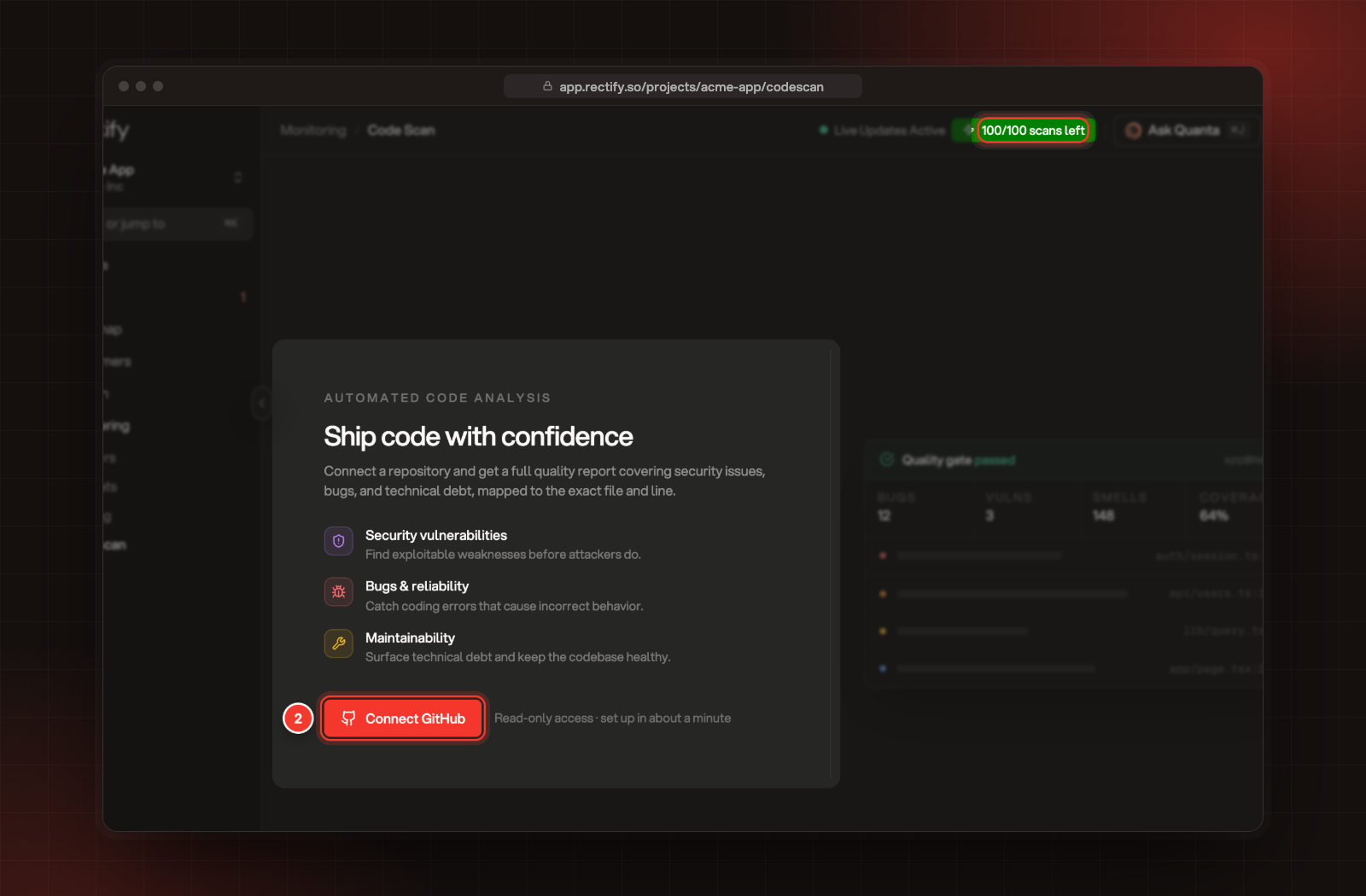
Select Connect GitHub.
2 Connect GitHub. The scans you have left this month are at the top.
3.
GitHub opens. Install the Rectify app on your account or organization, choose the repositories it can see, and approve.
GitHub sends you back to Code Scan, ready to run your first scan.
Run a scan
1.
On the Code Scan page, select Let's GO!. After your first scan, select New Scan at the top instead.
2.
Under Repository, pick the repository.
3.
Under Branch, pick the branch to scan.
4.
Select Start Scan.
The scan goes through four stages, Queued, Fetch, Analyze and Process, and the page shows its progress live. A scan usually takes a few minutes, longer for a large repository. You can leave the page and keep working.
Each scan replaces the previous results. Code Scan keeps the latest scan only.
•
The scan uses the branch as it is on GitHub, so push your changes first.
Scans on each plan
Plan
Scans a month
Idea (free)
None
Build
10
Launch
25
Accelerate
100
Enterprise
Unlimited
Scans count across your whole organization, and the count resets on the 1st of each month. A scan counts when it starts, even if it fails. The badge at the top of the Code Scan page shows how many you have left, such as "8/10 scans left".
Check it worked
After you select Start Scan, you see "Scan started successfully!", and the page shows Scanning your repository with the repository and branch. When it's done, the page shows Quality gate passed or Quality gate failed and the issue list.
It says "Reconnect required" or "Couldn't load your repositories"
Rectify can no longer reach your repositories on GitHub, often because the app's access was changed or removed. Select Re-authenticate and approve the Rectify app on GitHub again. Check it can see the repository you want to scan.
It says "You've reached the maximum number of code scan quotas per month"
Your organization has used every scan on its plan this month. Wait for the count to reset on the 1st, or upgrade your plan. On the free Idea plan, Code Scan isn't included.
It says "A scan is already in progress for this project"
Each project runs one scan at a time. Wait for the current scan to finish, then start the next one.
The scan failed
The page shows Scan failed with the reason. Check the repository and branch still exist on GitHub and that Rectify can still see them, then start a new scan.