What Quanta can read and change in your project, where its answers come from, and how to use prompts, models, files and your GitHub repository.
5 min readUpdated 5 days ago
Before you start. Everyone who can open a project can chat with Quanta there. Quanta runs on your own AI provider key, or on the Rectify credits that come with paid plans. A few changes are for Owners and Admins only, listed below.
Meet Quanta, your AI teammate shows where Quanta lives. This article covers everything it can do once you start asking.
What Quanta can look at and change
Quanta reads your project live every time you ask, so its answers use today's numbers. When you ask for a change, Quanta prepares it and waits for you to confirm. Ask Quanta and approve its changes explains how that works.
Area
Ask about
Ask it to change
Feedback
Bugs, ideas and testimonials, one report in detail, this week's trends
Log new feedback; change status, type, priority or who it's assigned to; add a note
Roadmap and portal
Boards, posts, statuses, tags, comments and the review queue
Add, edit, move or merge posts; manage boards, statuses and tags; reply to comments; approve or decline what's waiting for review
Changelog
Entries, labels and subscribers
Write an entry or several drafts; publish, schedule or unpublish an entry
Wiki
Your Wiki pages
Create, edit or archive a page
Monitoring
Monitors, uptime and incidents
Add, pause, resume or remove a monitor; open, update or resolve an incident
Customers
Contacts, companies and segments
Nothing. Quanta only reads these
Analytics
Traffic, goals, alerts, heatmaps and where visitors struggle
Pause or resume an analytics alert
Support
Conversations and how your support is doing
Resolve, reopen or archive a conversation
Help Center and Knowledge base
Articles, content gaps, FAQs and snippets
Add an FAQ or a snippet
Messaging
Surveys, popups, campaigns and email tests
Create, publish or pause a survey; turn a popup on or off; draft or send a campaign; start or stop an email test
Workflows and webhooks
Workflows, failed runs and webhooks
Build a workflow; turn a workflow or webhook on or off; send a test event
Code
Code scan results and files in your connected repository
Start a new code scan
Widget
Your widget settings and install snippet, and the sites it runs on
Change colours, the launcher and which tabs show, and give a site or page its own launcher
Quanta can also make a PDF report of your feedback, code scans or monitoring, and keep a preference you ask it to remember for your next chats.
Some changes only go through for Owners and Admins: publishing or changing changelog entries, changing portal settings, changing workflows or webhooks, sending campaigns, and starting or stopping email tests. Calling you on the phone is for the organization's Owner.
Where Quanta's answers come from
•
Your project's data: feedback, roadmap, changelog, monitors, customers, analytics, support and the rest, read when you ask.
•
Your Help Center and Knowledge base: Quanta searches your articles and your FAQs, websites and documents when a question needs them.
•
Your GitHub repository: once you connect one, Quanta can read its files and start code scans. It reads the main branch and suggests changes, but never edits your code.
•
The chat so far: Quanta remembers what you said earlier in the same chat.
Start from a ready-made prompt
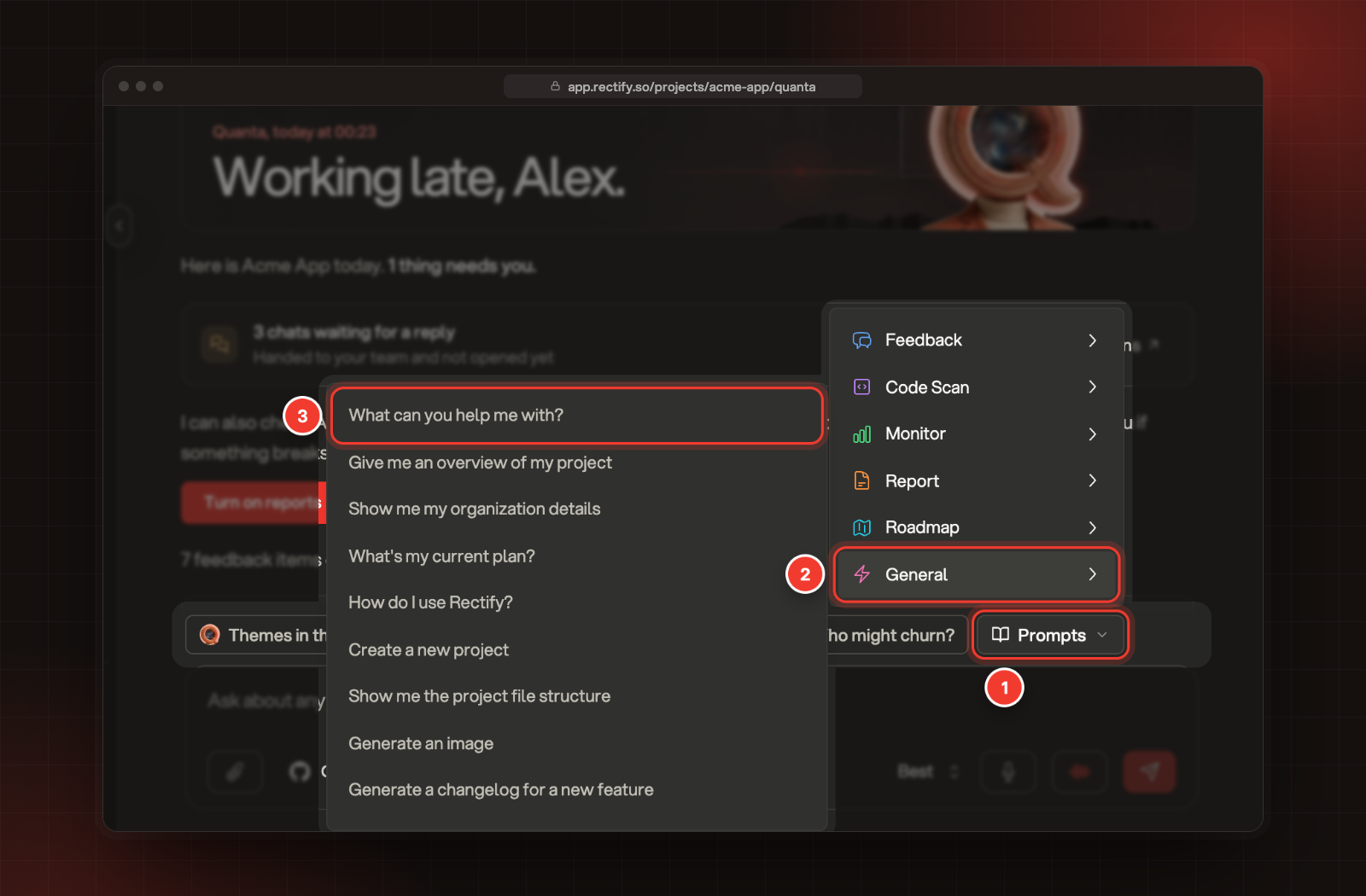
The Quanta page shows suggestions above the message box, like What changed this week? and Who might churn?. Select one and Quanta answers straight away. For more ideas:
1.
Select Prompts.
2.
Pick a topic: Feedback, Code Scan, Monitor, Report, Roadmap or General.
3.
Select a prompt. It fills the message box, so you can edit it before you send.
1 Prompts. 2 A topic. 3 A prompt to start from.
Choose the model
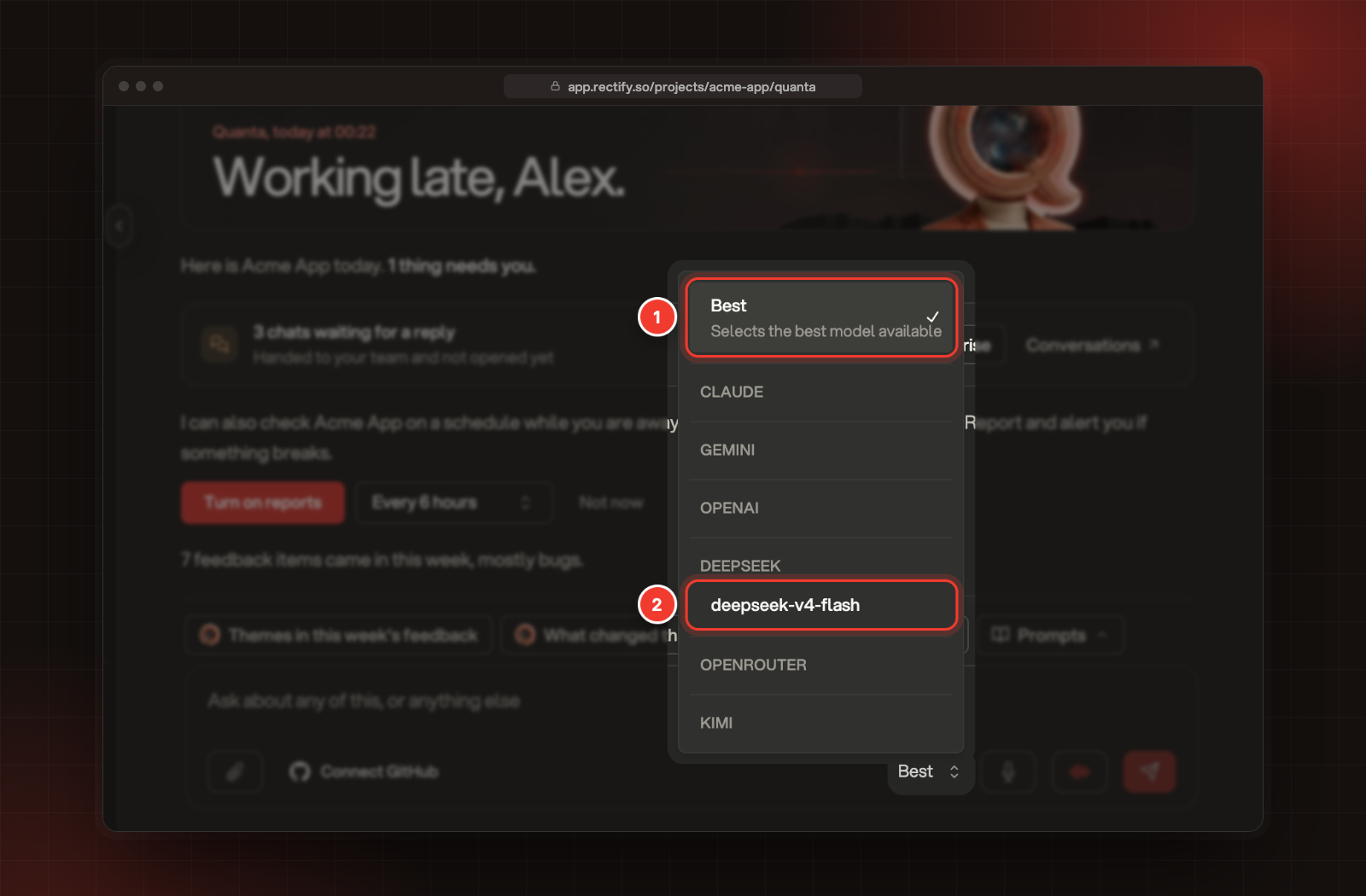
The menu next to the microphone shows Best until you change it.
•
Best picks for you. Quanta uses the provider that has Quanta Chat under Powers in Organization settings, AI providers. If none has it, Quanta uses another key you've connected, and your Rectify credits come last. If a provider fails, the next one takes over.
•
A named model is used for your messages as long as its provider is connected. The menu lists the models of each provider you've connected. On Rectify credits, that's deepseek-v4-flash.
1 Best picks for you. 2 A model you can choose.
Your choice lasts until you reload the page.
Add files to a message
1.
Open a chat and select the paperclip (Attach files).
2.
Pick up to 3 files. Images can also be pasted into the message box.
3.
Type your question about them and send.
Quanta reads JPEG, PNG and WebP images and PDF files up to 10 MB each. Images and longer PDFs are read with Gemini, so they need a Gemini key under AI providers.
Connect your GitHub repository
Connect a repository so Quanta can read your code and start code scans.
1.
Select Connect GitHub under the message box.
2.
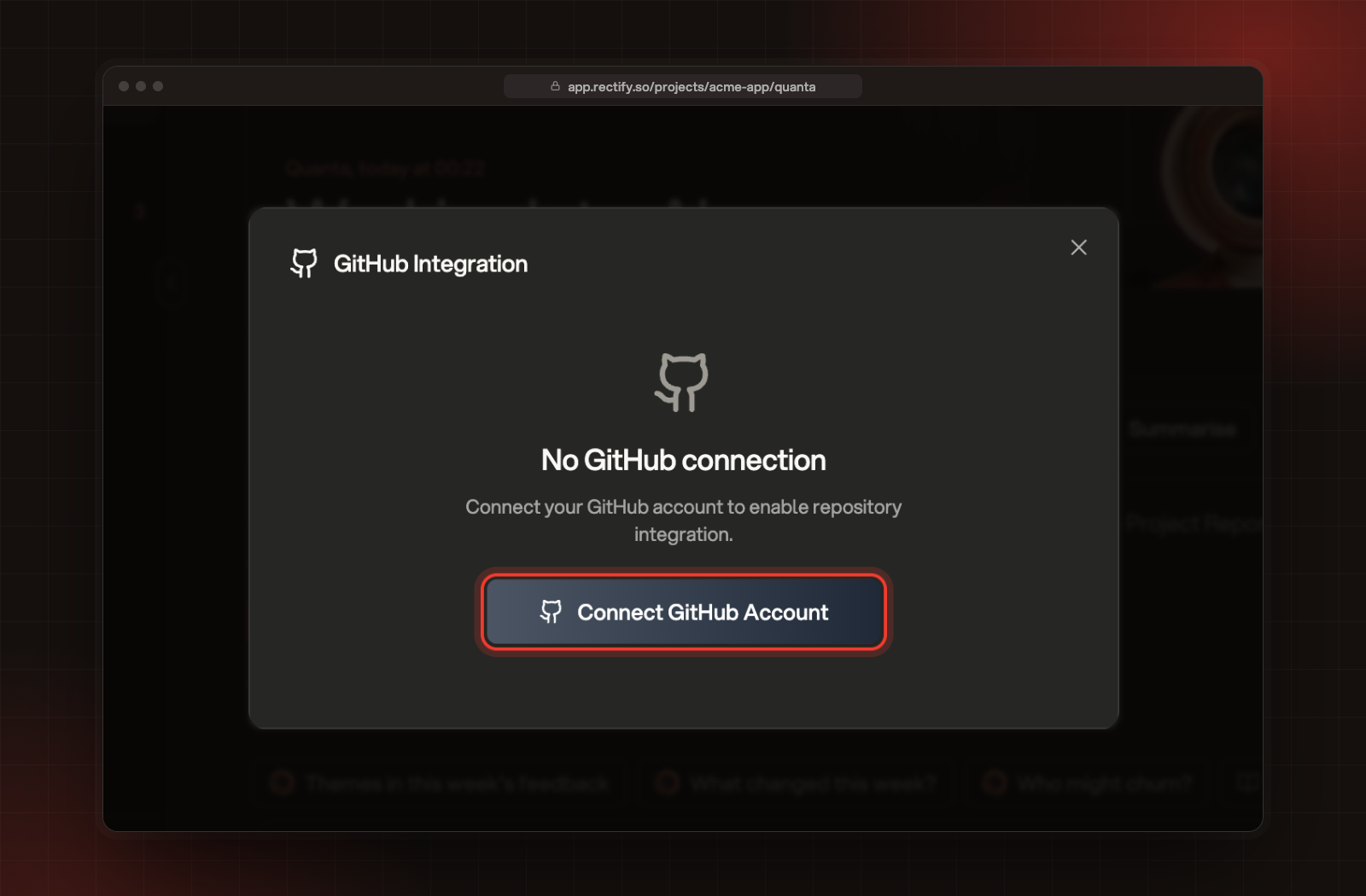
Select Connect GitHub Account and approve Rectify on GitHub. You come back to the same page.
2 Connect GitHub Account.
3.
Select Connected under the message box.
4.
Pick your repository under Repository.
5.
Select Save.
The button then shows your repository's name. Owners and Admins can remove the connection with Disconnect in the same window.
It says "You can only upload a maximum of 3 files."
A message takes up to 3 files. Remove one, or send the rest in your next message.
It says "Invalid file type" or "File size is too large"
Quanta reads JPEG, PNG and WebP images and PDF files, up to 10 MB each. Save other files as PDF, or shrink large images, and attach them again.