Turn on live chat in your widget's Support tab, choose its first message, and check that it's live on the Channels page.
5 min readUpdated 2 days ago
Before you start. The Rectify script needs to be on your site. Install the Rectify widget on your site shows how. Owners, Admins and Members can change widget settings.
Widget chat is the Support tab in your Rectify widget. Every chat from it lands in Inbox, Conversations.
Your support channels
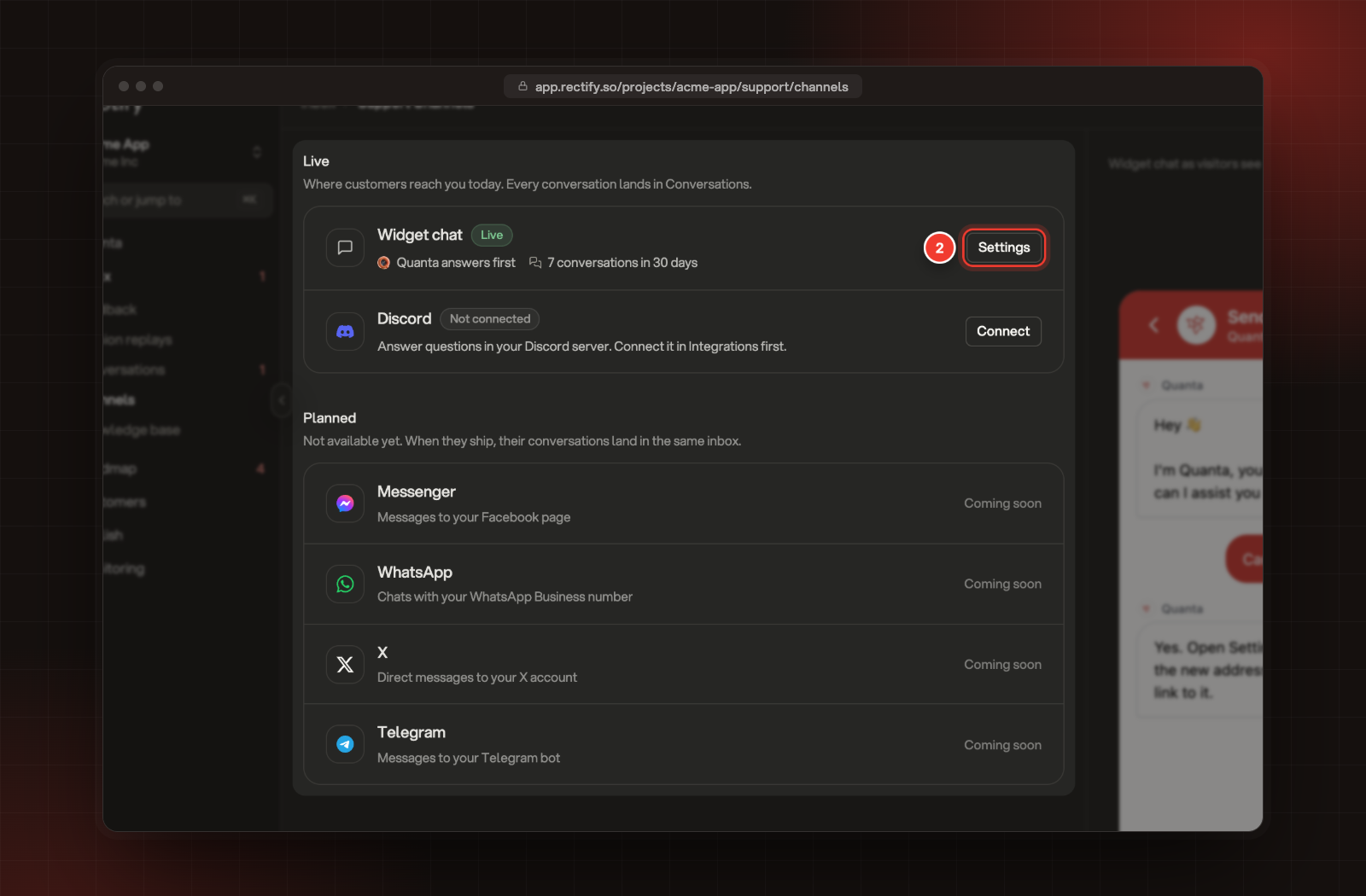
Open Inbox, then Channels.
•
Live lists where customers reach you today. Widget chat shows Live while the widget is switched on for your site, or Off when it isn't. Next to that, you see who answers and how many conversations started in the last 30 days. Discord is listed here too. Set up support chat in Discord shows how to turn it on.
•
Planned lists channels that aren't available yet: Messenger, WhatsApp, X and Telegram. They're marked Coming soon.
On a wide screen, the right side shows widget chat as your visitors see it. Switch between Desktop and Mobile to compare.
Set up the chat
1.
Open Inbox, then Channels.
2.
Select Settings next to Widget chat. Your widget settings open on Support.
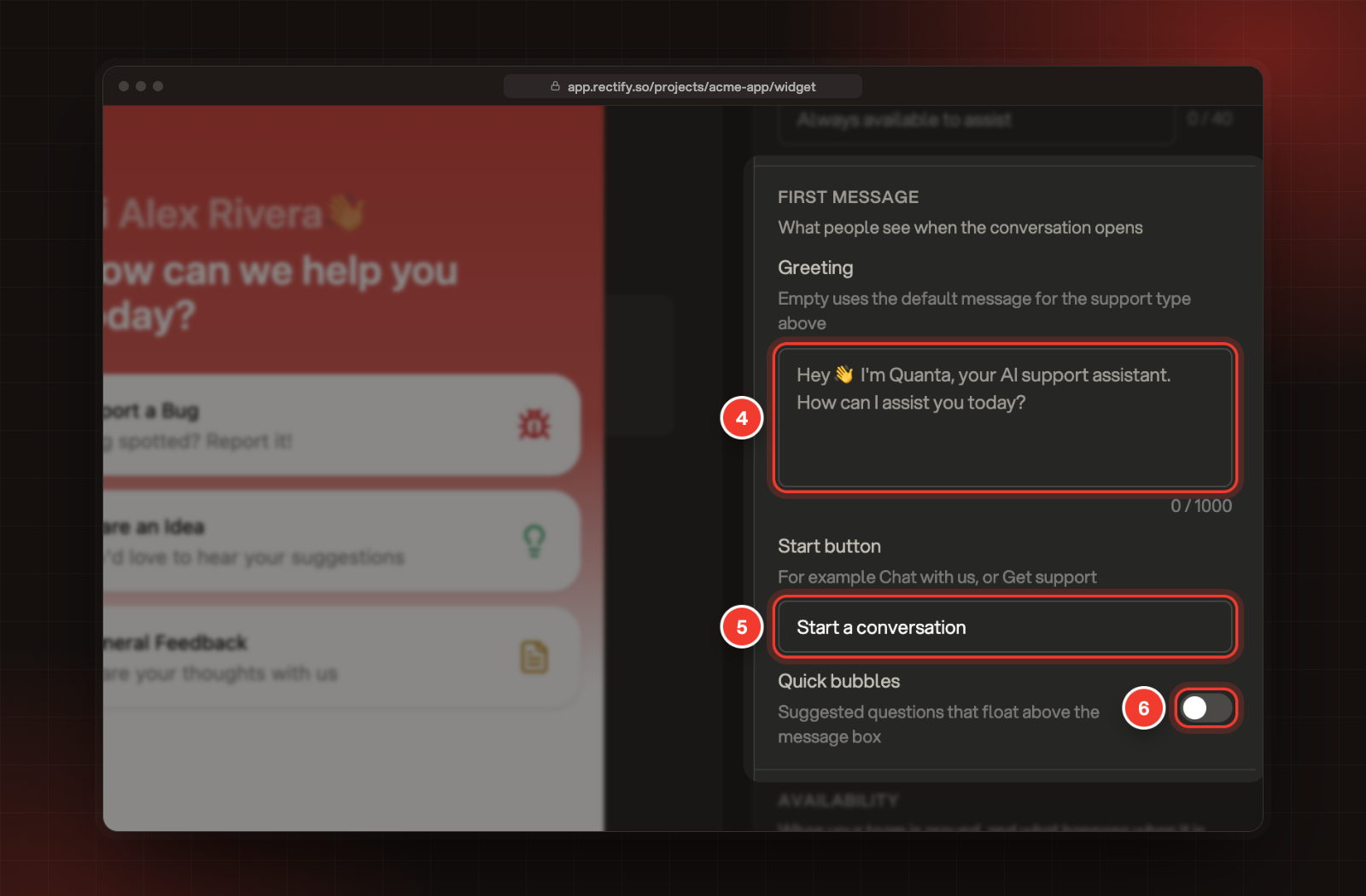
Under Greeting, write what customers read when a chat opens, up to 1,000 characters. Leave it empty to use the default greeting.
5.
Under Start button, change the button label if you like, for example "Chat with us". The default is Start a conversation. The same label is on the Support card in the Support only layout.
6.
To suggest questions above the message box, switch on Quick bubbles and select Add prompt for each one.
7.
Select Save.
4 Greeting. 5 Start button. 6 Quick bubbles.
More options on the same tab:
•
Show your team on the home screen shows your team's photos next to the widget title. Under Who appears, All shows everyone you pick, and Online shows only people who have Rectify open right now. Tick people under Pick the people.
•
Quanta's logo, Quanta's name (up to 20 characters) and Quanta's subtitle (up to 40 characters) change how Quanta appears in the chat.
•
Special notice at the top shows a banner in every conversation while it's on, for example when replies may be slower. Write it under Notice text, up to 500 characters.
•
Lock closed conversations stops customers replying to a conversation marked done. They start a new one instead.
Make sure the widget shows chat
1.
Select Look.
2.
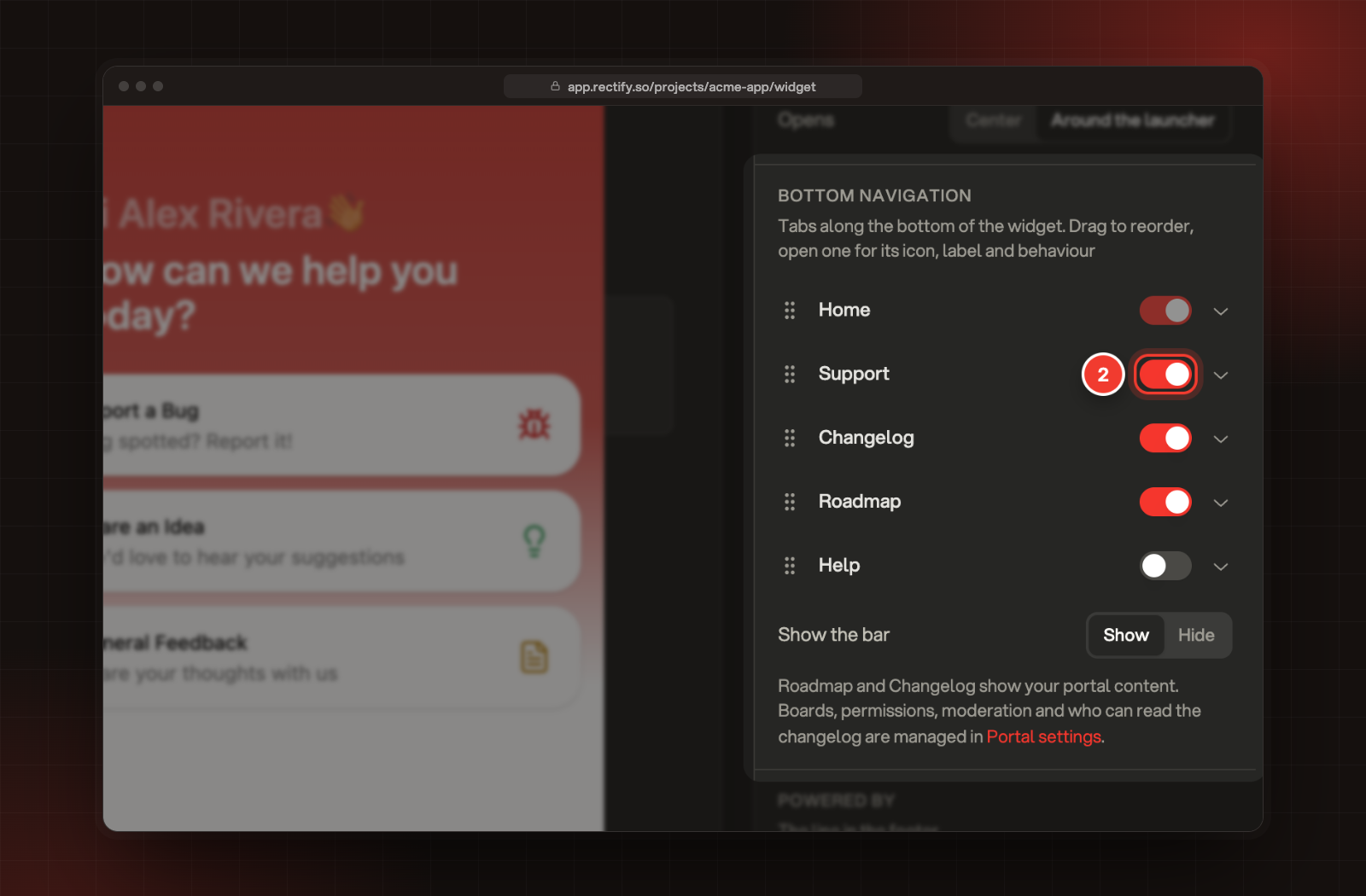
Under Bottom navigation, check that the Support switch is on. It's on by default. In a widget set up a while ago, this tab may be called Messages. Open the row to change its icon or Label.
2 The Support tab switch.
3.
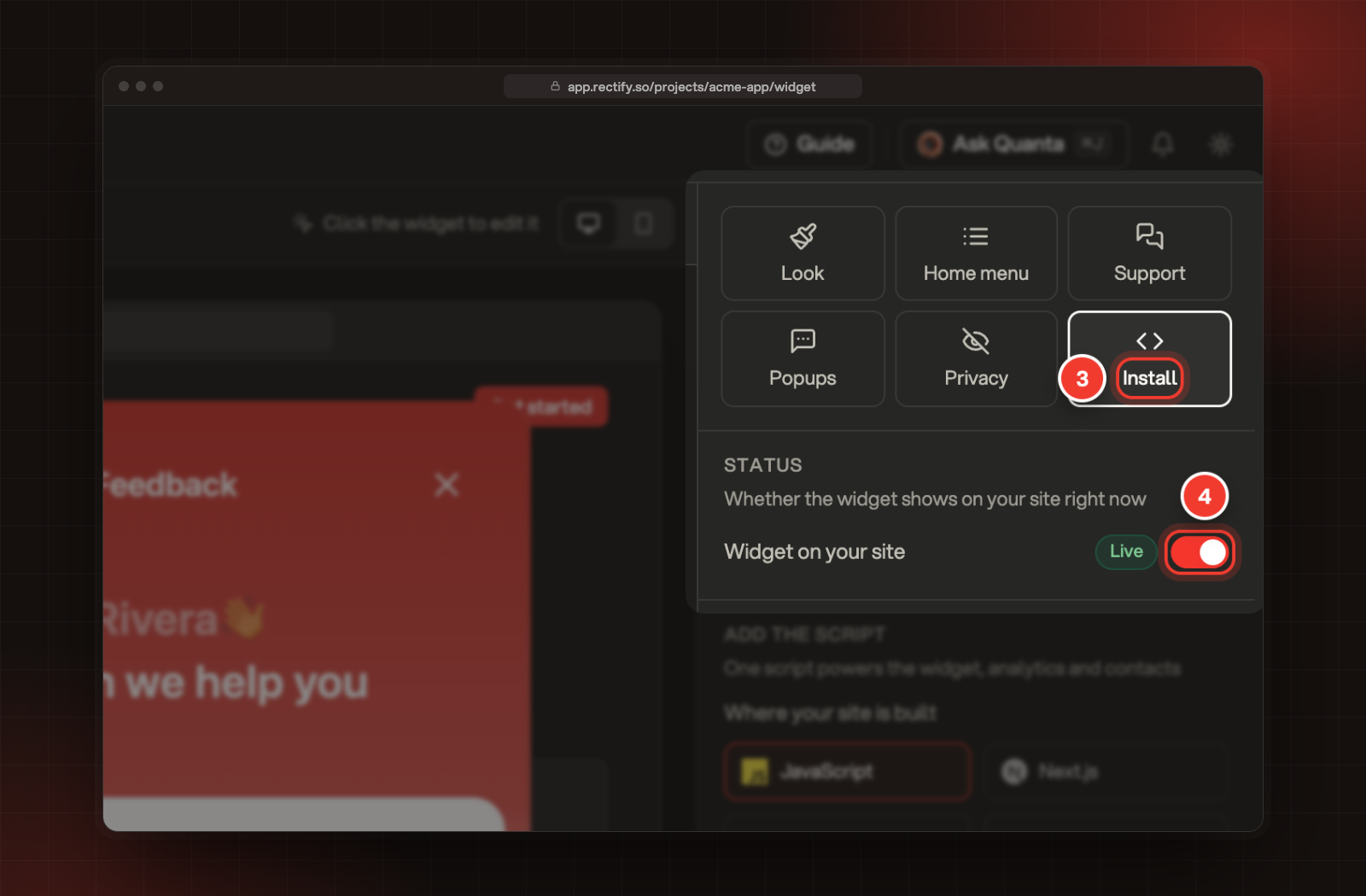
Select Install.
4.
Under Status, check that Widget on your site is on.
5.
If you changed anything, select Save.
3 Install. 4 Widget on your site.
Make a support-only widget
To make chat the only thing visitors see, open Publish, then Widget, select Home menu, and select Support only under Layout. Visitors then get a chat card under your greeting, with no other cards and no tab bar. Choose the widget's layout explains each layout.
What your customers see
1.
They open the widget and select Support.
2.
The first time, they enter their name and email under Let's get started, then select Continue.
3.
Your greeting opens the chat, and they type their question.
4.
When they come back later, the tab lists their earlier conversations, with your start button for a new one.
When your team replies and the customer isn't on your site, they get an email with a link back to the conversation. Once a chat is with your team, customers can attach an image or a PDF, up to 10 MB.
When you mark a conversation done, the customer sees Conversation closed and can select Download to save a copy of the chat. If a conversation can't open on the device they're using, they see Can't open this chat here and can select Email me a link to carry on.
Check it worked
1.
Open your site and open the widget.
2.
Select Support and start a conversation.
3.
In Rectify, open Inbox, then Conversations. Your chat is in the list once you've sent a message. While Quanta is answering it, Quanta's face shows next to it.
Troubleshooting
Widget chat says Off on the Channels page
The widget is switched off for your site. Open Publish, Widget, select Install, switch on Widget on your site and select Save.
There's no Support tab in the widget
Open Publish, Widget, select Look, and switch on Support under Bottom navigation. In a widget set up a while ago, it may be called Messages. Then select Save and reload your site.
My changes don't show in the widget
Select Save at the bottom of the widget settings, then reload the page on your site. The widget doesn't show on my site has more checks.