Tell the widget who is signed in to your site, and sign them in to the Roadmap, Changelog and Help tabs with a signature from your server.
4 min readUpdated 5 days ago
Before you start. Anyone on your team can add the user details to your script. Only Owners and Admins can see the secret. Members can turn on Sign verified visitors in under Publish, Portal, Access, but not on the Install page. You need to change code on your server and on your site.
There are two levels. Telling the widget who is signed in greets them by name, fills in their name and email in the forms and in Support, and adds them to your contacts. Signing them in as verified also lets them vote, post and comment as themselves in the Roadmap, Changelog and Help tabs.
Tell the widget who is signed in
1.
In your project, open Publish, then Widget, and select Install.
2.
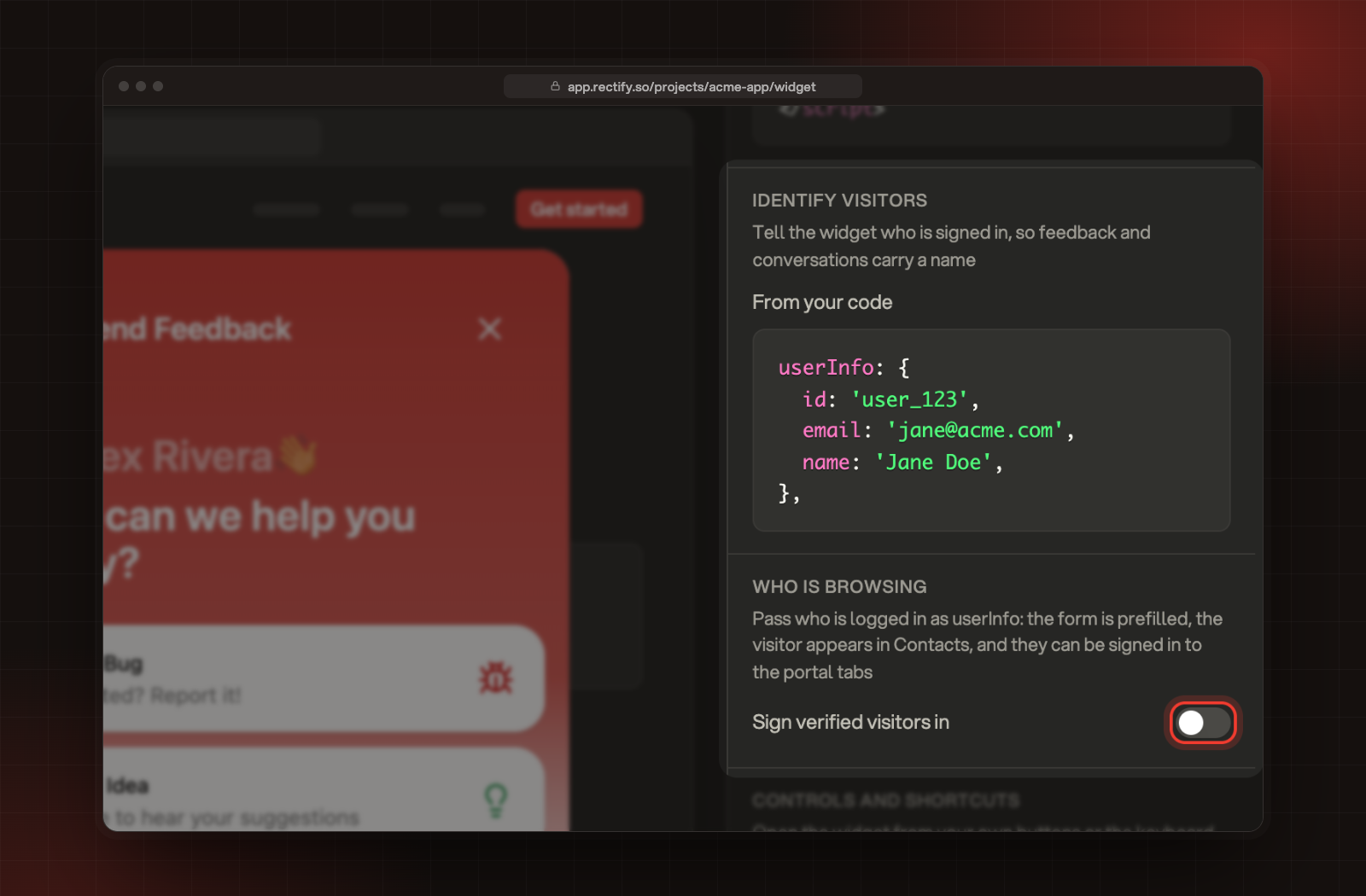
Under Identify visitors, copy the code from From your code.
3.
Add it to the object at the end of your Rectify script, and fill in the signed-in user's details from your own app.
You can write userId instead of id. Only add userInfo when someone is signed in. If you use one of the framework versions of the script, pass userInfo as the second value to RectifyInstance.init, after your project ID.
Identify visitors and Who is browsing, under Install.
Sign them in as verified users
Anyone can type an email into a web page, so the Roadmap, Changelog and Help tabs only trust a user your server has signed.
1.
On the Install page, under Who is browsing, turn on Sign verified visitors in. It saves straight away, and How it works appears under it.
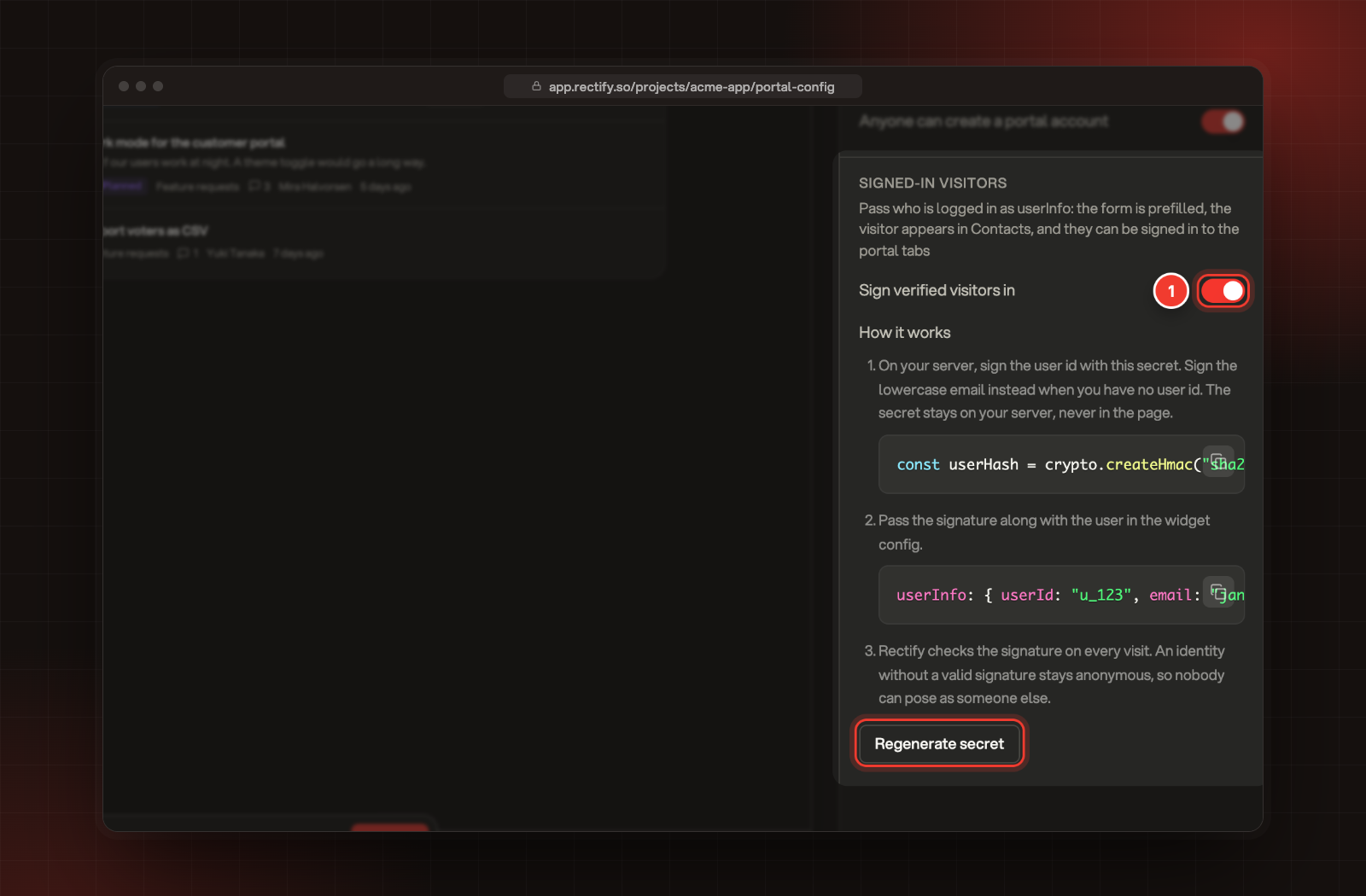
1 Sign verified visitors in, shown here under Publish, Portal, Access. How it works holds your secret, hidden here.
2.
Copy the line under step 1 of How it works. It holds your project's secret.
3.
On your server, use that line to sign the signed-in user's id. If you don't pass a user id, sign their email in lowercase instead.
4.
Add the result as userHash to the userInfo in your Rectify script.
5.
Publish your site.
The line you copy in step 2 looks like this, with your own secret in it:
The same switch and steps are under Publish, Portal, Access, in Signed-in visitors. There, select Save after you turn it on.
Keep the secret on your server. Never put it in your site's code or in the page, or anyone could sign in as anyone.
Any server language works. The signature is an HMAC-SHA256 of the user id, or of the lowercase email, with the secret as the key, written as 64 hexadecimal characters.
What changes for your visitors
With Sign verified visitors in on:
•
Visitors with a valid signature vote, post and comment as themselves in the Roadmap, Changelog and Help tabs.
•
In the Changelog tab they can subscribe to new releases by email.
•
If your portal is private, signed-in visitors you allow in can open those tabs in the widget.
•
Visitors without a valid signature stay anonymous in those tabs, so nobody can pose as someone else.
With it off, userInfo still fills in the forms and adds visitors to your contacts, but they stay anonymous in the Roadmap, Changelog and Help tabs.
Get a new secret
If your secret gets out, select Regenerate secret under How it works, then Regenerate. Your site stops signing visitors in until your server uses the new secret, so update it straight away.
Check it worked
Sign in to your own site, open the widget and select the Changelog tab. If you're signed in as a verified user and you passed an email, you see Get new releases by email with a Subscribe button.
Troubleshooting
Visitors still show as anonymous in the Roadmap tab
•
Check that your server signs exactly the user id you pass in userInfo. Sign the lowercase email only when you don't pass a user id.
•
If you selected Regenerate secret, update your server with the new secret.
•
If your project has a website address, signing in only works on that domain and its subdomains.
•
Pass userInfo in the script itself. A user set later with RectifyInstance.identify() isn't signed in to these tabs.
The Sign verified visitors in switch is greyed out
On the Install page, only Owners and Admins can change it. Members can turn it on under Publish, Portal, Access, in Signed-in visitors, then select Save. Only Owners and Admins see the secret, so ask one of them to share the setup with you.
I don't see How it works
The steps show only when Sign verified visitors in is on, and only to Owners and Admins.