Send monitor alerts to email, Slack, Discord, Teams, PagerDuty, a webhook, push, SMS or a phone call, and escalate when nobody answers.
6 min readUpdated 24 days ago
Before you start. Anyone on your team who can open the project can add and change alert channels. Only Owners and Admins can delete one. How many channels you can have depends on your plan, and phone call and SMS alerts need the Launch plan or higher (see the table below).
Alerts go to channels. A channel is one destination, such as an email list or a Slack channel. You add it once under Alerting, then pick it on each monitor that should use it.
Add an alert channel
1.
Open Monitoring, then Alerting.
2.
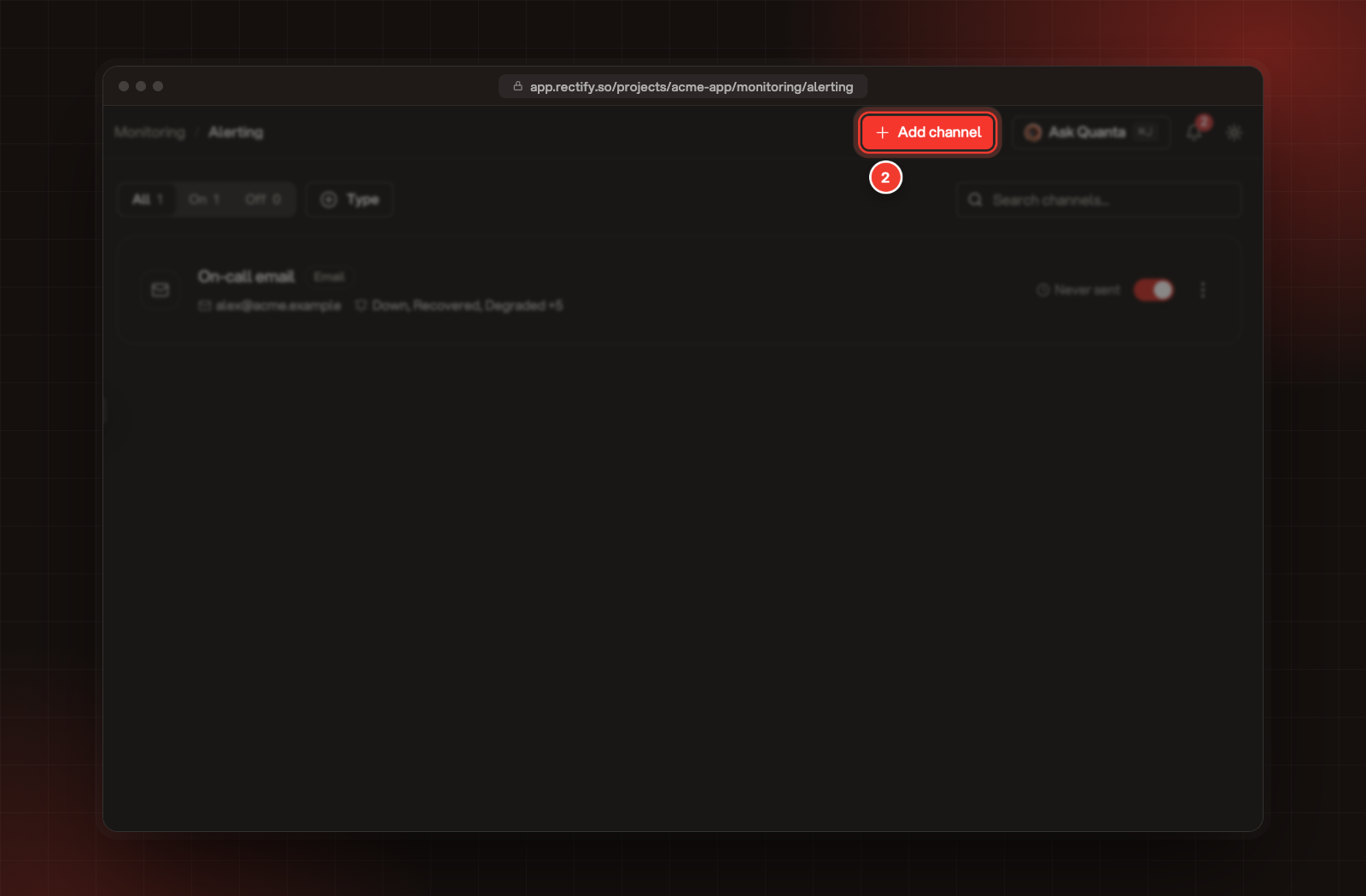
Select Add channel. If you have no channels yet, select Let's GO! instead.
2 Add channel, at the top of the Alerting page.
3.
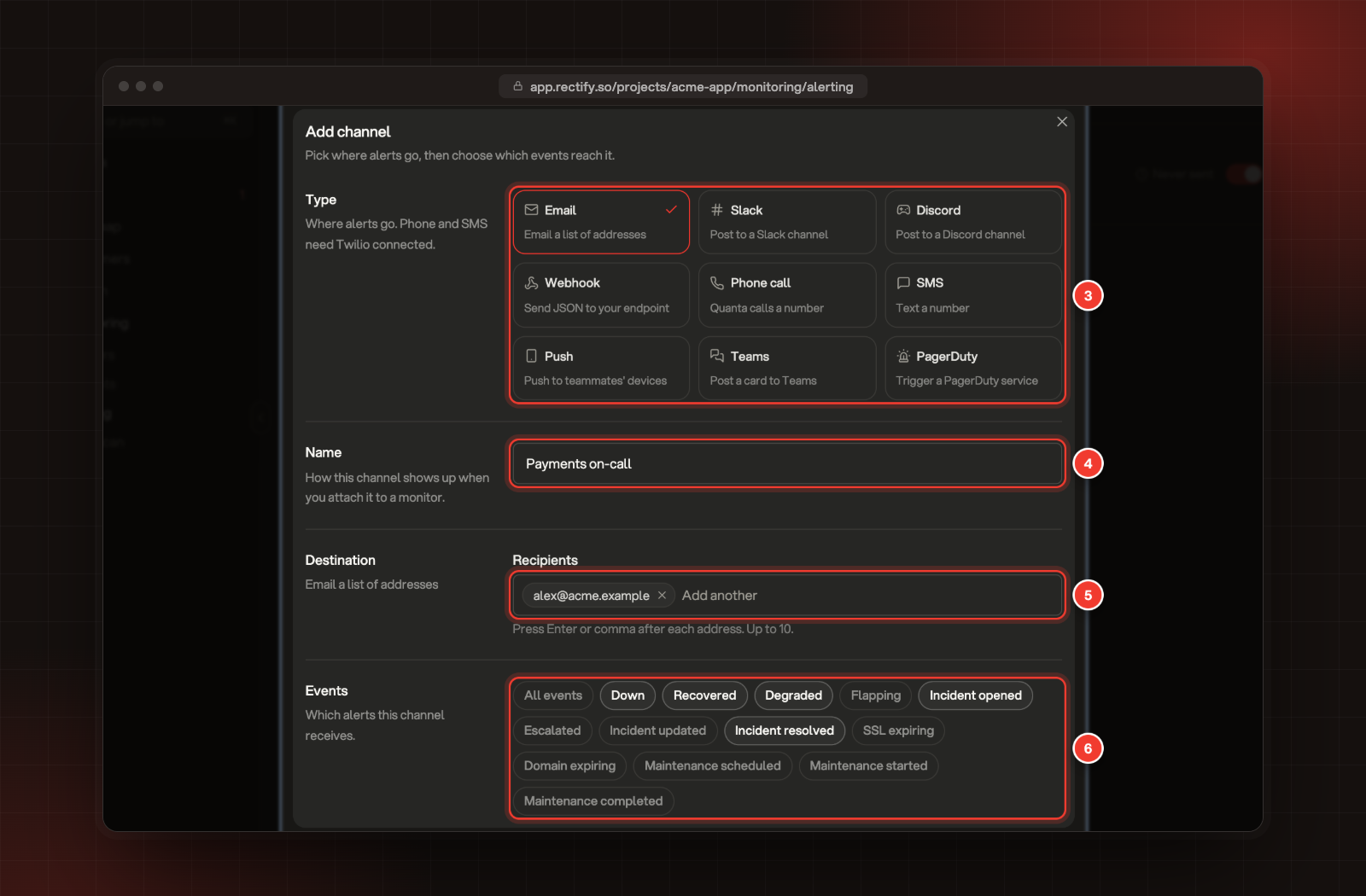
Under Type, pick where alerts go.
4.
Enter a Name, such as "Payments on-call". This is how you'll find it on a monitor.
5.
Under Destination, fill in where to send it (see the table below).
6.
Under Events, pick the alerts this channel should get. All events picks every one.
3 Type. 4 Name. 5 Destination. 6 Events.
7.
Select Add channel.
Type
What you enter
Email
Up to 10 Recipients. Press Enter or a comma after each address.
Slack
The channel's incoming Webhook URL, and optionally a Channel and Bot name
Discord
The channel's Webhook URL, and optionally a Bot name
Webhook
Your endpoint's URL, the Method (POST or PUT), the Authentication (None, Bearer token or Basic auth) and an optional Signing secret
Phone call
A Phone number with its country code. Quanta calls it and reads out the alert.
SMS
A Phone number with its country code
Push
The Members who get it in their Rectify app and browser. Each person's own notification settings still apply.
Teams
The channel's Incoming webhook URL
PagerDuty
The Integration key of an Events API v2 integration on your PagerDuty service. Recovered and resolved alerts resolve the same PagerDuty alert.
With a Signing secret set, every webhook delivery carries an X-Rectify-Signature header: an HMAC SHA-256 of the timestamp and body, so your endpoint can check it came from Rectify.
Phone call and SMS alerts go through your own Twilio account. Connect Twilio under Project settings, Integrations first.
The events you can pick
Event
Sent when
Down
A monitor fails enough checks in a row to go down
Recovered
A monitor that was down passes its checks again
Degraded
A monitor starts failing checks or answering slowly
Flapping
A monitor keeps going down and up, so down and recovered alerts are held back
Incident opened
An incident opens, by itself or reported by hand
Incident updated
Someone posts an update on an incident
Incident resolved
An incident is resolved
SSL expiring
A monitored SSL certificate is close to expiring
Domain expiring
A monitored domain's registration is close to lapsing
New channels start with Down, Recovered, Incident opened and Incident resolved.
Pick channels for a monitor
1.
Open the monitor, open its menu (the three dots) and select Edit.
2.
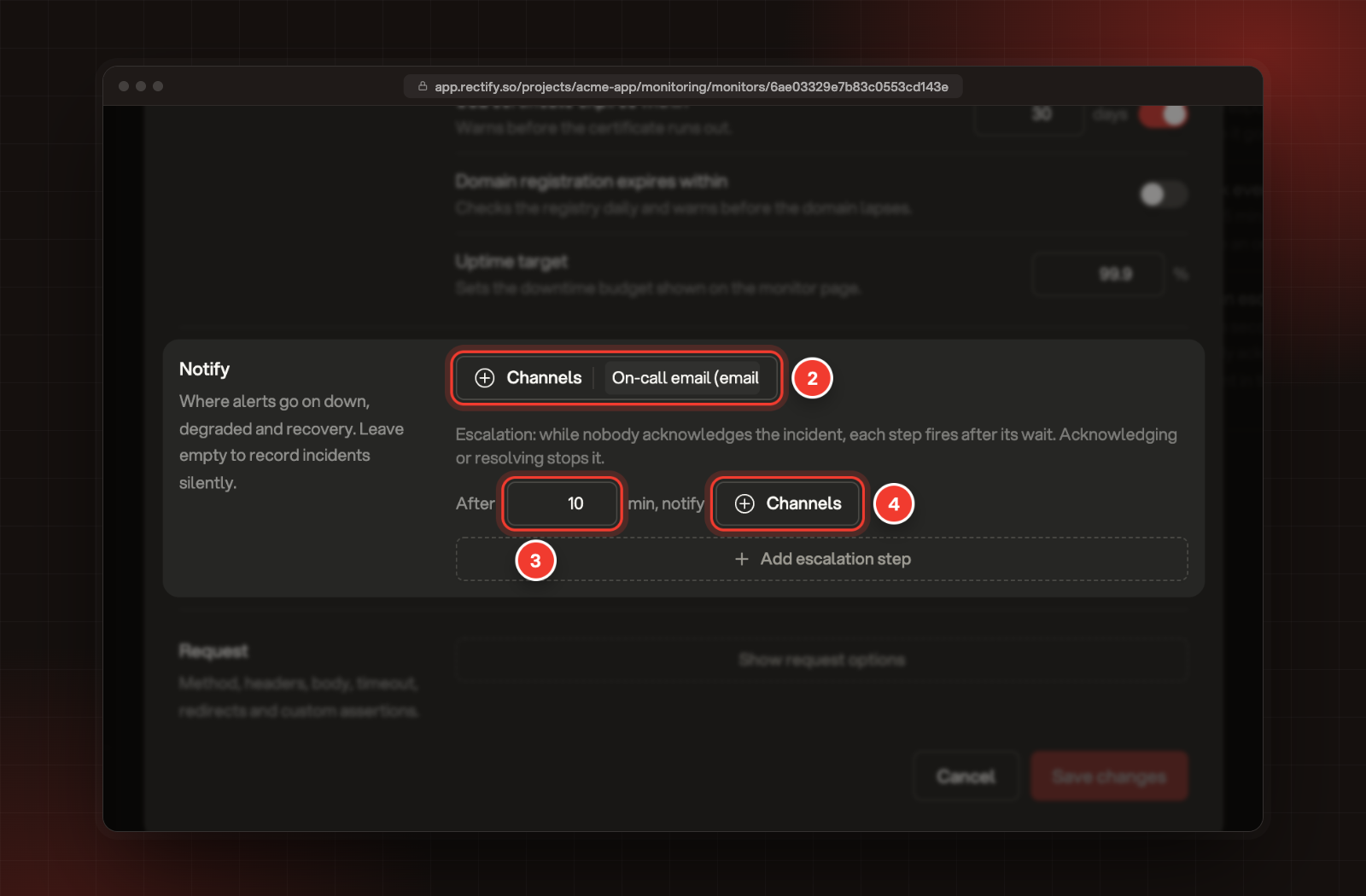
Under Notify, open Channels and pick one or more.
3.
To escalate, select Add escalation step and enter how many minutes to wait.
4.
Open that step's Channels and pick who to alert next.
2 Channels. 3 The wait in minutes. 4 The channels for that step.
5.
Select Save changes.
Escalation steps only run while nobody has acknowledged the incident. The first step fires its wait after the incident opens, and each later step fires its wait after the one before. A monitor can have up to 5 steps, each waiting 1 to 1,440 minutes. Acknowledging or resolving the incident stops the rest.
A monitor with no channels still records its incidents, but nobody is alerted.
Quiet hours and rate limits
Both are at the bottom of a channel's settings.
•
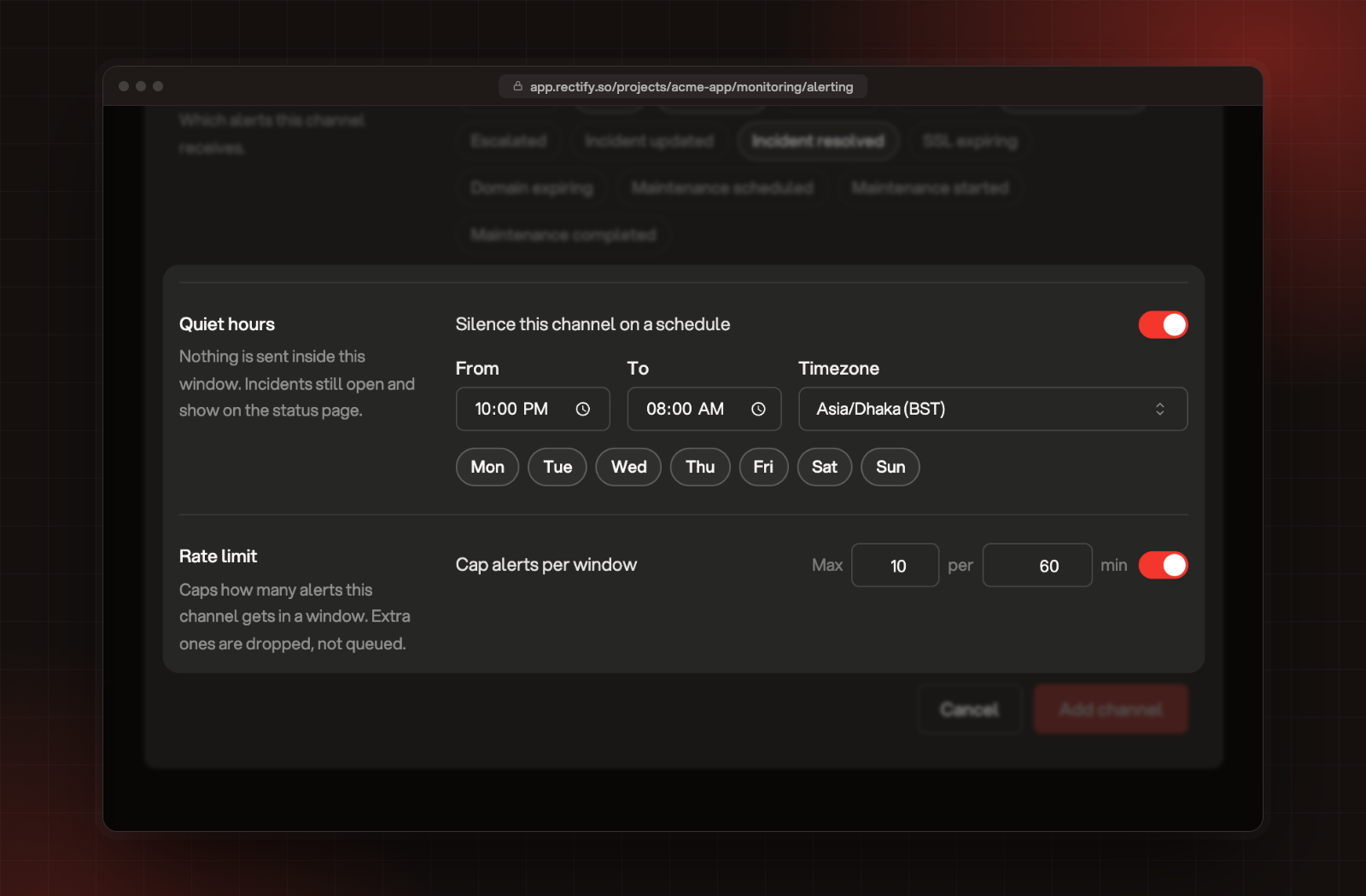
Quiet hours: turn on Silence this channel on a schedule, then set From, To, the Timezone and the days. Nothing is sent to this channel inside that window. Incidents still open and show on your status page.
•
Rate limit: turn on Cap alerts per window and set the most alerts (1 to 100) per number of minutes (1 to 1,440). Alerts over the cap are dropped, not saved for later.
Quiet hours and Rate limit in a channel's settings.
While a monitor is in a maintenance window, its alerts are held back too. See Plan maintenance windows.
Test, turn off or remove a channel
On the Alerting page, each channel has a switch to turn it on or off. Its menu (the three dots) has:
•
Send test sends a sample alert to that channel.
•
Delivery log lists every alert sent to it, with its event, monitor and whether it was Sent or Failed.
•
Edit and Delete. Deleting removes the channel from every monitor that uses it. Only Owners and Admins can delete.
To test every channel on one monitor at once, open the monitor and select Send test alert in its Notifications panel. The test says that nothing is actually down.
Alert channels on each plan
Plan
Alert channels
Phone call and SMS
Idea (free)
1
No
Build
3
No
Launch
5
Yes
Accelerate
10
Yes
Enterprise
Unlimited
Yes
Channels count across your whole organization.
Check it worked
Select Send test on the channel and check the alert arrives. Then open the Delivery log: a test that went through shows Sent. The channel's row shows when it last sent an alert.
The test says it failed
Open the channel's Delivery log and read the Detail column. For Slack, Discord and Teams, check the webhook URL is still active in that app. For a webhook, check your endpoint accepts the request and answers with a success code.
Phone call and SMS are greyed out or show a plan label
They need the Launch plan or higher. If your plan includes them and the form says Twilio is not connected, connect Twilio under Project settings, Integrations, then come back.
It says "You have reached the number of alert channels your plan allows"
Every channel on your plan is in use. Upgrade, or ask an Owner or Admin to delete a channel you no longer need.
Nobody got an alert when my monitor went down
Check the monitor has channels under Notify, the channels are switched on, and Down is one of their events. Quiet hours, a rate limit or a maintenance window also hold alerts back.
Next, learn what to do when an alert comes in with Work an incident.