Add Rectify to your Discord server so your community can send ideas and bug reports, and choose what Rectify posts back.
6 min readUpdated 2 days ago
Before you start. You need the Manage Server permission in the Discord server, which Discord asks for when you add an app. Everyone who can open the Rectify project can connect Discord and change its settings, on every plan. Only Owners and Admins can disconnect it. A project connects one server, and a server can only be connected to one project.
With Discord connected to a project:
•
People in your server send ideas with /feedback and bug reports with /bug, and moderators send any message with Send to Rectify.
•
Ideas land on your roadmap and bug reports in your inbox, where only your team sees them.
•
Rectify can post a card for each public request and each changelog entry to channels you pick, and DM the people who follow a request when it moves or ships.
Add Rectify to your server
1.
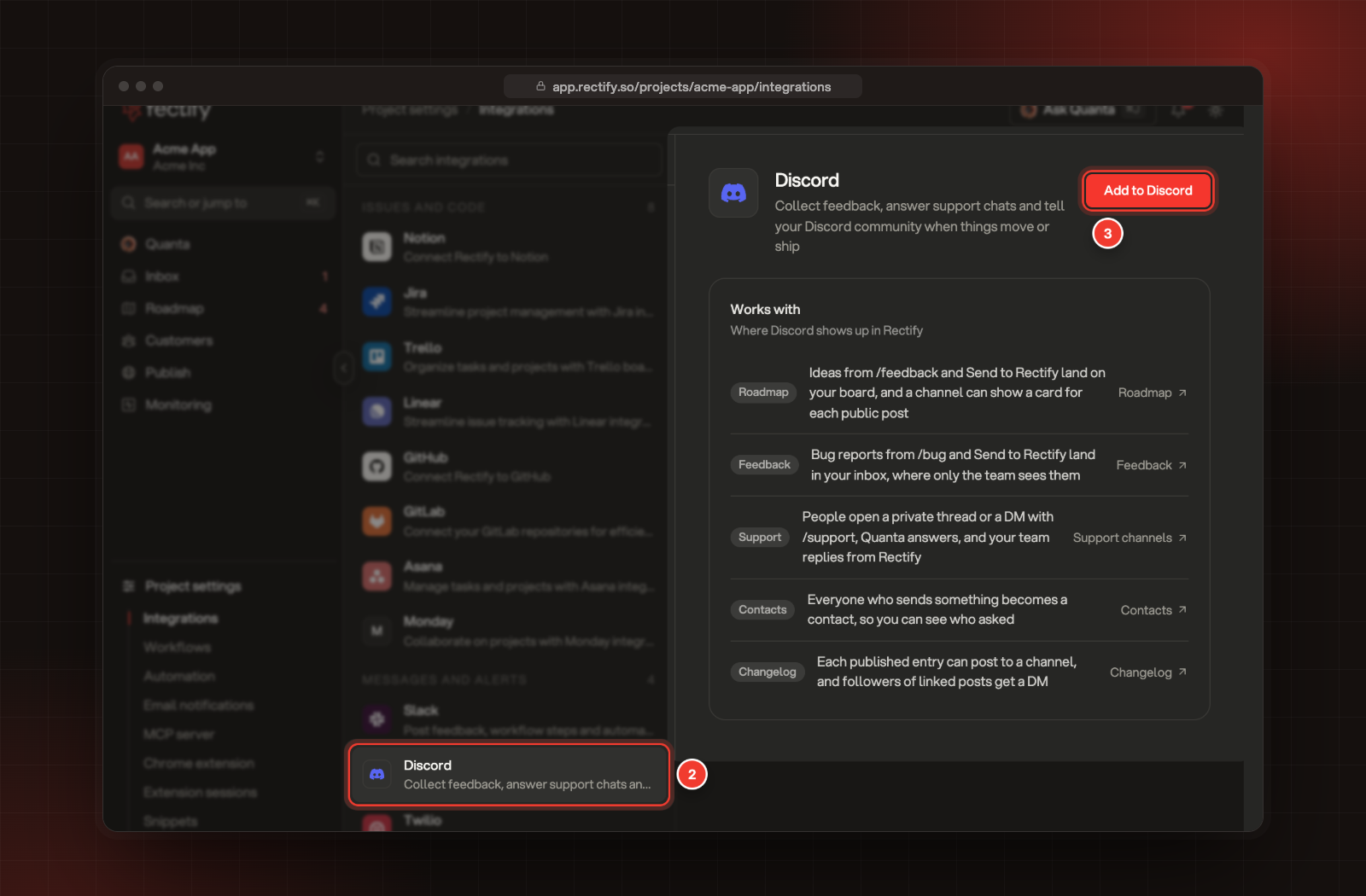
Open Project settings, then Integrations.
2.
Select Discord, under Messages and alerts.
3.
Select Add to Discord. Discord opens.
2 Discord. 3 Add to Discord.
4.
Pick the server to add Rectify to.
5.
Check the permissions and approve them.
Discord sends you back to Discord in Integrations, now marked Connected, and you see "Discord is connected. People in your server can use /feedback and /bug now."
Rectify asks Discord to view channels, send messages, embed links, attach files and read message history, so it can reply to people and post cards. It also asks to manage webhooks and threads, create private threads and send messages in threads, which support chats use. It adds the /feedback, /bug and /support commands and the Send to Rectify and Move to support message actions to your server. Set up support chat in Discord covers the support ones.
Choose where ideas and bug reports go
Every change saves as soon as you make it.
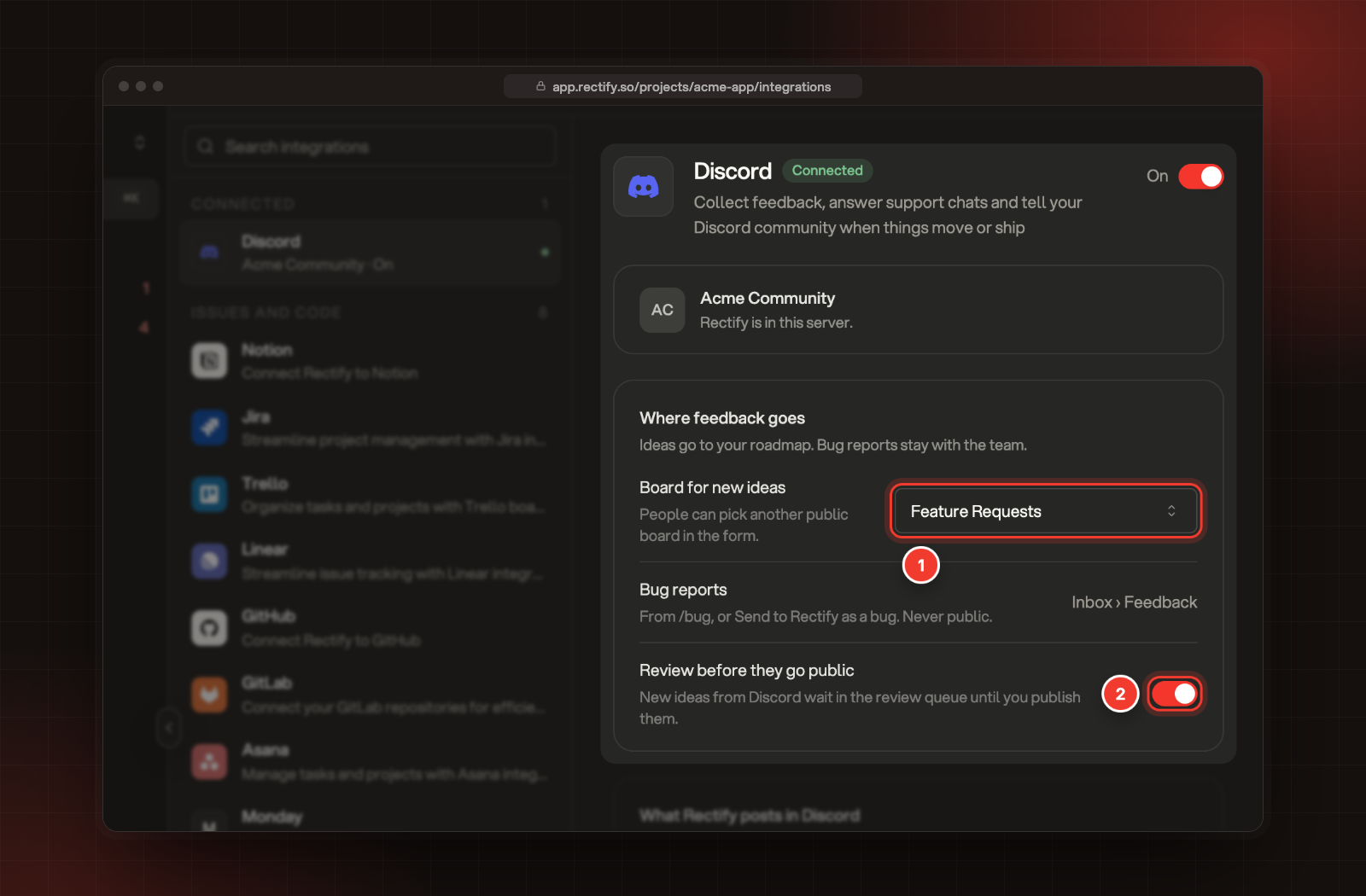
1 Board for new ideas. 2 Review before they go public.
Under Where feedback goes:
•
Board for new ideas: the board /feedback starts on. People can pick another public board in the form. Only boards where everyone or signed-in people can post are listed, so private boards and boards limited to segments never take ideas from Discord.
•
Bug reports: always go to Inbox › Feedback, from /bug or from Send to Rectify as a bug. They're never public.
•
Review before they go public: on by default. Every new idea from Discord waits in your review queue until someone publishes it, with Publish in the queue or Approve on the post. Turn it off and ideas follow your portal's own review rules, where people from Discord count as signed in.
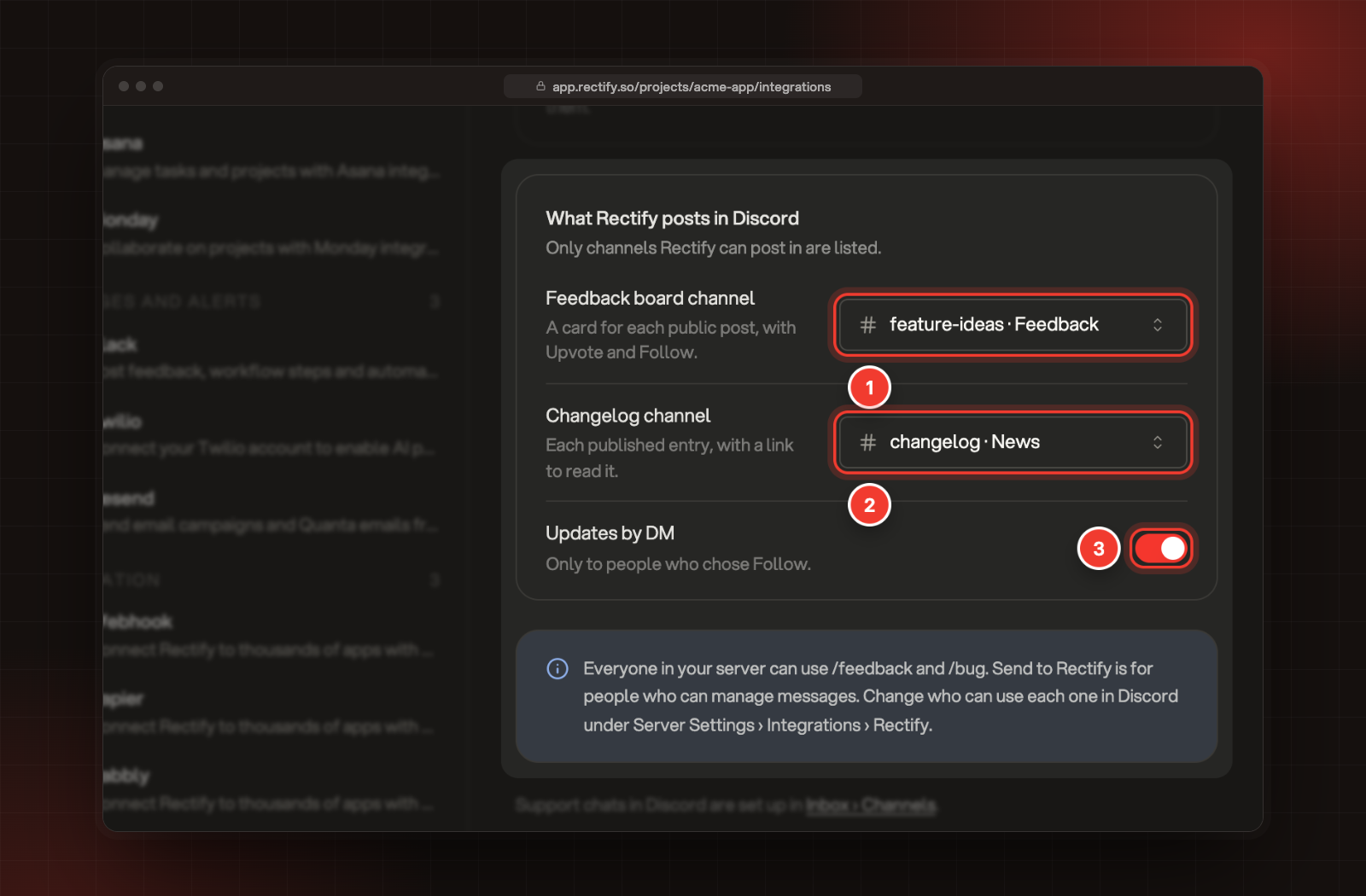
Feedback board channel: a card for each public post, with Upvote and Follow.
•
Changelog channel: each changelog entry when it goes live, with a link to read it.
•
Updates by DM: on by default. Rectify DMs only the people who chose to follow a request or a bug report.
Both channels start on Not posting. Only channels where Rectify can view the channel, send messages and embed links are listed, with their category next to the name. Share roadmap and changelog updates in Discord shows what the cards, posts and DMs look like.
Who can use the commands
Everyone in your server can use /feedback and /bug. Send to Rectify is for people who can manage messages. To change who can use each one, a server admin opens Server Settings › Integrations › Rectify in Discord.
Pause or disconnect Discord
To pause, turn the switch at the top of the Discord page to Off. While it's off, the commands reply "Rectify is paused in this server.", nothing is posted to your channels and no DMs go out. Nothing is sent later either. Your settings stay as they are, and the list shows Paused. Turn it back On to start again. Cards already in your board channel then catch up with the latest status and votes.
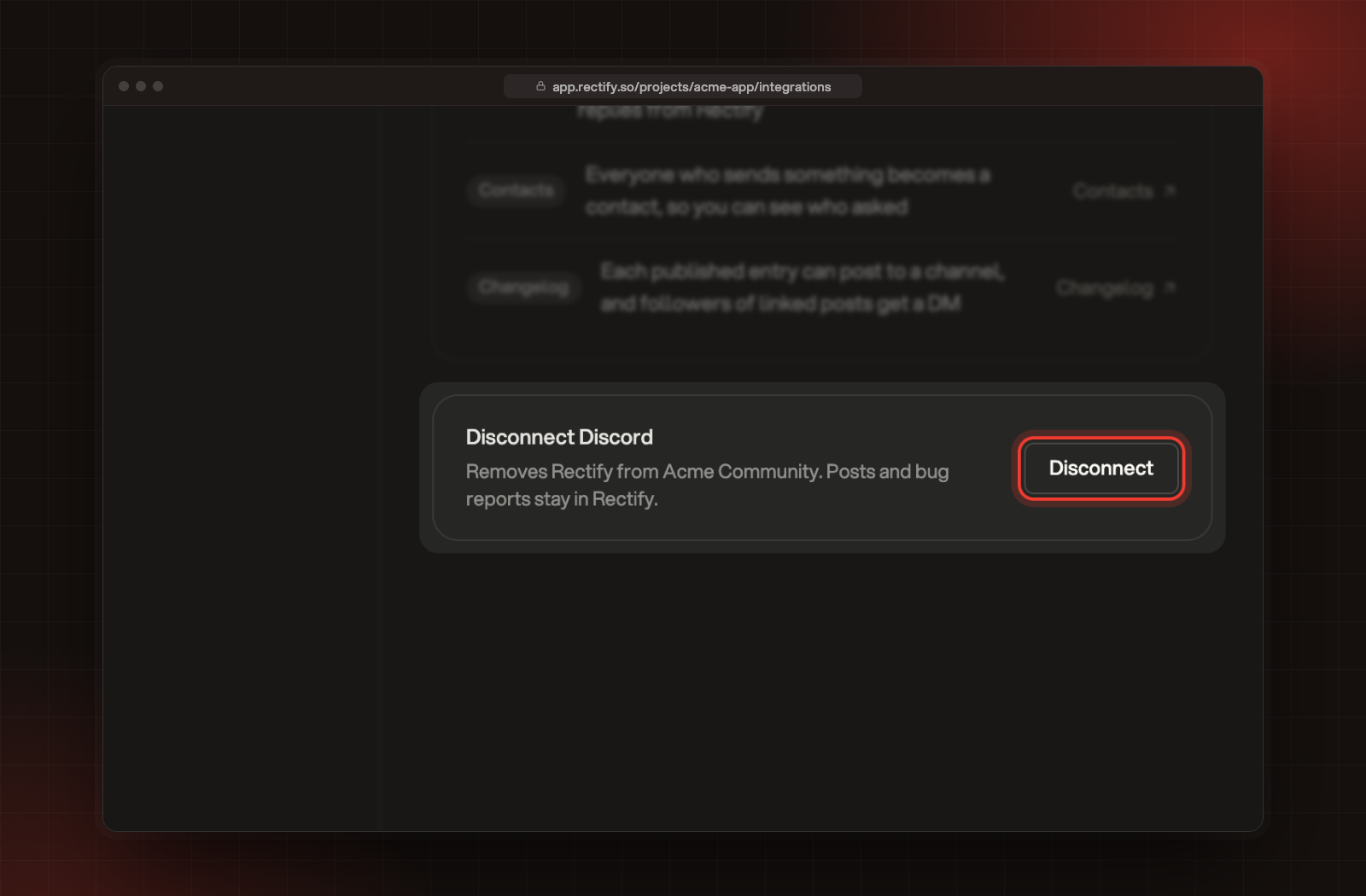
To disconnect, an Owner or Admin selects Disconnect under Disconnect Discord. It happens straight away, with no confirmation, and you see Discord disconnected. The Discord settings are cleared, and Rectify leaves your server a few moments later. Posts, bug reports, votes and contacts stay in Rectify. Before it leaves, Rectify takes Upvote, Follow and Share off its cards, so nobody presses a button that can't work any more. View on portal stays. Cards and changelog posts stay in their channels, but they stop updating.
Disconnect, at the bottom of the Discord page.
If Rectify is removed from your server
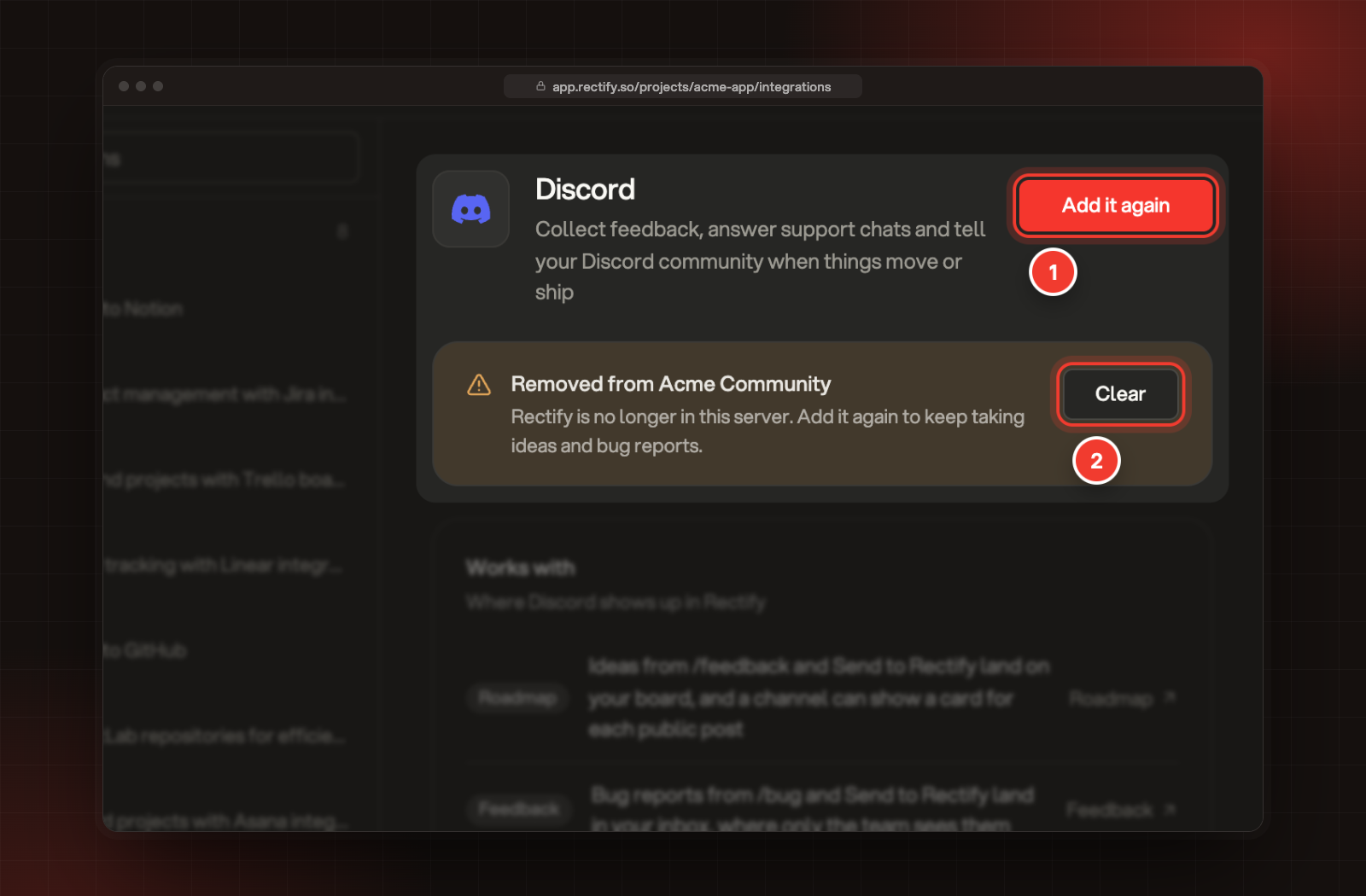
If someone removes Rectify in Discord, Rectify notices the next time it tries to reach your server, or in a daily check. The Discord page then shows Removed from and your server's name.
1 Add it again. 2 Clear.
•
Add it again adds Rectify back, to the same server or another one. Your board and both switches are kept. Pick the channels again, because they go back to Not posting.
•
Clear removes the old server and its settings from the project. Only Owners and Admins see it. You see Removed server cleared.
Check it worked
The Discord page shows your server's name with "Rectify is in this server.", and the list on the left shows Discord under Connected. In your server, type /feedback: the Share an idea form opens. Collect ideas and bug reports from Discord explains what happens next.
Troubleshooting
It says "That server is connected to another project. Disconnect it there first."
A Discord server can only be connected to one Rectify project. Disconnect it in the other project, or pick another server.
It says "That link has expired. Click Add to Discord again."
The link from Add to Discord lasts 10 minutes and works once. Select Add to Discord again and finish in Discord without a long wait.
It says "Finish in the Rectify account that clicked Add to Discord."
The browser you came back in is signed in to Rectify as someone else, or that person can no longer open the project. Sign in as the person who selected Add to Discord, then start again.
It says "Discord was not connected." or "Discord could not be connected. Try again in a minute."
The first means the permissions weren't approved in Discord. The second means something went wrong on the way back. In both cases nothing changed, so select Add to Discord again.
A channel I want isn't in the list
Rectify only lists text and announcement channels it can post in. In Discord, open Edit Channel › Permissions on that channel and allow View Channel, Send Messages and Embed Links for the Rectify role. If a channel you picked earlier loses these, it shows as A channel Rectify cannot post in.
Board for new ideas is greyed out
It says "No board takes ideas from Discord yet." Edit a board and let everyone or signed-in people post on it. A board whose Submit form has a question that is both Required and Show the answer publicly can't take ideas from Discord either, because the Discord form can't ask it.
I don't see Disconnect
Only Owners and Admins can disconnect Discord. Ask one of them, or turn the switch Off to pause it.