Add Rectify for Chrome, agree to how it handles data and connect it to your Rectify account and project.
3 min readUpdated 24 days ago
Before you start. You need Chrome 116 or later and a Rectify account with at least one project you can open. The extension is free to install on every plan. Everyone signs in with their own Rectify account, so there's no key to share.
Rectify for Chrome records bugs on any website, inserts your team's snippets in any text box and types with your voice. Everything it saves goes to the Rectify project you pick.
Install and connect
1.
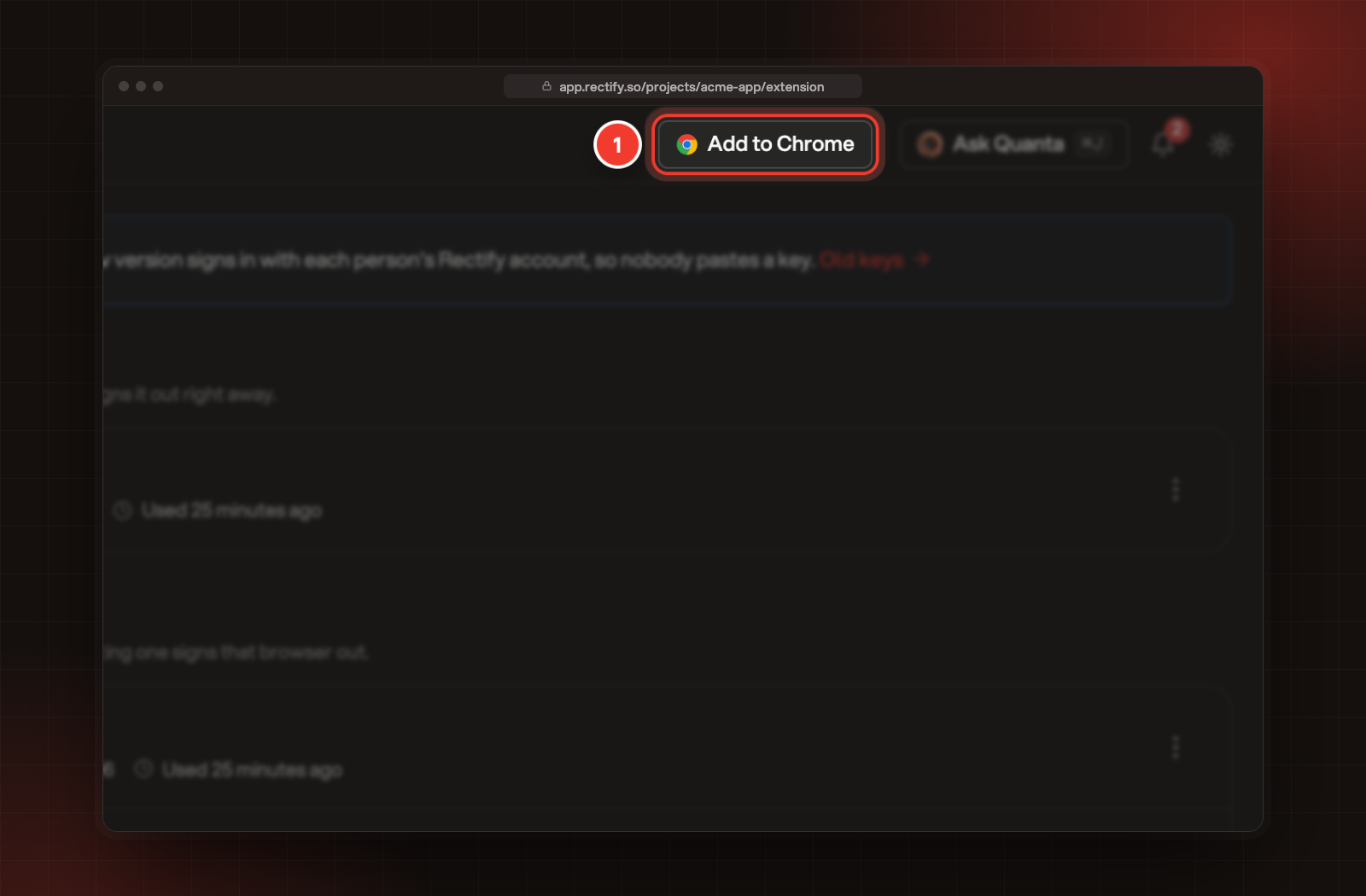
Open Rectify on the Chrome Web Store, select Add to Chrome, then Add extension. You can also get there from Rectify: open Project settings, then Chrome extension, and select Add to Chrome.
1 Add to Chrome, at the top of the Chrome extension page in Rectify.
2.
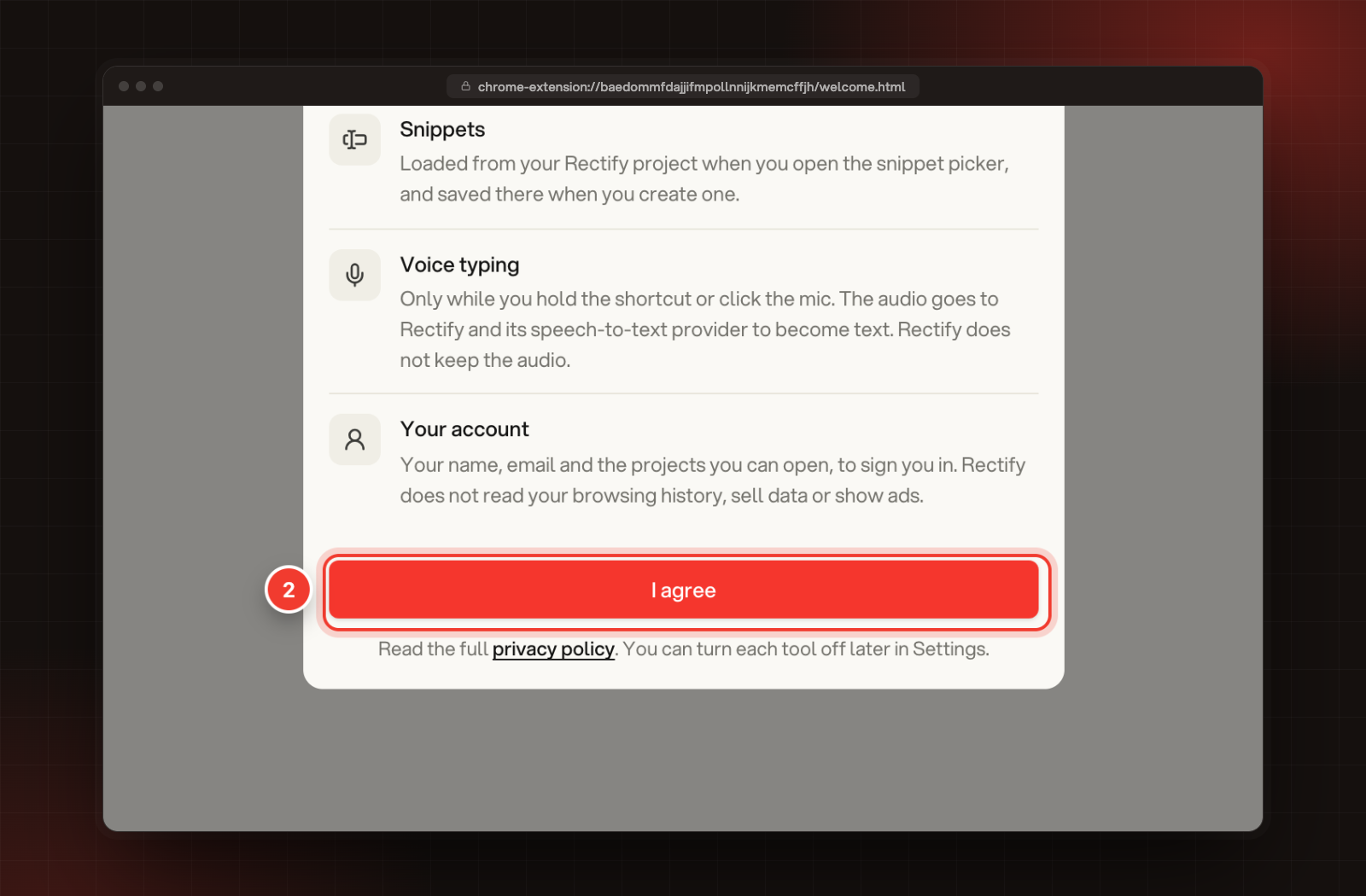
A welcome tab opens. Read what each tool sends and when, then select I agree.
2 I agree, under what each tool collects.
3.
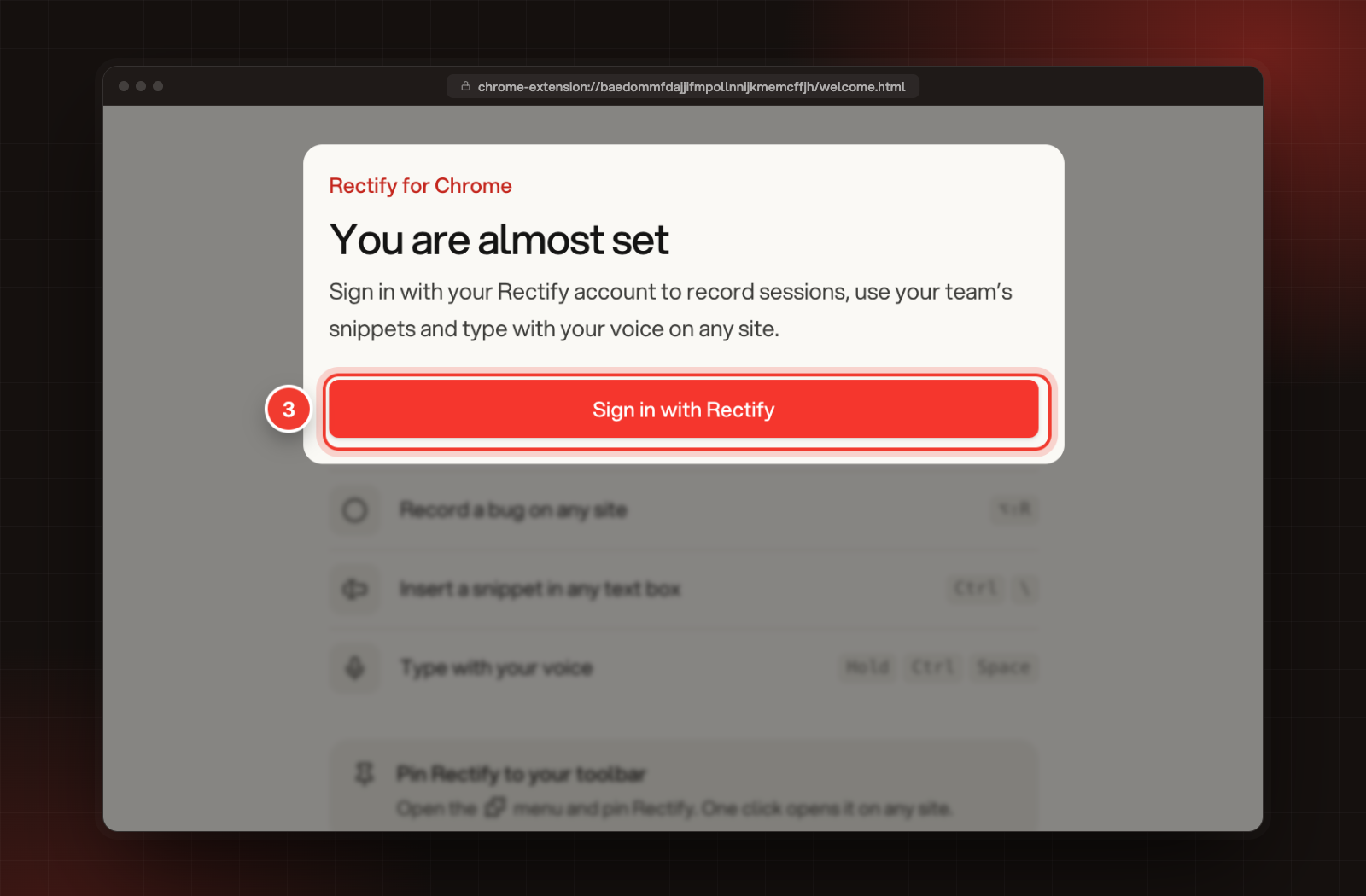
Select Sign in with Rectify. Rectify opens in a new tab. If you aren't signed in to Rectify in this browser yet, sign in first.
3 Sign in with Rectify, on the welcome tab.
4.
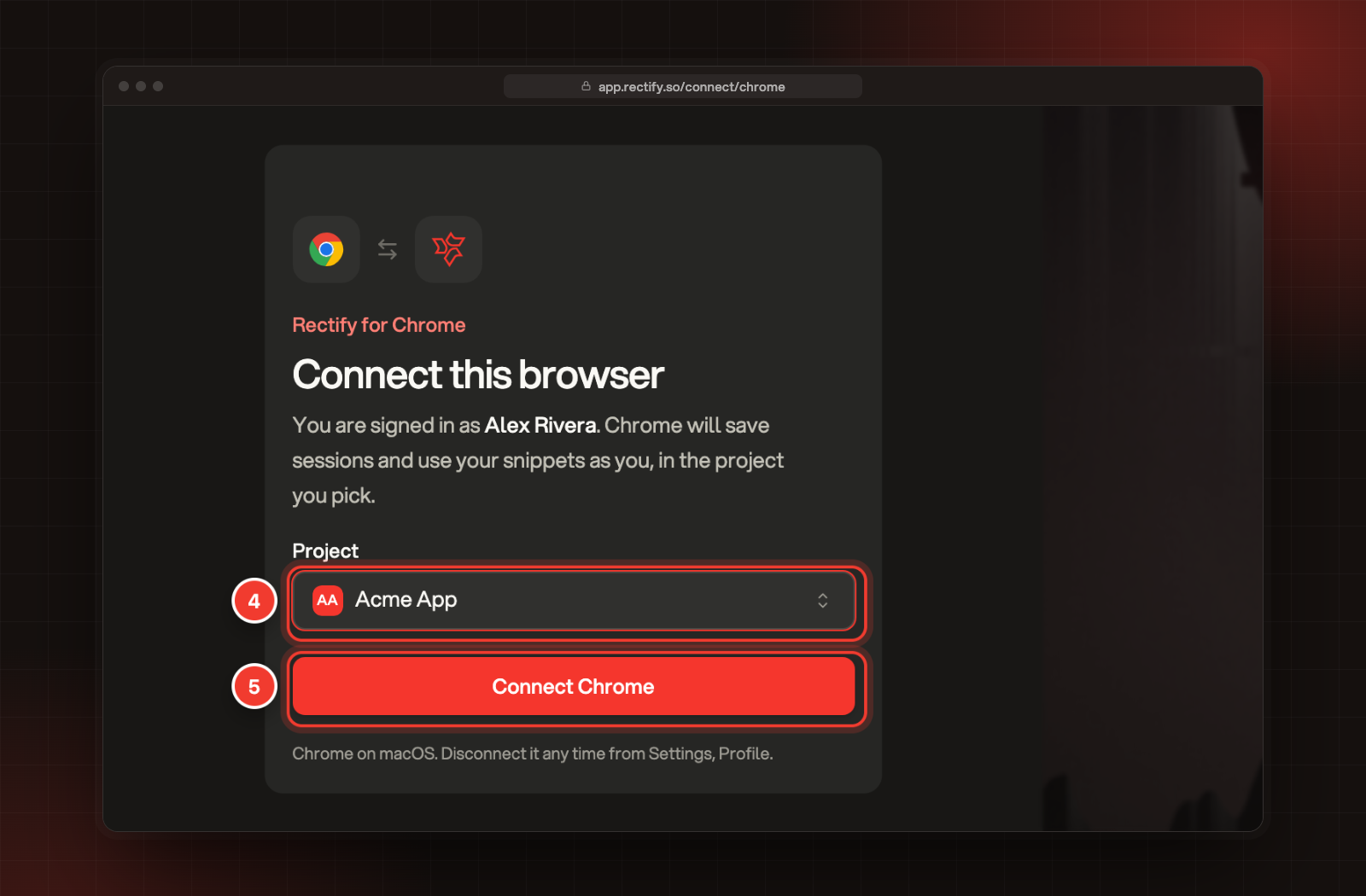
Under Project, pick the project your sessions and snippets should go to. If you belong to more than one organization, pick the Organization first.
5.
Select Connect Chrome.
4 Project. 5 Connect Chrome.
The page says Chrome is connected and the tab closes on its own after a moment.
To keep Rectify one click away, open the Extensions menu (the puzzle piece in Chrome's toolbar) and pin Rectify.
Check it worked
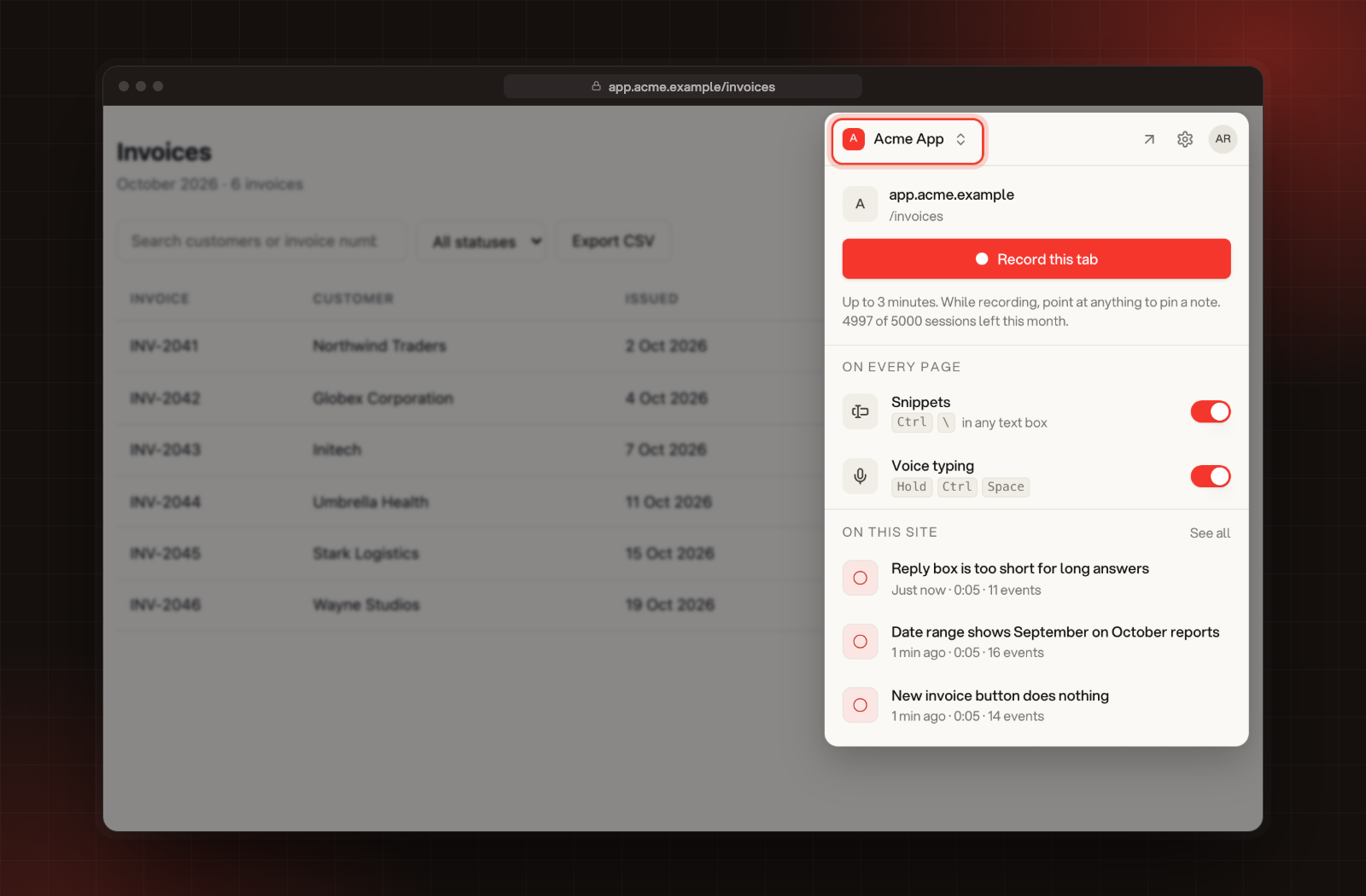
Select the Rectify icon in Chrome's toolbar. The popup shows your project at the top, Record this tab for the page you're on, and your Snippets and Voice typing shortcuts under On every page.
The project name at the top of the Rectify popup.
Pick another project
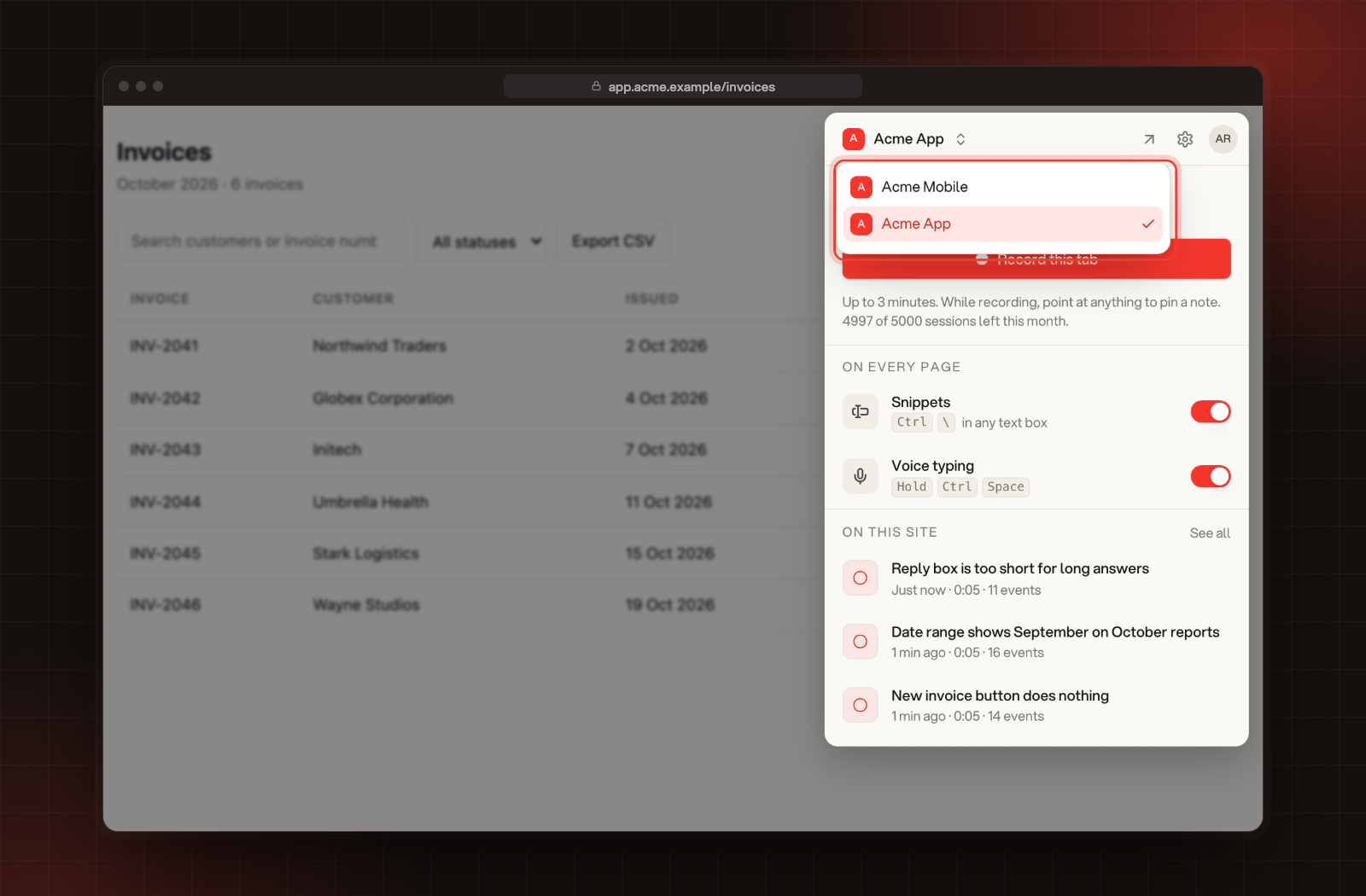
Select the project name at the top of the popup and choose another one. You can also select the gear for Settings and change Project there. The list shows only the projects you can open in Rectify, grouped by organization if you belong to more than one.
The project list in the Rectify popup.
Stay signed in, or sign out
The extension stays signed in as long as you use it at least once every 30 days. One account can connect up to 10 browsers. Connecting an eleventh signs out the one you used longest ago.
To sign out, open the popup, select the gear for Settings, then Sign out. If a recording is running, signing out throws it away.
You can also disconnect a browser from Rectify: open Project settings, then Chrome extension, open the menu on the browser and select Disconnect. Your browsers are listed under Signed-in devices on your profile too. Set up the extension for your team explains what Owners and Admins see.
The extension says "Sign in to Rectify" again
It says You were signed out when the browser was disconnected from Rectify, it wasn't used for 30 days, or you signed out everywhere from your profile. Select Sign in with Rectify to connect it again.
It says "This link is incomplete" or "This sign-in has expired"
The sign-in page was opened without the extension, or the sign-in took longer than 30 minutes. Open the Rectify popup and select Sign in with Rectify again.
It says "Rectify for Chrome didn't answer"
Check the extension is installed and turned on under Chrome's Extensions page, then select Sign in with Rectify in the extension again.
It says "You need a project first"
Your account has no project you can open. Create a project, or ask an Owner or Admin to give you access to one, then open the extension again.
The shortcuts don't do anything
Shortcuts stay off until you've selected I agree and signed in. Open the Rectify popup to finish both.