Add languages to your help center, let Quanta draft each translation, then check it and publish it.
4 min readUpdated 5 days ago
Before you start. Owners, Admins and Members can add languages and publish translations. Anyone who can edit an article can ask Quanta to translate it and edit the translation. Quanta's translations use your AI provider key or the Rectify credits included in paid plans.
You write each article in your default language. Every other language is a translation of it, and readers pick their language on the help center.
Languages on each plan
Your plan sets how many languages you can add on top of each project's default language. The count covers every project in your organization.
Plan
Extra languages
Idea (free)
1
Build
3
Launch
10
Accelerate and Enterprise
Unlimited
For example, on Build you could add Spanish and German to one project and French to another.
Add a language
1.
Open Publish, then Portal, and select the Help Center tab. From the help center, the settings button at the top opens the same place.
2.
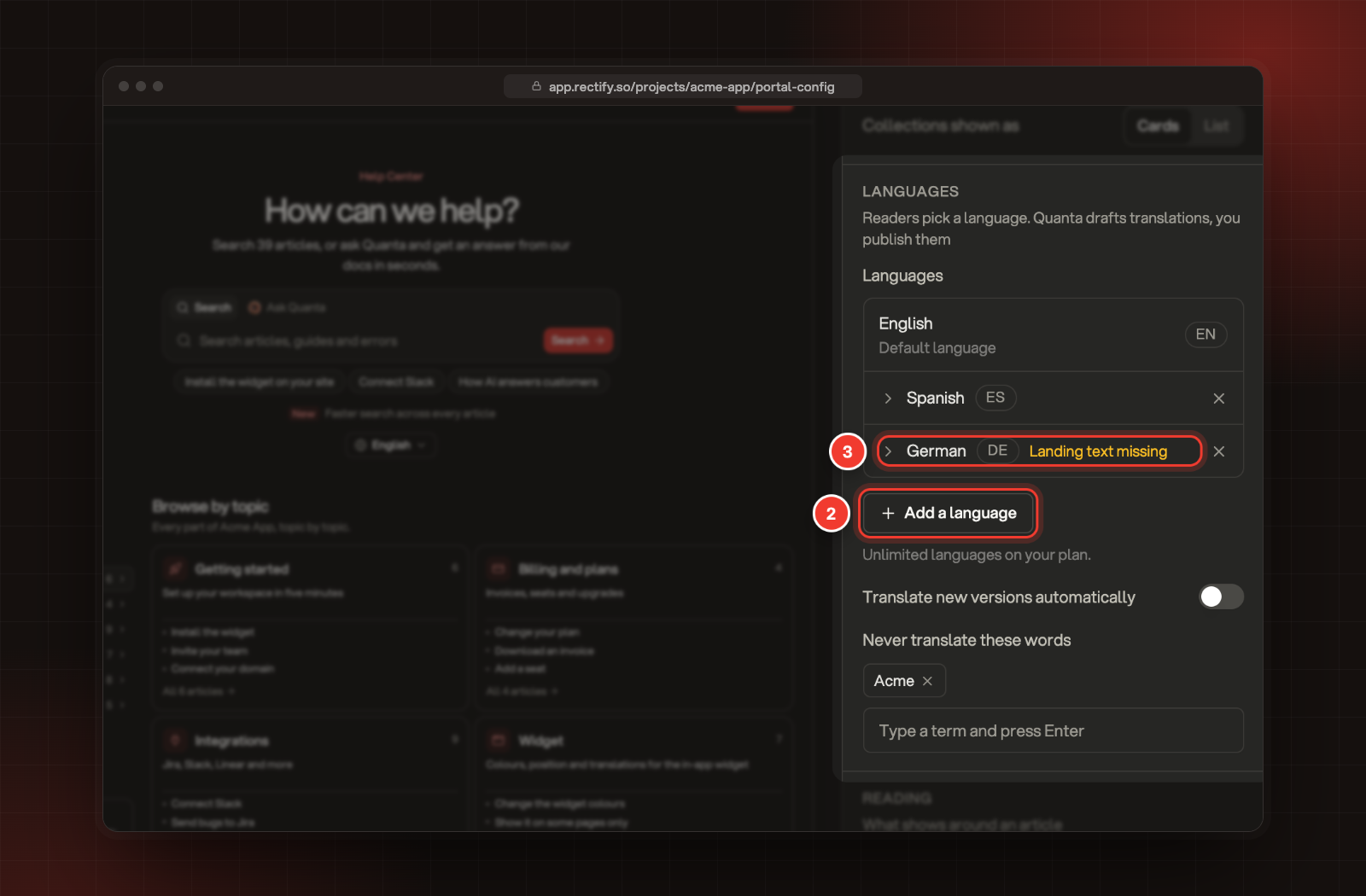
Under Languages, select Add a language and pick one from the list.
3.
Select the new language to write what your help center's home page says in it: Heading, Intro and Search placeholder. Landing text missing shows until you add a heading.
4.
Select Save.
2 Add a language. 3 Landing text for German.
Under the list of languages you'll also find:
•
Translate new versions automatically: each time you publish an article, Quanta drafts it again in every extra language. A person still publishes each translation. Translations someone has edited by hand are left alone.
•
Never translate these words: product and feature names that stay exactly as written, like your brand name. Type a term and press Enter.
Translate an article
1.
Open the article. It needs to be published before a translation can go live.
2.
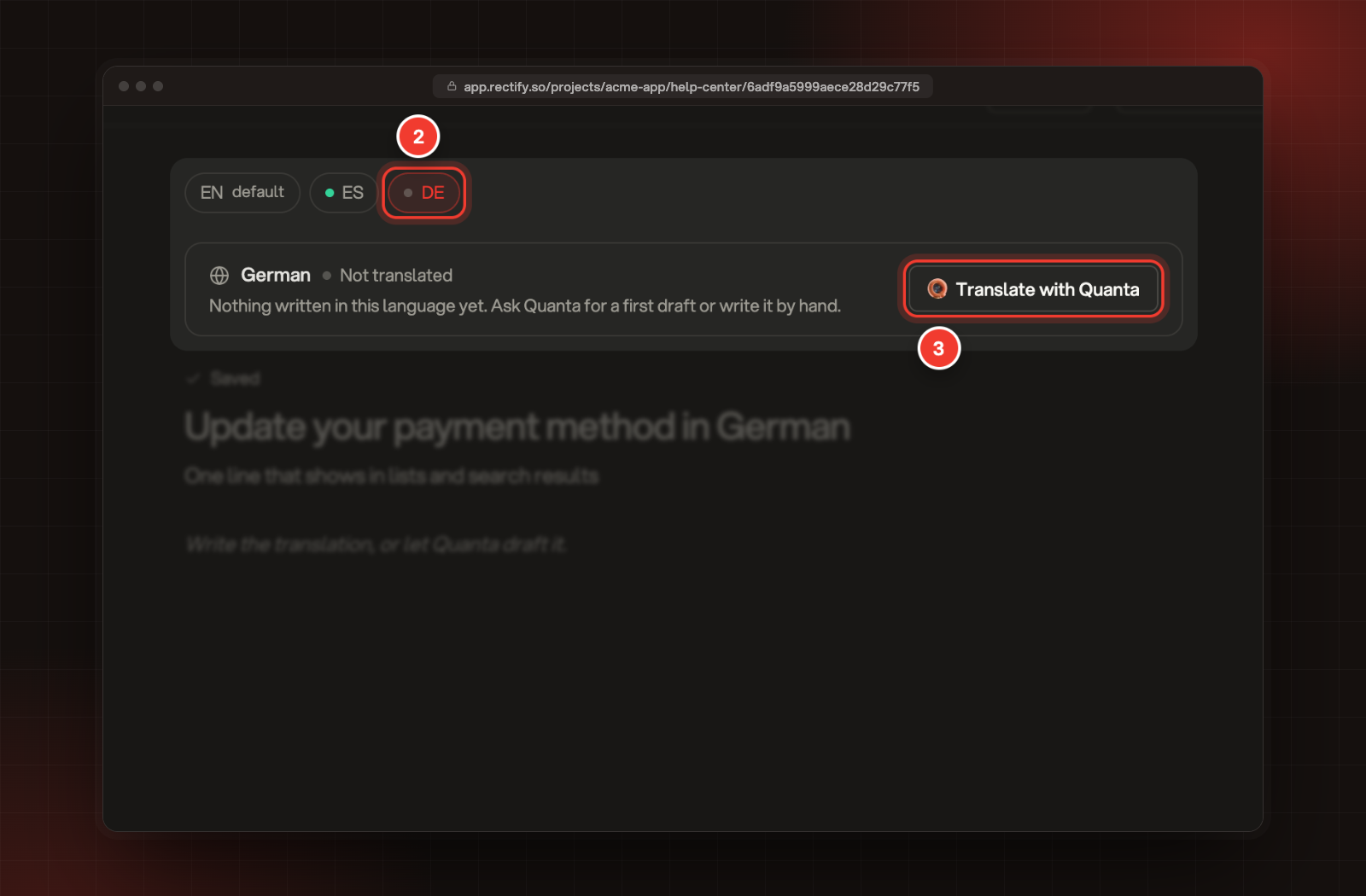
Pick the language in the row at the top of the editor.
3.
Select Translate with Quanta. You can also write the translation yourself.
2 The language. 3 Translate with Quanta.
4.
Wait while it shows Translating. It usually takes under a minute.
5.
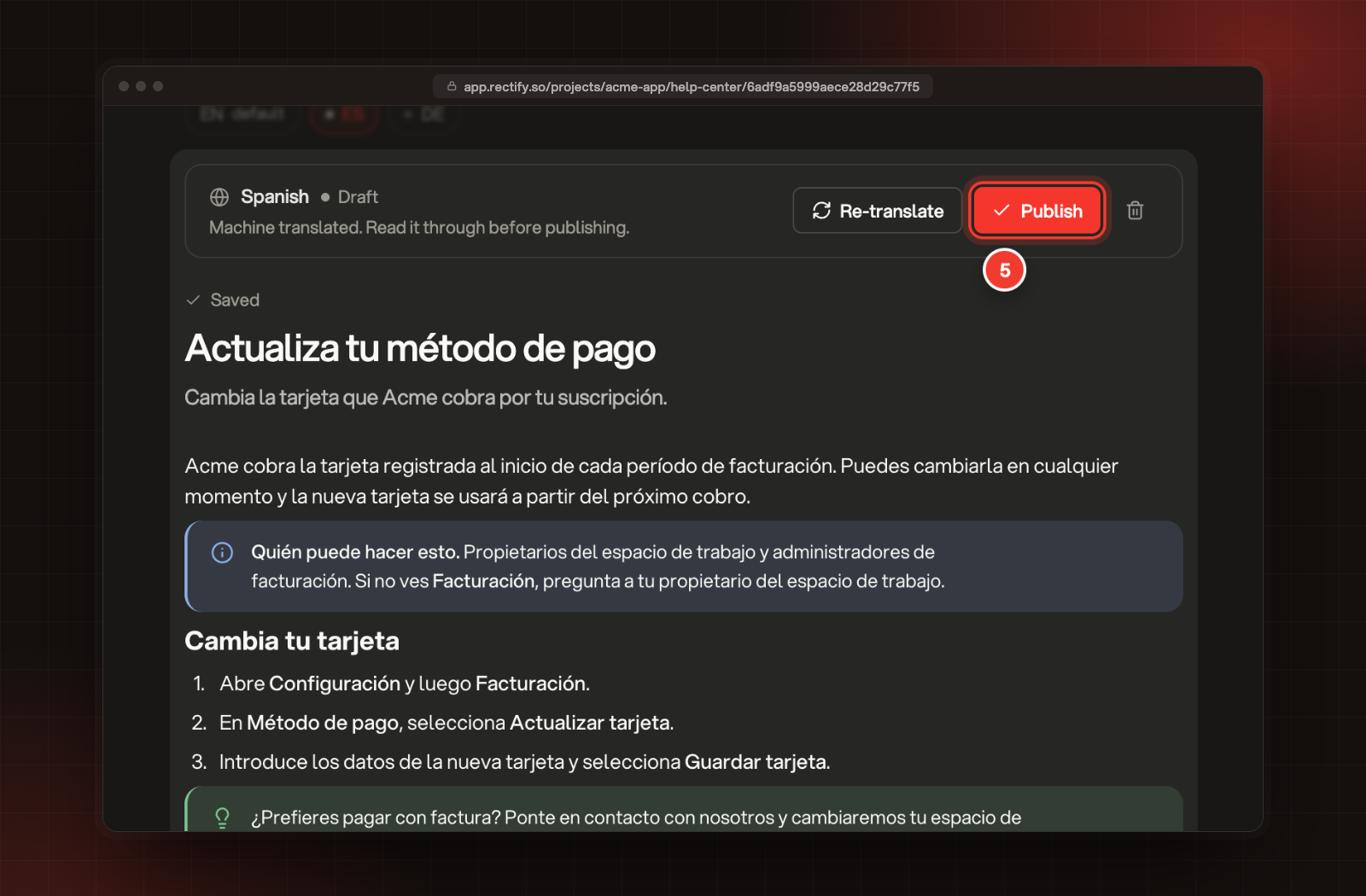
Read the translation through and fix anything that's off. Your edits save as you type.
6.
Select Publish.
Quanta's Spanish draft, ready to check. 5 Publish.
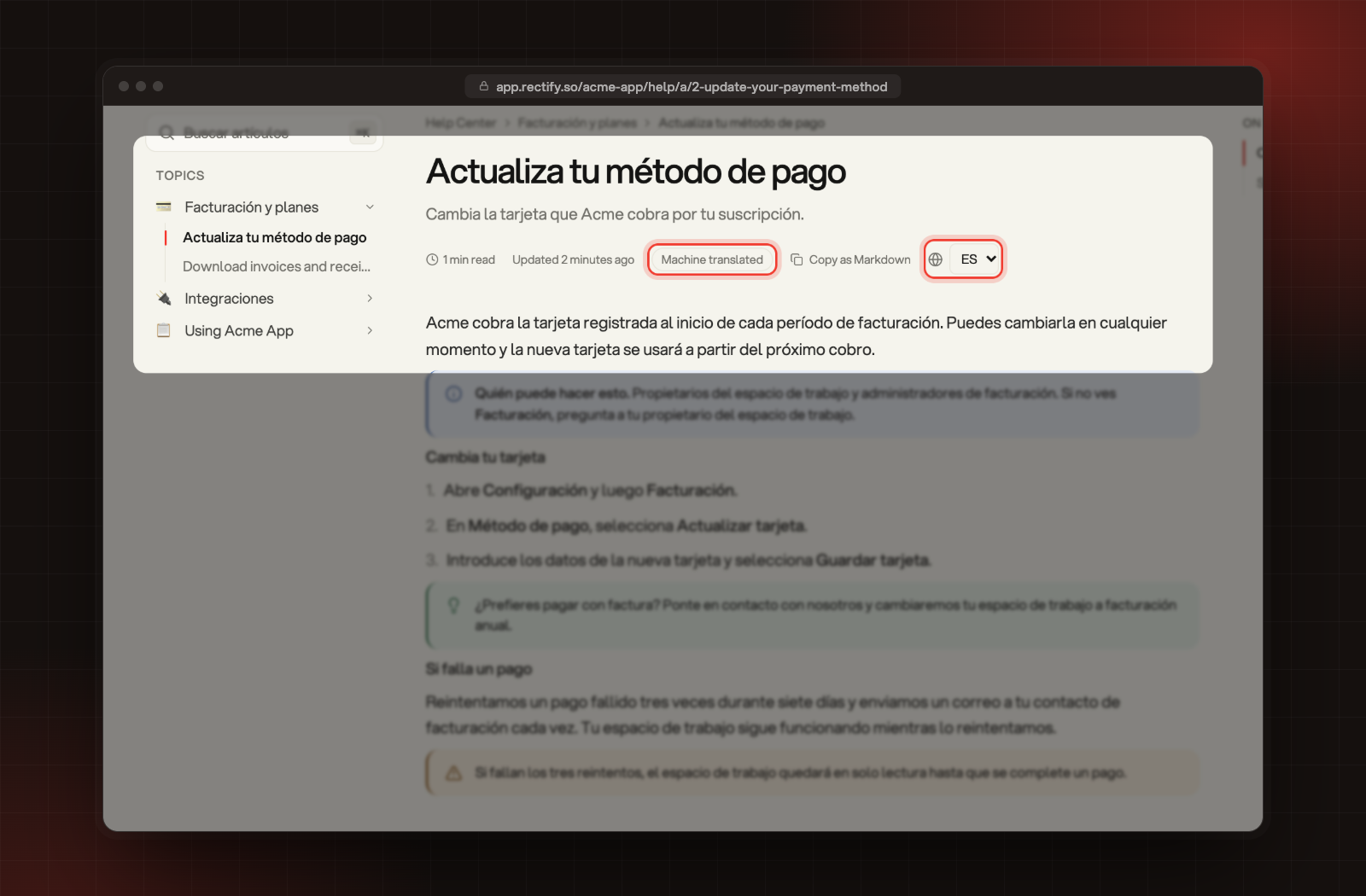
Readers see a Machine translated label on a translation Quanta wrote. Once you edit and publish it, the label goes away.
Translate collection names
1.
In the help center panel, open the menu next to a collection and select Edit.
2.
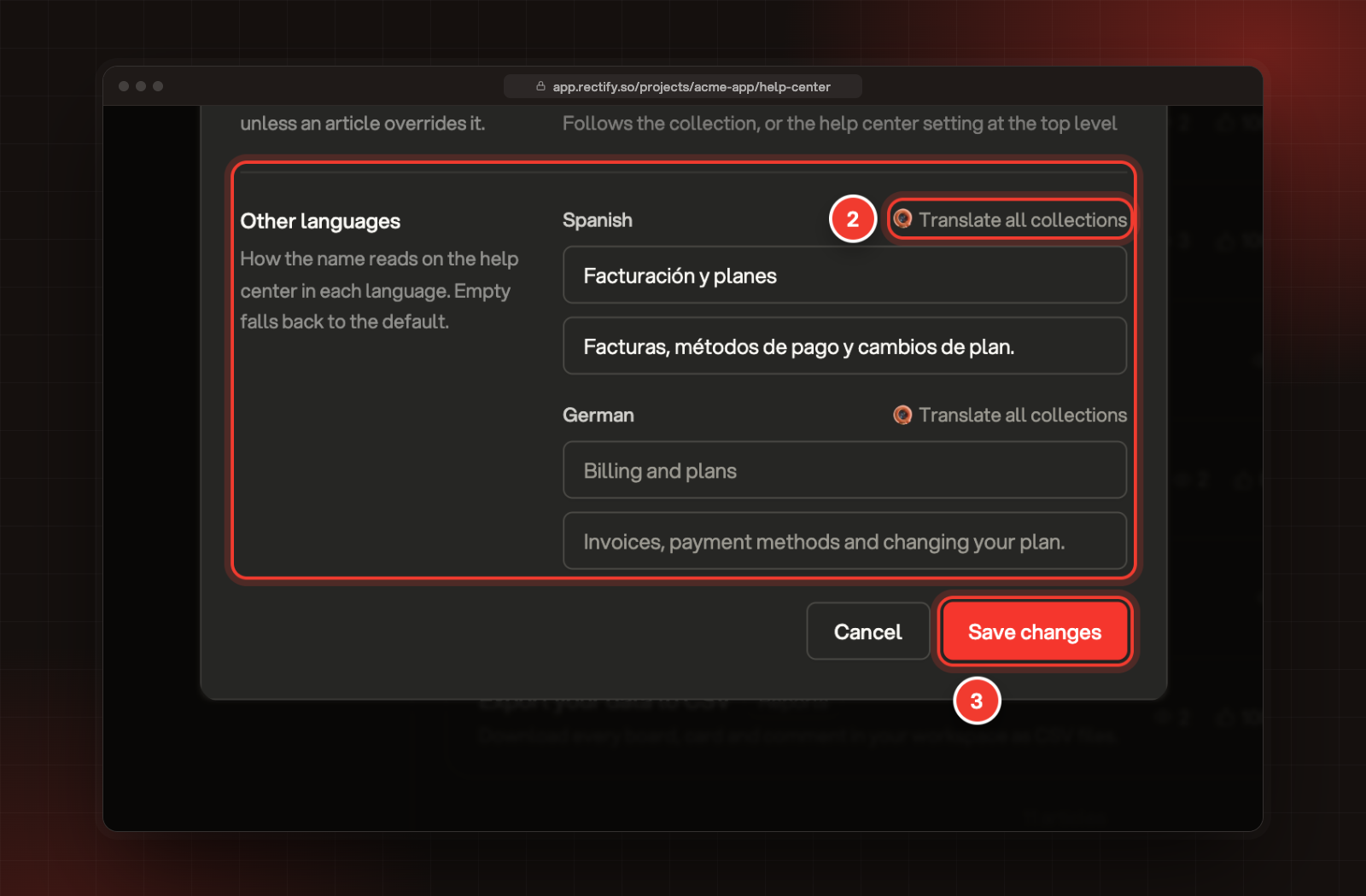
Under Other languages, type the name and description in each language, or select Translate all collections to let Quanta translate the names of all your collections into that language at once.
3.
Select Save changes.
2 Translate all collections. 3 Save changes.
A name you leave empty shows in your default language.
Keep translations up to date
When you publish a new version of an article, its translations show Outdated. Readers keep seeing the old translation until you update it. Open the language, select Re-translate or edit it, then publish it again.
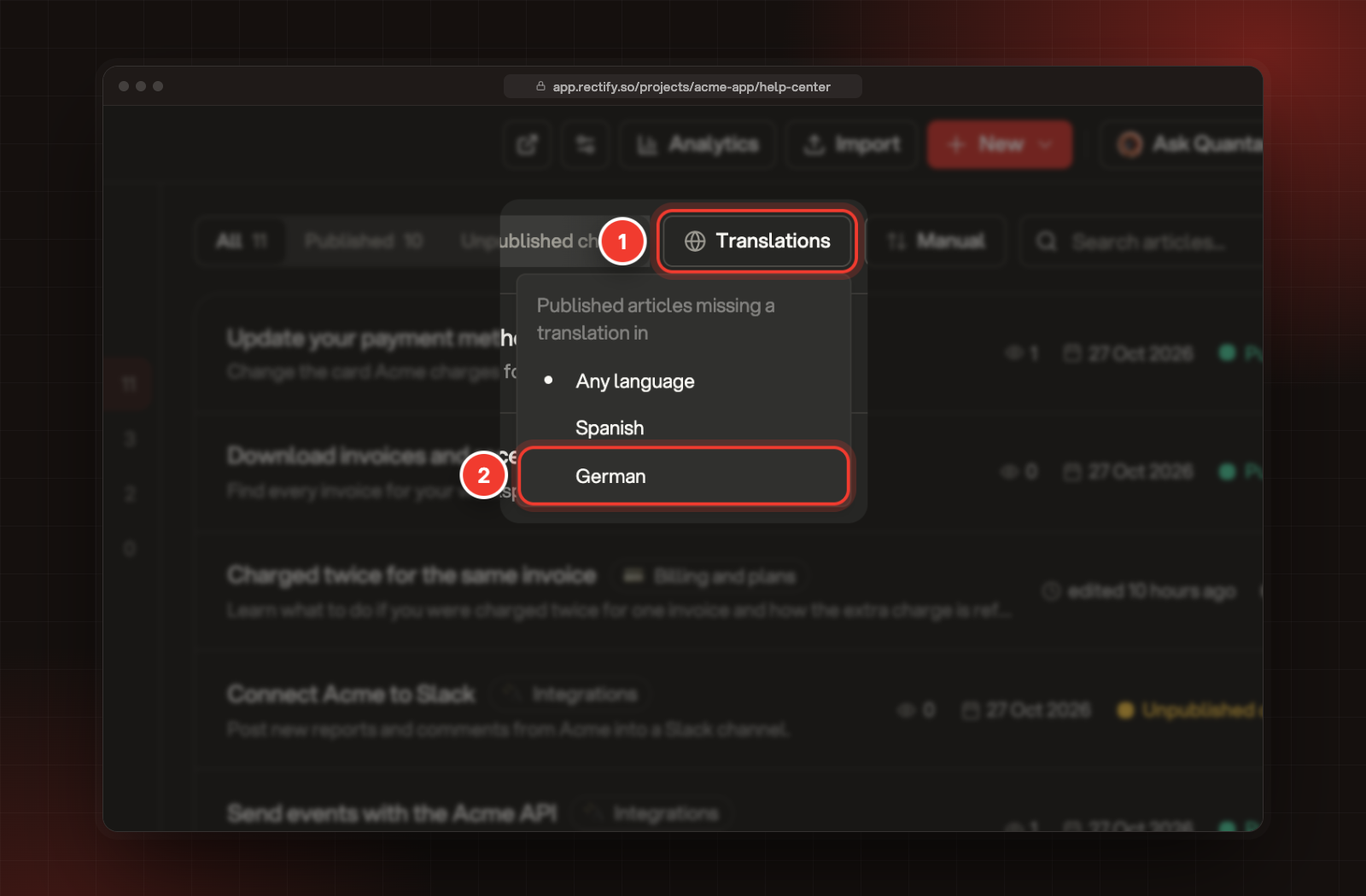
To find the gaps, select Translations above the article list and pick a language. The list shows published articles that have no translation in it yet.
1 Translations. 2 Articles missing a German translation.
Check it worked
Open your help center and pick the language in the menu next to the article's details. An article with no translation shows in your default language.
The Spanish article, with the language menu and the Machine translated label."Translations can only go live once the article itself is published"
Publish the article in your default language first, then publish the translation.
"Translation failed"
Quanta couldn't finish the translation, and the reason shows under the language name. Select Re-translate to try again.
"Your plan does not include this many help center languages"
Your organization has used all the extra languages on its plan, across all projects. Remove a language you don't need in another project, or upgrade your plan.
Translate with Quanta is missing
Your organization has no AI provider key and no Rectify credits left. An Owner or Admin can connect a provider under Organization settings, AI providers. You can still write the translation yourself.