What Quanta reads before it answers in your widget, how to keep a source out of its answers, and how to set its name, logo, subtitle and greeting.
4 min readUpdated 24 days ago
Before you start. Quanta answers in your widget when Answered by is set to Quanta first or Quanta only. Choose who answers first: Quanta or your team explains the modes and how chats reach your team. Answers run on your own AI provider key or your Rectify credits.
What Quanta answers from
Before it answers a question, Quanta searches two places:
•
Your Help Center: published articles that everyone can read. Articles set to Signed-in only, limited to segments, or marked Internal only are never used.
•
Your Knowledge base: your FAQs, websites, documents and API sources, except those marked Private.
If the first search finds nothing that fits, Quanta tries again with other words, up to three times. Quanta also reads the last few messages of the chat, so customers can ask follow-up questions.
If your portal is set to Private under Publish, Portal, Access, Quanta can't use any of your Help Center articles in its answers.
Keep a source out of customer answers
1.
Open Inbox, then Knowledge base.
2.
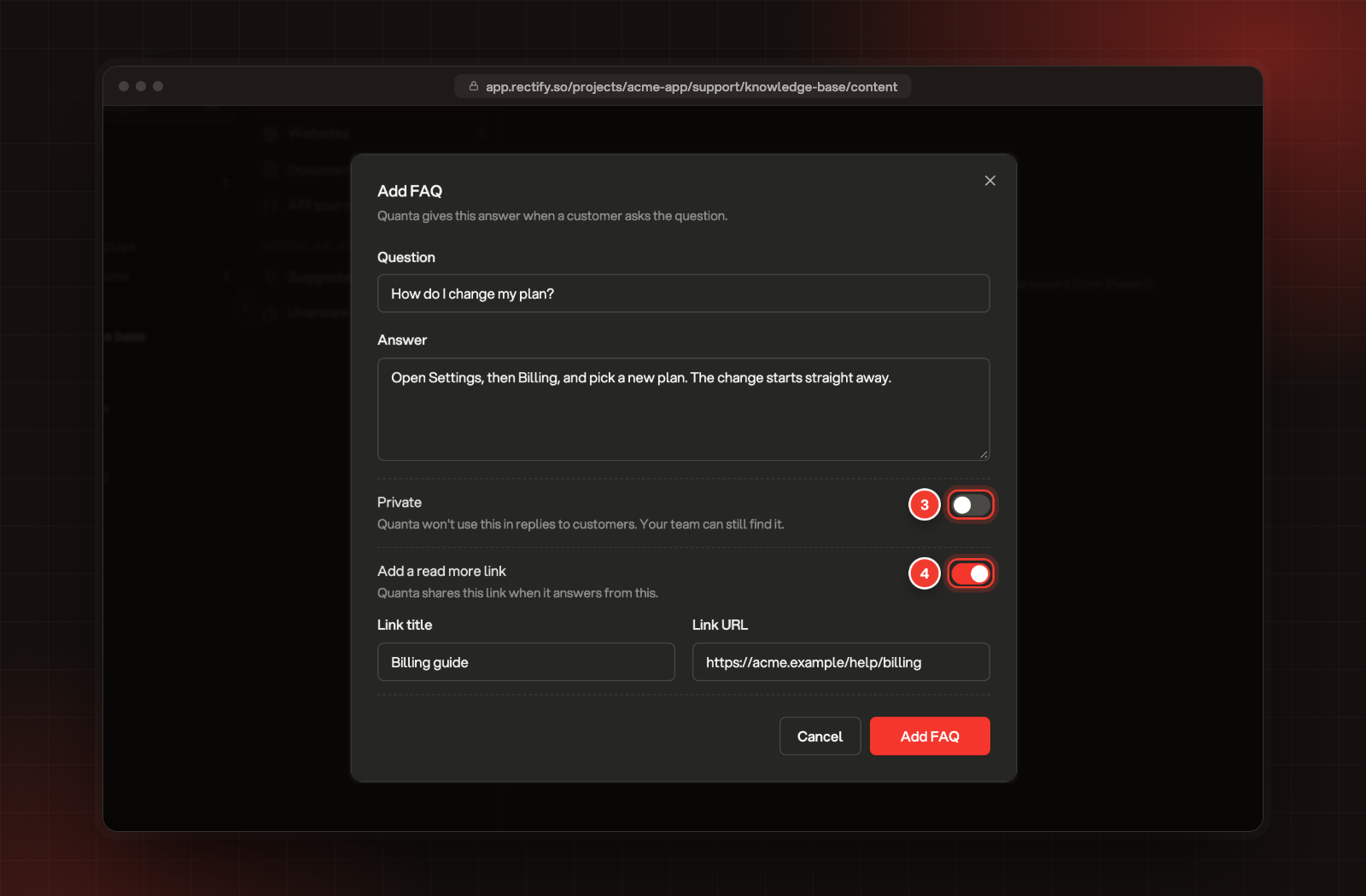
Select Add FAQ, then write the Question and the Answer Quanta should give.
3.
To keep it out of customer answers, turn on Private. Your team can still find it.
4.
To show a link with the answer, turn on Add a read more link and fill in Link title and Link URL.
5.
Select Add FAQ.
3 Private. 4 Add a read more link.
API sources have the same Private switch. For a Help Center article, open it in the editor, select Audience and turn on Internal only.
Links under Quanta's answers
When Quanta answers from a source that has a link, it can list that link under its answer:
•
Help Center articles link to the article. If your widget shows the Help tab, the article opens right inside the widget.
•
Website pages link to the page Quanta read.
•
FAQs and documents link to their read more link, if you added one.
Questions Quanta couldn't answer
When Quanta finds nothing that answers a question, it saves the question for you. Open Inbox, Knowledge base and select Unanswered questions to see them. Pick a few and Quanta drafts FAQs from them, ready for you to check under Suggested FAQs.
Set Quanta's name, logo and greeting
1.
Open Publish, then Widget.
2.
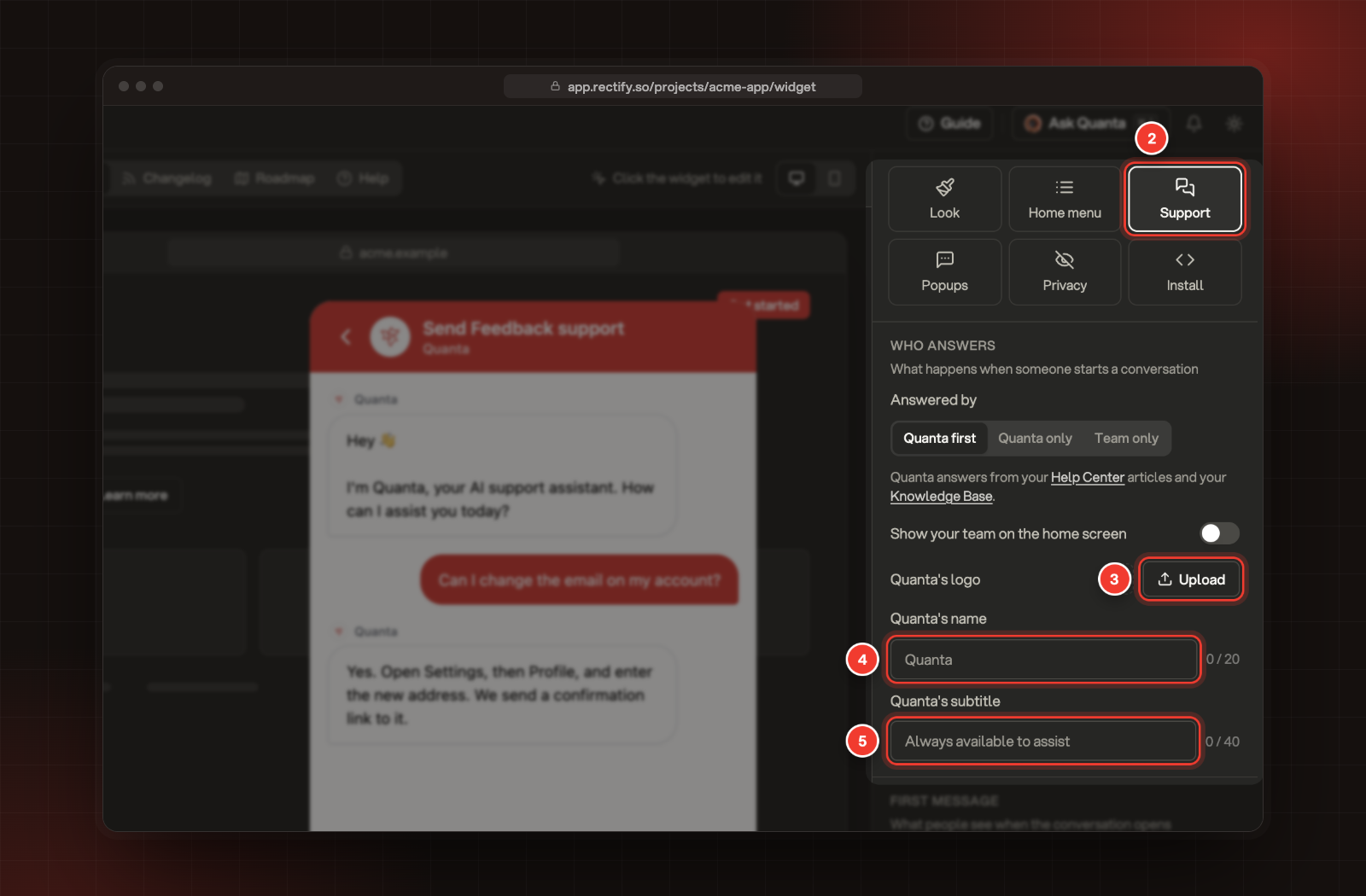
Select Support.
3.
Next to Quanta's logo, select Upload and pick a JPEG, PNG or GIF up to 10 MB. Left empty, Quanta shows the Rectify logo.
4.
Under Quanta's name, enter a name of up to 20 characters. Left empty, it's Quanta.
5.
Under Quanta's subtitle, enter up to 40 characters for the line under the name in the chat header.
6.
Under First message, write a Greeting, or leave it empty for the default welcome.
With no subtitle, the header says who answers: Quanta, Quanta and the team when you show your team on the home screen, or The team.
What your customers see
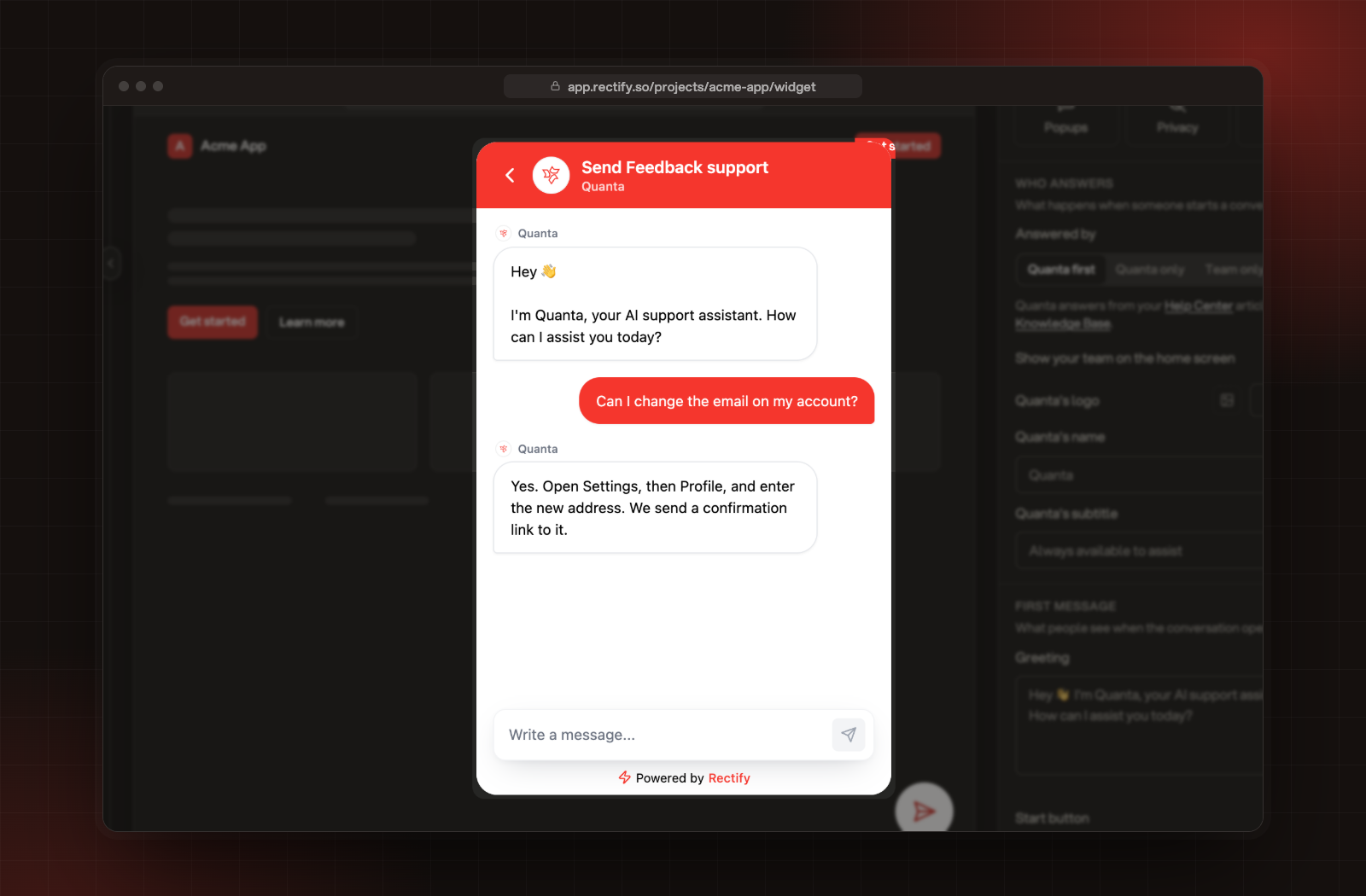
A chat in the widget preview, with Quanta answering.
•
The chat header shows your widget's title followed by "support", with the subtitle under it.
•
Quanta's messages carry its name and logo.
•
Before their first chat, customers enter their name and email under Let's get started.
•
While they type, This might answer it suggests Help Center articles that match.
•
Customers can attach files once someone from your team has joined the chat.
To check it works, open your site, start a chat in the widget and ask something your Help Center answers.
Quanta doesn't use my Help Center articles
Check that the article is published, that its Audience is Everyone (or Same as parent in a collection everyone can read), that it isn't limited to segments or marked Internal only, and that your portal isn't set to Private.
Customers see "Something went wrong! Try again" when they send a message
Quanta couldn't run, usually because your organization has no AI key and no Rectify credits left. Connect a provider under Organization settings, AI providers.
Quanta says "Sorry, I could not find the answer you were looking for"
Nothing in your Help Center or Knowledge base answered the question. Add an FAQ for it, or check Unanswered questions for more like it.