Watch the session replay, read the technical logs, run Quanta's triage and ask Quanta about a bug report, all from the Rectify app.
4 min readUpdated 5 days ago
Before you start. Replays and logs come with bug reports sent from the widget's Report a Bug form. The console, network and action logs need the Build plan or higher. Quanta's triage and chat use your organization's AI: your own AI provider key, or the AI credits included with paid plans. Only Owners and Admins can ask Quanta to write a fix.
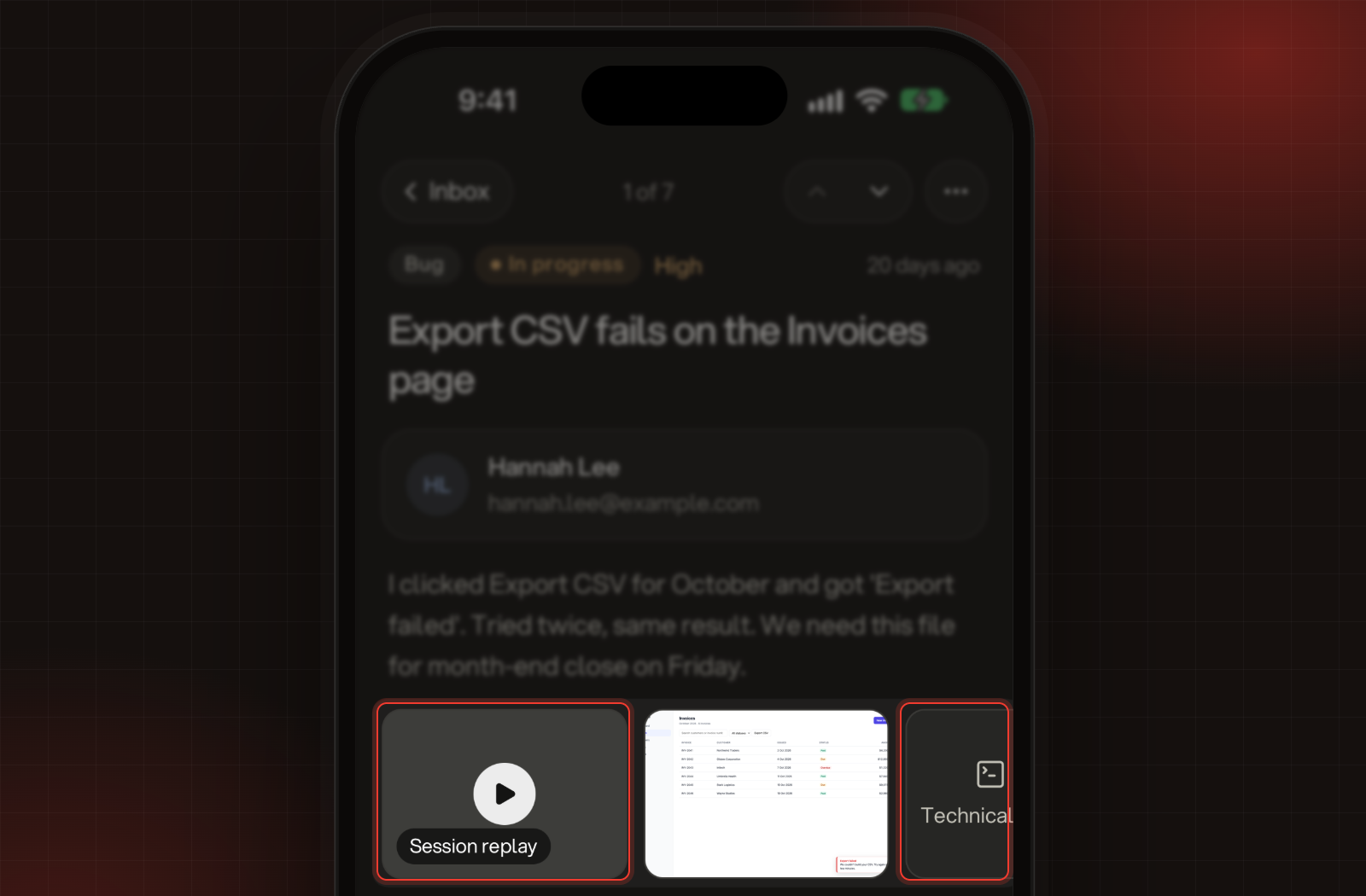
Open a report from Inbox, Feedback. Under the description, a row of tiles shows everything that came with it: Session replay, Video, the screenshots, Technical logs and Attachment. Only the ones the report has are there.
The tiles under a bug report: Session replay, a screenshot and Technical logs.
Look at what was sent
•
Screenshots: tap one to see it full screen, and swipe to the next. When there are more than 4, the last tile shows how many more.
•
Video: plays in the app. Loom videos open in your browser.
•
Attachment: opens the file in your browser.
Watch the session replay
1.
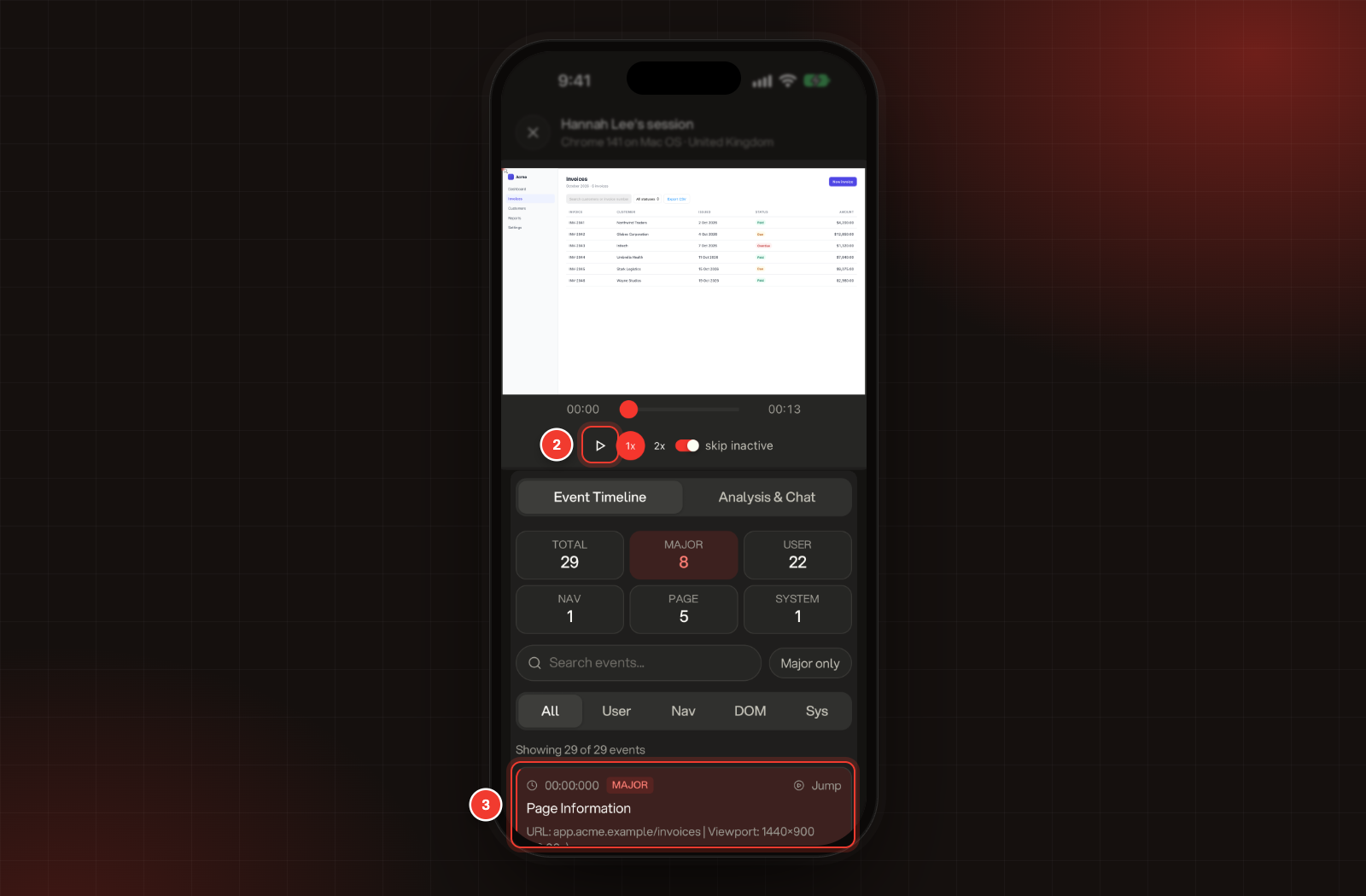
Tap Session replay.
2.
Play the recording of what the person did before they sent the report.
3.
Under Event Timeline, tap an event to jump to that moment. Search events... and Major only narrow the list.
2 Play. 3 An event in the Event Timeline.
Analysis & Chat, next to Event Timeline, has Quanta explain the session. Tap Let's GO! for a summary, then ask your own questions about what the person did.
Read the technical logs
1.
Tap Technical logs.
2.
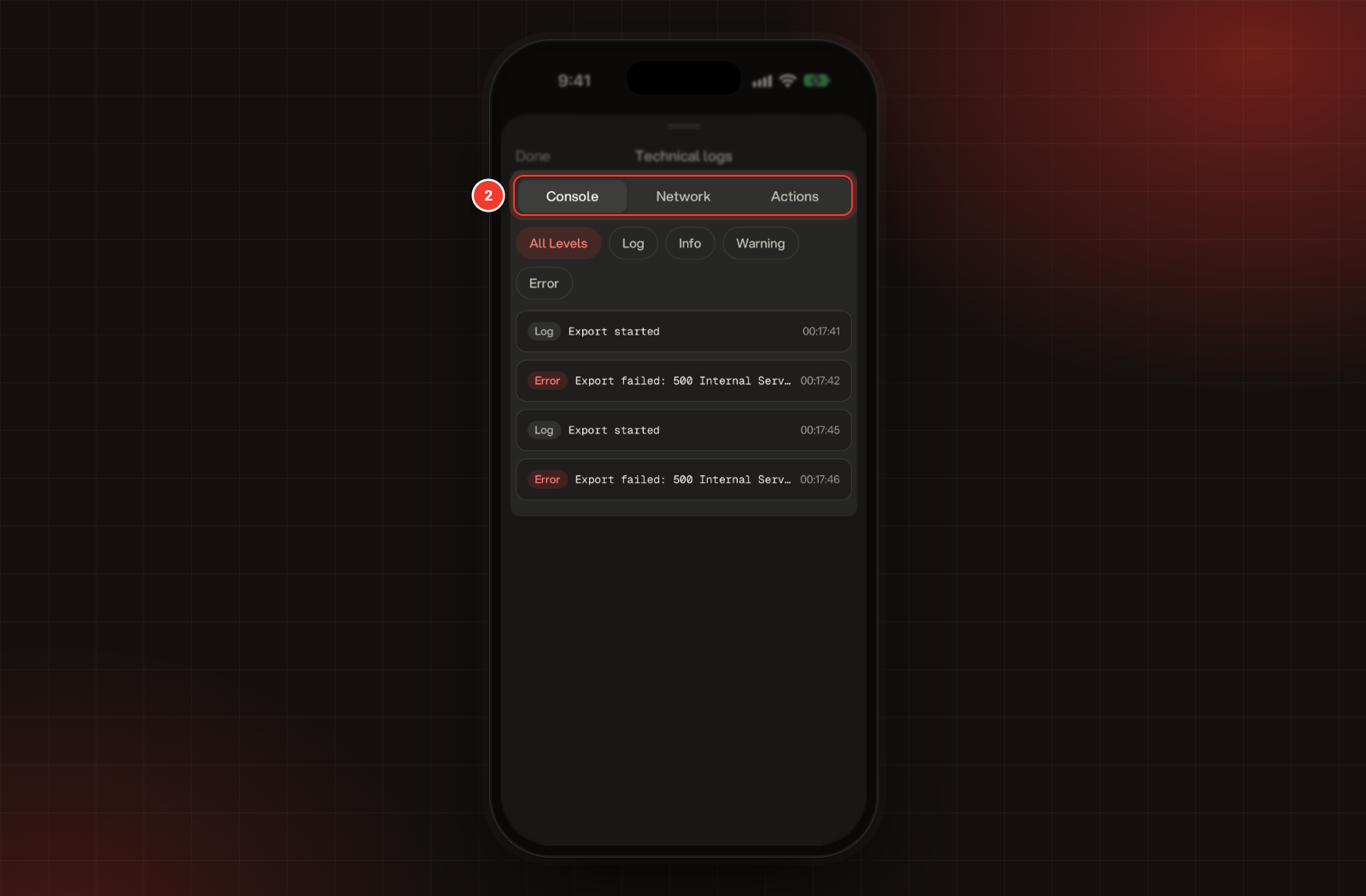
Pick Console, Network or Actions.
2 Console, Network and Actions.
Console has the errors, warnings and logs from the person's browser. Network has the requests their browser made, with status codes. Actions has their clicks, key presses and page changes. Tap Done to close the logs.
Triage a bug with Quanta
Bug reports have a Quanta card below the tiles. Until Quanta has looked at the bug, it says Triage with Quanta.
1.
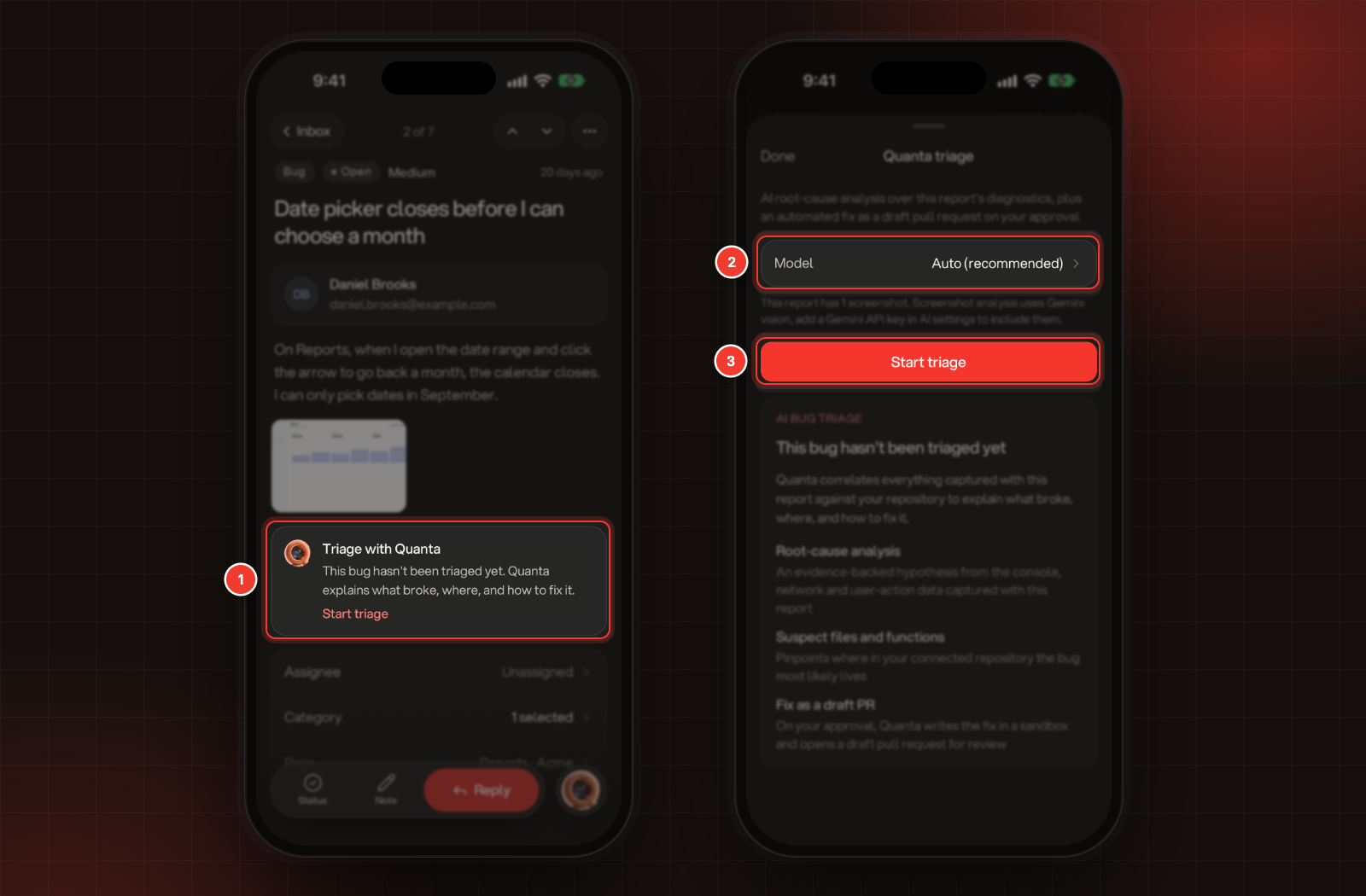
Tap Triage with Quanta.
2.
Optionally, tap Model and pick one. Auto (recommended) lets Rectify choose.
3.
Tap Start triage.
1 Triage with Quanta. 2 Model. 3 Start triage.
You can tap Done and keep working while Quanta looks into it. When it's finished, the card shows a short summary. Tap See the report for the Likely root cause, Suspect files, Reproduction steps and Suggested fixes. Re-triage runs it again, for example after you connect GitHub.
With GitHub connected to a repository, Owners and Admins also see Fix with Quanta. Tap it, then Start fix, and Quanta opens a draft pull request for your team to review. Nothing is merged without your review. Triage and fix bugs with Quanta explains what a fix needs.
Ask Quanta about the report
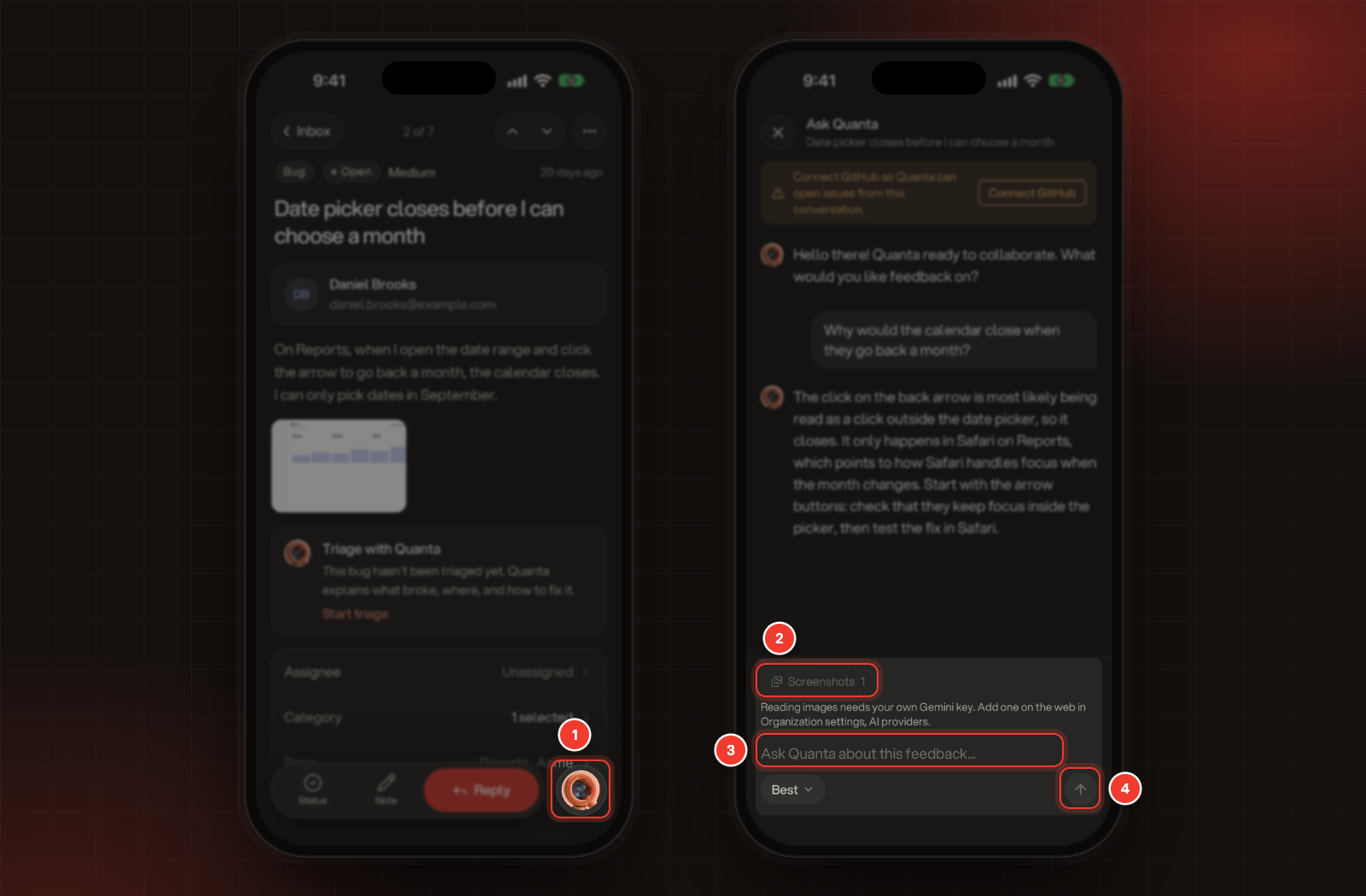
1.
Tap the round Ask Quanta button at the bottom right of the report.
2.
Choose what Quanta can read: Session logs, Screenshots and Attachment. Tap one to leave it out.
3.
Type your question in the Ask Quanta about this feedback... box.
4.
Tap the send arrow.
1 Ask Quanta. 2 What Quanta can read. 3 Your question. 4 Send.
Each report has one Quanta chat, and your team sees the same chat, so it's there when anyone comes back to the report.
It says "Reading images needs your own Gemini key."
Quanta reads screenshots and images with Gemini, so it needs your organization's own Gemini key. An Owner or Admin can add one on the web under Organization settings, AI providers.
It says "Only admins and owners can start a Quanta fix."
Ask an Owner or Admin to start the fix, or to change your role.
It says "Session playback failed"
The recording couldn't be played, often because there's too little in it. The rest of the report, including the technical logs, is still there.