Add boards with their own access and review rules, and shape the statuses your posts move through.
5 min readUpdated 24 days ago
Before you start. Boards and statuses are on every plan. Owners, Admins and Members can add and change boards, statuses and tags. Only Owners and Admins can delete them.
Boards and statuses are shared by every roadmap and by your portal. Changes apply straight away, so there's nothing to save.
Add a board
1.
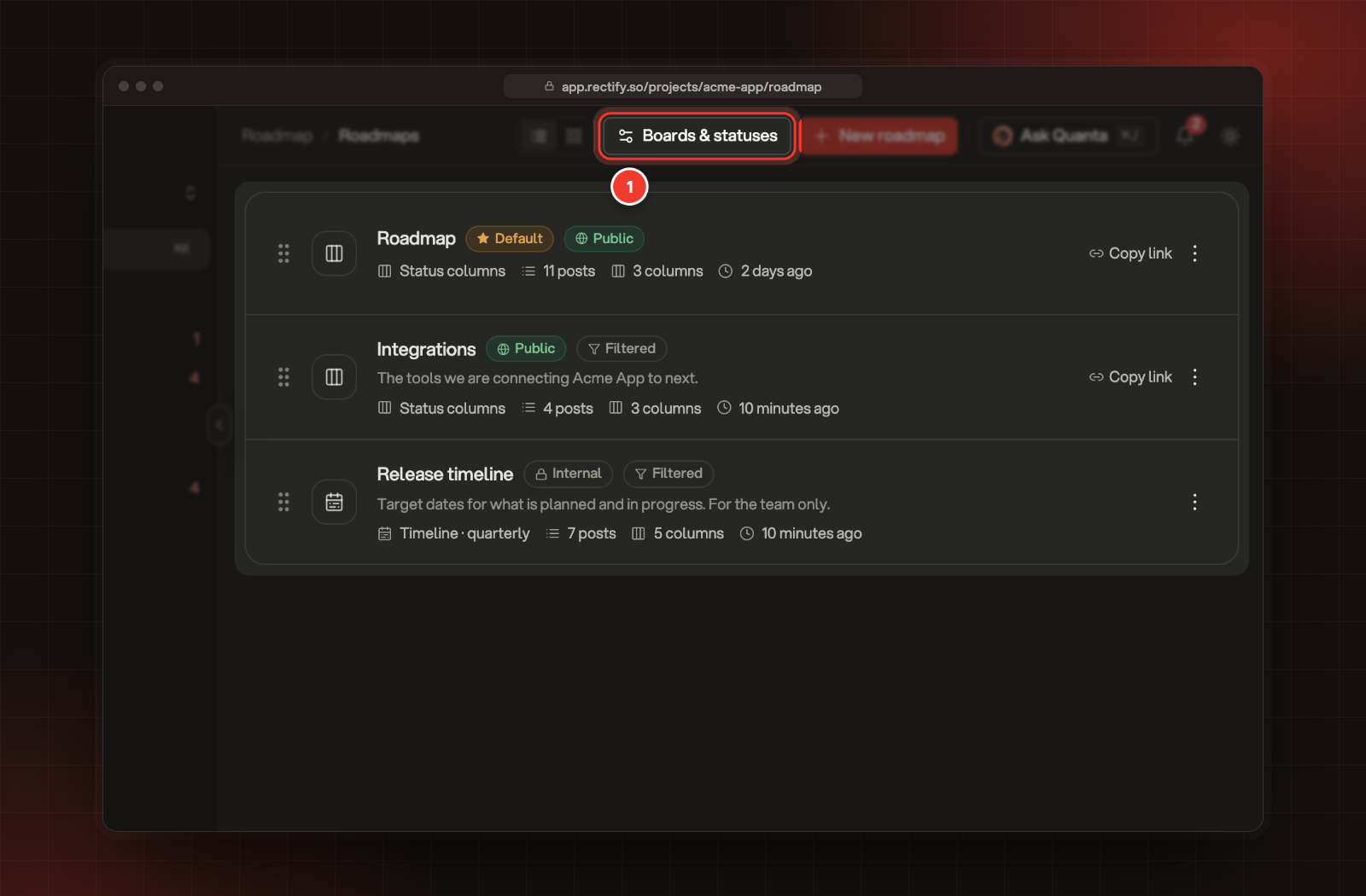
In the sidebar, open Roadmap, then Roadmaps, and select Boards & statuses.
1 Boards & statuses, at the top of the Roadmaps page.
2.
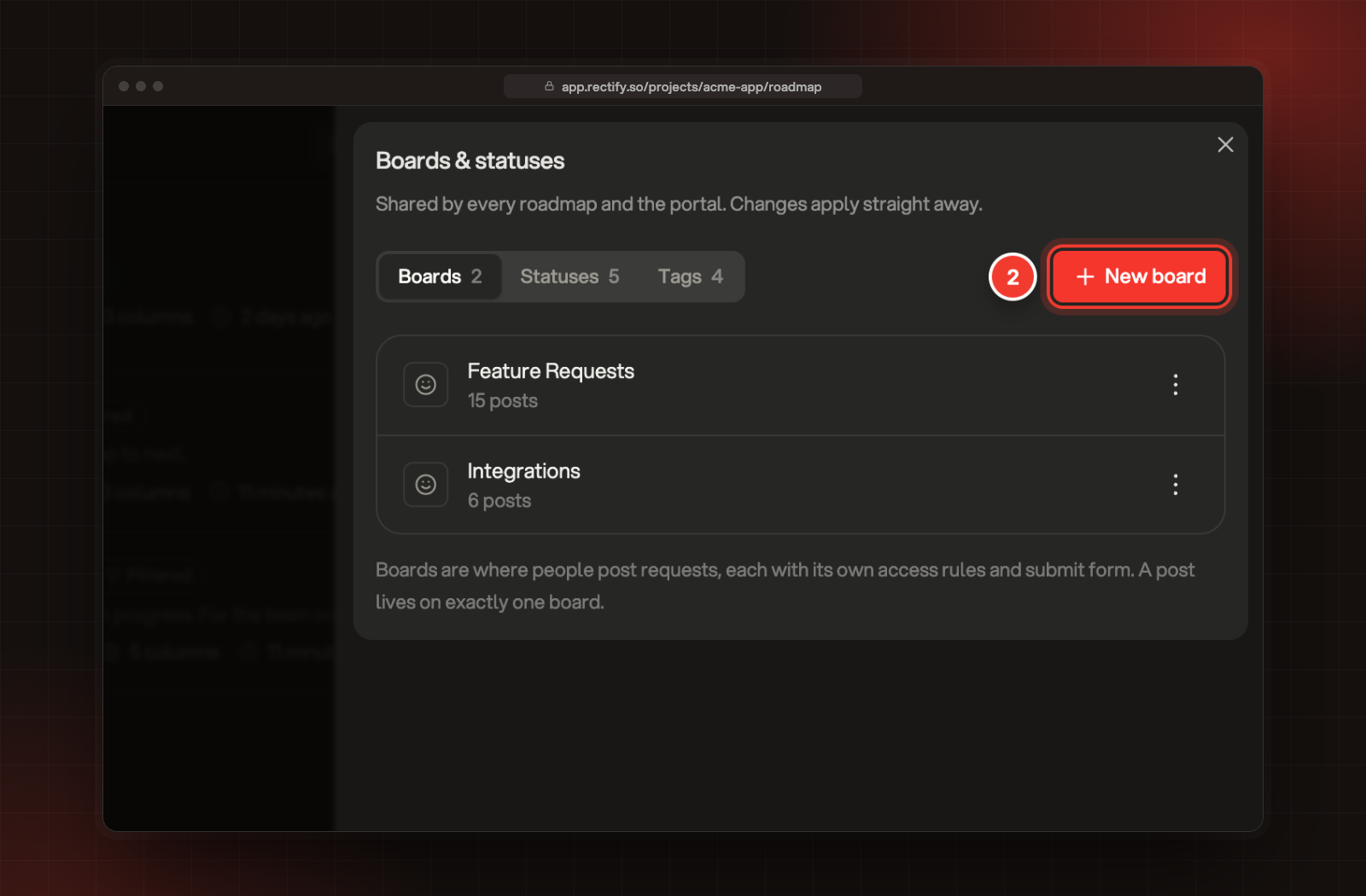
On the Boards tab, select New board.
2 New board.
3.
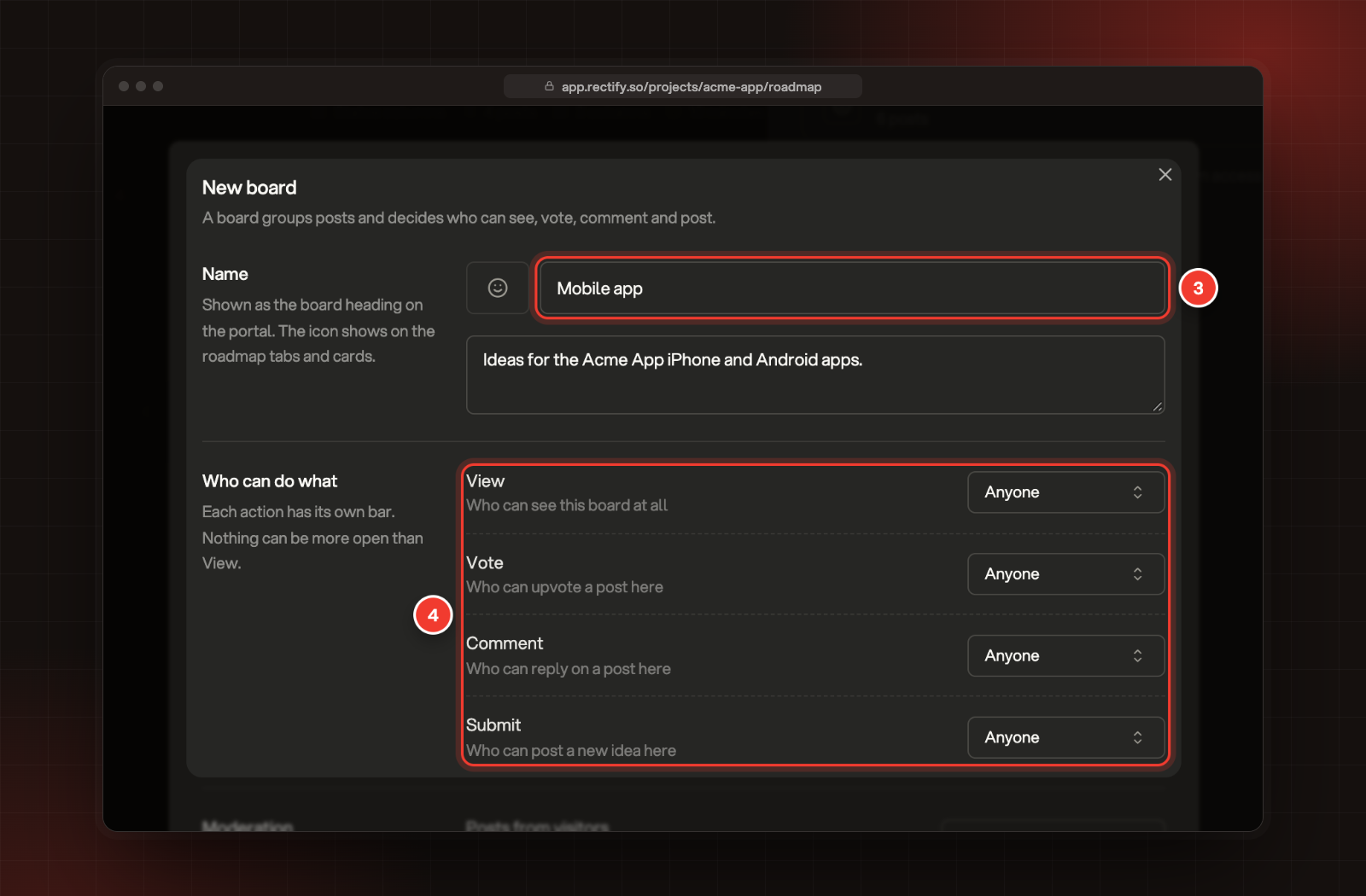
Enter a name, and a description if you like. To give the board an icon, select the smiley next to the name. The icon shows on the roadmap tabs and cards.
4.
Under Who can do what, choose who can View, Vote, Comment and Submit on this board.
3 The board's name. 4 Who can do what.
5.
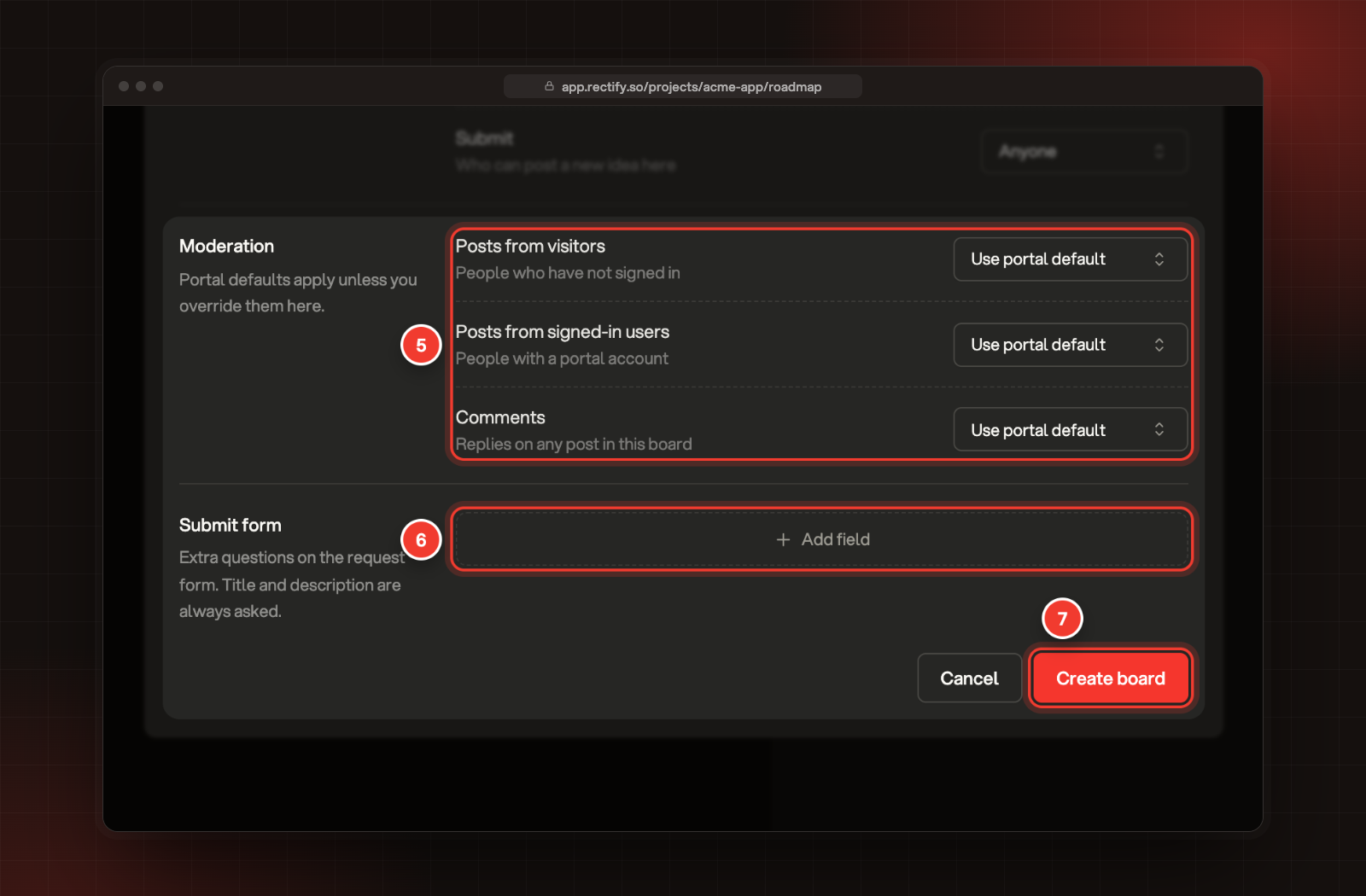
Under Moderation, choose whether new posts and comments on this board wait for review.
6.
Under Submit form, select Add field to ask extra questions when someone posts.
7.
Select Create board.
5 Moderation. 6 Add field. 7 Create board.
You can also add a board from a roadmap: select + at the end of the board tabs.
Who can do what
Each action has its own setting:
Setting
Who it lets in
Anyone
Everyone who opens your portal. Visitors without an account confirm their email the first time they act.
Signed in
People with a portal account.
Segments
Only contacts in the segments you pick.
Team only
Your team. Everyone else can't see the board at all.
Nothing can be more open than View. For example, if only signed-in people can view a board, you can't let anyone vote on it.
Review rules for a board
Moderation has three settings: Posts from visitors (people who haven't signed in), Posts from signed-in users and Comments. Each one can be:
•
Use portal default: follow the rule set for the whole portal.
•
Always review: hold everything for review.
•
Never review: publish straight away.
Your portal holds posts with images or external links for review whatever the board says, as long as those holds are switched on. Moderate new posts in the review queue explains the portal rules.
Extra questions on the submit form
The title and description are always asked. Each extra question has a type: Short text, Number, Choice, Date or Yes / no. For Choice, enter the options separated by commas. Switch on Required to make people answer it. Switch off Show the answer publicly to keep the answer for your team. A board can have up to 20 questions.
Change or delete a board
On the Boards tab, open the menu on a board:
•
Edit board opens the same settings. Select Save changes when you're done.
•
Delete board removes it from your portal and the submit form, and can't be undone. Its posts move to the deleted posts and are removed for good after 30 days. To restore one, you pick another board for it.
Select the icon next to a board to change it. You can't delete your only board.
Add a status
1.
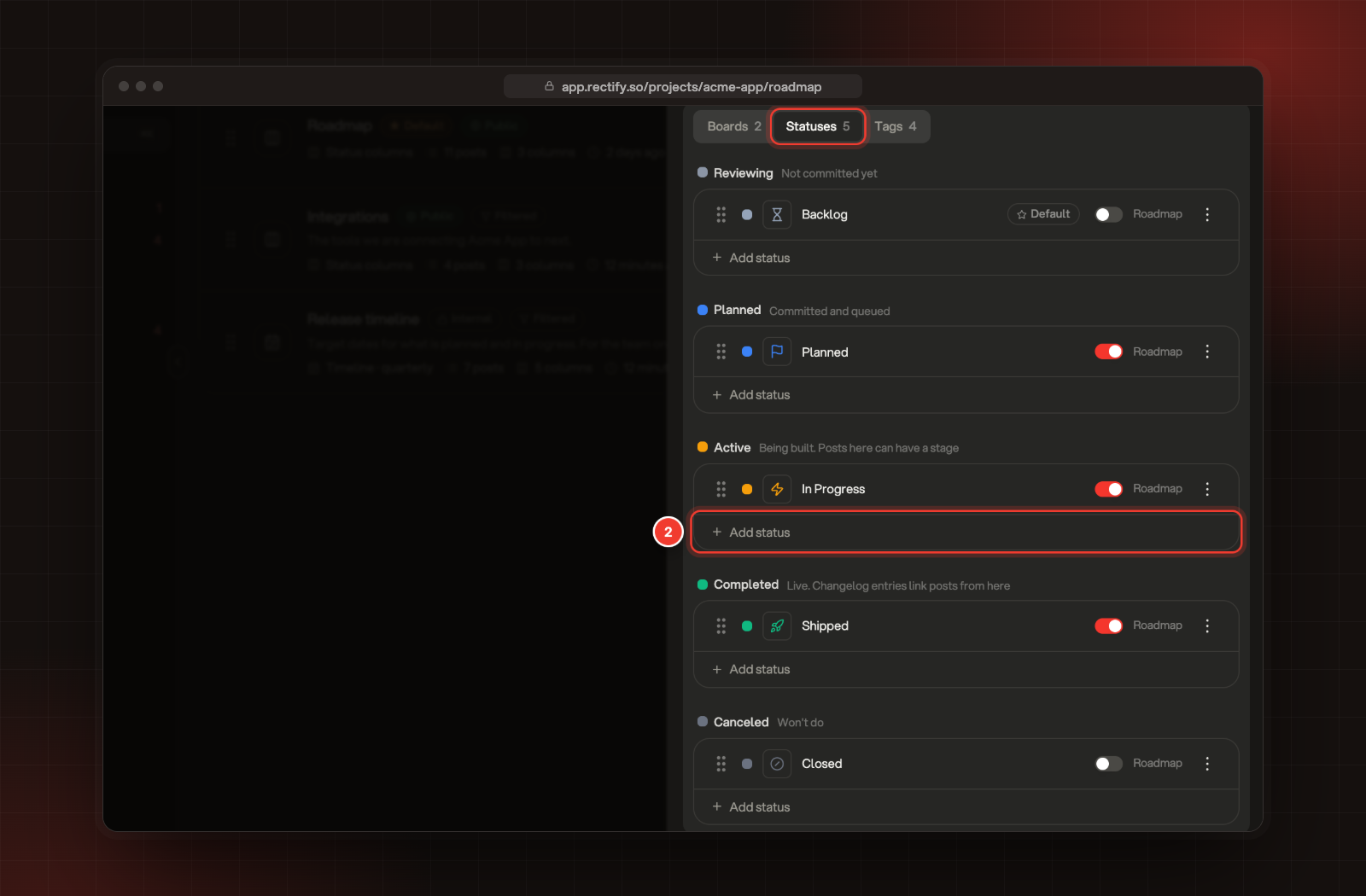
In Boards & statuses, open the Statuses tab.
2.
Under the group that fits, select Add status.
3.
Type a name and select Add.
The Statuses tab, and 2 Add status under Active.
The groups are Reviewing, Planned, Active, Completed and Canceled. The group decides what a status means elsewhere in Rectify. Posts in an Active status can have a stage: Building, In beta, Fix in review or Rolling out. Posts in a Completed status can be linked to changelog posts.
Change a status
On each status:
•
Select its name to rename it. Names can be up to 80 characters.
•
Select the coloured square to change its colour, and the icon next to it to change its icon.
•
Drag the handle to reorder statuses within a group.
•
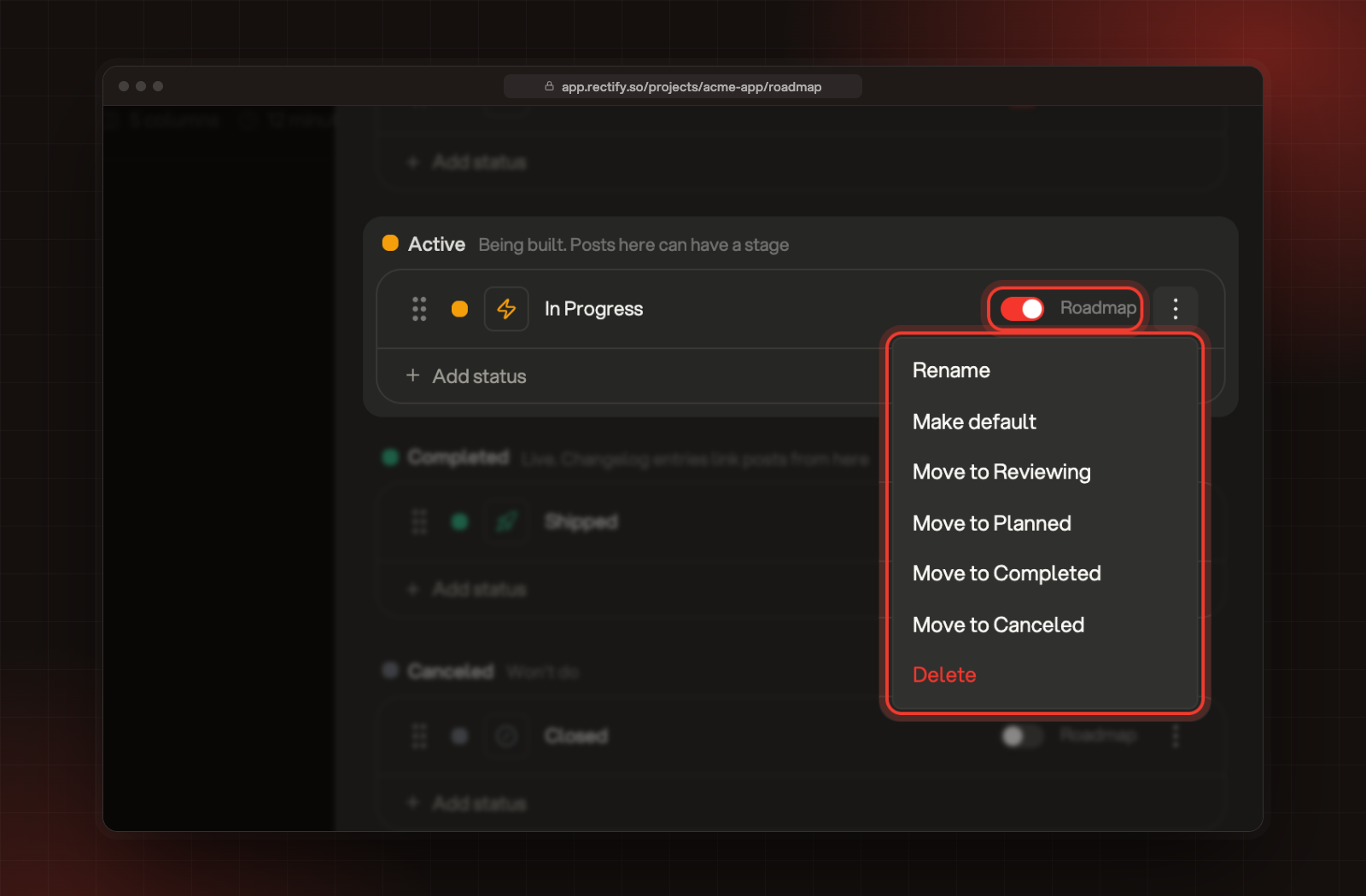
Roadmap: switch on to give new roadmaps a column for this status. Roadmaps you already have don't change.
The menu (⋮) has Rename, Make default, Move to another group, and Delete. The default status is where new posts land. Moving a status out of Active clears the stage on its posts.
The Roadmap switch and the menu on a status.
Delete a status
You can only delete a status that no post uses and that isn't the default. Move its posts to another status first. Roadmap columns that use the status lose that column.
Check it worked
Open a roadmap. New boards show as tabs above the columns, and new statuses show in every Status menu. On your portal, a board appears for everyone allowed to view it.
"Delete" is missing from the menu
Only Owners and Admins can delete boards, statuses and tags. Ask one of them.
It says "Make another status the default first"
The default status can't be deleted. Open the menu on another status, select Make default, then delete the first one.
It says "Move the posts on this status first"
Posts still use the status, including posts waiting for review or merged into others. Move them to another status, then try again.
It says "cannot be more open than View"
One of Vote, Comment or Submit lets in more people than View. Loosen View, or tighten the others.
It says "Keep at least one board so posts have a home"
Every project needs a board. Add another board before you delete this one.