Start a Zap or a Pabbly Connect workflow from every new feedback report, and pass it on to thousands of other apps.
4 min readUpdated 24 days ago
Before you start. You need a Zapier or Pabbly Connect account. Owners, Admins and Members who can open the project can set these up. Integrations are on every plan, and each project sets up its own.
Zapier and Pabbly Connect both start from Rectify: each new feedback report starts your Zaps or Pabbly Connect workflows, and they carry it on to your other apps. It only works in that direction. Zaps and workflows can't create or change anything in Rectify.
Connect Zapier
1.
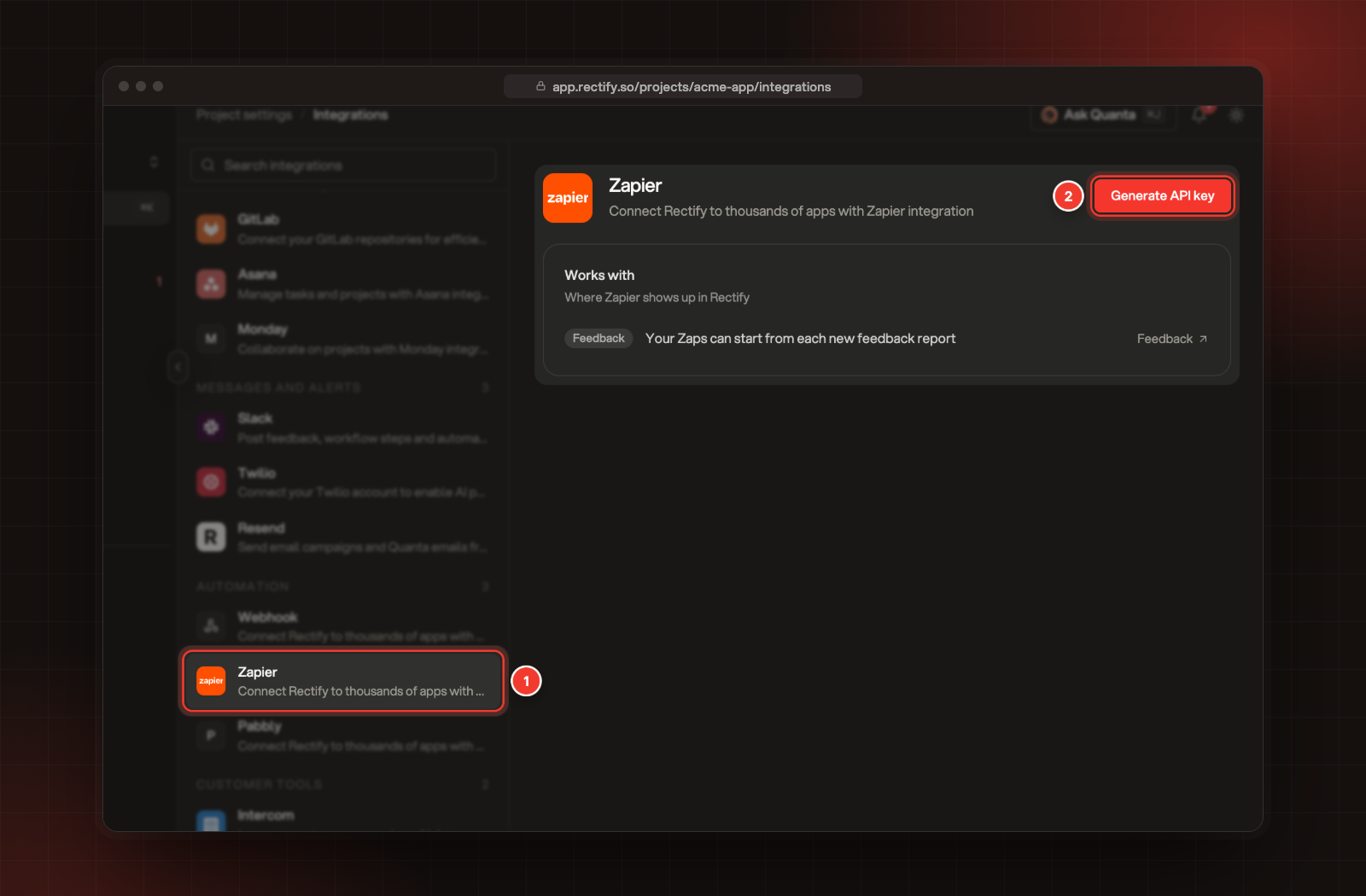
Open Project settings, then Integrations, and select Zapier under Automation.
2.
Select Generate API key.
1 Zapier. 2 Generate API key.
3.
Under API key, select Copy.
4.
In Zapier, start a Zap with Rectify as its trigger. When Zapier asks you to connect your account, paste the key.
5.
Finish the Zap and turn it on.
Each Zap you turn on signs up for this project's new reports, and turning a Zap off takes it away again. In Integrations, Zapier shows how many are signed up, for example 2 active Zaps. When Zapier asks for test data, Rectify sends the project's latest feedback report, or a sample report if there isn't one yet.
The key belongs to this project and stays the same. Anyone who has it can send the project's new reports to their own Zaps, so keep it private like a password.
Connect Pabbly Connect
1.
In Pabbly Connect, create a workflow that starts with a webhook, and copy its webhook URL.
2.
In Rectify, open Project settings, then Integrations, and select Pabbly under Automation.
3.
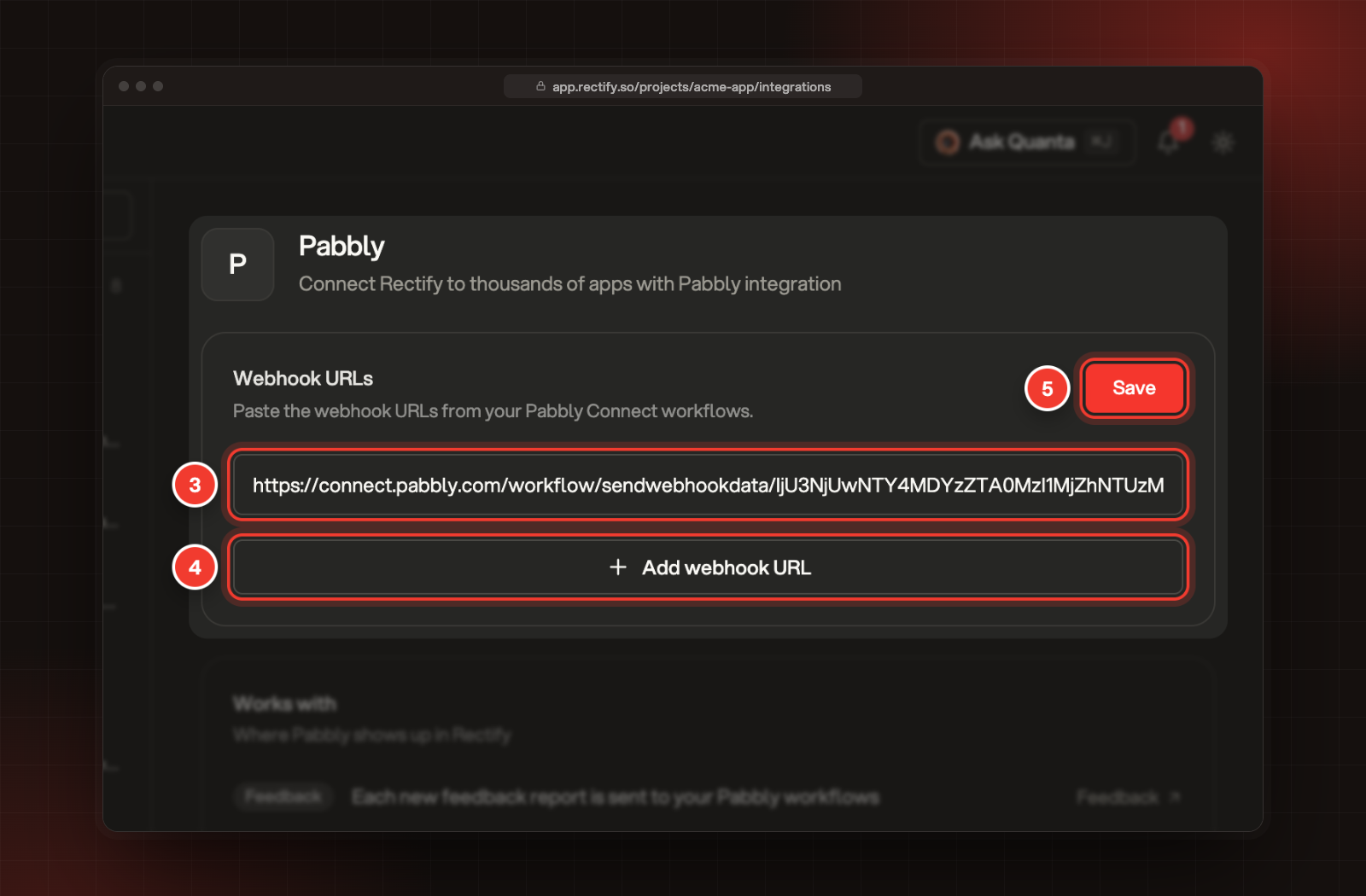
Paste the URL under Webhook URLs.
4.
To send reports to another workflow too, select Add webhook URL and paste its URL. You can add up to 3.
5.
Select Save.
3 The webhook URL. 4 Add webhook URL. 5 Save.
When you save, Rectify sends a sample report to each new URL, so Pabbly Connect can pick up the fields for your next steps. After that, every new feedback report goes to each URL.
To stop sending to one workflow, select the bin next to its URL, then Save.
What Rectify sends
Each new report goes out as JSON with the report's details:
•
its title, description, type, status, priority and rating
•
the name and email of the person who sent it, if they gave them
•
the page it came from, with the browser, operating system and screen size
•
links to its screenshots, video and attachment, if it has any
Rectify sends each report once, the moment it arrives. The requests aren't signed, and if your Zap or workflow doesn't answer, the report isn't sent again. If you need signed requests that are retried, use the webhooks under Project settings, Automation, Webhooks instead.
Pause or disconnect
•
Pause: turn off the switch next to On at the top of the Zapier or Pabbly settings. Nothing is sent to your Zaps or workflows until you turn it back on, and reports that arrive in the meantime aren't sent later.
•
Disconnect Pabbly Connect: select Disconnect under Disconnect Pabbly. This removes all its URLs from the project.
•
Stop a Zap: turn the Zap off in Zapier. To stop every Zap at once, pause Zapier here.
Check it worked
Send a test report from your widget. In Zapier, the Zap's history shows a new run. In Pabbly Connect, the workflow's history shows the report arriving.
It says "Enter a valid URL, including http:// or https://"
Paste the full webhook URL from Pabbly Connect, starting with https://.
It says "Duplicate URLs are not allowed"
The same URL is in the list twice. Remove one of them with the bin, then select Save.
I can't add a fourth Pabbly URL
Each project can send to up to 3 Pabbly Connect URLs. Remove one you no longer use first.
Zapier doesn't show any active Zaps
Zaps sign up when you turn them on. Check the Zap is on in Zapier and that it uses the key from this project. Each project has its own key.