Create your account and organization

Sign up for Rectify, verify your email, then create your organization and your first project.

3 min readUpdated 24 days ago
It takes about two minutes. Your organization and your first project come straight after your account.
Create your account
2.
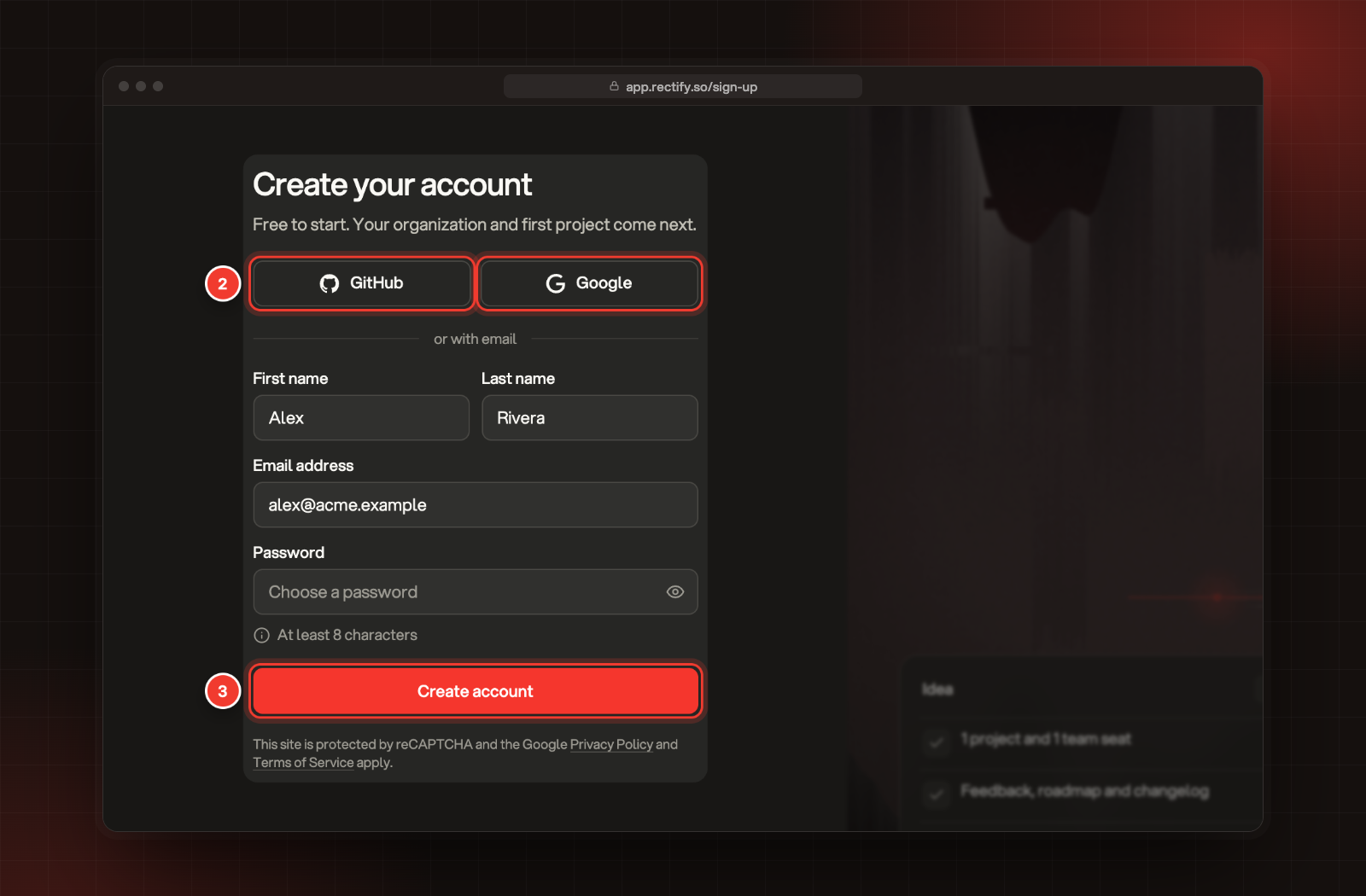
Select GitHub or Google to sign up with that account. Or fill in your First name, Last name, Email address and a Password of at least 8 characters.
3.
Select Create account.
2 Sign up with GitHub or Google, or with your email. 3 Create account.
4.
If you signed up with your email, enter the 6-digit code we sent you. It expires in 5 minutes.
5.
Sign in with your email address and password.
Signing up with GitHub or Google skips the code and takes you straight to your organization.
Create your organization
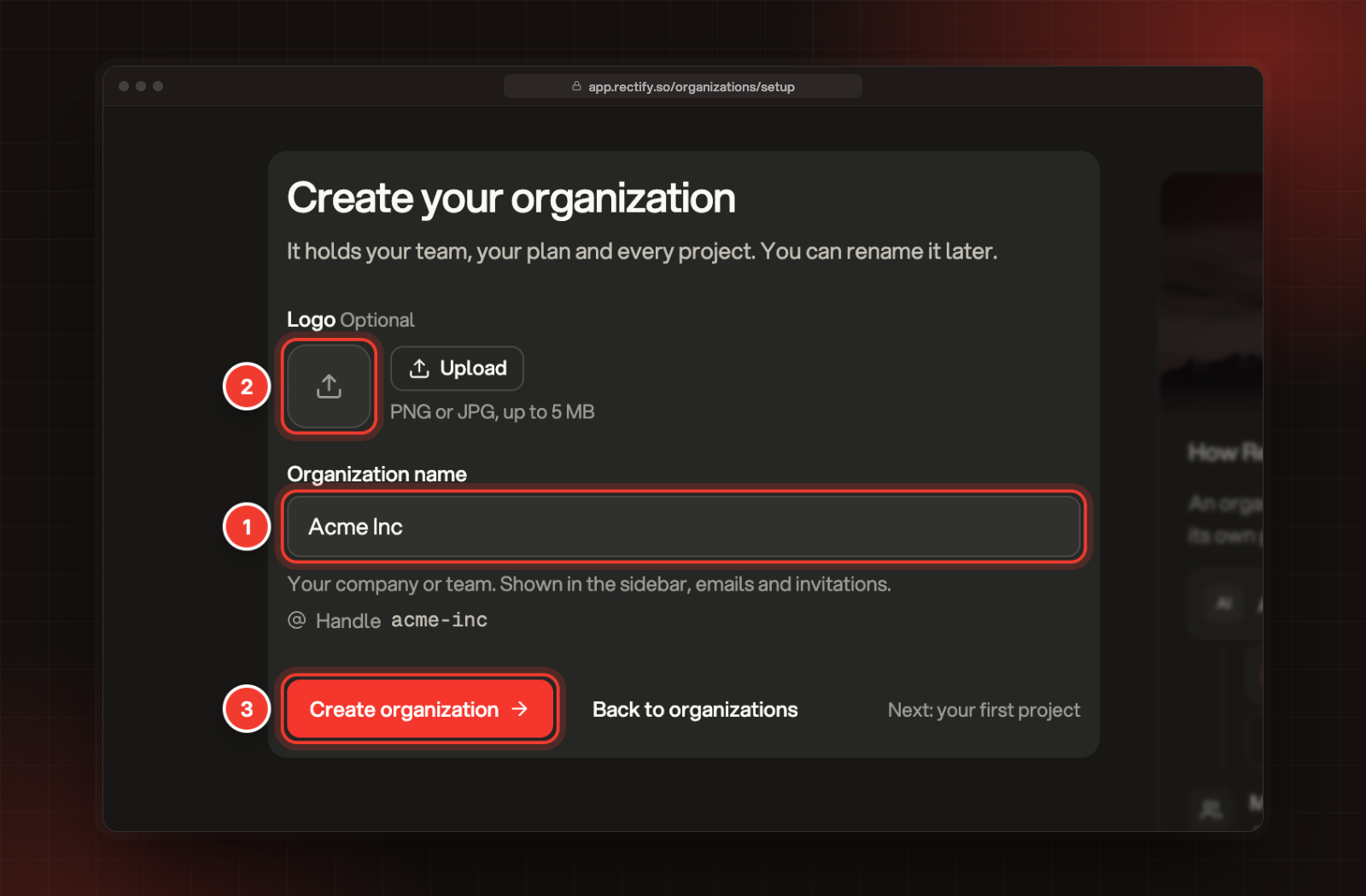
Your organization holds your team, your plan and every project. You become its Owner, and it starts on the free Idea plan.
1.
Enter your Organization name: your company or team, from 2 to 50 characters. You can rename it later.
2.
To add a logo, select Upload and pick a PNG or JPG up to 5 MB. This is optional.
3.
Select Create organization.
1 Organization name. 2 Logo. 3 Create organization.
Create your first project
A project is one product or site, with its own portal, widget, monitors and inbox. Most teams make one per product.
1.
Check the Name. It starts as your organization's name, and it shows on your portal, your widget and every email.
2.
Add your Website if you have one. Quanta reads it in the next step to set up your brand, an uptime monitor and help content. You can add it later.
3.
Select Create project.
The setup wizard opens next. Set up your first project with the setup wizard walks you through it.
Joining a team instead?
If a teammate invited you, you don't need your own organization. Open the link in the invitation email and select Accept invitation. No account yet? Sign up first, with the same email address the invitation was sent to. Invite your team explains what happens next.
It says "An account already uses this email"
That email address already has a Rectify account. Select Sign in instead. If you've forgotten your password, select Forgot password? on the sign-in page.
The code doesn't work
A code works for 5 minutes and allows 3 tries. Select Send a new code, then use the code in the newest email from us. You can ask for a new code once a minute.
It says "An organization with this name already exists"
Organization names are unique across Rectify. Add your team or city to the name to tell them apart, for example "Acme Inc Berlin".

Was this helpful?

Your feedback shapes what we write next.

Related articles