Post new feedback, or the events you choose, to a Slack channel, and use the same channel for workflow steps and alerts.
3 min readUpdated 24 days ago
Before you start. You need to be able to add apps to your Slack workspace. Everyone who can open the Rectify project can connect Slack and choose what it posts, on every plan.
With Slack connected to a project, Rectify posts to one channel you choose:
•
A message for each new feedback report, or only the events you pick.
•
The message from each Send to Slack workflow step.
•
The alerts you set up under Automation, Slack alerts.
Slack is connected per project. To post another project's feedback, connect Slack in that project too.
Connect Slack
1.
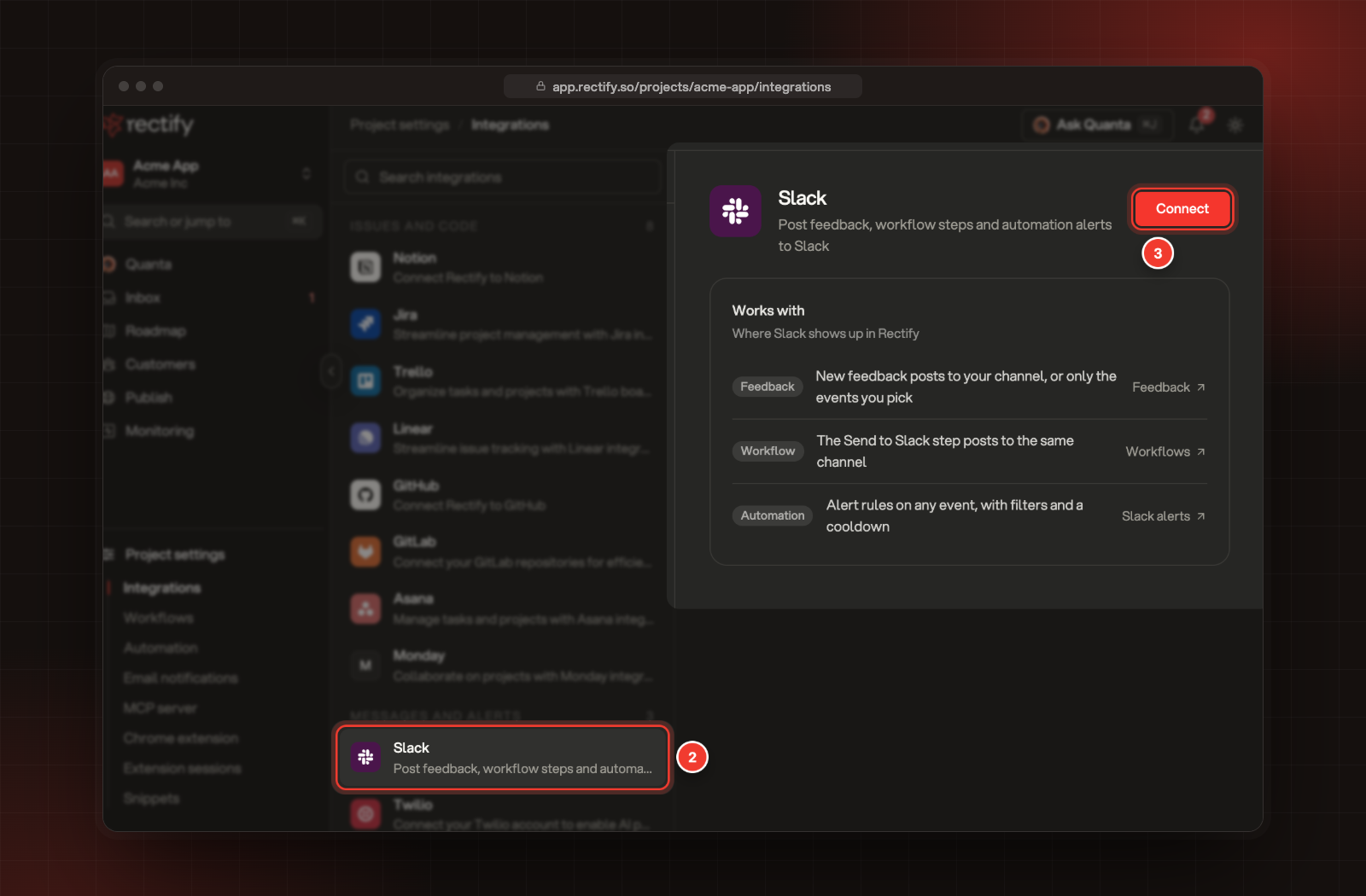
Open Project settings, then Integrations.
2.
Select Slack.
3.
Select Connect. Slack opens.
2 Slack. 3 Connect.
4.
Pick the workspace and the channel Rectify should post to.
5.
Approve the app.
Slack sends you back to Slack in Integrations, now marked Connected, and Rectify joins the channel. Rectify asks Slack to post messages, to add a webhook to the channel you pick, and to join public channels.
Choose what posts to Slack
Out of the box, Rectify posts a message for each new feedback report. It shows the report's type, title, description, status, priority and rating, who sent it and when, whether it has a video, screenshots or a file, and the browser, system and page it came from.
To pick other events:
1.
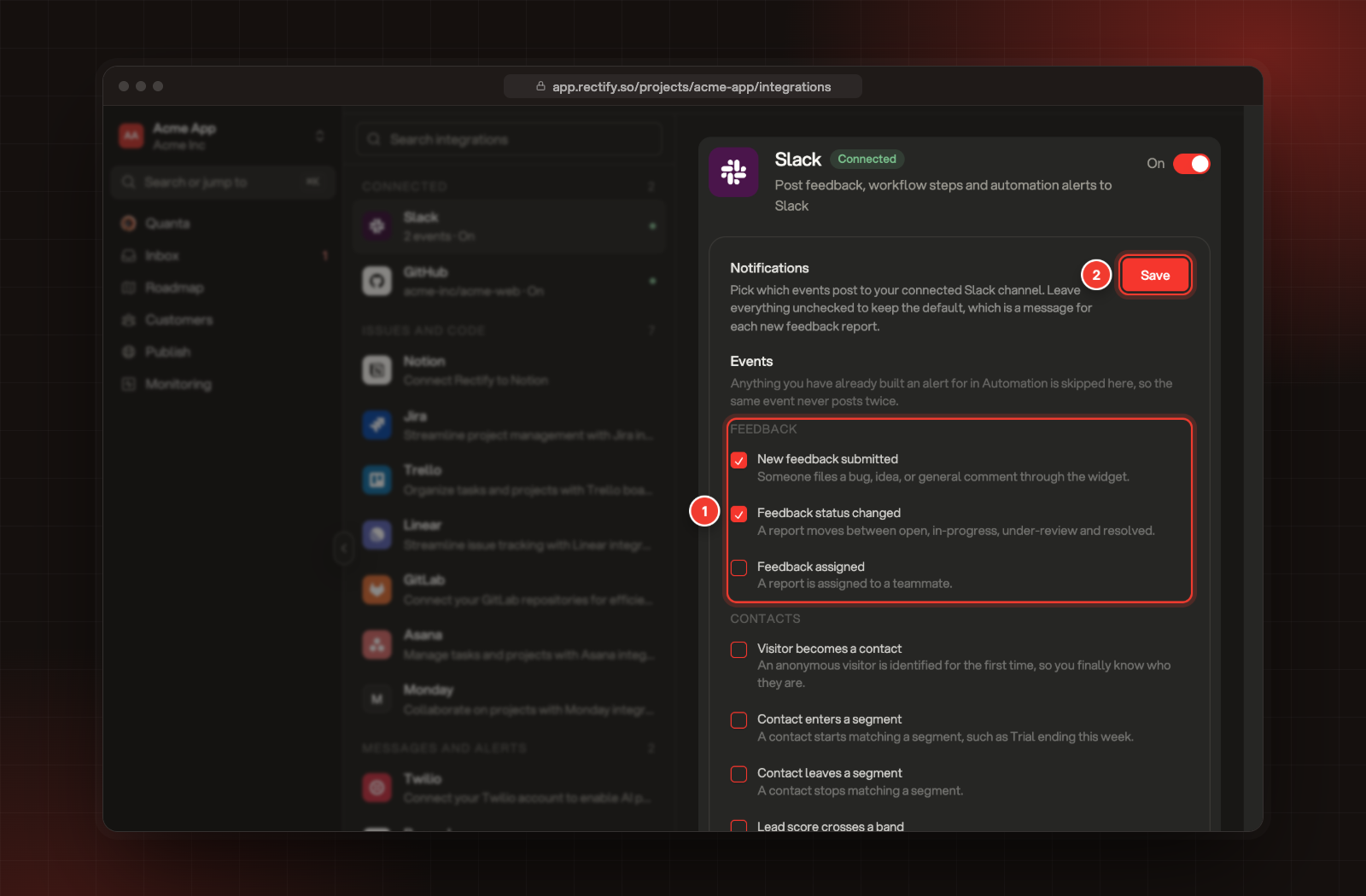
Under Notifications, tick the events you want.
2.
Select Save. You see Slack notifications updated.
1 Events. 2 Save.
Group
Events
Feedback
New feedback submitted, Feedback status changed, Feedback assigned
Contacts
Visitor becomes a contact, Contact enters a segment, Contact leaves a segment, Lead score crosses a band
Behaviour
Form submitted, Survey answered
Help Center
Help article published, Help article rated, Help search found nothing
Once you tick any event, only the ticked events post. To keep a message for each new report, tick New feedback submitted too. Untick everything to go back to the default.
Messages for ticked events are one line, for example "New bug [high] from Ada: Checkout button does nothing". Critical and high priorities show in brackets.
An event you've already built an alert for under Automation, Slack alerts is skipped here, so the same event never posts twice.
Change the channel
Rectify posts to the channel you picked when you connected. To use another channel, disconnect Slack and connect it again, picking the new channel. Disconnecting also clears your Notifications choices, so tick them again afterwards.
Pause or disconnect Slack
To pause, turn the switch at the top of the Slack page to Off. Everything this project sends to Slack stops: feedback, events, Send to Slack steps and Slack alerts. Turn it back On to start again.
To disconnect, select Disconnect under Disconnect Slack. It happens straight away, with no confirmation, and you see Slack integration removed successfully. The Rectify app stays in your Slack workspace until you remove it there.
Troubleshooting
New feedback stopped posting
If you ticked any events under Notifications, only those post. Tick New feedback submitted, or untick everything, and select Save.
Nothing posts at all
Check that Slack shows On in Integrations. If the channel was archived or Rectify was removed from your workspace, disconnect Slack and connect it again.
Slack alerts says "Slack is not connected"
Alerts post to the channel you connect here. Select Connect on that message, which opens Slack in Integrations.
A workflow run fails with "Slack integration not enabled for this project"
Slack is turned off or not connected in this project. Turn it On, or connect it, and run the workflow again.