Everything Rectify knows about one person in one place, from their company and friction to every page, feedback and chat.
3 min readUpdated 24 days ago
Before you start. Everyone in the project can open profiles, add tags and notes, and merge or delete contacts.
A contact's profile gathers everything about one person: who they are, what they've done on your site, and every bug report, idea and chat they've sent.
Open a profile
1.
Open Contacts in the sidebar, under Customers.
2.
Select a person in the People list.
The profile opens on the right. Its address includes the person, so you can copy it from your browser and share it with a teammate. You can also reach a profile from Activity, with Open profile on any visit, or from a company's people list.
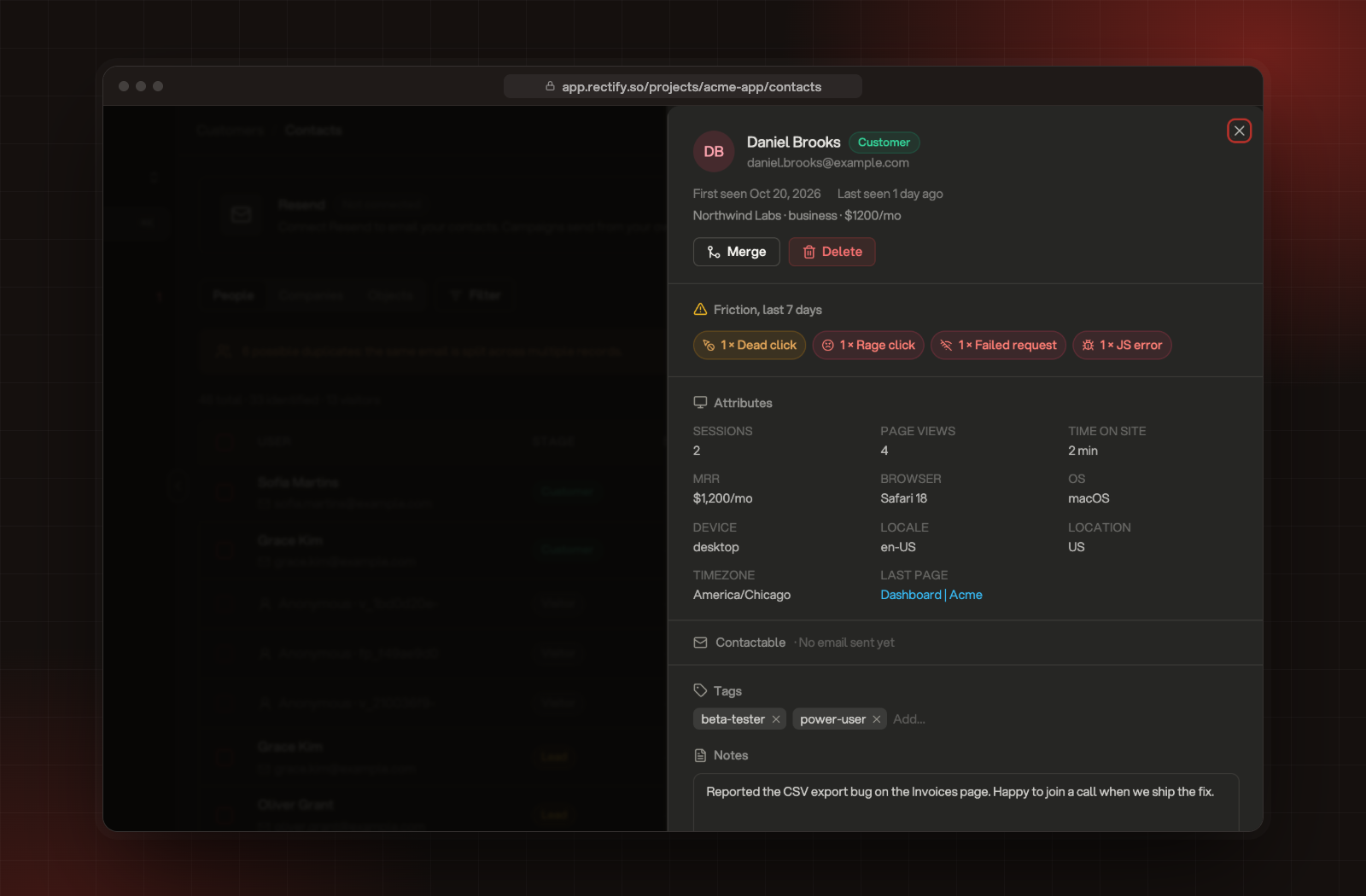
A contact's profile, with friction, details and activity.
The header
•
Their name, email and Stage.
•
Score, if they have one, and First seen and Last seen.
•
Their company, plan and monthly revenue, as you sent them with identify.
Friction, last 7 days
If the person ran into trouble in the last week, chips count it, for example 4 × Rage click or 2 × JS error. A contact with a lot of friction is often worth a message.
Attributes
Attribute
Where it comes from
Sessions, Page views and Time on site
All their visits.
MRR, Revenue (30d) and Total revenue
The mrr you send, or revenue events from your site.
Browser, OS, Device, Locale, Location and Timezone
Their most recent visit.
First referrer, UTM source and UTM campaign
Their first visit.
Last page
The last page they opened.
Attributes with no value are hidden. If Rectify joined several browsers or records into this person, the count shows at the bottom of the section.
When the person has an email, a line shows whether you can email them: Contactable, Unsubscribed, No marketing or No product email.
Tags and notes
1.
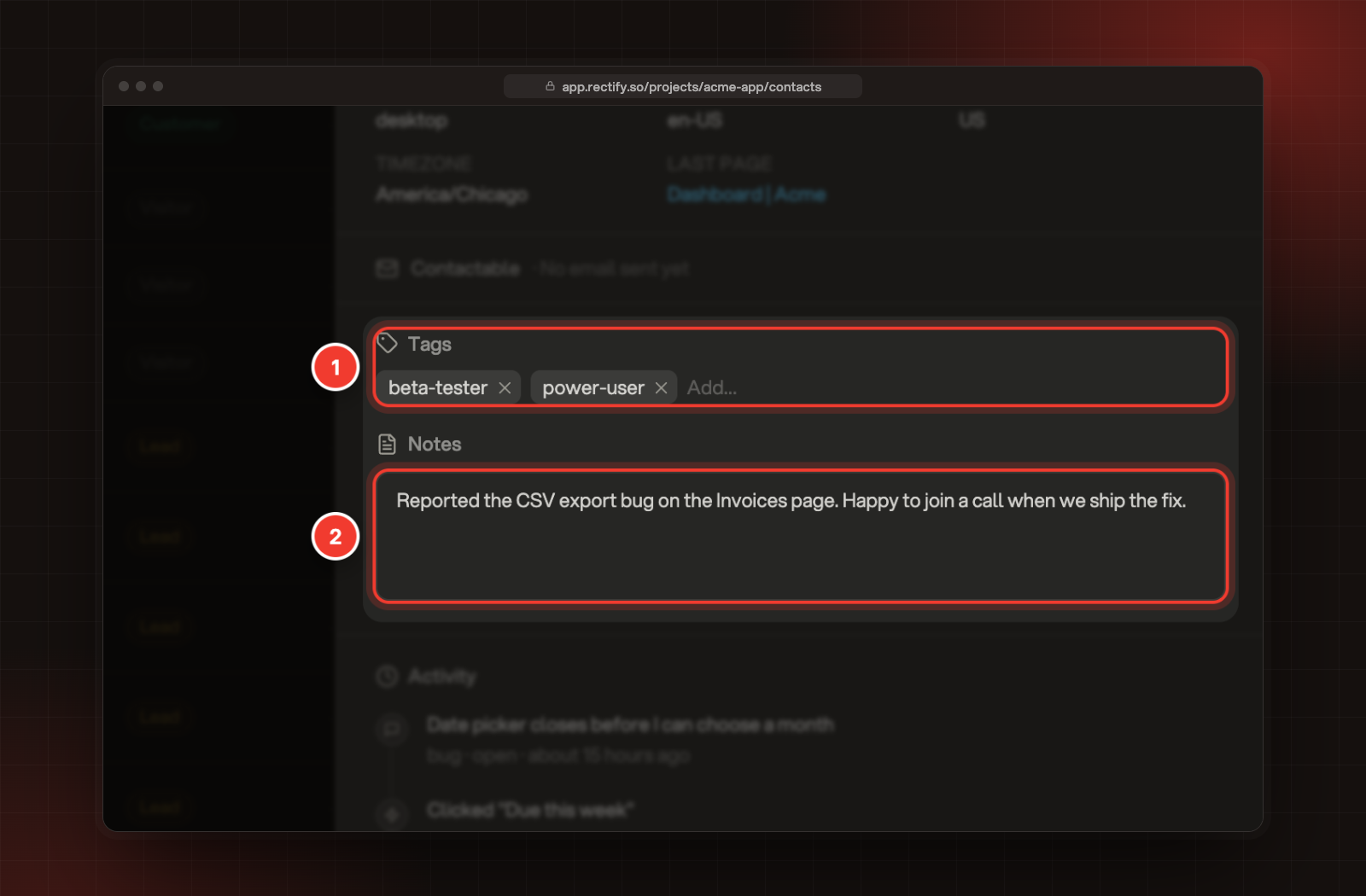
Under Tags, type a tag and press Enter or a comma. Select × on a tag to remove it.
2.
Under Notes, write anything your team should know, then select Save.
1 Tags. 2 Notes.
Tags and notes are shared with everyone in the project. You can segment on tags.
Records from your own systems
If you push custom objects, such as subscriptions or orders, the records that belong to this person show under their own heading. Select one to see its fields. Add custom objects explains how.
Activity
Activity lists everything the person did, newest first:
•
Pages they viewed, what they clicked, forms, downloads and searches.
•
Friction such as rage clicks, dead clicks and errors.
•
When they identified themselves.
•
Feedback they sent, with its type and status, and Replay when a session replay is attached.
•
Support conversations, with their status.
Scroll down to load older activity.
Merge two contacts
When one person shows up twice:
1.
Open the profile you want to keep.
2.
Select Merge.
3.
Search for the duplicate by name or email, and select it.
The duplicate's activity, feedback and conversations move into this profile, which keeps the earliest first-seen and latest last-seen dates. Merging happens as soon as you select the duplicate and can't be undone.
Delete a contact
Select Delete, then Confirm delete. Rectify erases the person and all their events. This can't be undone.
The profile shows no activity
The person was added from your server or a portal sign-in, and hasn't visited a page with the Rectify script since. Their activity appears after their next visit.
Feedback from this person isn't on their profile
Feedback joins a profile when its email matches the contact's email. Check that the person sent it with the same address.