Let Quanta write a first draft from a prompt or a customer conversation, rewrite an article, or suggest its description and search details.
3 min readUpdated 5 days ago
Before you start. Quanta writes with your organization's AI provider key, or with the Rectify credits included in paid plans. Each draft, rewrite and suggestion uses them. You also need to be able to edit the article. Owners, Admins and Members can edit any article.
Quanta lives in the bar on the right of the article editor. Nothing it writes goes live on its own: you read it, edit it and publish it like any other change.
Draft an article
1.
Open the article you want to write, or start a new one in a collection.
2.
Select Quanta in the bar on the right of the editor.
3.
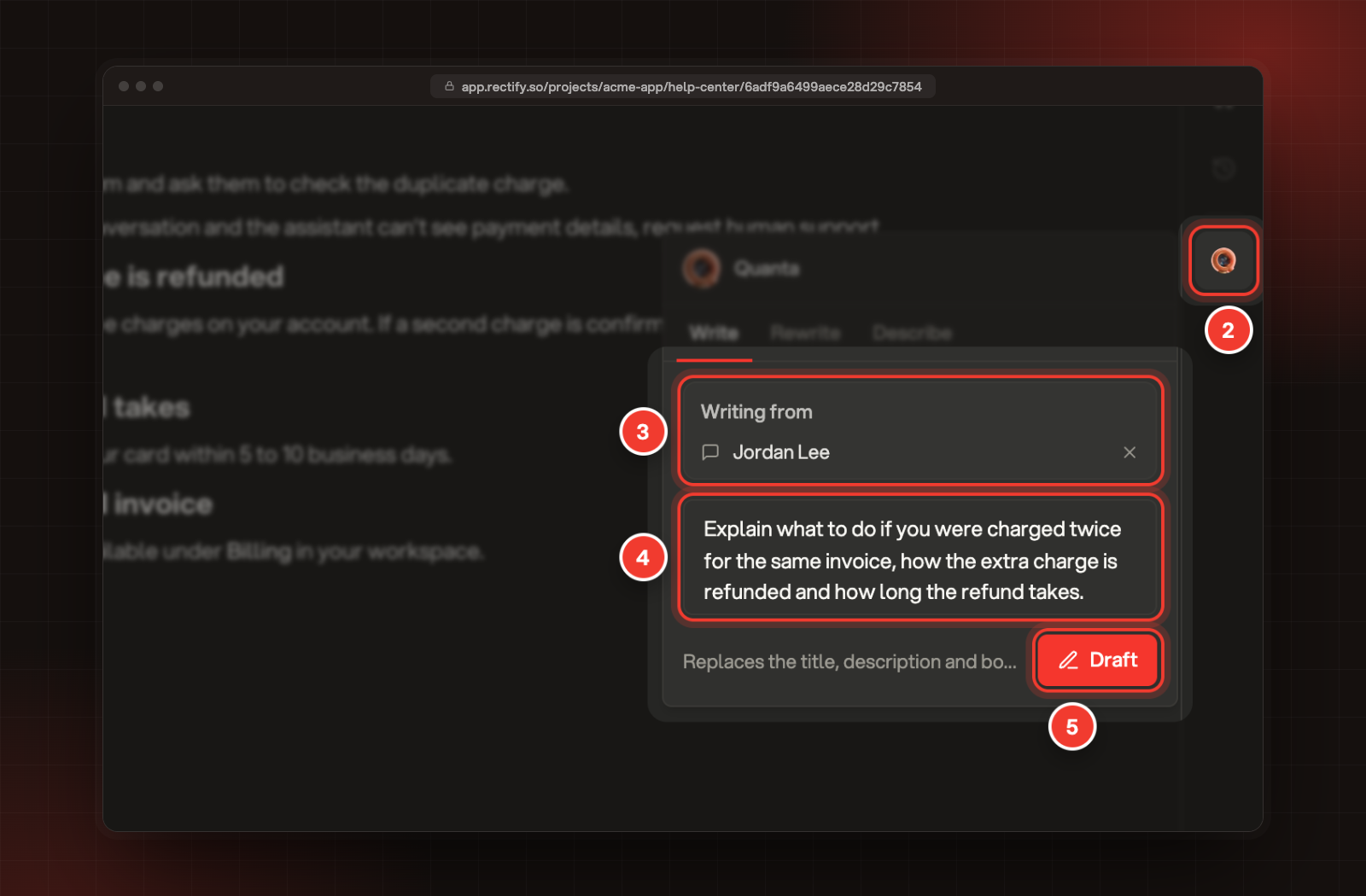
On Write, pick what Quanta should work from, if you like: A conversation from your inbox, or A customer question nobody has answered yet.
4.
Describe what the article should explain. A few lines are plenty.
5.
Select Draft, or press ⌘ Enter (Ctrl Enter on Windows).
2 Quanta. 3 Writing from a conversation. 4 What to explain. 5 Draft.
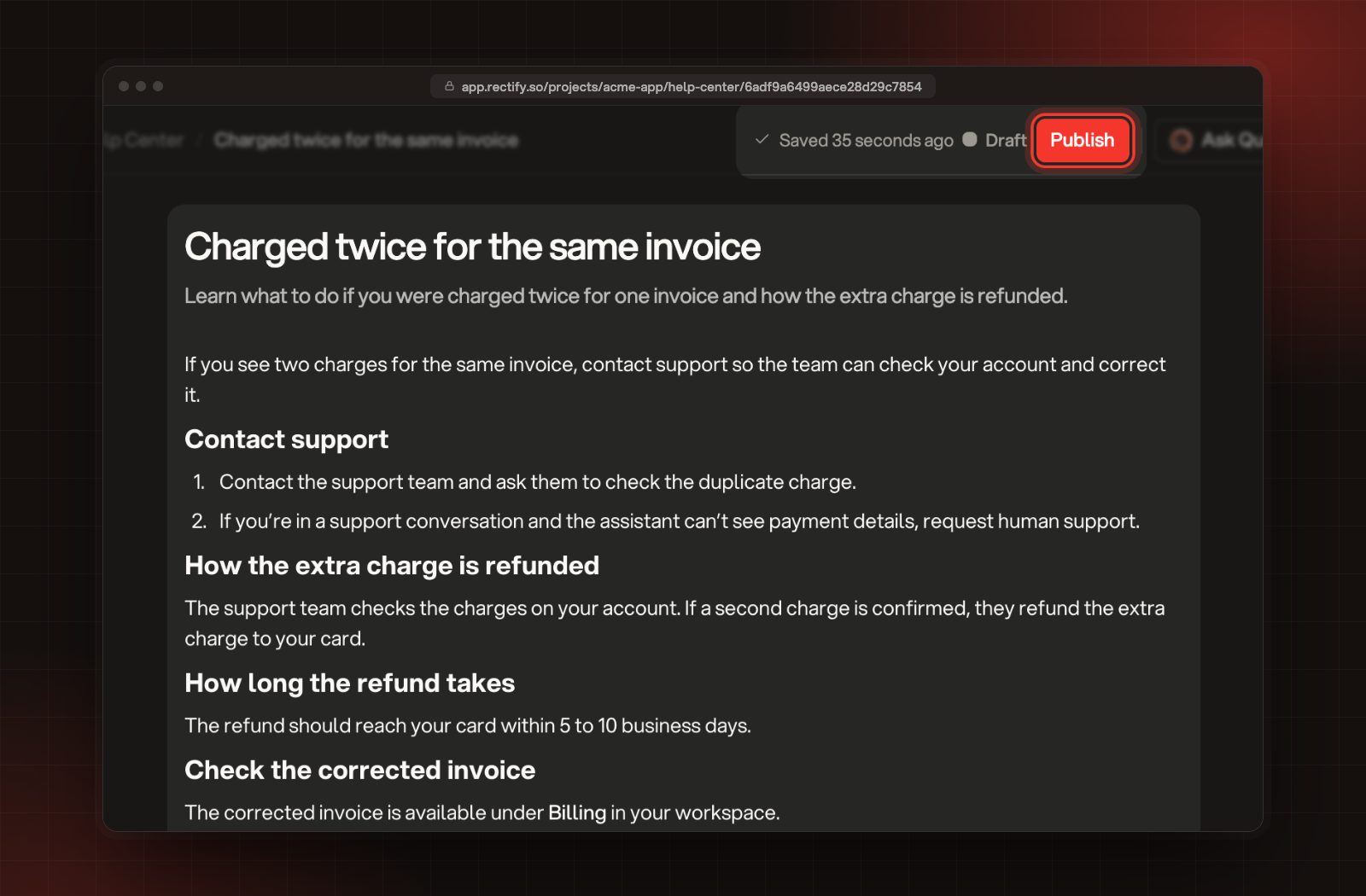
Quanta writes the title, the one-line description and the article while you watch. Draft replaces all three, so use it on a new or empty article. Select Stop and keep this to keep what it has written so far.
Quanta's draft, saved as a draft and ready to edit.
Rewrite an article
1.
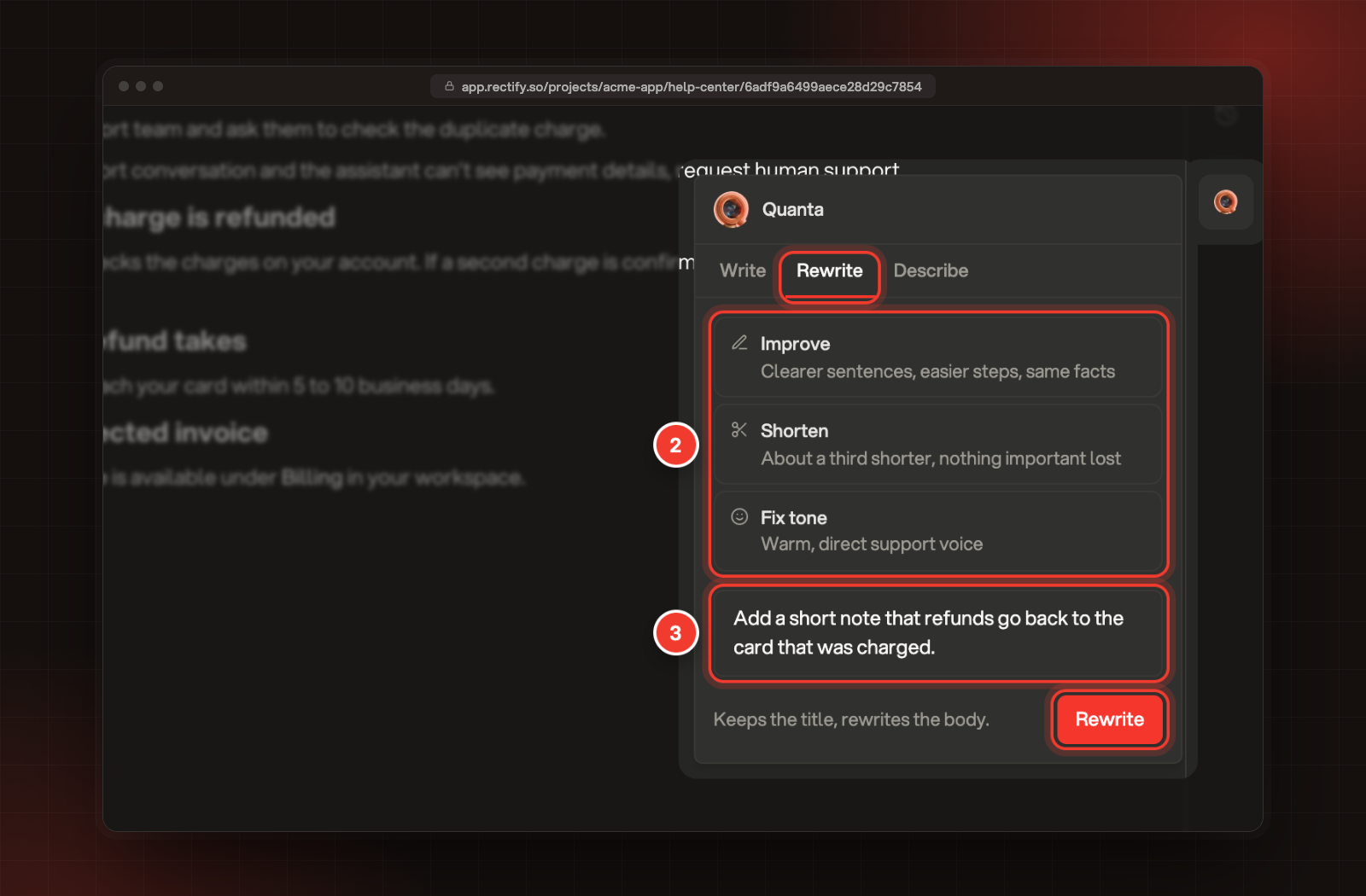
Select Quanta, then Rewrite.
2.
Pick Improve for clearer sentences and easier steps, Shorten to cut about a third, or Fix tone for a warm, direct support voice.
3.
Or type exactly what to change and select Rewrite.
2 Improve, Shorten or Fix tone. 3 Say what to change.
A rewrite keeps the title and replaces the body. If you stop a rewrite partway, the article stays as it was.
Get a description and search details
1.
Select Quanta, then Describe.
2.
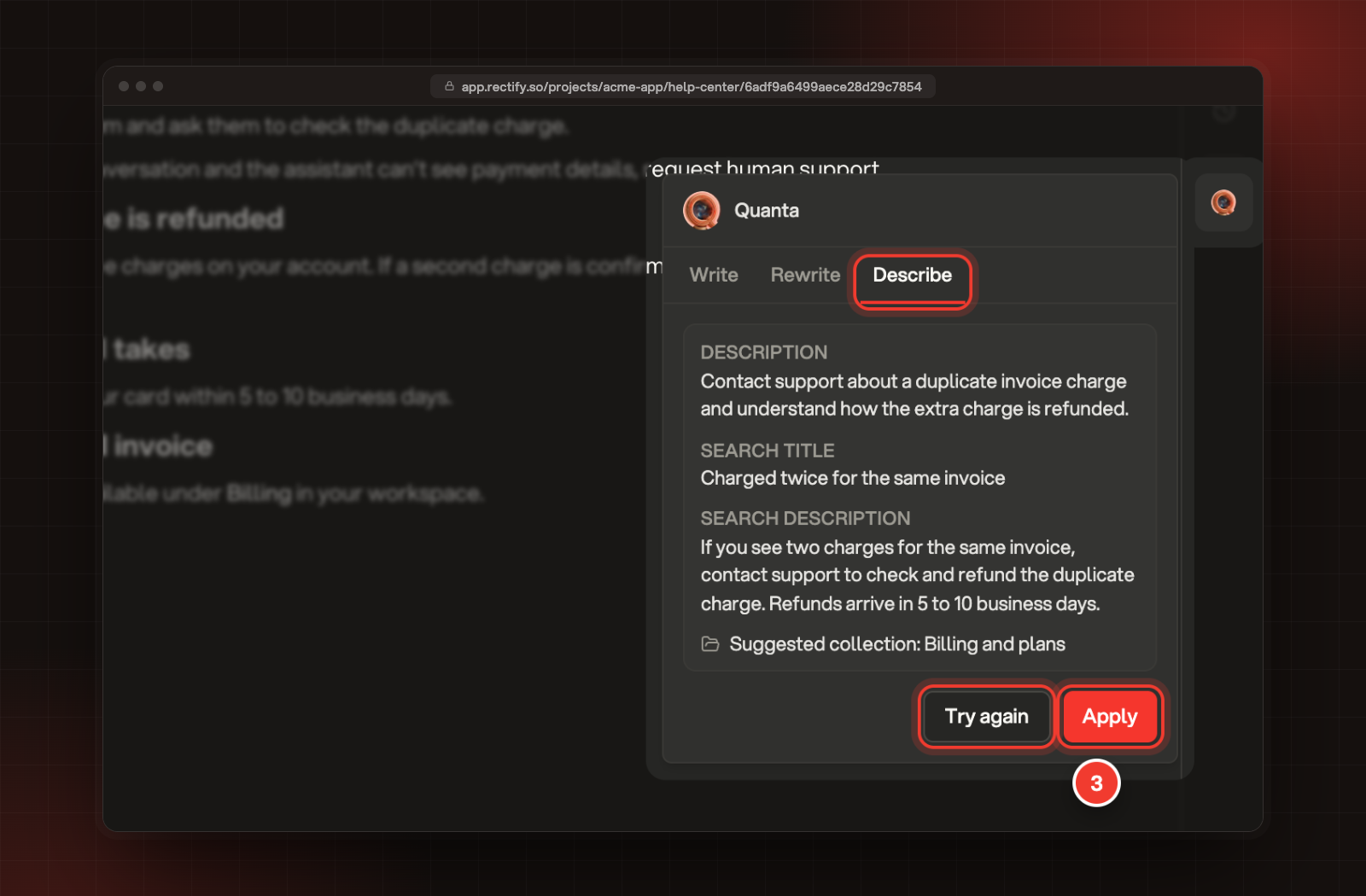
Select Generate. Quanta reads the article and suggests the one-line description, the search title and the search description. When one fits, it also suggests a collection.
3.
Select Apply to use them, or Try again for new suggestions.
Quanta's suggestions on Describe. 3 Apply.
The search title and description show under Link and SEO in the bar on the right.
Check it worked
When Quanta finishes, Rectify shows Quanta drafted the article. Edit away. or Quanta rewrote the article., and the page says Saved. On a published article, the changes wait as Unpublished changes until you publish them. Read the result through before you publish: Quanta works only from your prompt, the source you picked and what's already in the article.
Quanta shows "Add an AI provider key" instead of the tabs
Your organization has no AI provider key and no Rectify credits left. An Owner or Admin can connect a provider under Organization settings, AI providers.
Draft, Rewrite or Generate is greyed out
Draft needs a prompt, a source or some text in the article. Rewrite and Generate need some text in the article first.
"This article is longer than Quanta can rewrite in one go"
Quanta rewrites up to about 12,000 characters of text at a time. Split the article in two, or rewrite it section by section.
"Quanta could not write this. Try again."
Something went wrong while Quanta was writing, and your article was left as it was. Wait a moment and try again.