Turn on Ask Quanta so readers get a short answer built only from your published articles, with the sources named.
3 min readUpdated 5 days ago
Before you start. Owners, Admins and Members can change this setting. Answers use your AI credits, which come with the Build plan and above, or your own AI provider key. Nothing is spent when no article matches the question.
With Ask Quanta in search on, readers can type a question instead of a search. Quanta reads your published articles, writes a short answer and lists the articles it used. If your articles don't cover the question, it says so instead of guessing.
Turn it on
1.
Open Portal under Publish.
2.
Select Help Center above the preview. The settings on the right switch to your Help Center.
3.
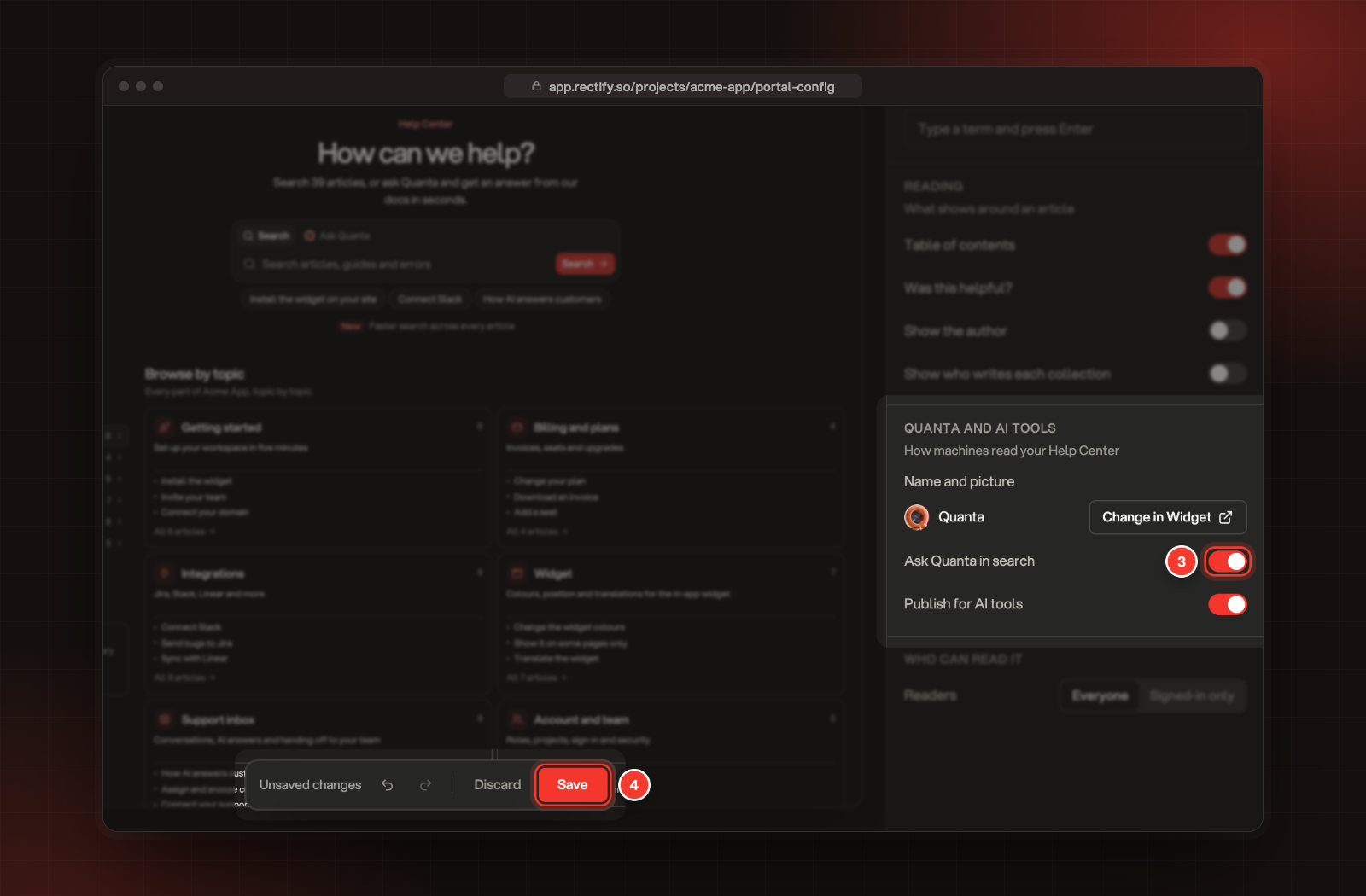
Under Quanta and AI tools, turn on Ask Quanta in search.
4.
Select Save.
3 Ask Quanta in search. 4 Save.
The name and picture readers see come from your widget. To change them, select Change in Widget next to Name and picture, then edit them on the widget's Support tab.
What your readers see
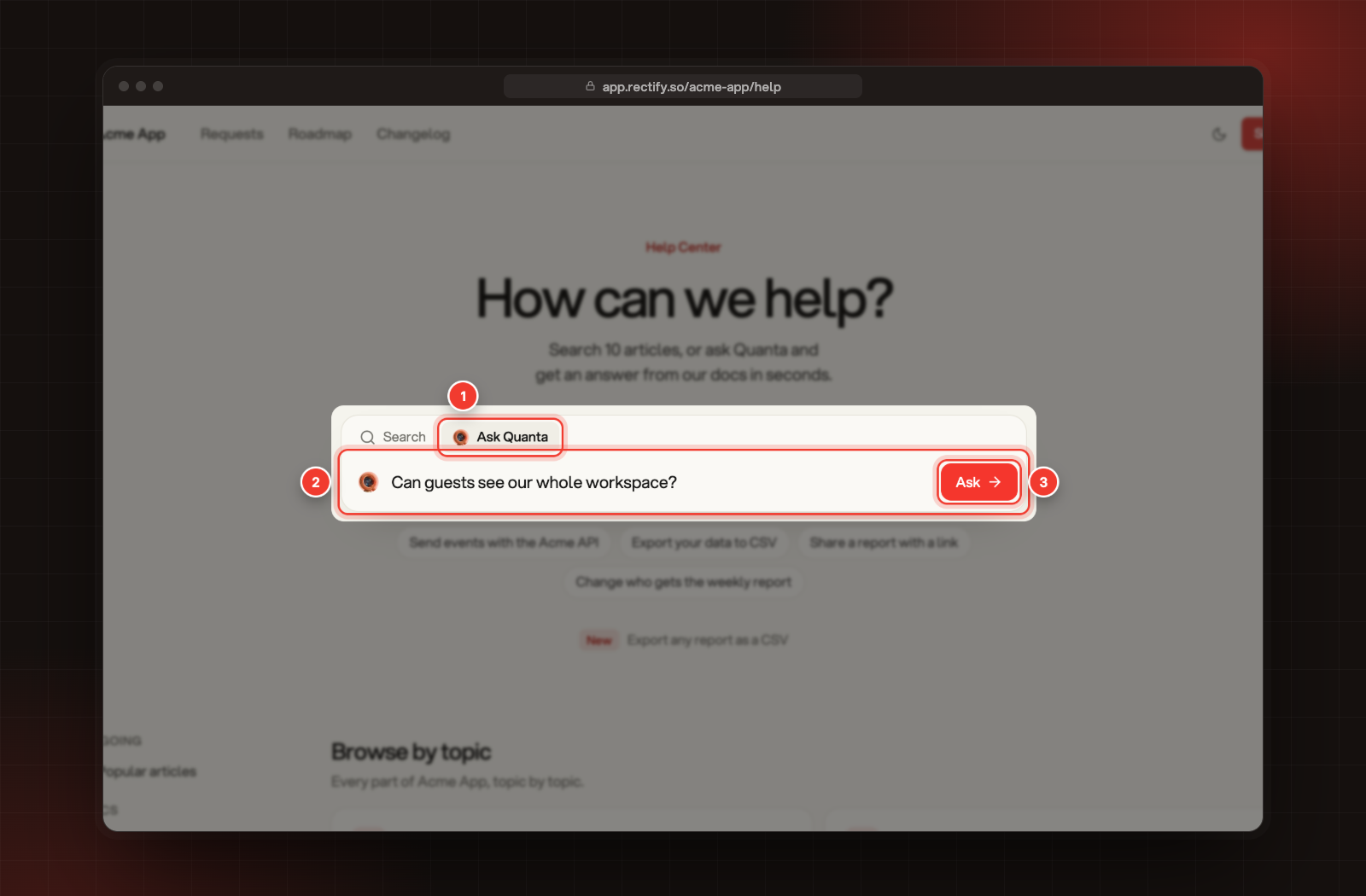
On your Help Center's home page, the search box gets two tabs, Search and Ask Quanta. Readers:
1.
Select Ask Quanta.
2.
Type their question.
3.
Select Ask.
1 Ask Quanta. 2 The question. 3 Ask.
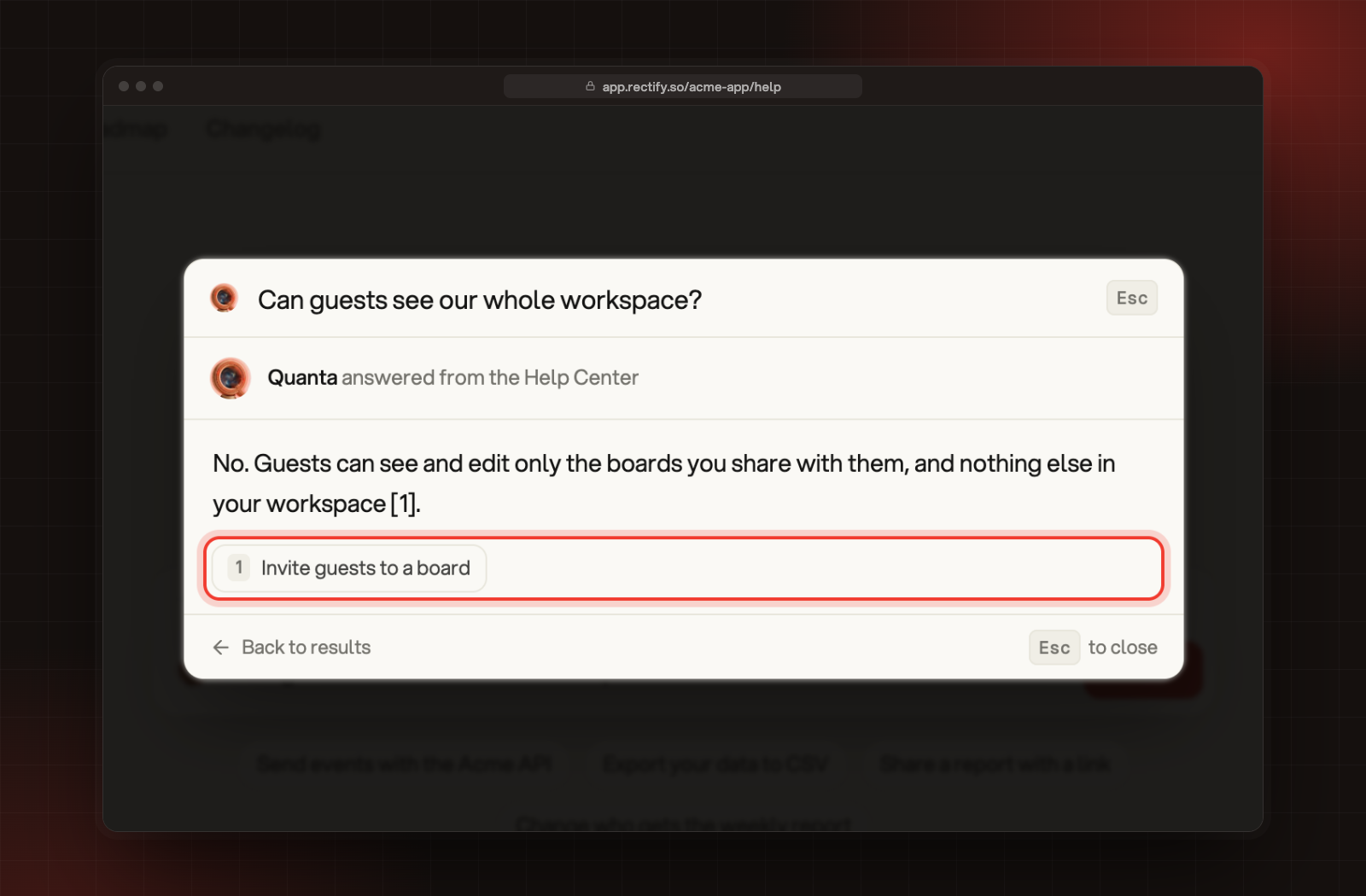
The answer appears as it's written, with numbered links to the articles it came from.
An answer with its source article.
Readers can also ask from the search window on any Help Center page: they type a question and pick Ask Quanta in the results. If your widget shows the Help tab, the same Ask Quanta button appears there.
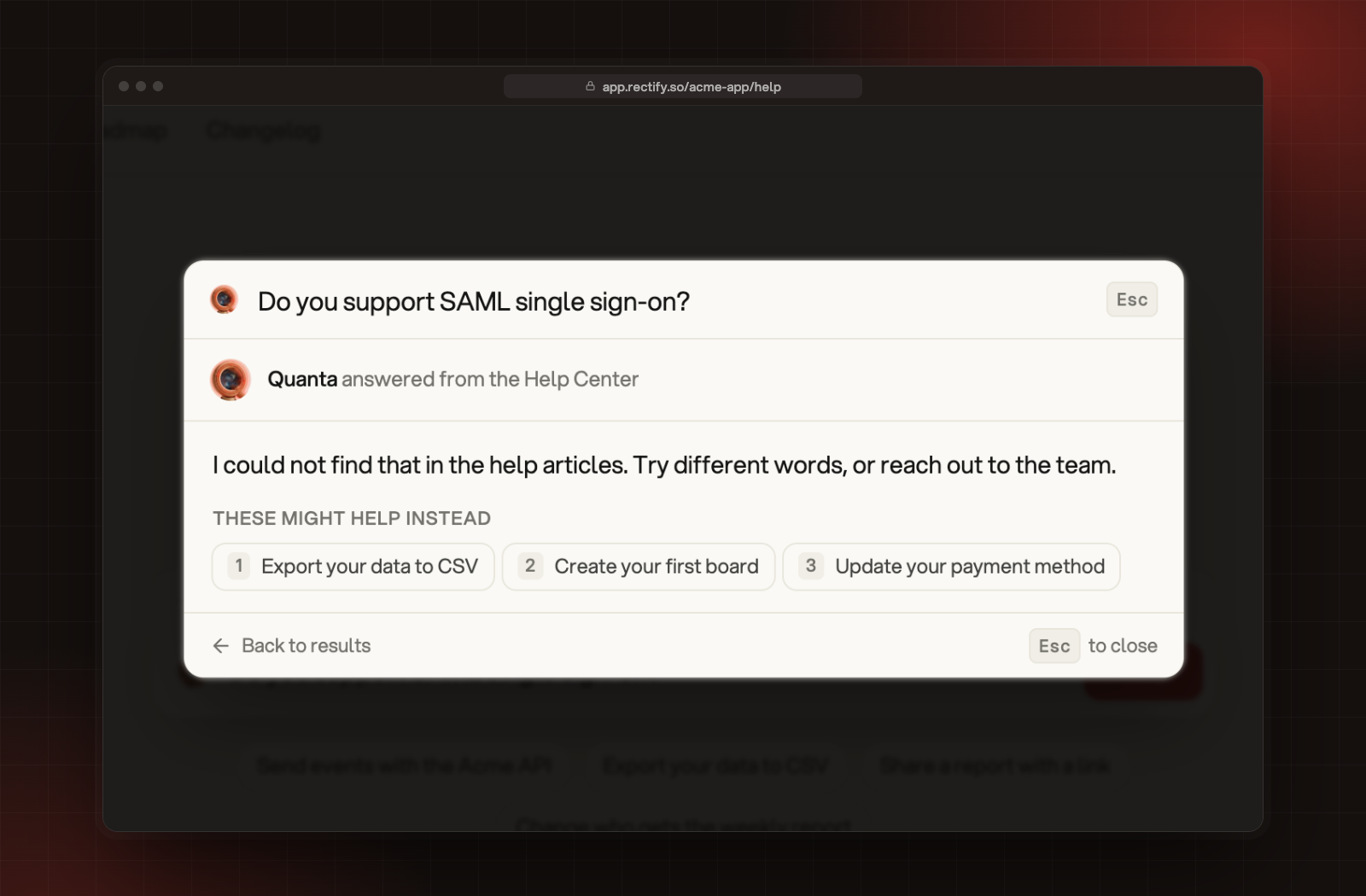
When no article covers the question, readers see "I could not find that in the help articles. Try different words, or reach out to the team." with up to three articles that might help instead.
No answer, with articles that might help instead.
What Quanta answers from
•
Only published articles. Drafts and unpublished changes aren't used.
•
Only articles that reader can open. Articles for signed-in readers are only used for signed-in readers.
•
Never articles set to Only your team.
Each question can be up to 500 characters.
Check it worked
Open your Help Center in a private window. If you see the Ask Quanta tab, ask a question one of your articles answers. To see every question people asked, open Help Center, then Analytics: Answered by Quanta counts the answers, and the Searches tab lists each question under Asked Quanta. Questions Quanta couldn't answer show up in Content gaps. See Read Help Center analytics and fill content gaps.
The Ask Quanta tab doesn't show
Check the setting is on and saved. The tab also stays hidden while your organization can't use AI: on the free Idea plan, or once your AI credits run out, connect your own AI provider under Organization settings, AI providers.
Readers see "Too many questions in a row. Try again in a minute."
Each internet address can ask 10 questions a minute. The reader can ask again a minute later.
Readers see "This help center is busy answering questions. Try again in a minute."
Your Help Center answers up to 120 questions a minute across all readers. The next minute works again.
Readers see "This help center has answered all the questions it can for today. Try again tomorrow."
Each Help Center takes up to 2,000 questions a day, counted from midnight UTC. Searching still works.
Quanta keeps saying it couldn't find an answer
Quanta only answers from what your articles say. Open Content gaps in analytics to see what people asked, then write the missing article. Quanta starts using it within a minute or two of publishing.