Choose which posts and comments wait for review, then publish, decline or merge them from the review queue.
4 min readUpdated 2 days ago
Before you start. The review queue is on every plan. Owners and Admins can publish, approve and decline. Members can read the queue but can't act on it. Owners, Admins and Members can change the portal's review rules.
New posts and comments from your portal and from your widget's Roadmap tab can wait in the review queue before anyone else sees them. Nothing in the queue is public until you approve it. Posts your team adds in Rectify never wait.
What waits for review
Out of the box, these wait:
•
Posts and comments from people who haven't signed in to your portal.
•
Anything with an image.
•
Anything with an external link.
Everything else appears straight away. You can change these rules for the whole portal, and override them on each board.
Publish or decline a post
1.
In the sidebar, open Roadmap, then Review queue. The number next to it is how many items are waiting.
2.
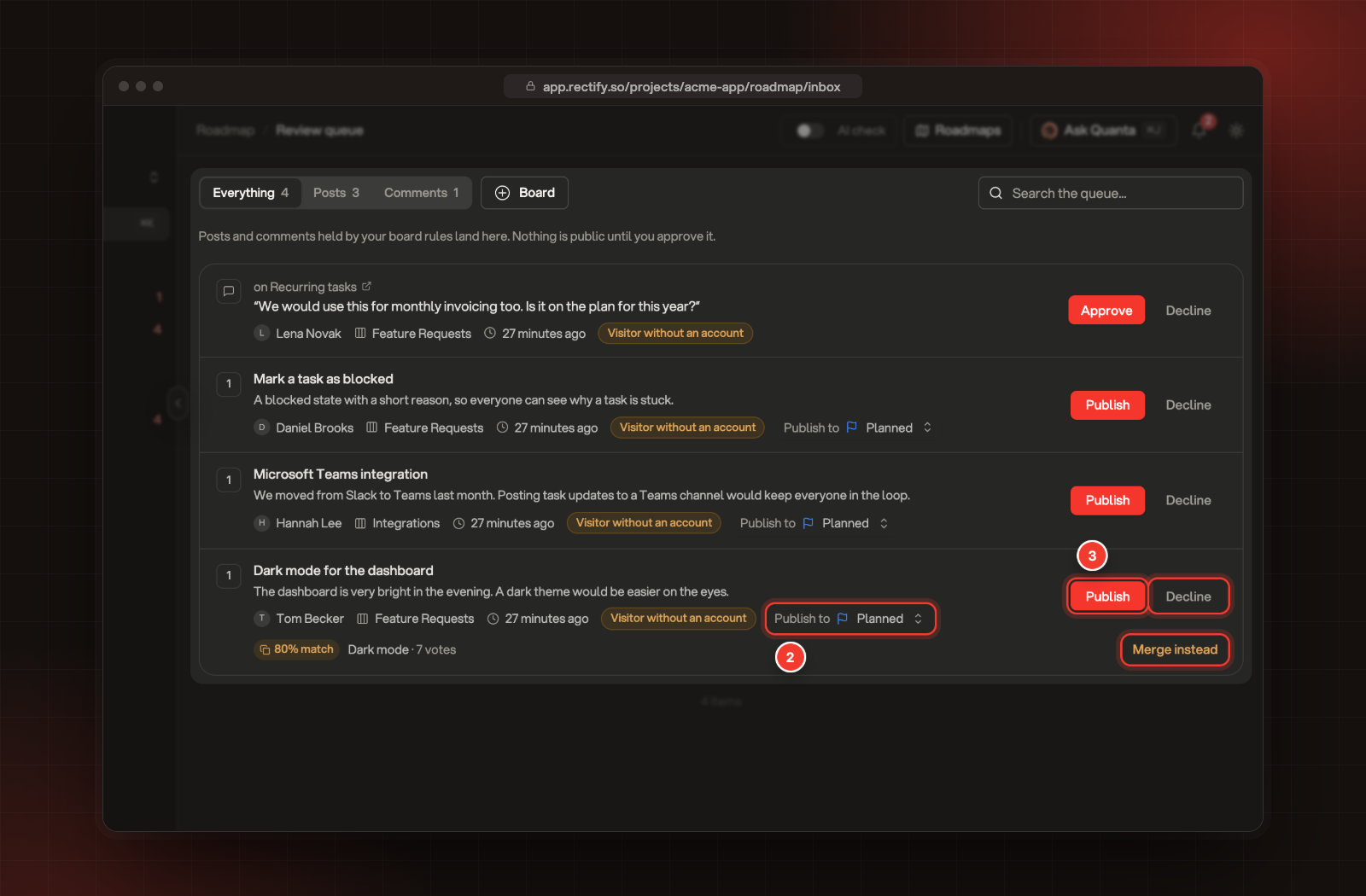
Read the post. Next to Publish to, pick the status it should start in. It starts on your Planned status.
3.
Select Publish, or Decline to keep it off your portal.
2 Publish to. 3 Publish, with Decline and Merge instead next to it.
When you publish, the post appears on your portal and roadmaps, and Rectify tells its author it's live by email and in their portal notifications. When you decline, the post stays hidden and its author hears it wasn't approved. A declined post can't be published later.
Use Everything, Posts and Comments at the top to switch between kinds, Board to show some boards only, and Search the queue to find something.
Ideas from Discord
If your project is connected to Discord, ideas sent from your server wait here too. With Review before they go public on, which is the default, every Discord idea waits, whatever your review rules say. Turn it off under Integrations, Discord, and Discord ideas follow your rules instead, with people from Discord counted as signed in. When you publish or decline an idea from someone who asked for updates, they get a Discord DM instead of an email. Collect ideas and bug reports from Discord explains how ideas arrive.
Approve or decline a comment
Comments show the post they're on. Select Approve to publish the comment, or Decline to keep it hidden. An approved comment reaches the post's followers like any other comment. When you decline, its author hears it wasn't approved.
Merge instead of publishing
If a new post looks like one that's already published, the queue shows how close the match is, the matching post and its votes. Select Merge instead to fold the new post into the existing one. Its author's vote moves across, and the new post never appears on its own. Merge duplicate requests explains merging.
Review from the post itself
A post waiting for review also shows in All posts, marked In review. Open it to see Waiting for review. Nothing is public until you approve it. at the top, and select Approve or Decline there.
Choose what waits for review
1.
In the sidebar, open Publish, then Portal.
2.
On the Requests tab, which opens first, scroll to Review.
3.
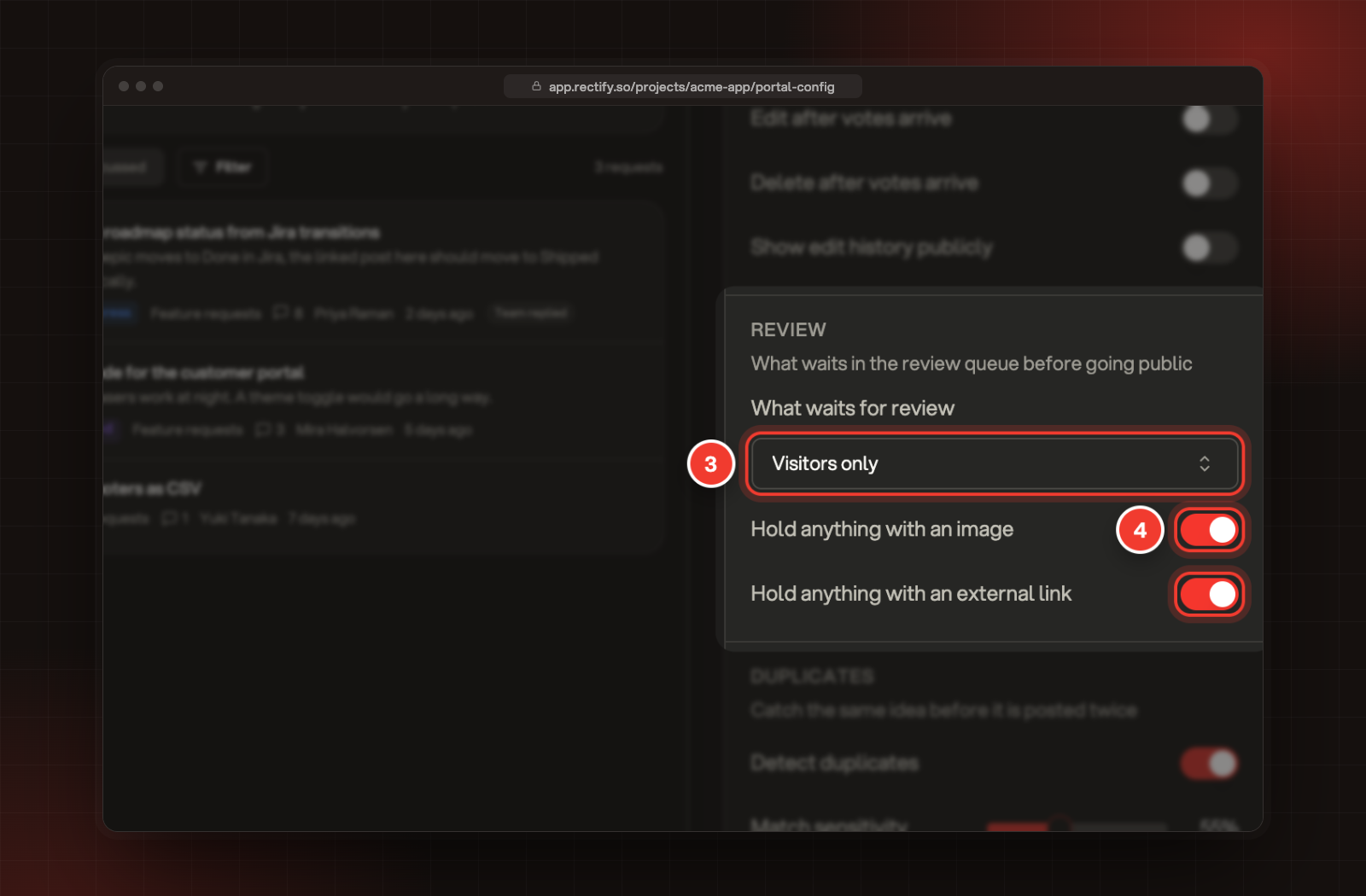
Under What waits for review, pick Nothing waits, Visitors only, Signed-in only or Everything waits.
4.
Turn Hold anything with an image and Hold anything with an external link on or off.
3 What waits for review. 4 Hold anything with an image, with the link hold below it.
5.
Select Save.
These rules cover posts and comments. The image and link holds apply even on boards set to Never review.
To set different rules for one board, open Roadmap, Roadmaps, Boards & statuses, then Edit board on that board, and use Moderation. Set up boards and statuses shows how.
What the person who posted sees
On your portal, they're told their post waits for the team to review it. In the widget they see "Thanks. The team will review your request before it appears." They can still open their own post while it waits. Nobody else can.
Check it worked
The item leaves the queue and the count in the sidebar goes down. Published posts show on your portal for everyone allowed to view their board.
Publish and Decline are missing
Only Owners and Admins can act on the queue. Members see a note saying so. Ask an Owner or Admin.
A post I expected isn't in the queue
It may not have needed review. Posts your team adds never wait, and with Nothing waits, only posts with images or links, or on boards set to Always review, are held. Look for it in All posts.
I want to publish a post I declined
Declined posts can't go back to the queue. Add the request again with Add post, on the customer's behalf if you like.