Keep your portal public, make it private to your customers' email domains, or open it only to chosen segments.
4 min readUpdated 5 days ago
Before you start. Owners, Admins and Members can change who sees the portal, on every plan. Your team can always open your portal while signed in to Rectify, whatever you choose here.
Choose who gets in
1.
In the sidebar, open Publish, then Portal, and open the Access tab.
2.
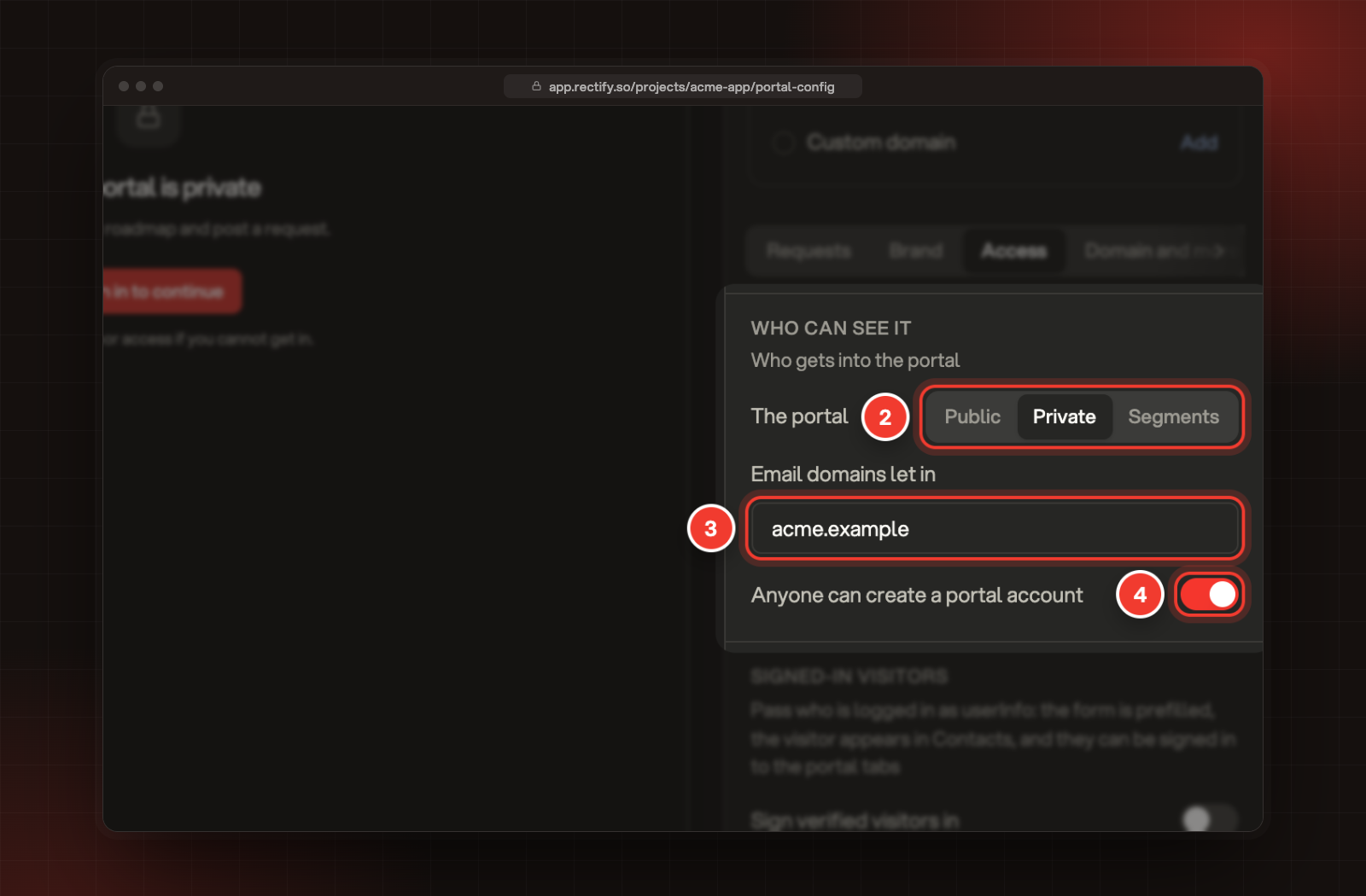
Under Who can see it, pick Public, Private or Segments next to The portal.
3.
For a private or segment portal, enter the domains to let in under Email domains let in, separated by commas, such as yourcompany.com, partner.com.
4.
Choose whether Anyone can create a portal account.
5.
Select Save in the bar at the bottom.
2 The portal. 3 Email domains let in. 4 Anyone can create a portal account.
For Segments, pick the segments under Segments with access as well.
What each choice means
Choice
Who gets in
Public
Anyone with the link. Search engines can find it too, unless you turn that off.
Private
Only people who sign in first. With email domains listed, only addresses on those domains.
Segments
Only signed-in people in the segments you pick, or with an address on a domain you list.
Visitors sign in with a one-time code that Rectify emails them. There's no password. Until they sign in, a private portal shows nothing but a sign-in screen. People who sign in without access see "You do not have access to this portal".
Who can create an account
Anyone can create a portal account decides whether people Rectify doesn't know yet can sign in:
•
On: anyone can sign in and gets an account. On a private portal with email domains, that means anyone on those domains. This is the easiest way to let your whole company or a customer's team in.
•
Off: only people already in your contacts can sign in. Everyone else is told the portal is invite only. On a public portal, people can still read everything without signing in.
When you switch a portal to Private without any email domains, Rectify turns this off for you. A private portal must list email domains or keep this switched off, so it never lets just anyone in.
Limit a single page
Some pages have their own reader setting, on top of who can see the portal:
•
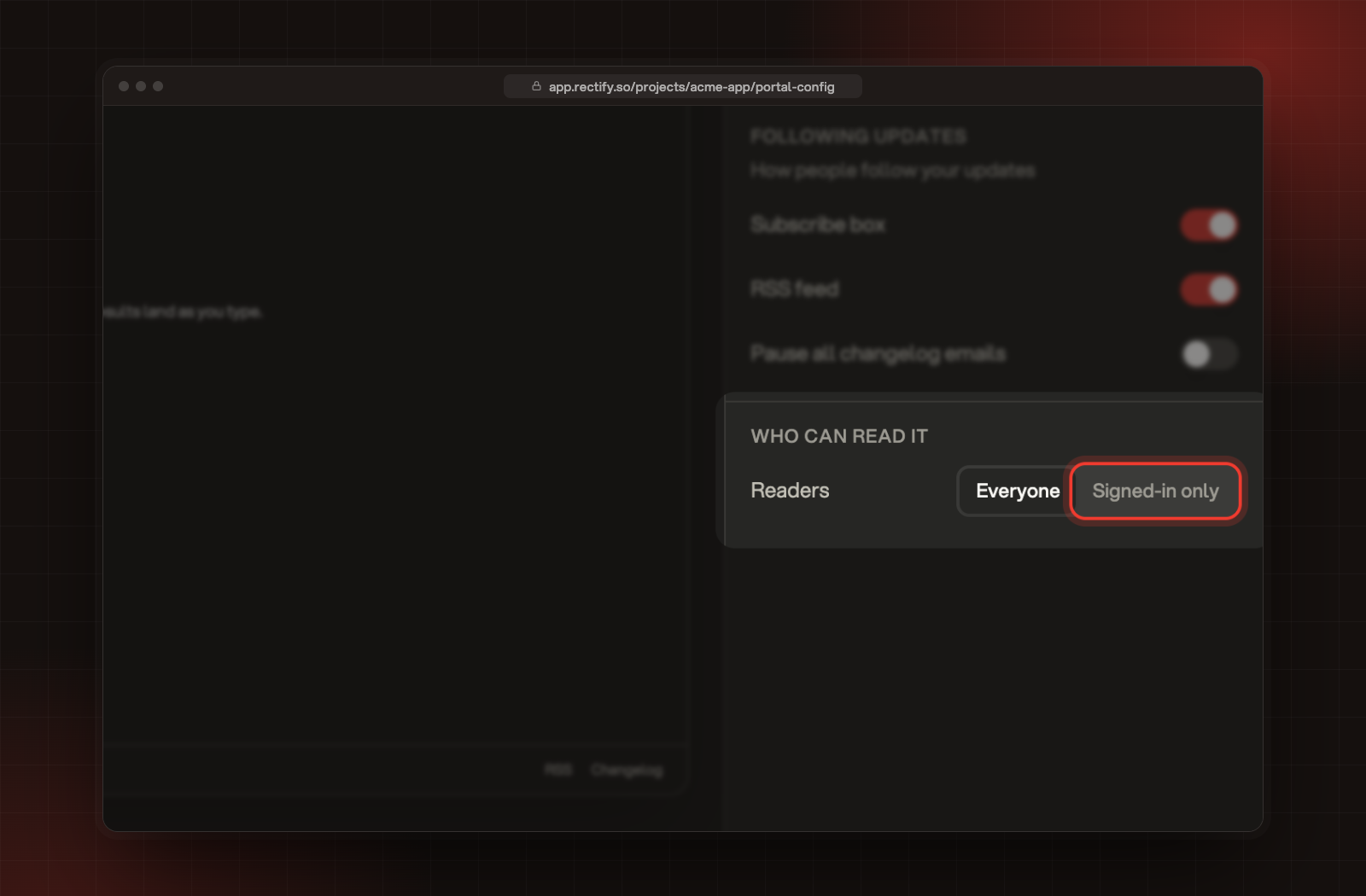
Changelog: on the Changelog tab, under Who can read it, set Readers to Everyone or Signed-in only. Signed-in only covers the RSS feed too.
•
Help Center: on the Help Center tab, the same Readers setting decides whether visitors sign in before reading articles.
Readers, under Who can read it, on the Changelog tab.
Boards and roadmaps have their own visibility, set where you manage them under Roadmap. Turning a page off under Pages in the menu only hides it from the menu. Anyone with its link can still open it.
Keep the portal out of search engines
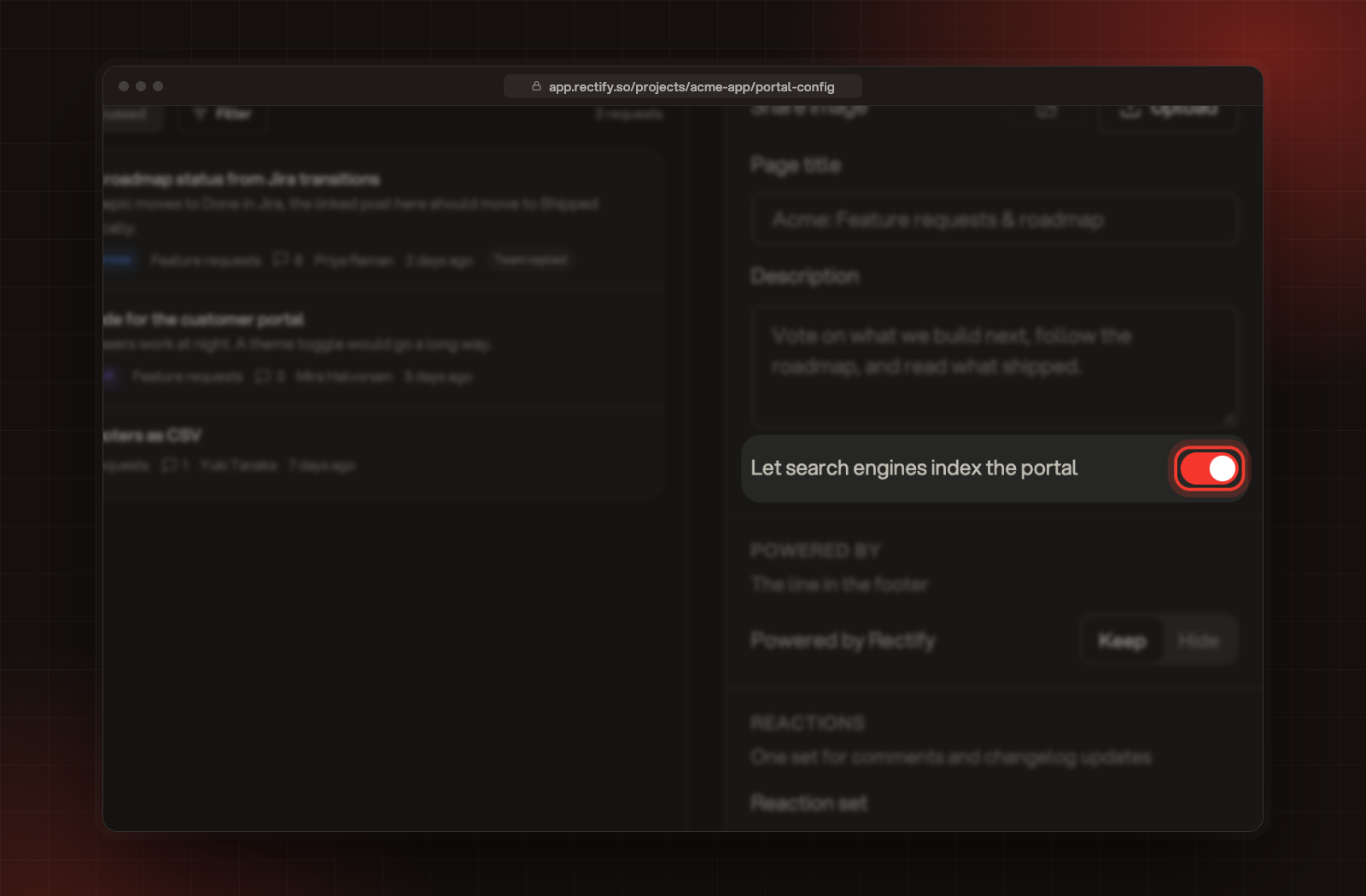
On the Domain and more tab, under Search and sharing, turn off Let search engines index the portal. It's on by default for public portals. A private or segment portal is never indexed, whatever this switch says.
Let search engines index the portal.
Check it worked
After saving, open your portal in a private browser window where you're not signed in to Rectify. A private portal should ask you to sign in. Sign in with an address on one of your listed domains to check you get in.
It says "A private portal needs allowed email domains or invite-only sign-up"
A private portal can't let just anyone sign in. Add your email domains under Email domains let in, or switch off Anyone can create a portal account, then save again.
Someone on our domain can't get in
Check their address is on a domain listed under Email domains let in, spelled the same way. If Anyone can create a portal account is off, only people already in your contacts can sign in, so switch it on to let in everyone on those domains.
Visitors can still see a page I switched off
Switching a page off under Pages in the menu only hides it from the menu. To stop people reading the changelog or Help Center, set its Readers to Signed-in only, or make the whole portal private.