Group contacts by who they are and what they've done, then use the group to filter contacts and target emails, surveys, popups and more.
4 min readUpdated 24 days ago
Before you start. Segments work on every plan. Everyone in the project can create, edit and delete them.
A segment is a saved group of contacts, defined by conditions such as "on the Team plan" and "rage clicked in the last 7 days". Rectify keeps every segment up to date: people join and leave as their data changes, checked every 15 minutes.
Create a segment
1.
Open Contacts in the sidebar, under Customers.
2.
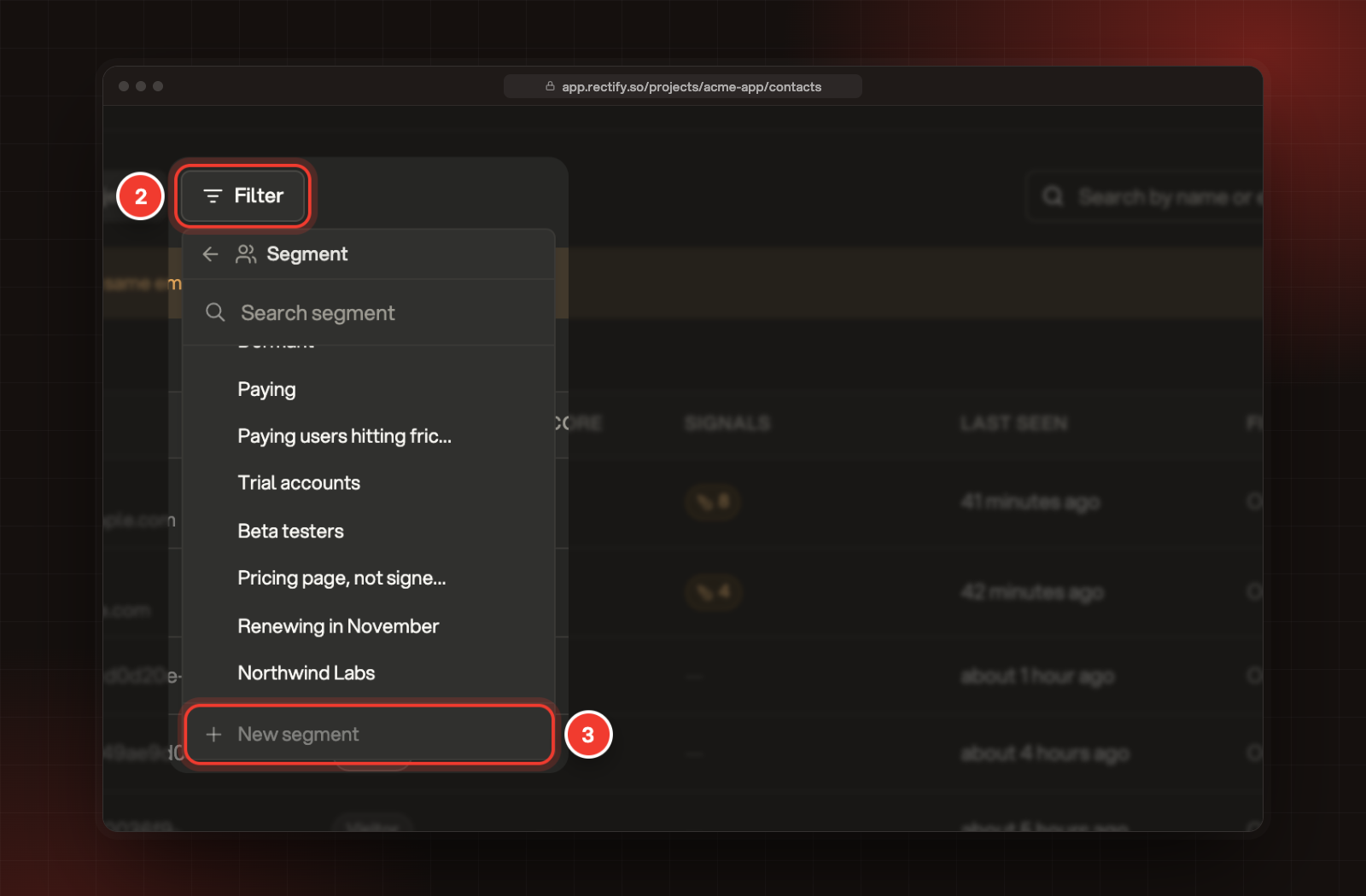
On the People tab, select Filter, then Segment.
3.
Select New segment at the bottom of the list.
2 Filter, then Segment. 3 New segment.
4.
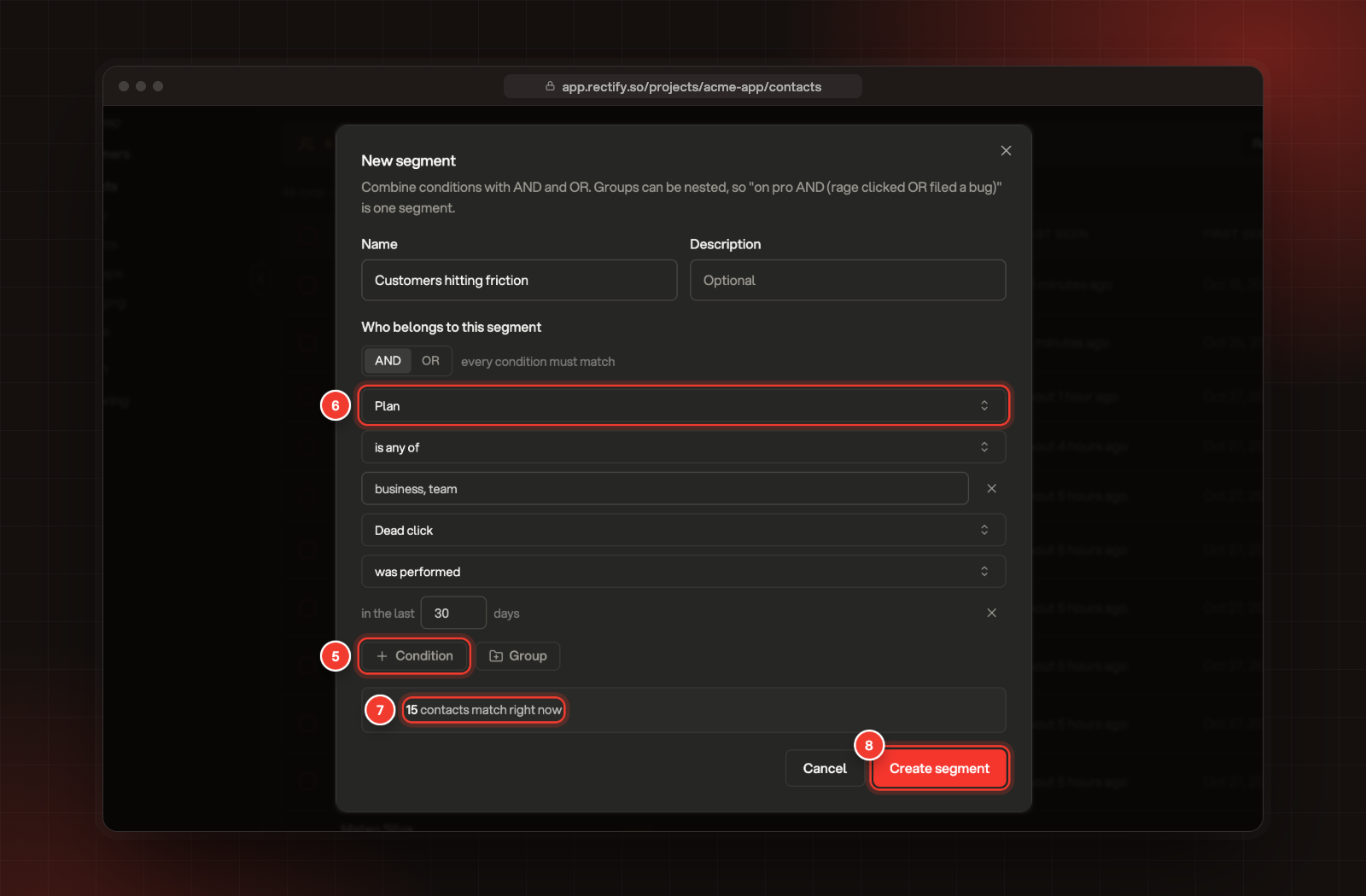
Enter a Name, for example "Trial ending this week", and an optional Description.
5.
Under Who belongs to this segment, select Condition.
6.
Pick a field, then a condition, then enter or pick a value.
7.
Add more conditions the same way. The count below updates as you go, for example 12 contacts match right now.
8.
Select Create segment.
5 Condition. 6 Field, condition and value. 7 The live count. 8 Create segment.
Combine conditions
Each group of conditions is joined by and or or. Select the word at the top of the group to switch:
•
and: every condition must match.
•
or: any one condition can match.
To mix them, select Group to add a group inside the first one. For example, "plan is team" and a group of "rage clicked" or "JavaScript error" finds paying users who hit trouble. Groups can go five levels deep, and a segment can have up to 50 conditions.
Fields you can use
Group
Fields
Contact
Email, Name, User ID, Is identified, Tags, First seen, Last seen
Contact traits
Plan, MRR
Company
Company name, domain, plan, MRR, seats, members, lifecycle and tags
Device
Browser, Operating system, Device type
Location
Country, City
Acquisition
Referrer, UTM source, UTM campaign
Behaviour
Viewed page, Clicked, Submitted form, Downloaded file, Left for another site, Searched site, Identified, Custom event
Each custom event your site sent in the last 30 days
Each custom object you've added gets its own group with the fields you marked for segments. Add custom objects explains how.
Conditions for each kind of field
Field type
Conditions
Text
is, is not, contains, does not contain, starts with, is any of, is none of, is set, is not set
Number
is, is not, is greater than, is less than, is set, is not set
Yes or no
is, is not, is set, is not set
Date
in the last, not in the last (a number of days), is before, is after
Behaviour and friction
was performed, was not performed, happened more than, happened fewer than, each in the last 1 to 365 days
Text matching ignores capitals. For is any of and is none of, separate values with commas.
Use a segment
Your segments show up wherever you choose an audience:
•
Contacts:Filter, Segment shows who's in it.
•
Email campaigns: send to a segment. Only people with an email receive it.
•
Workflows: start one when a contact enters or leaves a segment.
•
Surveys and popups: show them only to people in chosen segments.
•
Help Center, changelog, roadmap and portal: limit who can see an article, an entry, a roadmap or the whole portal.
Anonymous visitors are never in a segment, so anything limited to segments is hidden from them.
Edit or delete a segment
Open Filter, then Segment, and hover over the segment:
•
Select the pencil to edit it, then Save changes.
•
Select the bin to delete it. It's deleted straight away, without a confirmation, and anything that used it no longer finds it.
Every project starts with five ready-made segments: Leads, New (7 days), Active (30 days), Dormant and Paying. You can edit or delete them like your own.
Check it worked
Select Filter, Segment and pick your segment. The People list shows who's in it. Membership is first worked out right after you save, then every 15 minutes.
It says "These fields are not recognised"
A field in the segment no longer exists, for example a custom event that stopped arriving or a deleted custom object. Conditions on unknown fields match nobody. Remove them or pick another field.
The count is 0 although I expected people
Check that every condition can be true at once when the group uses and. Remember that only identified people have an email, a plan or a company.