Add callouts, tabbed code, link cards, accordions, tables and images to your help articles from the / menu.
3 min readUpdated 5 days ago
Before you start. You need to be able to edit the article. Owners, Admins and Members can edit any article.
The help article editor has blocks made for help content. They all come from one menu.
Add a block
1.
Start a new line in the article.
2.
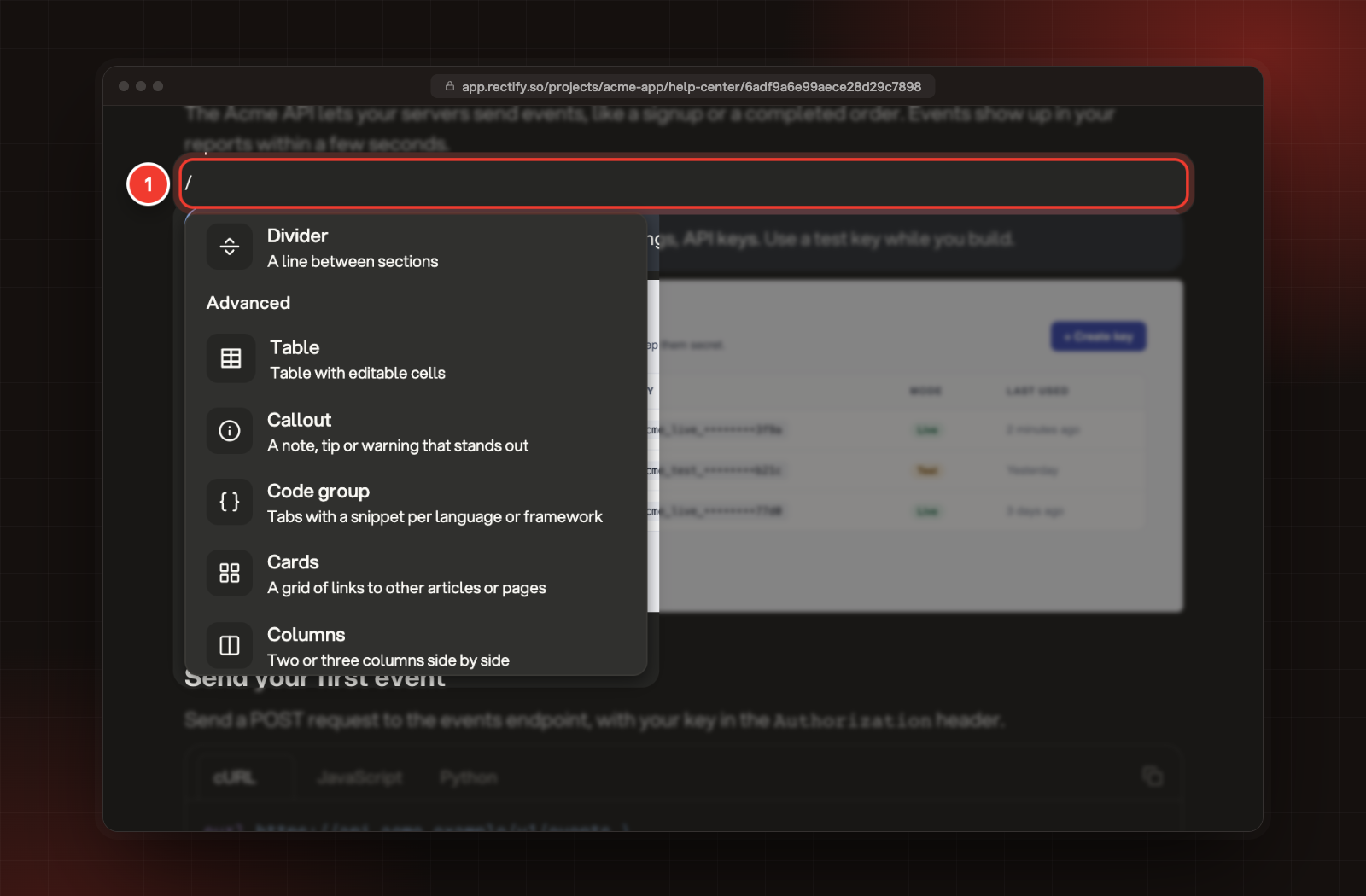
Type /. The menu opens.
3.
Pick a block, or keep typing to filter the list, for example /code.
1 Type / on a new line. The help article blocks sit under Advanced.
What each block is for
Block
What it's for
Callout
A note that stands out from the text
Code group
Tabs with a snippet for each language or framework
Code block
One snippet with syntax highlighting
Cards
A grid of links to other articles or pages
Accordion
A title that opens to show more, good for questions and answers
Columns
Two or three columns side by side
Divider
A line between sections
Table
A table with editable cells
Image, Video and File
A picture, a video or a download
Loom
Record a Loom video and embed it
The menu also has Heading 1 to Heading 3, lists, a check list, Toggle List and Quote. To add an emoji, type : and at least two letters of its name, like :smile.
Write a code group
1.
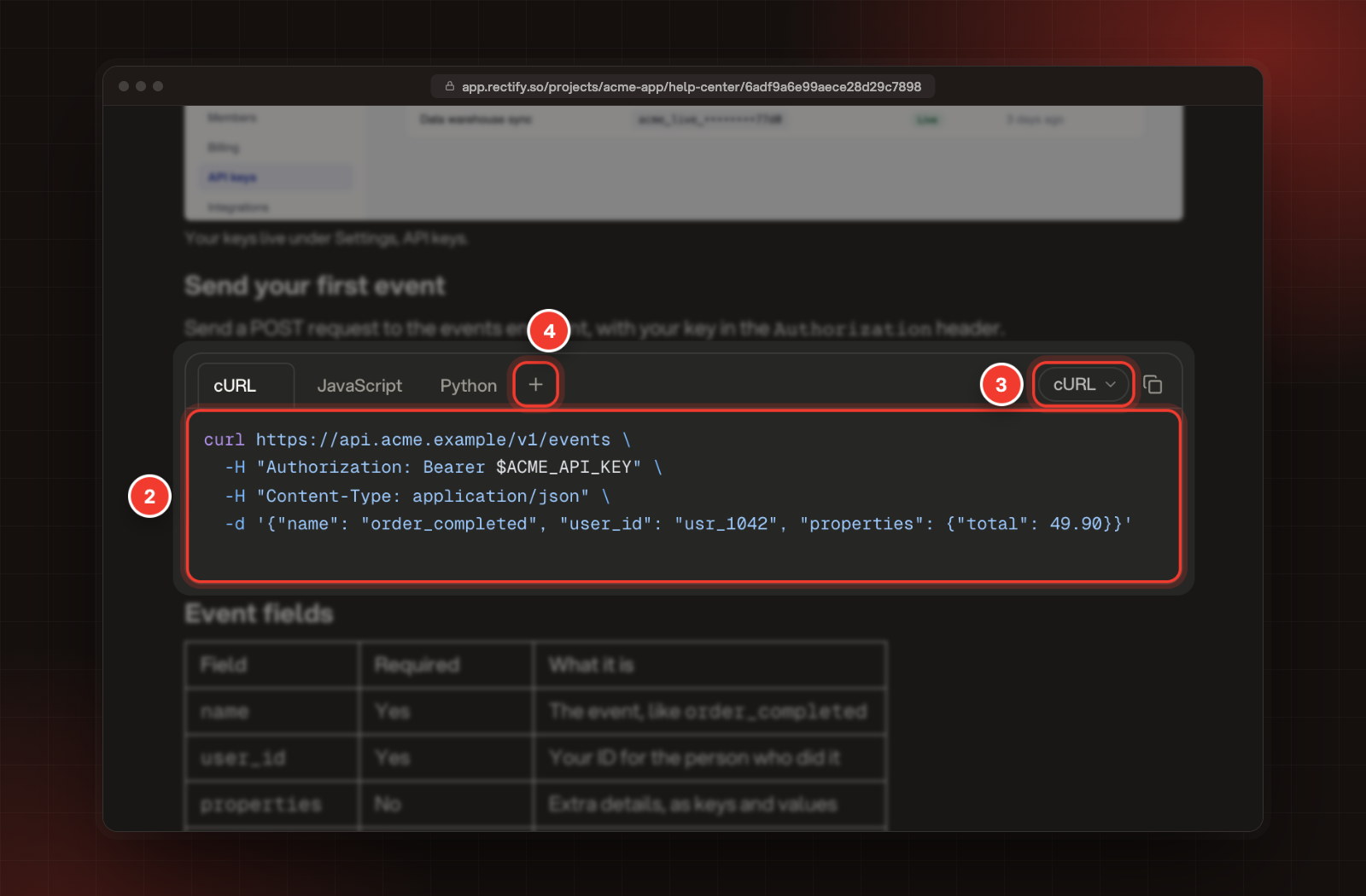
Type /code group and press Enter. The block starts with one tab.
2.
Paste or type the first snippet.
3.
Pick its language from the menu at the top of the block. The tab takes the language's name.
4.
Select Add tab to add the next language, and repeat. Once there's more than one tab, select + to add another and pick each tab's language from the menu at the right.
2 The snippet. 3 Its language. 4 Add a tab.
Readers switch between the tabs and copy the code with the copy button. A Code block works the same way with a single snippet.
Add an accordion and cards
1.
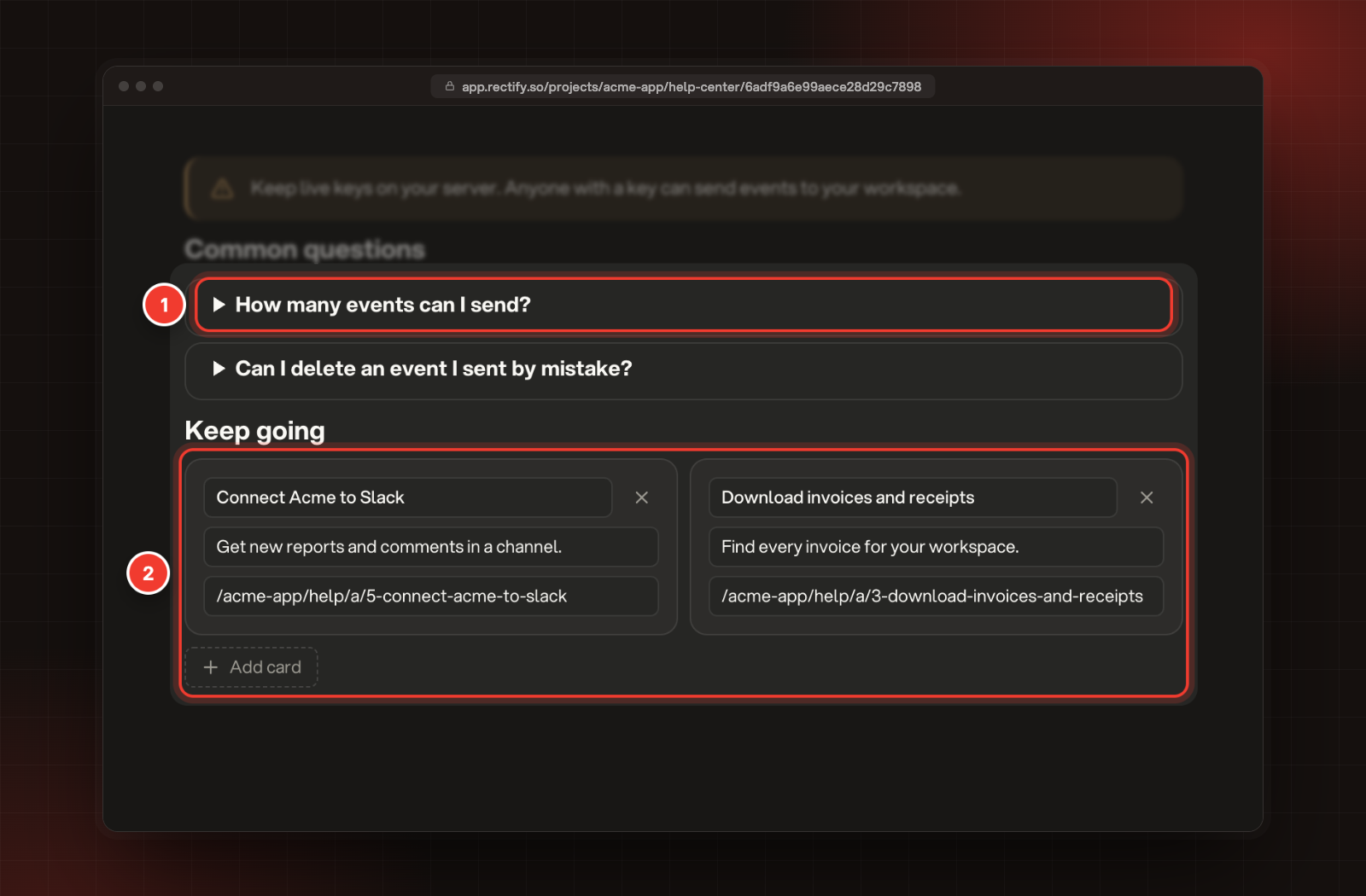
Type /accordion and press Enter. Write the question as the title, then open it with the arrow and write the answer inside.
2.
Type /cards and press Enter. For each card, fill in the title, one line about where it goes, and the link: an article's address on your help center, like /help/a/12-install, or a full https:// link.
3.
Select Add card for more cards. Remove one with the × next to its title.
1 An accordion. 2 Cards, with Add card below them.
How readers see it
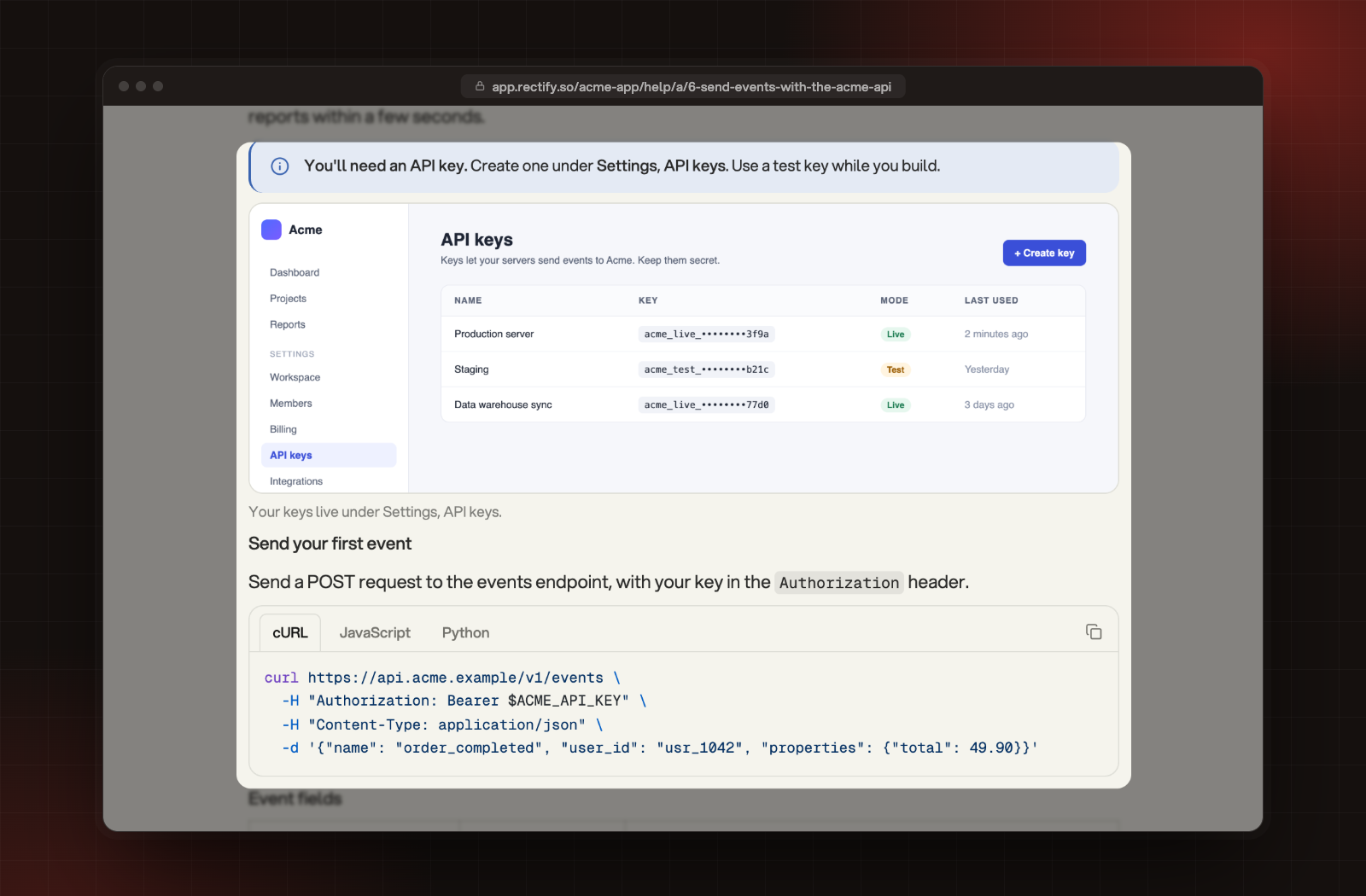
On your help center, callouts get their colour and icon, code groups become tabs with a copy button, and images show with their caption.
A callout, an image and a code group on the help center.
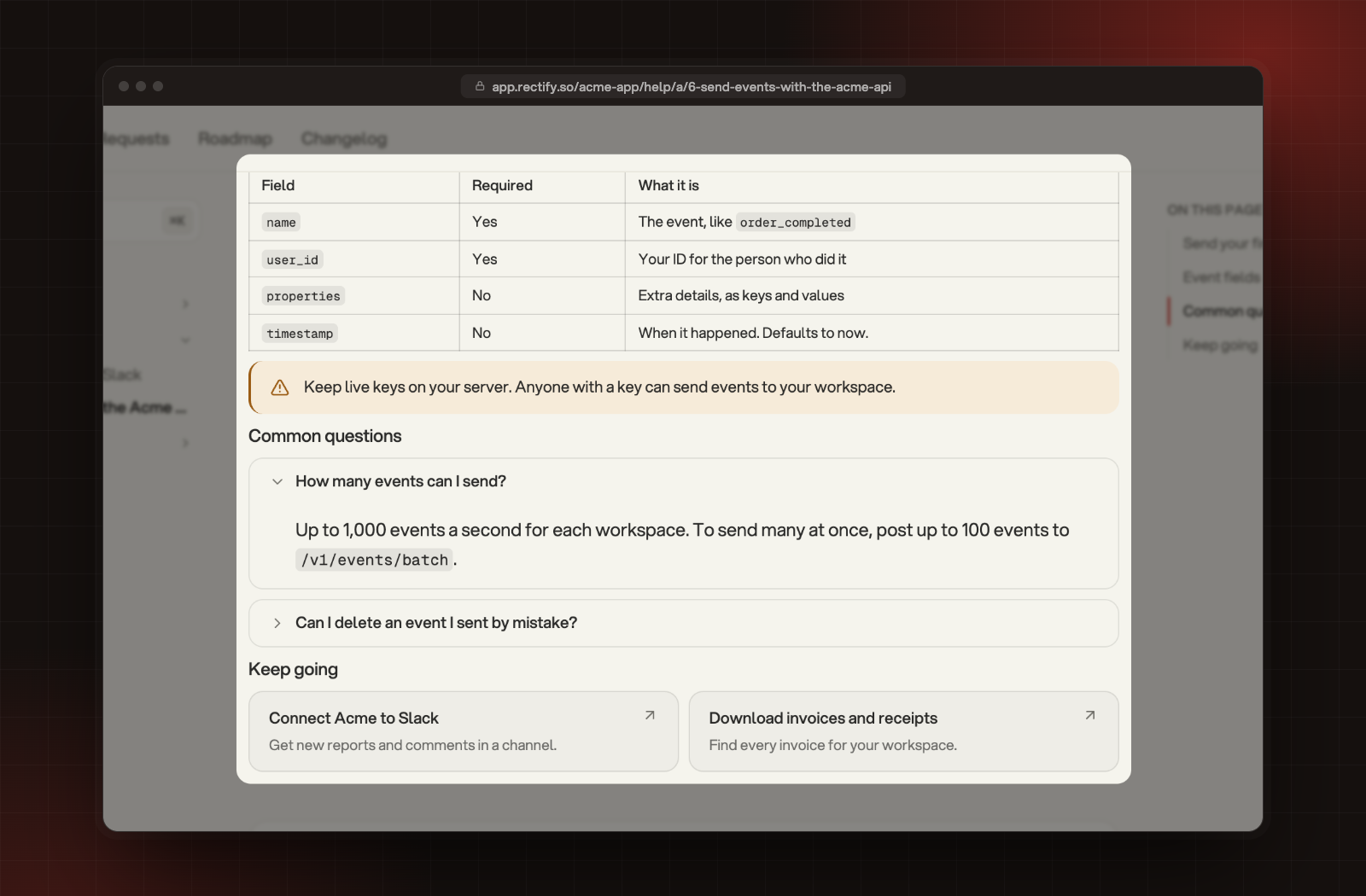
Accordions open with a click, and each card links to its page.
A table, a warning callout, an open accordion and cards.
Check it worked
Publish the article, then select View at the top of the editor. Every block shows as it will for your readers.
Nothing happens when I type /
The menu only opens while you can edit the article. If someone else is editing it, you're reading a copy. Wait until they finish, or ask an Owner or Admin to take over.
A card goes to the wrong page
Open the article you want to link to on your help center, copy its address, and paste it into the card's link.