Score your leads, post contact activity to Slack and send events to your own systems with signed webhooks.
4 min readUpdated 5 days ago
Before you start. Owners, Admins and Members can set up lead scoring, Slack alerts and webhooks, on every plan. Only Owners and Admins can delete an alert or a webhook endpoint. Slack alerts need Slack connected to the project under Project settings, Integrations.
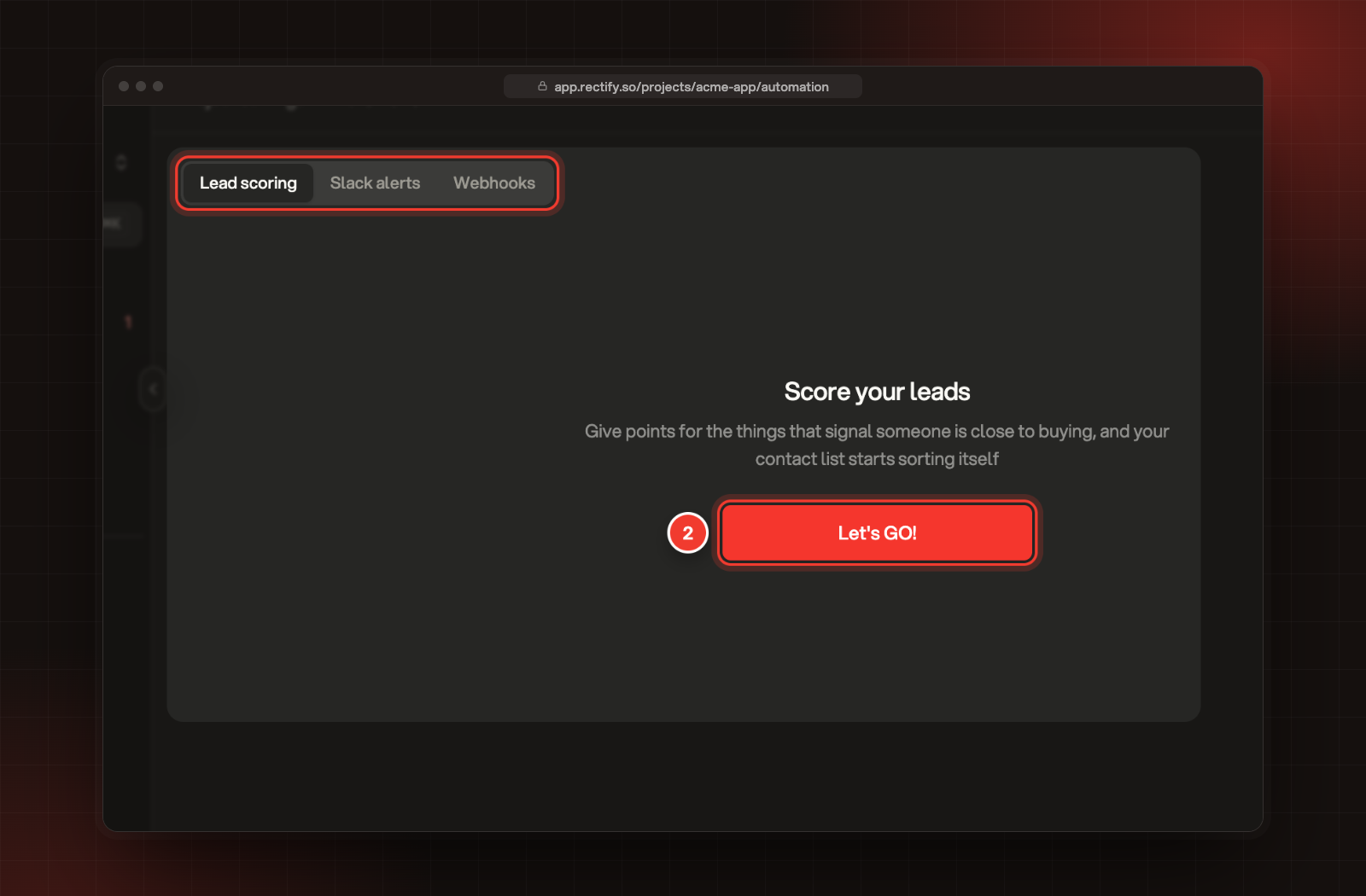
Open Project settings, then Automation. The page has three tabs: Lead scoring, Slack alerts and Webhooks.
The three tabs, and Let's GO! to add the first scoring rule.
Score your leads
Lead scoring gives each contact a number from the things they are and do, so the people closest to buying rise to the top of your contacts.
1.
Open the Lead scoring tab.
2.
Select Let's GO!. Later rules start from Add rule.
3.
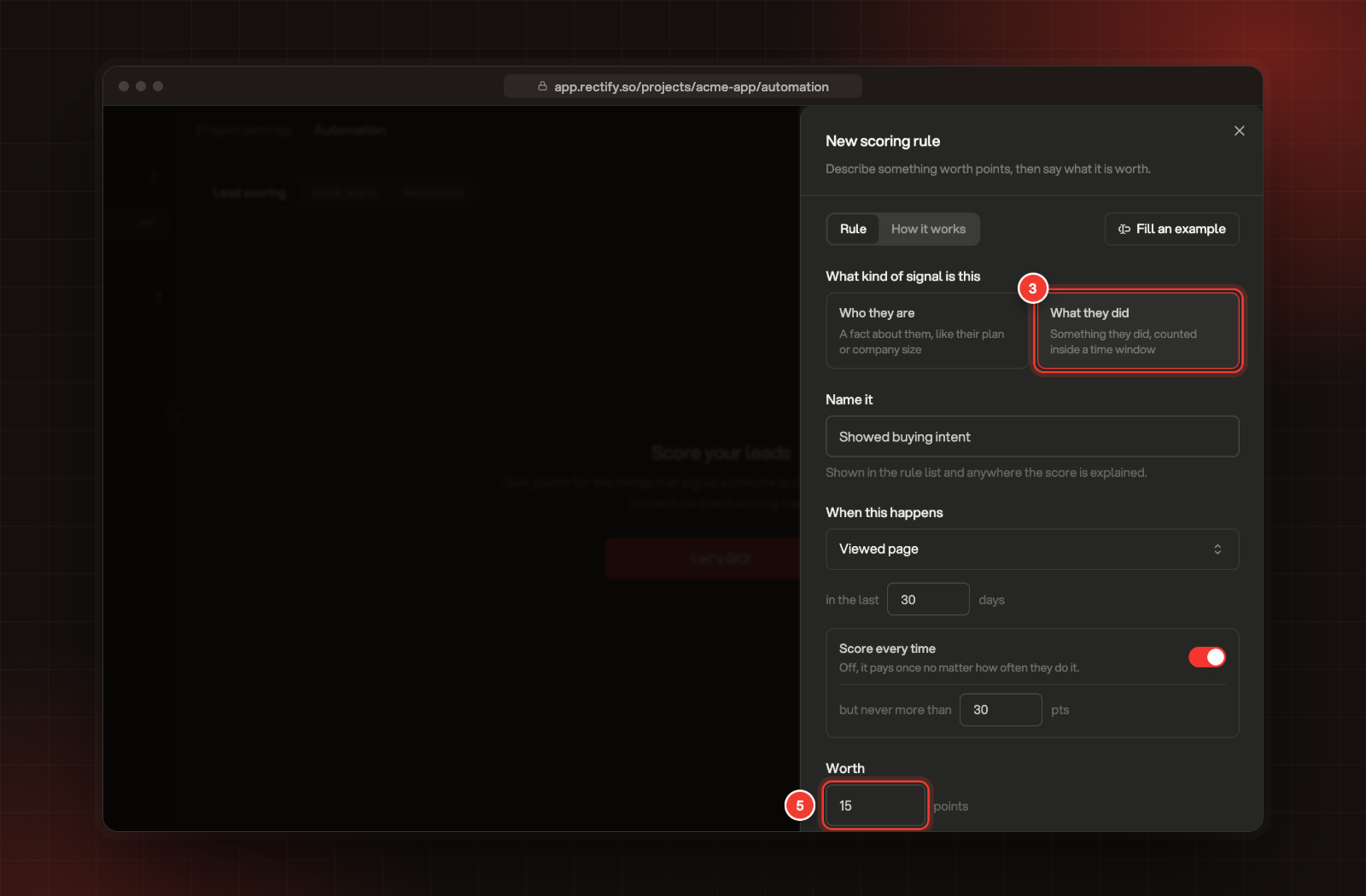
Under What kind of signal is this, pick Who they are for a fact about the contact, such as their plan or company size, or What they did for something they did within a number of days.
4.
Enter a name under Name it, then set the condition under When this is true or When this happens. For What they did, turn on Score every time to give points each time it happens, up to a cap.
5.
Set what it's Worth in points, then select Add rule. Use a negative number for a signal pointing the wrong way, like a refund.
3 What kind of signal is this. 5 Worth. Fill an example fills the rule with a sample.
6.
Turn on the switch next to Lead scoring to start calculating, then select Save at the bottom.
Rectify recalculates every score after you save. A project can have up to 50 rules.
•
Bands name ranges of scores. Contacts take the highest band their score reaches. New projects start with cold from 0, warm from 40 and hot from 80, and you can have up to 10.
•
Decay half-life halves a contact's score for every that many days they stay quiet. Leave it at 0 to keep scores forever.
•
Every contact shows its score and band in your contacts and on their profile, and segments can filter on them. If HubSpot is connected, the button at the top pushes scores there.
Send Slack alerts
Slack alerts post to the Slack channel connected to the project when something happens to your contacts or feedback. If Slack isn't connected, the tab shows Slack is not connected with a Connect button.
1.
Open the Slack alerts tab and select Let's GO!, or New Alert at the top once you have one.
2.
Enter a Name, such as Critical bugs to #engineering.
3.
Under When this happens, tick the events that should post. Any one of them sends the alert.
4.
Narrow it down if you like: Only for this segment, Minimum score or Only for this band. These appear only when every event you picked carries a contact or a segment.
5.
Set a Cooldown (min), up to 1,440 minutes, so one busy contact can't flood the channel.
6.
Select Create alert.
Each alert has a switch to pause it, and buttons to edit or delete it.
Send events with webhooks
A webhook sends each event to a web address you own, such as your CRM. Every request is signed, so your server can check it came from Rectify.
1.
Open the Webhooks tab and select Let's GO!, or Add Endpoint at the top once you have one.
2.
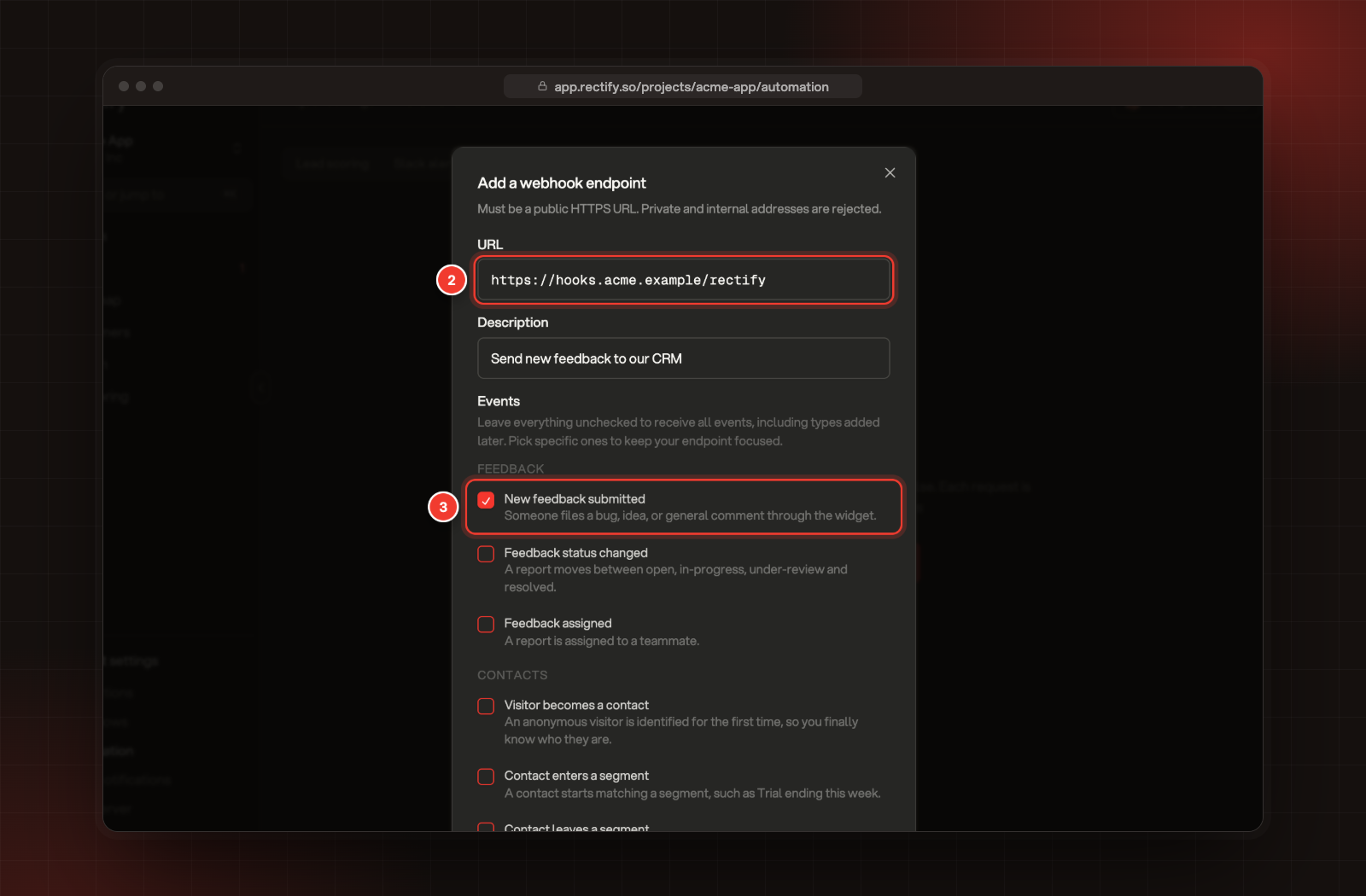
Enter the URL. It must be a public HTTPS address.
3.
Add a Description, then tick the Events to send. Leave them all unticked to receive every event, including ones added later.
4.
Select Create endpoint.
2 URL. 3 An event ticked under Events.
5.
Copy the secret in Save your signing secret. It's shown only once, and your server uses it to check the X-Rectify-Signature header.
The events cover new feedback, status changes and assignments, contacts, segments, lead score bands, forms, surveys and the help center.
Each endpoint shows its recent deliveries. Its buttons send a test event, rotate the signing secret, pause it or delete it. Rectify tries a failed delivery up to 5 times. If an endpoint keeps failing, Rectify pauses it and marks it Paused. Fix your server, then switch it back on.
Check it worked
•
Lead scoring: the line under Lead scoring reads Scoring is on, with the points available from your active rules.
•
Slack alerts: the alert appears in the list, switched on.
•
Webhooks: select the test button on the endpoint and look for the delivery in its recent deliveries.
The delete button is greyed out
Only Owners and Admins can delete Slack alerts and webhook endpoints. Pause it with its switch instead, or ask an Owner or Admin to delete it.
It says "No contact fields yet, so there is nothing to score on"
Rectify hasn't seen any contacts in this project yet. Install the Rectify script and identify your users first.
The URL is rejected
Webhooks only go to public HTTPS addresses. Private and internal addresses, such as localhost, are refused.
To run steps of your own when something happens, build a workflow instead.