Choose which roadmaps your customers see on your portal and in your widget, pick the one that opens first, and copy a link to share.
5 min readUpdated 24 days ago
Before you start. Public roadmaps are on every plan. Owners, Admins and Members can change a roadmap's settings, make it the default and copy its link. Only Owners and Admins can delete a roadmap.
Every project's portal has a Roadmap page at app.rectify.so/ followed by your portal address and /roadmap. It's in the portal menu from the start, and the same roadmaps show in your widget's Roadmap tab.
Choose who can see a roadmap
1.
In the sidebar, open Roadmap, then Roadmaps, and open the roadmap.
2.
Select This roadmap, the sliders icon at the top of the page.
3.
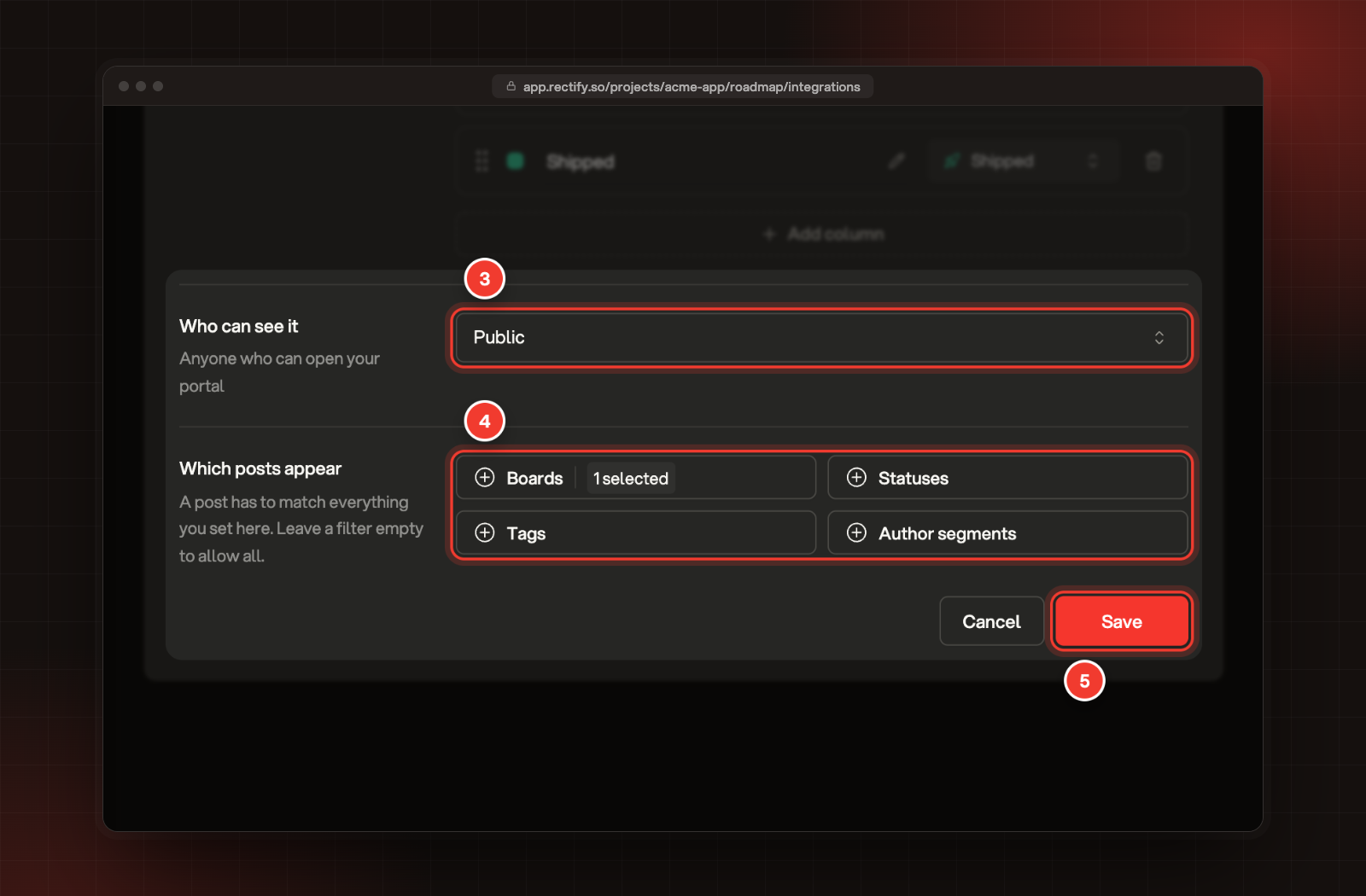
Under Who can see it, pick who it's for:
•
Public: anyone who can open your portal.
•
Internal: only your team. It never shows on the portal or in the widget.
•
Segments: only contacts in the segments you pick. Pick at least one.
4.
Under Which posts appear, narrow it down by Boards, Statuses, Tags or Author segments if you like. A post has to match everything you set here. Leave a filter empty to allow all.
5.
Select Save.
3 Who can see it. 4 Which posts appear. 5 Save.
Some posts never show on a public roadmap, whatever you pick: posts on boards that visitors can't view, posts waiting for review or declined, merged posts and deleted posts.
Copy the link
1.
In the sidebar, open Roadmap, then Roadmaps.
2.
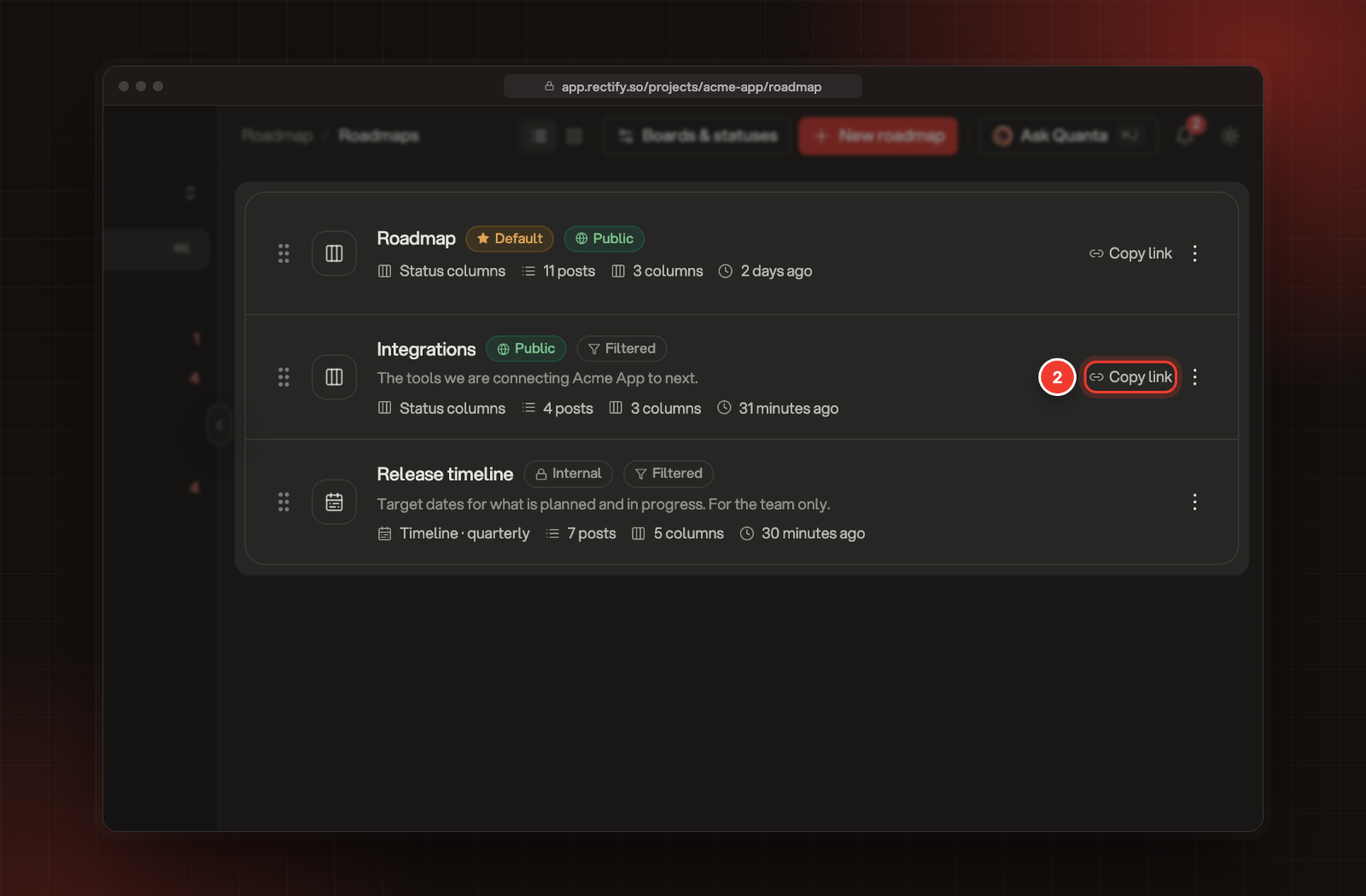
Select Copy link next to the roadmap. Rectify says Public link copied, or Portal link copied for a roadmap shown to segments.
2 Copy link, next to a public roadmap.
The link opens your portal on that roadmap, for example app.rectify.so/acme-app/roadmap?roadmap=integrations. If your organization has its own domain set up, the link uses it. Internal roadmaps have no link to copy.
To look at a roadmap as visitors do, open it in Rectify and select Open in portal, the arrow icon at the top.
Pick the roadmap that opens first
Your default roadmap, marked Default, opens first on your portal and in your widget. To change it, open the menu (⋮) next to another roadmap on the Roadmaps page and select Make default.
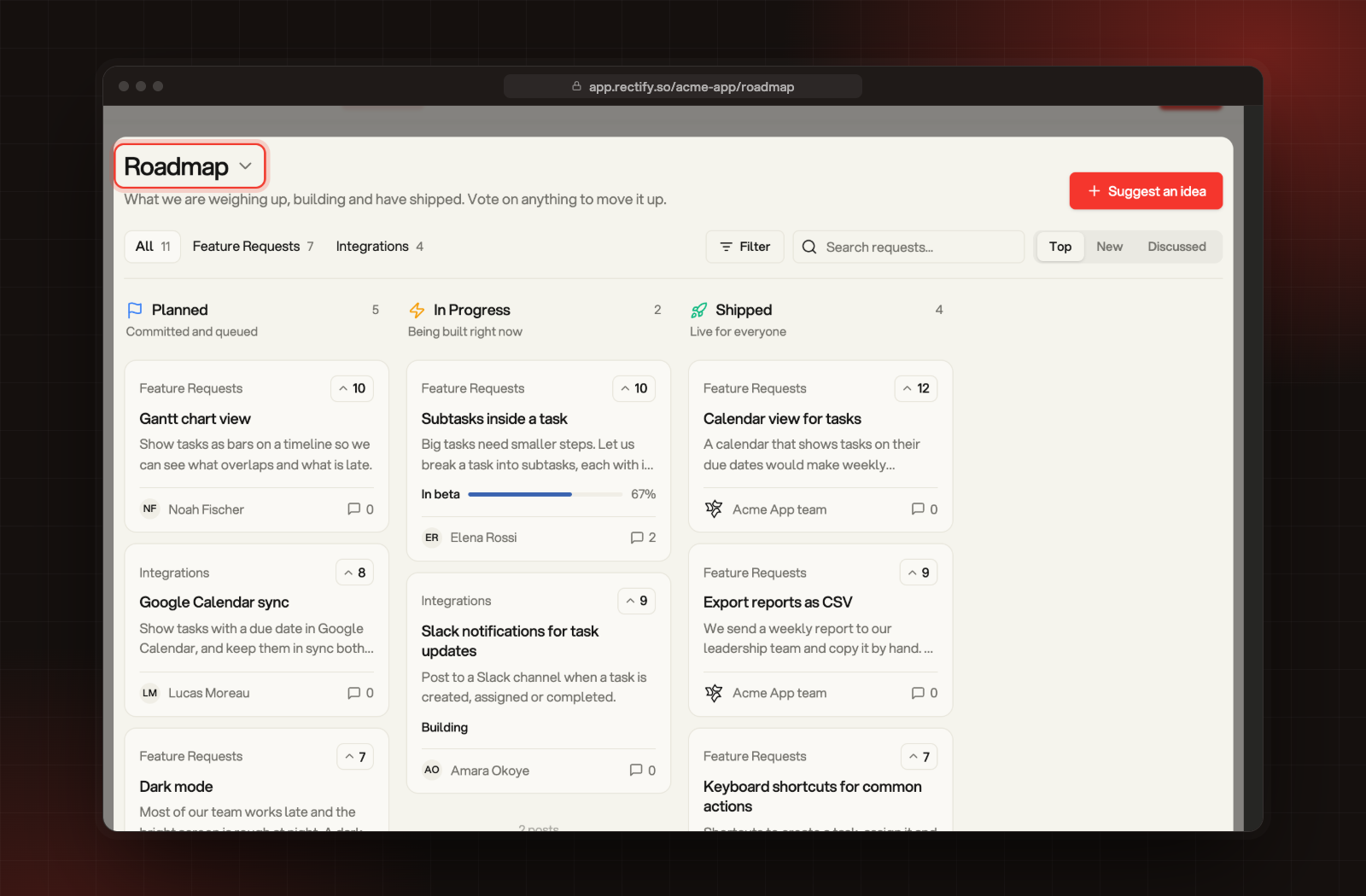
When you have more than one public roadmap, visitors can switch between them: the roadmap's name at the top of the portal page becomes a menu, and the widget shows a picker.
Show a different set of posts
You can have several roadmaps, each showing different posts. For example, one for your whole product and one for integrations only.
1.
On the Roadmaps page, select New roadmap.
2.
Pick a Layout: Status columns, with one column per status, or Timeline, with one column per month, quarter or half year based on each post's target date. A timeline shows the current period, the next three and a No date column.
3.
Enter a Name of up to 50 characters, and a description if you like. Visitors see the description under the name.
4.
For status columns, check the Columns. Select Add column to add one, select a name to relabel it, and drag to reorder. For a timeline, pick the Periods.
5.
Set Who can see it and Which posts appear.
6.
Select Create.
Posts aren't copied: each roadmap shows the posts that match it, so changes to a post show everywhere at once.
What visitors see
On your portal, visitors see your columns with a card for each post. They can vote right on a card, open it to read and comment, switch boards with the tabs at the top, filter, search and sort by Top, New or Discussed. Suggest an idea lets them post a request on any board they're allowed to post on.
The public Roadmap page, with the roadmap menu at the top.
In your widget, the Roadmap tab shows the roadmap under Roadmap, with a button for each column, and visitors' ideas under Requests. Choose the widget's tabs shows how to turn the tab on.
Check it worked
Open the link in a private browser window, where you're not signed in. You should see the roadmap as a visitor does. Roadmaps limited to segments only show for contacts in those segments.
Copy link is missing
The roadmap is Internal. Change Who can see it to Public or Segments first.
A post is missing from the public roadmap
Check that its status is one of the roadmap's columns and that it matches Which posts appear. On a timeline, posts dated before the current period, or more than three periods ahead, don't show. Posts on boards visitors can't view, and posts waiting for review, don't show either.
Visitors are asked to sign in
Your whole portal is private, or only open to some people. Control who can see the portal explains the portal's access settings.
The roadmap isn't in the portal menu
Someone turned Roadmap off under Pages in the menu. That only hides it from the menu: the page and its link still work. Set up your public portal shows how to turn it back on.