Group your help articles into collections, write an article and publish it to your help center.
4 min readUpdated 5 days ago
Before you start. Owners, Admins and Members can create collections, write articles and publish them. Only Owners and Admins can delete articles and collections, or restore them from Deleted. The free Idea plan includes 25 articles and Build includes 250. Launch, Accelerate and Enterprise have no limit. Drafts count too, until you delete them.
Your help center lives on your portal at /help. Articles sit inside collections, and Quanta quotes your published articles when it answers customers in the widget.
Create a collection
1.
Open Publish, then Help Center.
2.
Select New collection in the panel on the left. On an empty help center, Let's GO! opens the same window.
3.
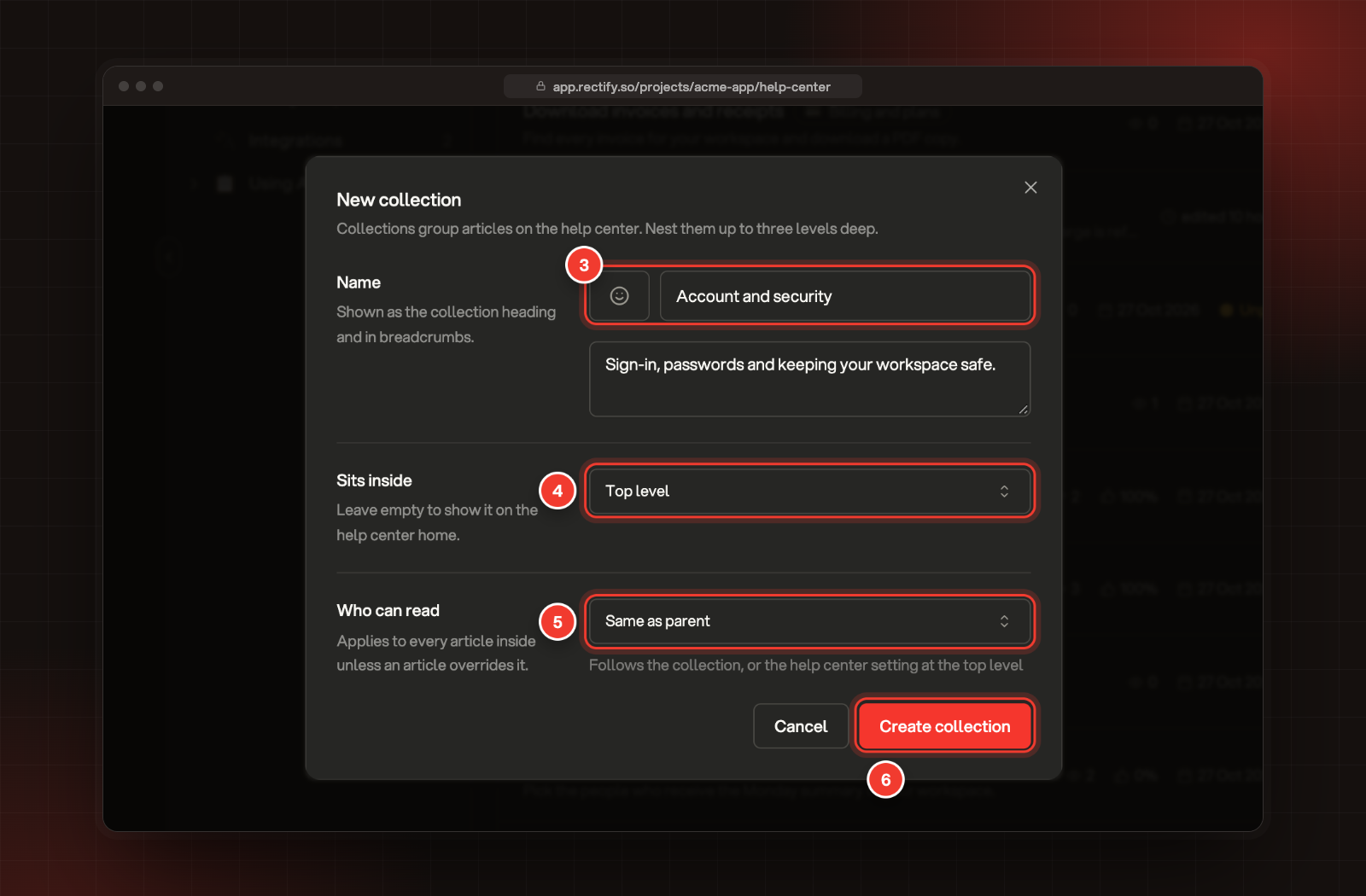
Pick an icon if you like, and type the collection's name. You can add a one-line description under it.
4.
Under Sits inside, keep Top level to show the collection on the help center home, or pick a collection to put it inside. Collections go up to three levels deep.
5.
Under Who can read, choose Same as parent, Everyone, Signed-in only or Only your team. The choice applies to every article inside unless an article sets its own.
6.
Select Create collection.
3 Name. 4 Sits inside. 5 Who can read. 6 Create collection.
Only your team keeps a collection off the help center and the widget, and Quanta never uses it to answer customers.
Write an article
1.
Select New article in the panel. To start inside a collection, point at it, select + and then New article.
2.
Type the title where it says Article title.
3.
Add one line under the title. It shows in lists and search results.
4.
Write the article. Type / for headings, callouts, code, images and more.
Rectify saves as you type and shows Saved at the top. A new article saves once it has a collection. If you started from New article without one, open Collection in the bar on the right and pick one.
Publish it
1.
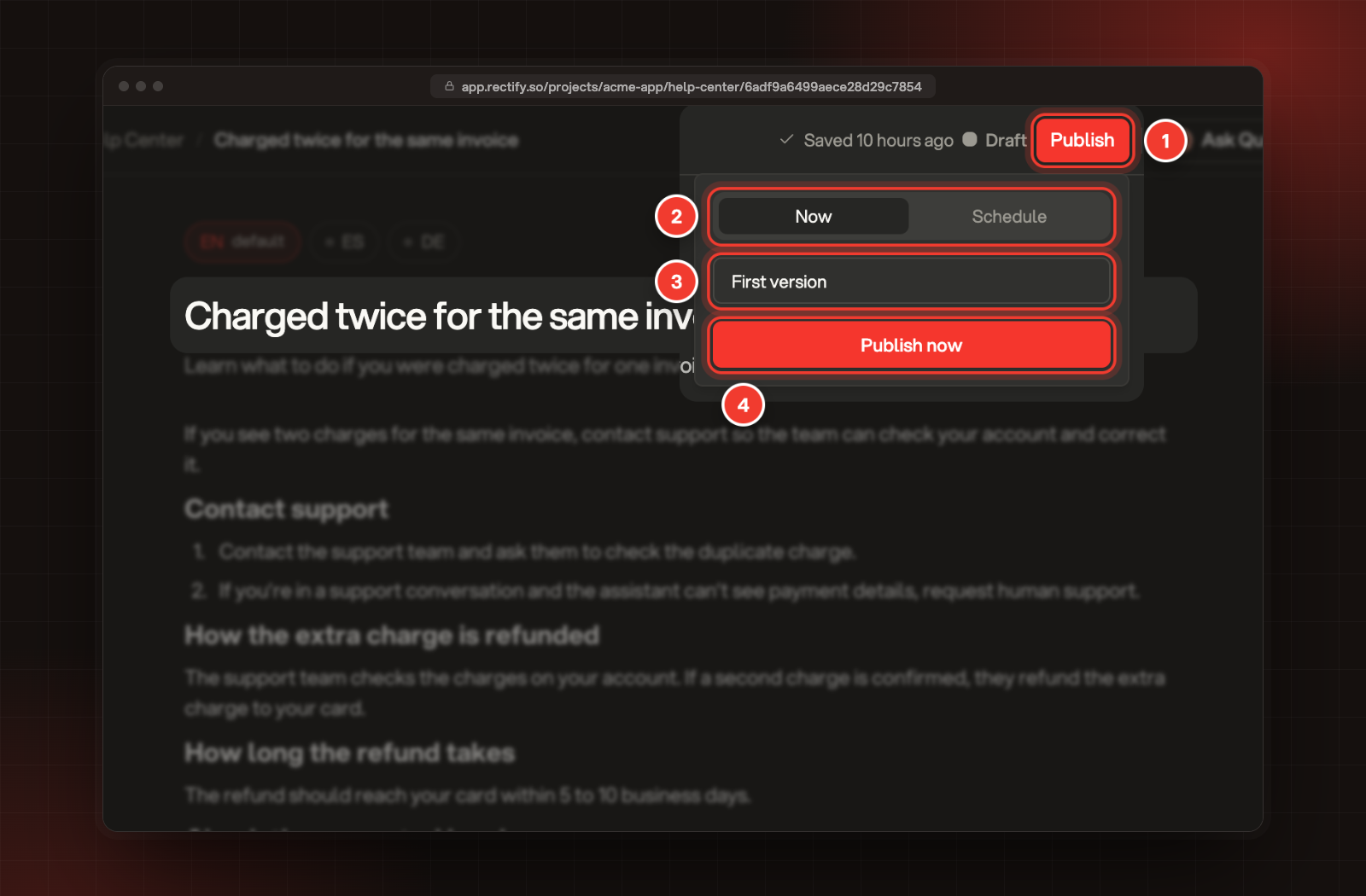
Select Publish at the top right.
2.
Choose Now, or Schedule and pick a date and time.
3.
Add a short note about what changed if you like. It shows in the article's version history.
4.
Select Publish now, or the Go live button for a scheduled article.
1 Publish. 2 Now or Schedule. 3 What changed. 4 Publish now.
Publish stays greyed out until the article has a title and some text.
Change a published article
Edits to a published article are saved as Unpublished changes. Readers keep seeing the live version until you select Publish changes at the top right, then Publish changes again to confirm.
To take an article down, open the same button at the top right and select Take it off the help center. For a scheduled article, select Reschedule, then Cancel the schedule.
Organize your articles
•
Find an article: select a collection in the panel, or use the tabs: All, Published, Unpublished changes, Drafts, Scheduled and Internal.
•
Change the order: select a collection, keep the sort on Manual, then drag the articles into place. Drag collections in the panel the same way.
•
Move an article: open it and pick another collection under Collection in the bar on the right.
•
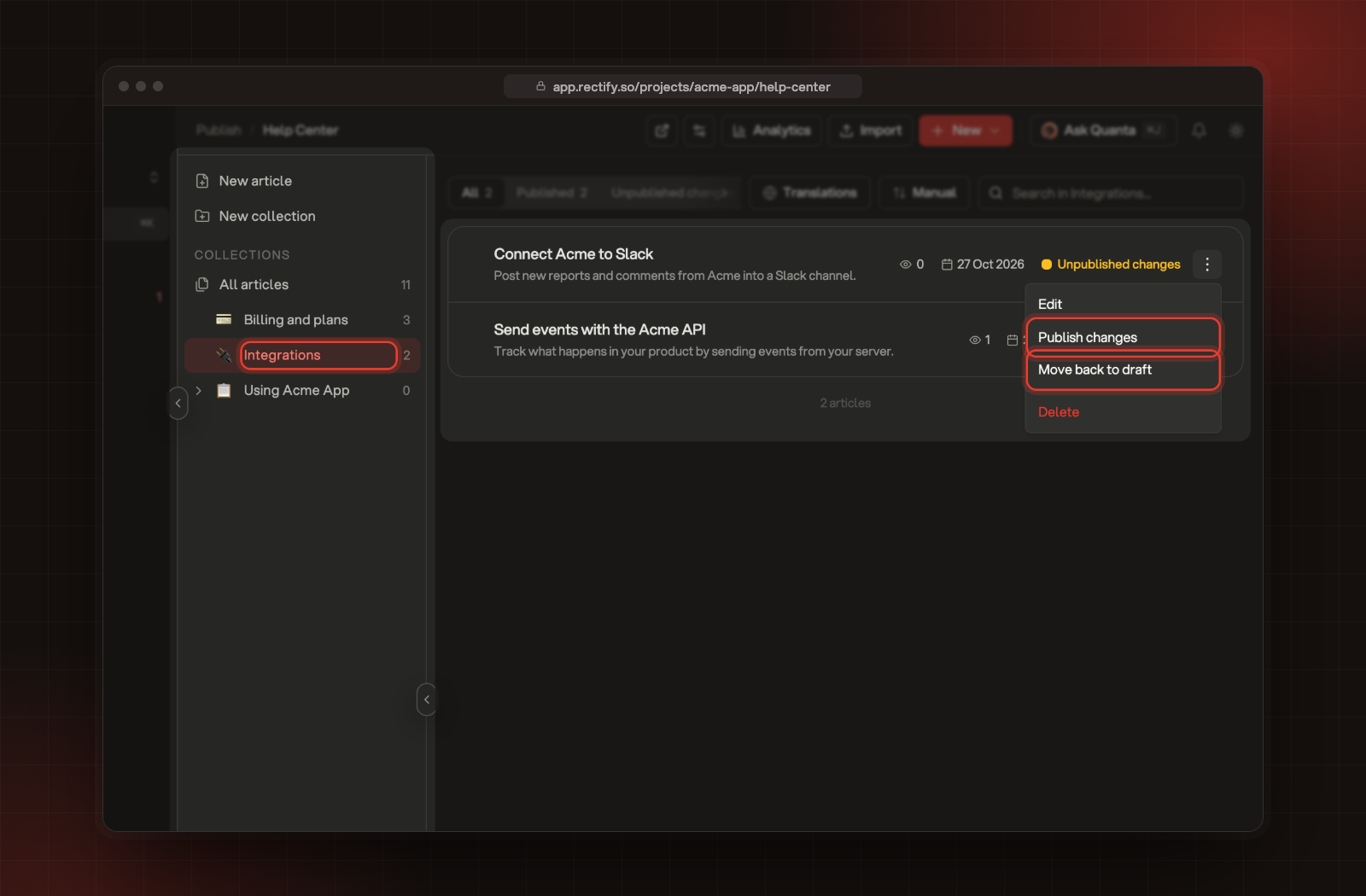
Quick actions: the menu at the end of each row has Edit, Publish now or Publish changes, Move back to draft and Delete.
The article menu in the Integrations collection.
A deleted article moves to Deleted at the bottom of the panel. You can restore it from there for 30 days.
Check it worked
Open a published article and select View at the top to see it on your help center, or use the open button next to Help Center at the top of the list. Within about a minute of publishing, the Quanta index button in the bar on the right shows Indexed for Quanta, and Quanta can quote the article.
New article is greyed out
Create a collection first. Articles always sit inside one. If you have collections, your plan's article limit is reached: delete articles you no longer need, or upgrade your plan.
Someone else is editing the article
Only one person edits an article at a time. You see who is editing, and you can read a copy. An Owner or Admin can select Take over to edit it instead.