Run a workflow on a real report, post or monitor, then check what each step did and why a run failed.
3 min readUpdated 5 days ago
Before you start. Everyone who can open the project can start a test run, read run history and switch a workflow on or off.
A test run does everything for real. It changes reports and posts, and it sends any emails, Slack messages, webhooks or texts in the workflow. Test on something safe, or point those steps at your own team first.
Run a test
1.
Open Project settings, then Workflows, and select the workflow.
2.
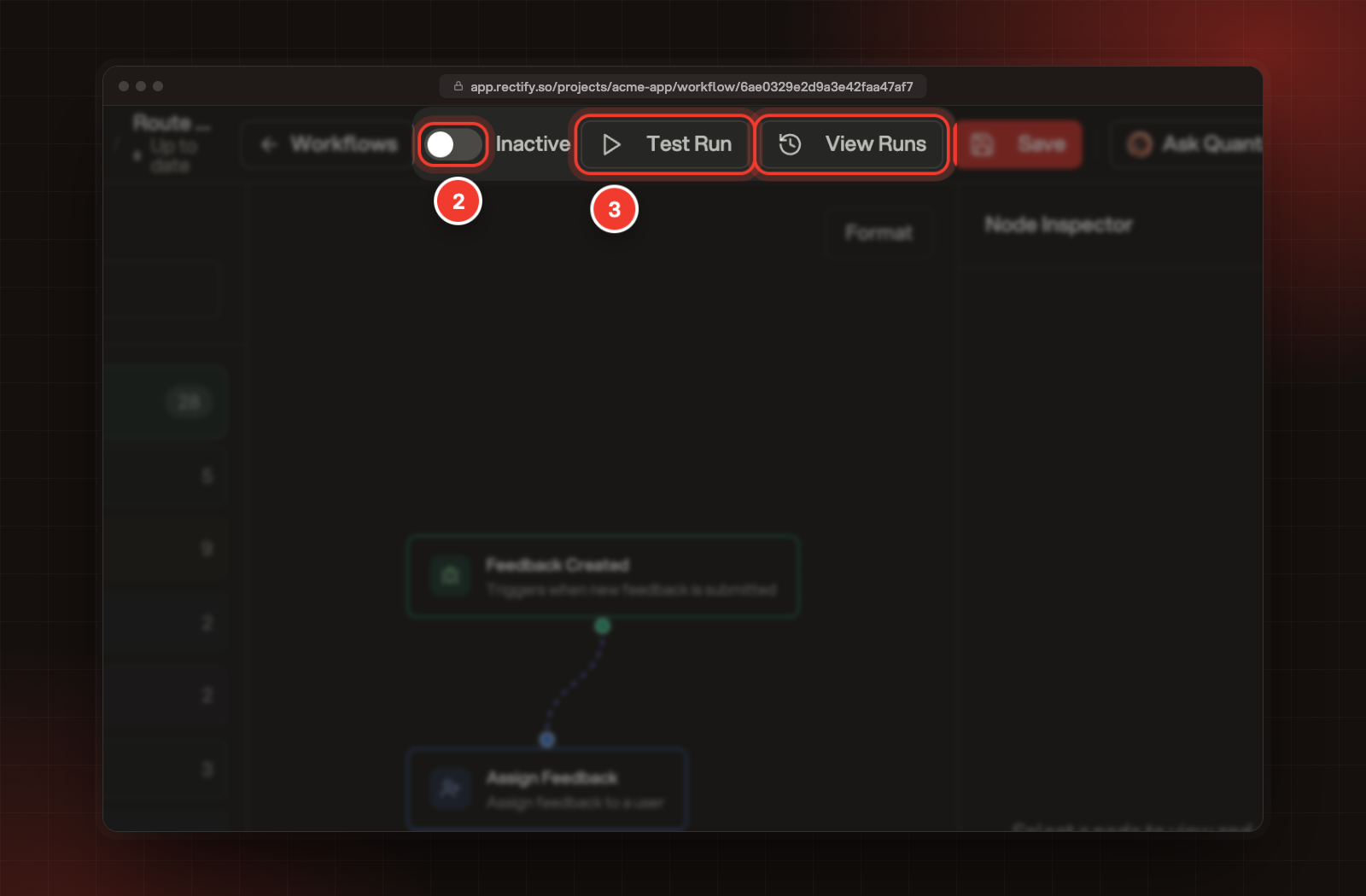
Make sure the switch at the top reads Active. You can only test a workflow that's switched on, and while it's on it also runs on real events.
3.
Select Test Run.
2 The Active switch. 3 Test Run, beside View Runs.
4.
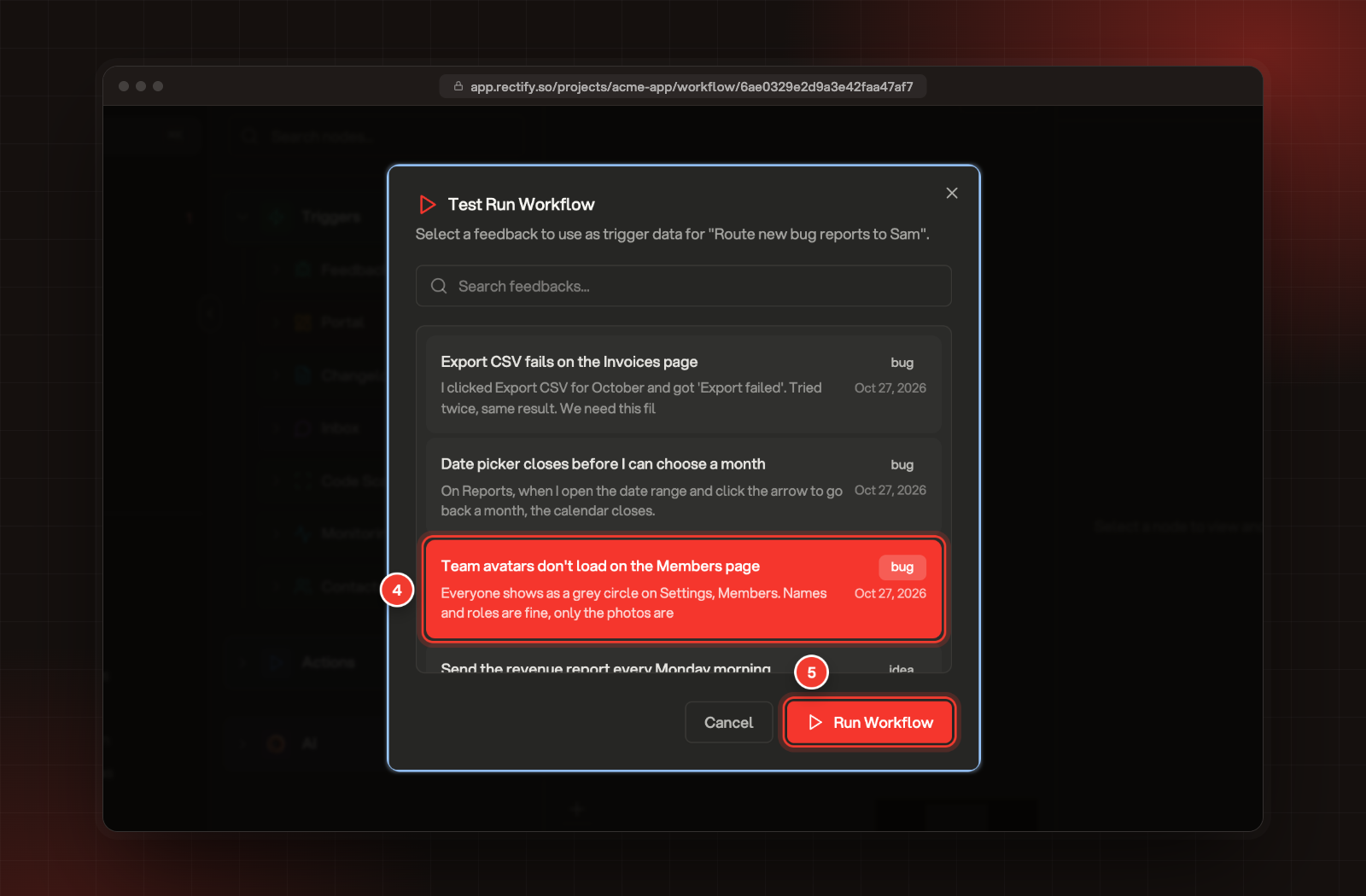
Pick the item to run it on. The list matches the trigger: feedback for a feedback trigger, posts for a post trigger, monitors, incidents, chats or subscribers for the others.
5.
Select Run Workflow.
4 A feedback report picked as trigger data. 5 Run Workflow.
Rectify shows Workflow triggered successfully and runs the steps in the background. A test run skips the trigger's settings: a workflow set to Bug still runs on an idea you pick.
You can also start a test from the list: open the menu at the end of the workflow's row and select Test run.
Read the runs
Select View Runs at the top of the workflow, or View runs in its menu on the list. Each run shows:
Column
What it tells you
Status
Completed, Failed, Running or Pending
Triggered By
Event when the trigger started it, Manual for a test run
Started At
When it began
Duration
How long it took
Nodes
How many steps ran, how many finished and how many failed
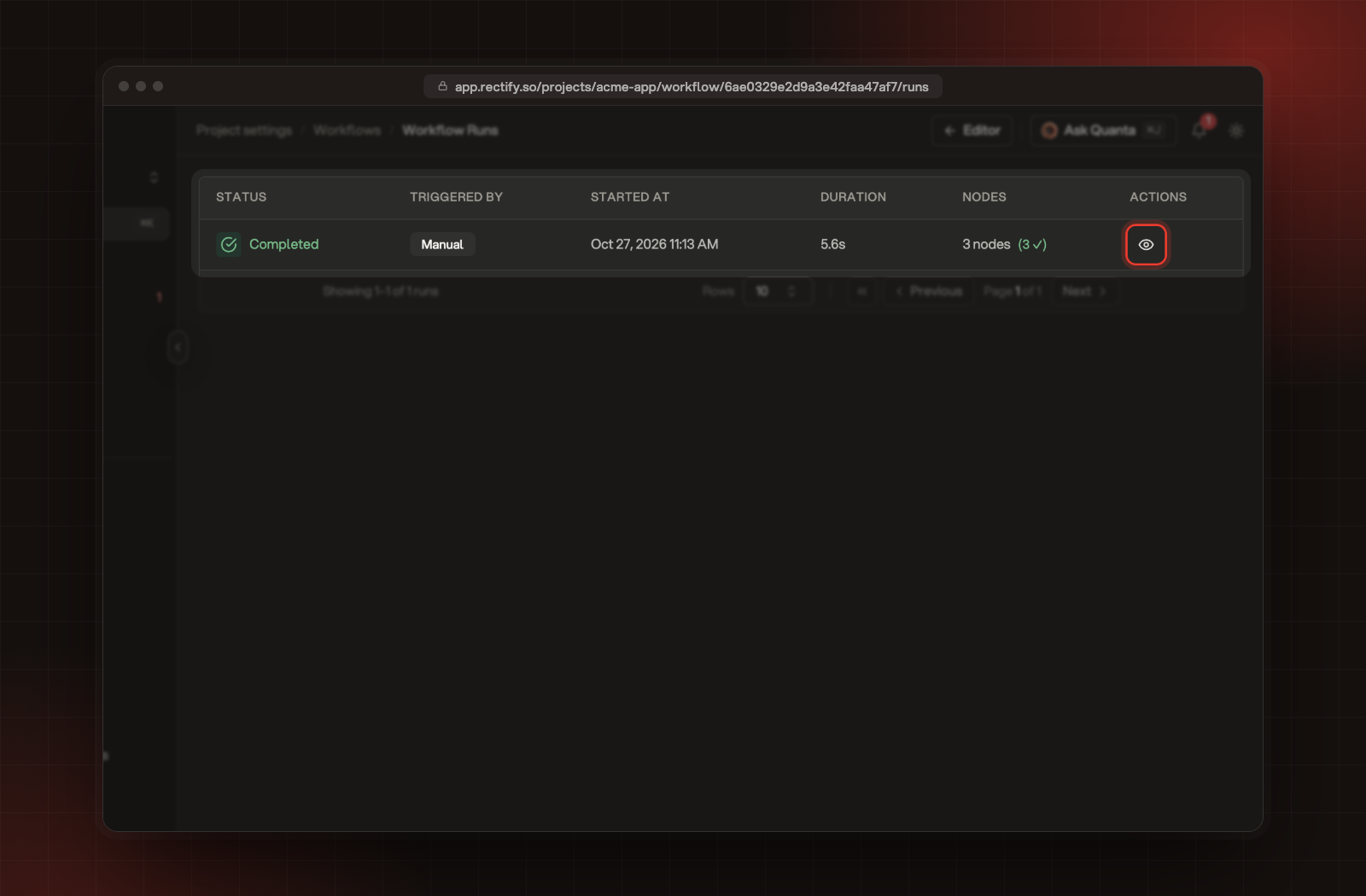
The Workflow Runs page, with the button that opens a run's details.
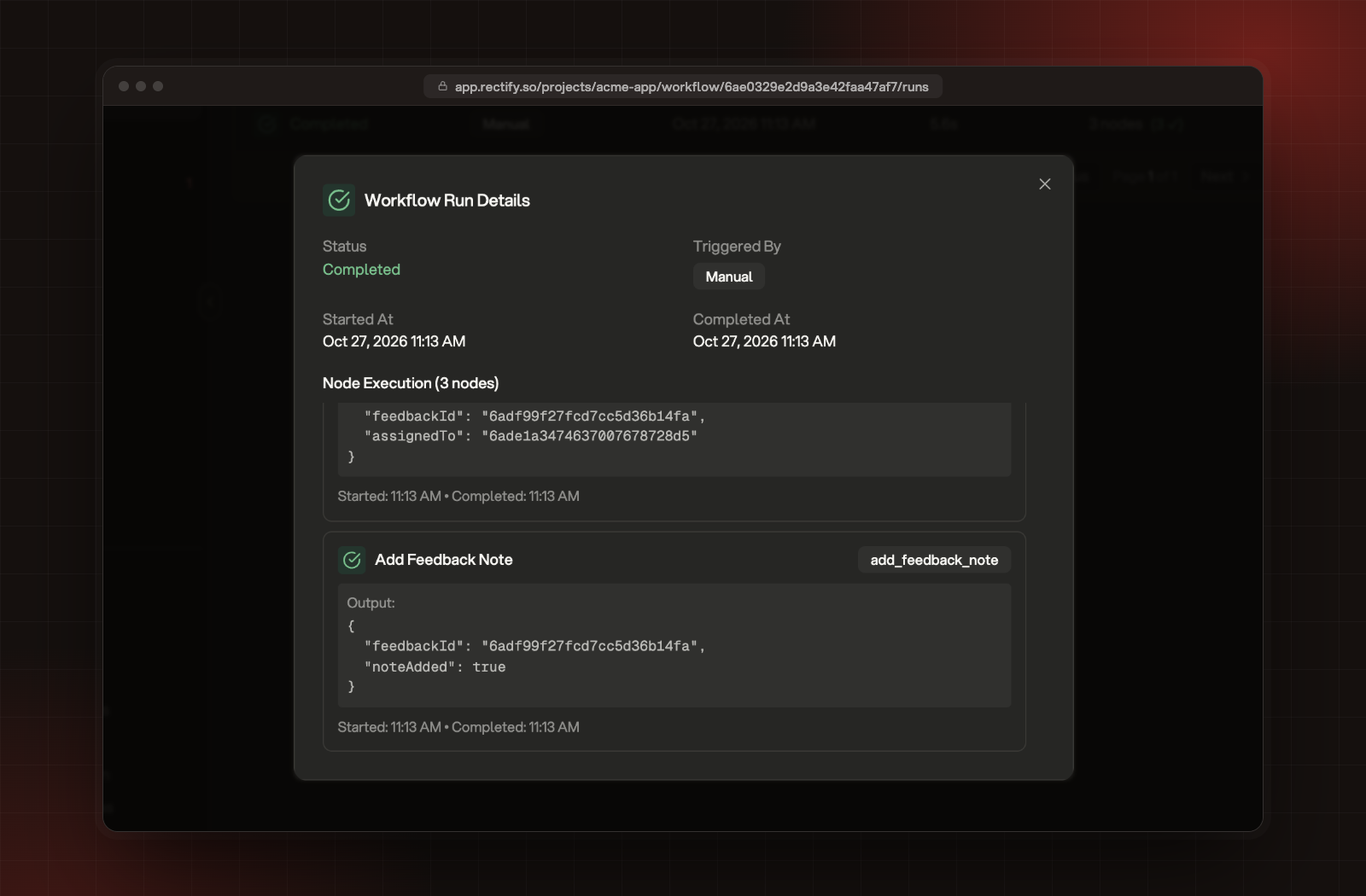
Select the eye button at the end of a row to open Workflow Run Details. Under Node Execution, each step shows whether it finished, any error, and its Output: the data it received or produced, such as the report from the trigger or the text an AI step wrote.
Workflow Run Details, with each step and its output.
When a run fails
Steps run one at a time, from the trigger down. If a step fails, the run stops there and the steps below it don't run. The run shows Failed with the error, and the failed step shows it too.
On the Workflows page, the workflow moves to the Failing tab, with the error under its status. Your team gets a push notification, and Quanta posts the failure in its Project Report chat. Once a run succeeds again, the workflow is back to Active.
Check it worked
Open the item you ran the test on. For the example in Build your first workflow, the report now has its assignee and the new note.
It says "Cannot run inactive workflow"
The workflow is switched off. Turn on the switch at the top so it reads Active, then run the test again.
The list says "No feedbacks available"
There's nothing to run the workflow on yet. Wait for the first report, post or event of that kind, or send a test report from your own site.
It says "Board selection required"
Pick a specific board in the trigger's settings, then try the test again.