Understand the quality gate and issue counts, filter the issue list, and use each issue's details to fix it.
3 min readUpdated 24 days ago
Before you start. Anyone on your team who can open the project can read scan results. You need a finished scan first: see Scan your code with Code Scan.
Open Monitoring, then CodeScan. The page shows the results of the latest scan.
The summary
The bar at the top shows the result and which repository and branch were scanned, who started the scan and when.
•
Quality gate passed means the code met the quality bar. Quality gate failed means it didn't.
•
The counts below show the open issues by type:
Count
What it covers
Bugs
Coding errors that can lead to wrong behavior or crashes
Vulnerabilities
Security weaknesses an attacker could use
Code Smells
Code that works but is harder to understand, change or extend
Find the issues that matter
The issue list sits under the summary. Each issue shows its message, its type, its severity, and the file and line it's on.
•
Open Severity to show only Blocker, Critical, Major, Minor or Info issues.
•
Open Type to show only Bug, Vulnerability or Code Smell issues.
•
Select Reset to clear the filters.
More issues load as you scroll. Work from the top severities down: blockers and critical vulnerabilities first.
Read an issue
Select an issue to see its details. On a narrow screen, they open from the bottom.
Tab
What it shows
Issue
What is the Issue?, Why is this an Issue?, and the File, Line and Effort (roughly how long the fix takes), with its tags
Resolution
How to Resolve This Issue: what to change to fix it
Code
The lines around the issue, with the issue's line highlighted
Fix and check again
1.
Fix the issue in your code and push it to the branch.
2.
Select New Scan at the top of the Code Scan page.
3.
Pick the same repository and branch, and select Start Scan.
When the new scan finishes, fixed issues drop off the list and the counts go down. The new scan replaces the old results, so note anything you still need before you start it.
Ask Quanta "How did the last code scan go?" to see the result, the counts and the top issues in a panel. From there, Run new scan shows the repository and branch and starts a scan once you confirm, and Open Code Scan opens the full report.
Get told when a scan finishes
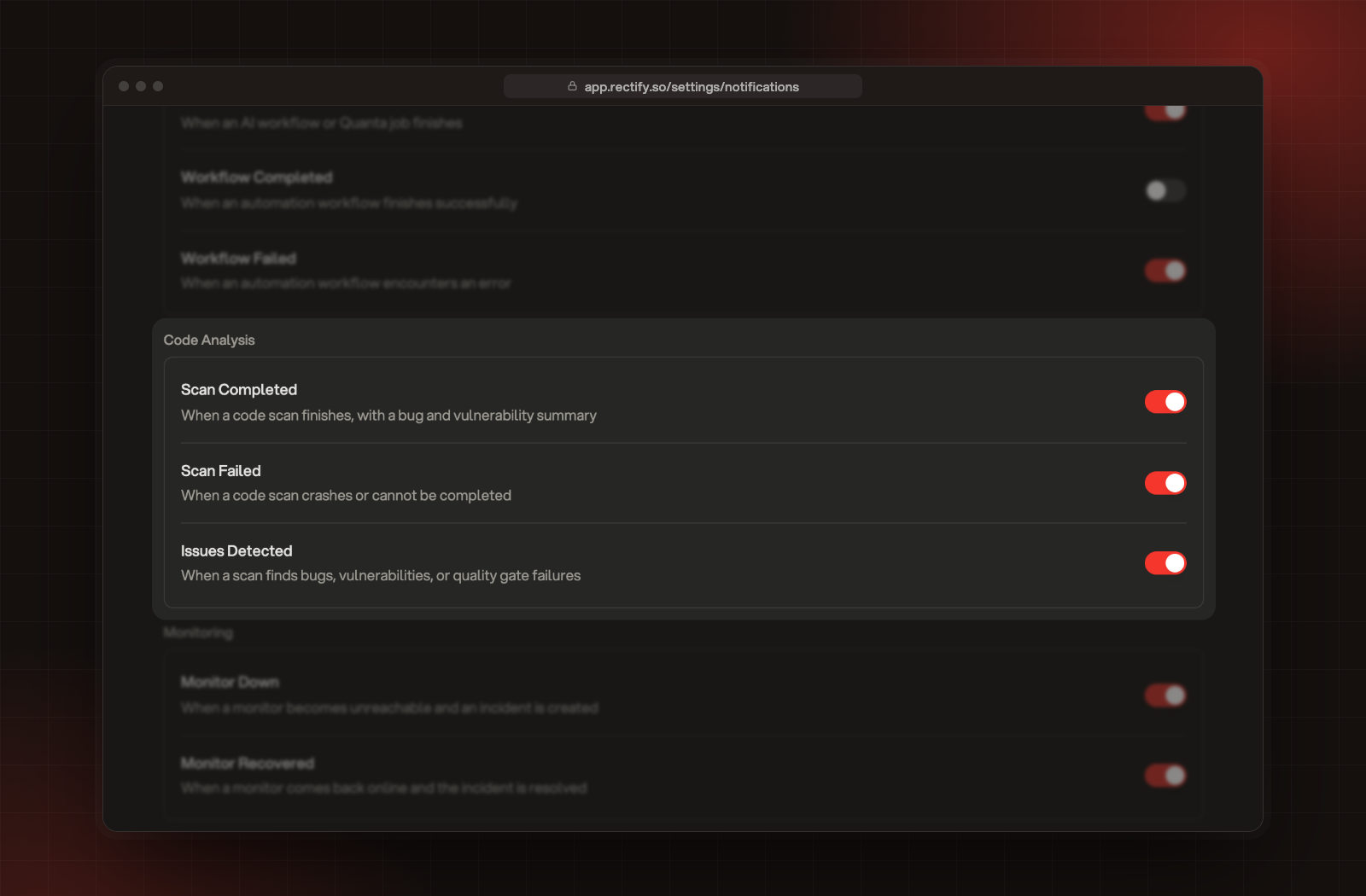
Rectify can send you a push notification when a scan finishes, fails or finds issues. Select your name at the bottom of the sidebar, then Notifications, and use the switches under Code Analysis.
Scan Completed, Scan Failed and Issues Detected under Code Analysis.
Delete a scan
Owners and Admins can remove the latest scan and its results with the bin icon on the summary bar. Select Delete to confirm. It can't be undone.
The issue list is empty
If the scan finished and the summary shows no bugs, vulnerabilities or code smells, there's nothing to fix: the list says "No issues found". If you've set a Severity or Type filter, select Reset.
The page shows "Ready to run a code scan" although I ran one
The latest scan was deleted, or the page lost its live connection. Reload the page. If there's still no scan, run a new one.