Count conversions for an event or a page, and get notified when traffic, revenue or any key metric crosses a line you set.
3 min readUpdated 24 days ago
Before you start. Goals and alerts need the Build plan or higher. Everyone in the project can add, pause and delete them.
A goal counts a conversion each time a visitor fires an event or opens a page, for example a signup or a finished checkout. An alert watches a metric and tells you when it drops below or rises above a value.
Add a goal
1.
Open Analytics in the sidebar, under Customers.
2.
Select the gear button (Settings), then the Goals tab.
3.
Select New goal.
4.
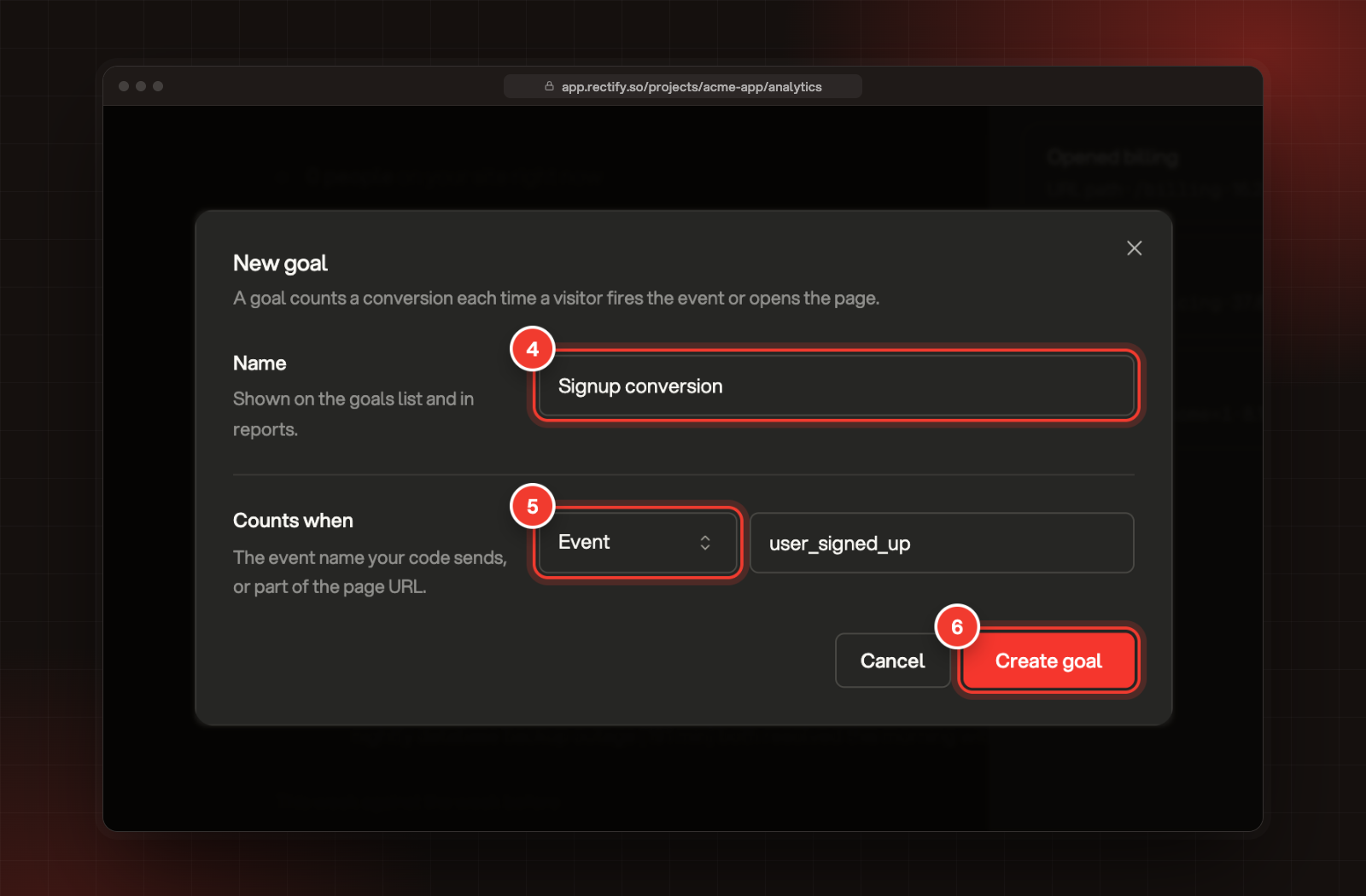
Enter a Name, for example "Signup conversion".
5.
Under Counts when, pick Event or URL path, then enter the value:
•
Event: the exact name of an event your code sends, such as user_signed_up. Capitals matter.
•
URL path: part of the page address, such as /checkout/success. Any page whose address contains it counts.
6.
Select Create goal.
4 Name. 5 Counts when. 6 Create goal.
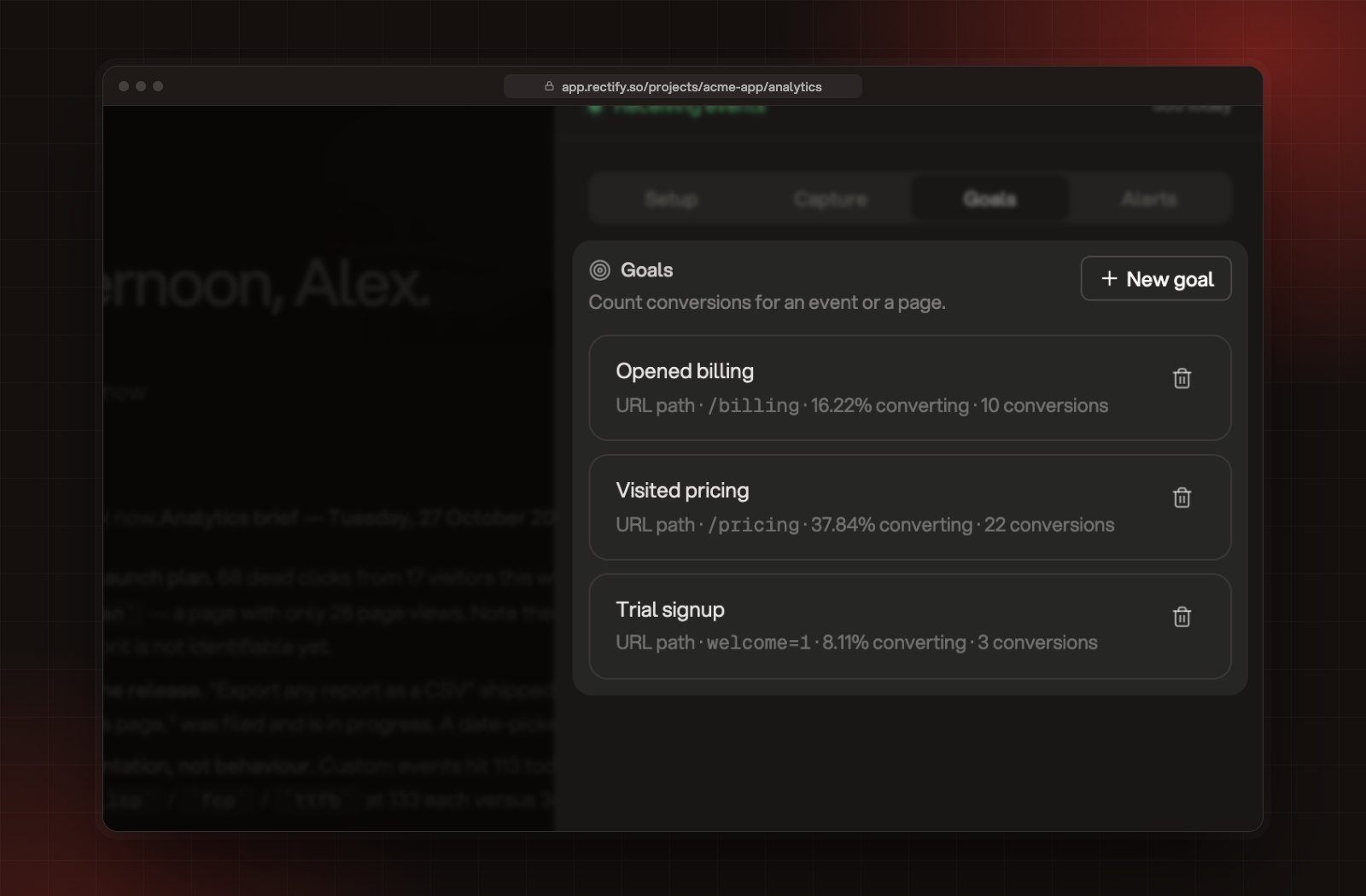
The goal appears in the list with its conversions over the last 30 days:
•
Conversions: how many times the event fired or the page was opened.
•
Converting: the share of all visitors in those 30 days who converted at least once.
•
Revenue: shown when the matching events carry an amount, for example from RectifyInstance.revenue().
The goals list with conversions for each goal.
You can also ask the analytics AI, for example "Create a conversion goal for my signup event".
Add an alert
1.
In Settings, select the Alerts tab.
2.
Select New alert.
3.
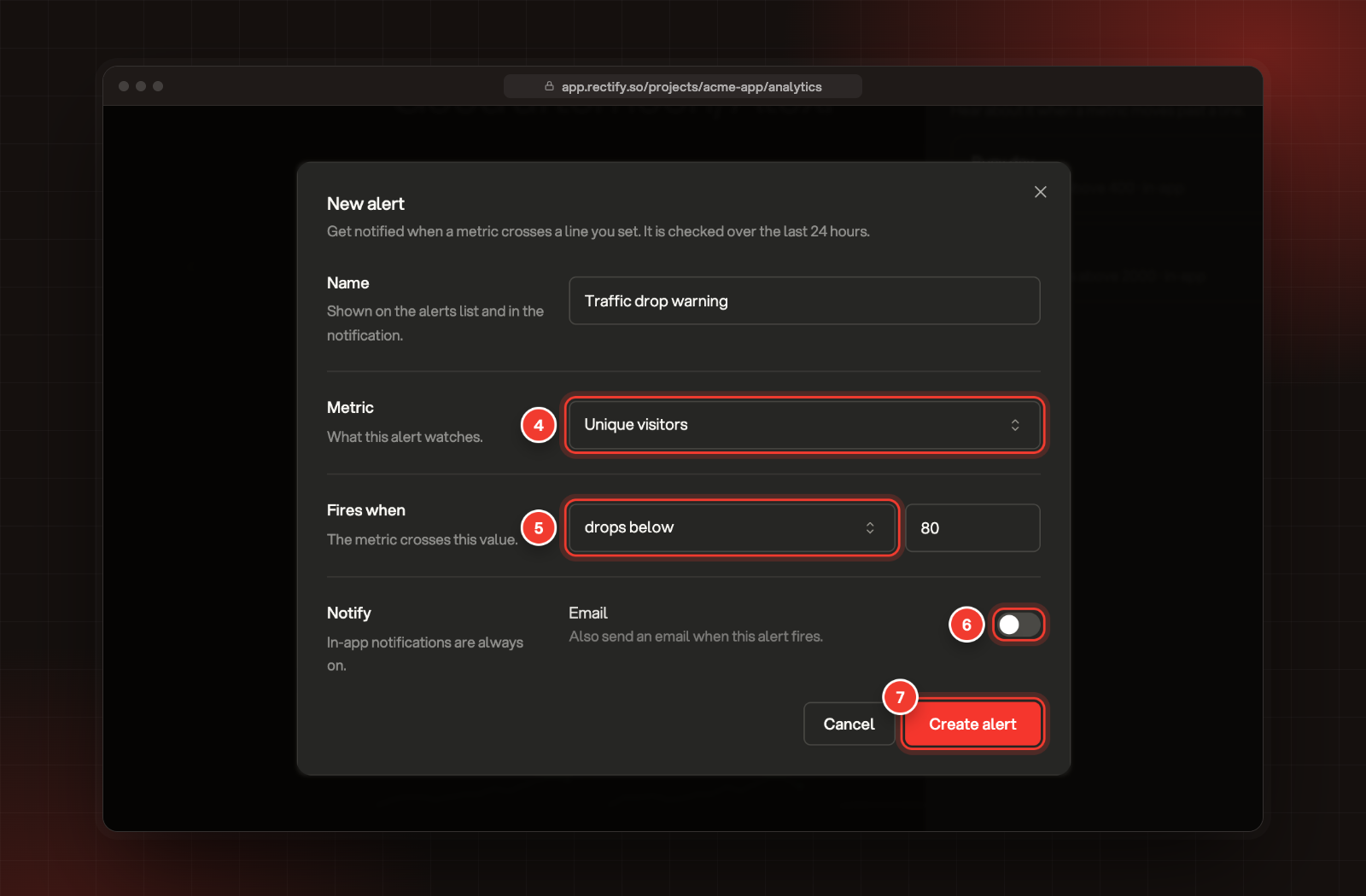
Enter a Name, for example "Traffic drop warning". It's shown in the notification.
4.
Pick the Metric: Pageviews, Unique visitors, Custom events, Revenue or Sessions.
5.
Under Fires when, pick drops below, rises above or changes by %, and enter the value.
6.
To also get an email, switch on Email.
7.
Select Create alert.
4 Metric. 5 Fires when. 6 Email. 7 Create alert.
How alerts are checked
•
Rectify checks every alert every 15 minutes, against the last 24 hours.
•
changes by % compares the last 24 hours with the 24 hours before, in either direction. It doesn't fire when the earlier period had nothing.
•
After an alert fires, it stays quiet for 12 hours, even if the metric is still past the line.
•
Everyone who can open the project gets an in-app notification.
•
With Email on, every Owner and Admin in your organization also gets an email titled Analytics alert: followed by the alert's name.
•
If Quanta's check-ins are on for the project, the alert also appears in Quanta's Project Report chat.
Pause or delete
In the Alerts tab, use the switch on an alert to pause it (Pause this alert) or turn it back on (Resume this alert). To remove a goal or an alert, select its delete button and confirm with Delete. A deleted goal stops counting straight away.
Goals and alerts can't be edited. To change one, delete it and add a new one.
Check it worked
A new goal shows its conversions in the Goals tab as soon as it's created, counting back 30 days. A new alert shows in the Alerts tab with its metric and line, for example "Unique visitors drops below 80 · in-app and email".
My event goal shows 0 conversions
The event name must match exactly, including capitals, and it must be an event you send with track. Built-in events like clicks don't count. Check the name in Activity, under Category, Custom.
My URL path goal counts too much
A URL path goal counts every page whose address contains the text. Make it more specific, for example /checkout/success instead of /checkout.
I didn't get the email
Alert emails go to Owners and Admins only, and only when Email is on for that alert. Members get the in-app notification.