Pick Home and tabs, Home and support or Support only to set what visitors see when they open the widget, including a support-only widget.
5 min readUpdated 20 days ago
Before you start. Owners, Admins and Members can change the layout. Every layout is available on every plan.
The layout decides what visitors see when they open the widget: your home cards with a tab bar, a chat card at the top of your home cards, or a chat and nothing else.
Layout
What visitors see
Home and tabs
Home with your cards, and a bar for the tabs switched on in Look. This is how the widget starts.
Home and support
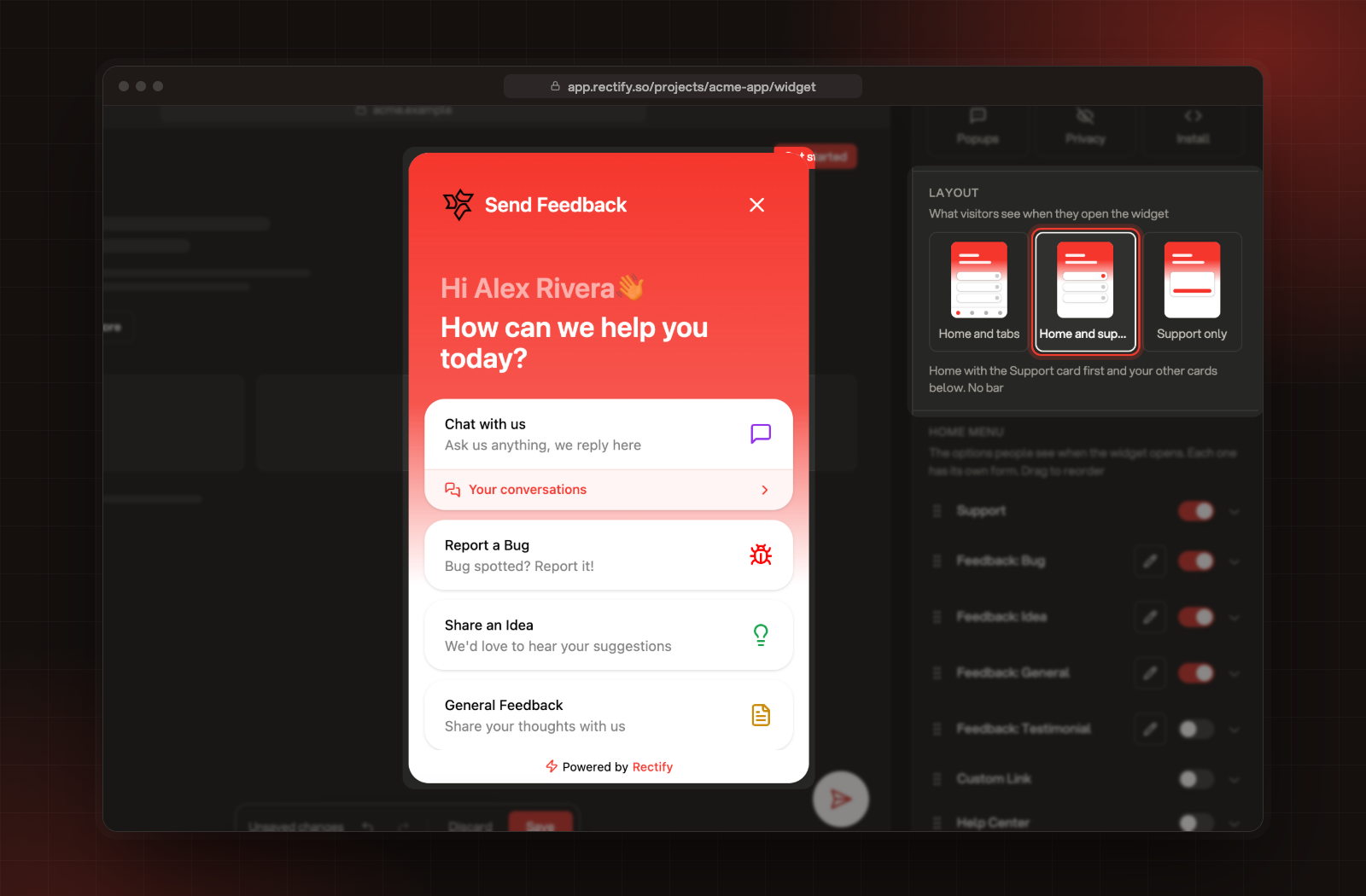
Home with the Support card first and your other cards below. No bar.
Support only
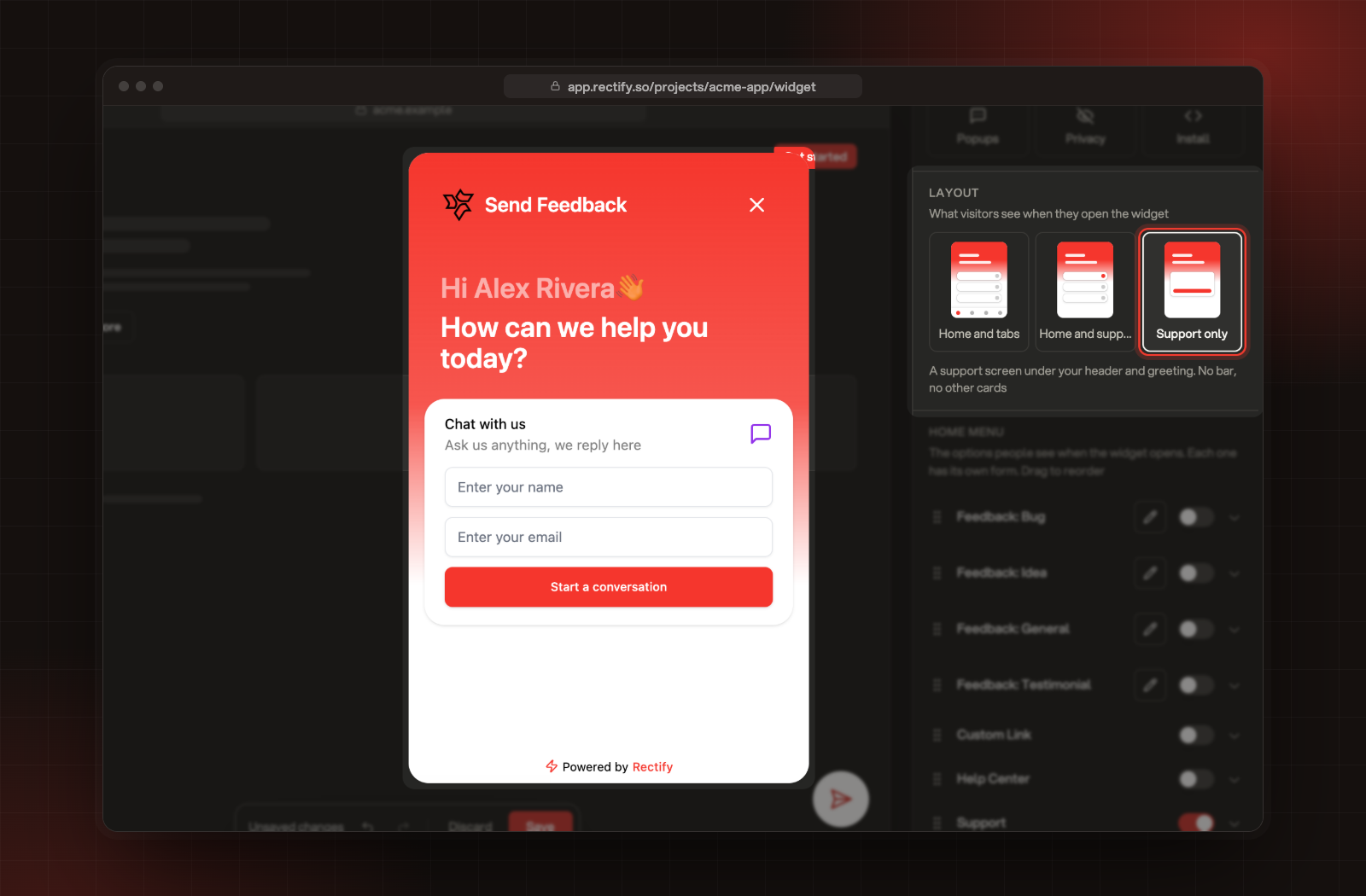
A support screen under your header and greeting. No bar, no other cards.
Pick a layout
1.
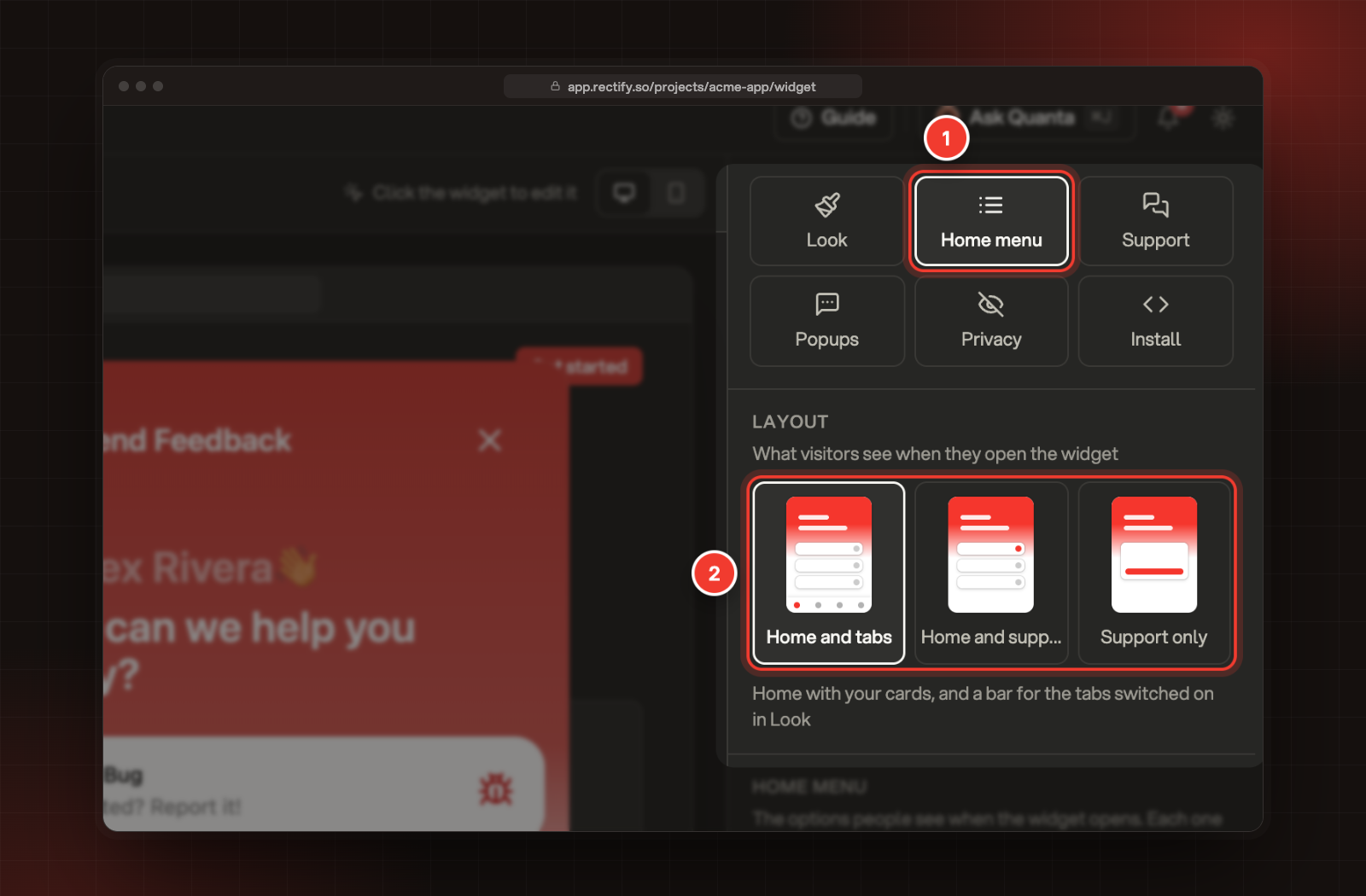
In your project, open Publish, then Widget, and select Home menu.
2.
Under Layout, select Home and tabs, Home and support or Support only. The preview on the left changes straight away, and the line under the tiles describes the layout you picked.
1 Home menu. 2 The three layouts.
3.
Select Save in the bar at the bottom.
Picking a layout changes these settings for you:
•
Home and support and Support only turn on the Home and Support tabs and hide the bar.
•
Support only turns off every other Home card.
•
Home and support puts the Support card first. If no other card is on, it turns on Report a Bug, Share an Idea and General Feedback.
•
Home and tabs shows the bar again and leaves your tab switches as they were.
Your other tabs keep their switches in Look, so they come back when you return to Home and tabs.
The Support card
The Support card is the card that starts a chat. Visitors see it as Chat with us, with "Ask us anything, we reply here" under it and a message icon. Selecting it starts a conversation, the same way the start button in the Support tab does. Quanta or your team answers, as set under Support.
It's off when you start, and the two support layouts switch it on. You can also switch it on yourself in Home and tabs: find Support in the Home menu list and use its switch. Select its name to change the Title, Description, Icon and Icon color.
The card stays hidden while the Support tab is off. In a widget set up a while ago, that tab may be called Messages. It works the same way.
What visitors see
Support only
The first time, the card asks for a name and an email and shows your start button, with the label set under Support, Start button. The default is Start a conversation. Filling it in starts the chat.
Support only, as a first-time visitor sees it.
When they come back, the card is a single button that starts a new conversation. Under it, Your conversations opens their earlier chats and shows New when a reply is waiting.
Home and support
The same card sits first, above your other cards. The first time, selecting it opens Support, where visitors enter their name and email before the chat starts. When they come back, Your conversations sits under the card.
Home and support, as a returning visitor sees it.
Without the bar
In both support layouts, the Support, Changelog, Roadmap and Help screens show a back arrow to Home, so visitors can always get back to your cards.
Go back to tabs
1.
Open Publish, then Widget, and select Home menu.
2.
Under Layout, select Home and tabs.
3.
Select Save.
The bar comes back with the tabs switched on in Look. The Support card stays on, in the same place in the list. Switch it off under Home menu if you don't want it.
While the bar is off, Look, Bottom navigation shows a line such as "The bar is off in the Support only layout." Select Change the layout there to go straight to the tiles.
Check it worked
The preview on the left shows the layout as you pick it. After you select Save, refresh your site and open the widget. To see the first-visit card, open your site in a private window.
Troubleshooting
The line under the tiles says "Your settings don't match a layout right now"
The tabs or cards were changed by hand while the bar is hidden, for example Home or the Support card was switched off. Select the layout you want and the settings are set up for it.
Visitors don't see the Support card
The card stays hidden while the Support tab is off. Under Home menu, the note "The Support card stays hidden while the Support tab is off." shows when this happens. Turn Support on in Look, under Bottom navigation, or pick one of the support layouts.
The widget shows only the greeting
No Home cards are on. Under Home menu, the note "No cards are on, so visitors see only the greeting." shows when this happens. Switch on a card, or pick a layout.