Get teammates recording and sharing snippets in the same project, see whose browsers are connected and disconnect one when you need to.
3 min readUpdated 24 days ago
Before you start. Each teammate needs their own Rectify account and access to the project. Owners and Admins can open every project; Members only the projects they're given. Only Owners and Admins see the team's browsers and can disconnect them.
There's nothing to set up for the whole team at once. Everyone installs the extension and signs in with their own account, and their sessions and snippets are saved as them.
Get your team started
1.
Invite the people who'll use it, if they aren't in your organization yet. Invite your team has the steps.
2.
Give Members access to the project they'll report bugs for, under Organization settings, Members. See Roles and project access.
3.
Send them the install link: Rectify on the Chrome Web Store. They can also select Add to Chrome on the Chrome extension page under Project settings.
A snippet is shared when it's saved with Team in the extension, or with Everyone in project in Rectify. Everyone who can open the project, and has picked it in their extension, can then insert it. Save and reuse snippets has the details.
See who's connected
Open Project settings, then Chrome extension.
•
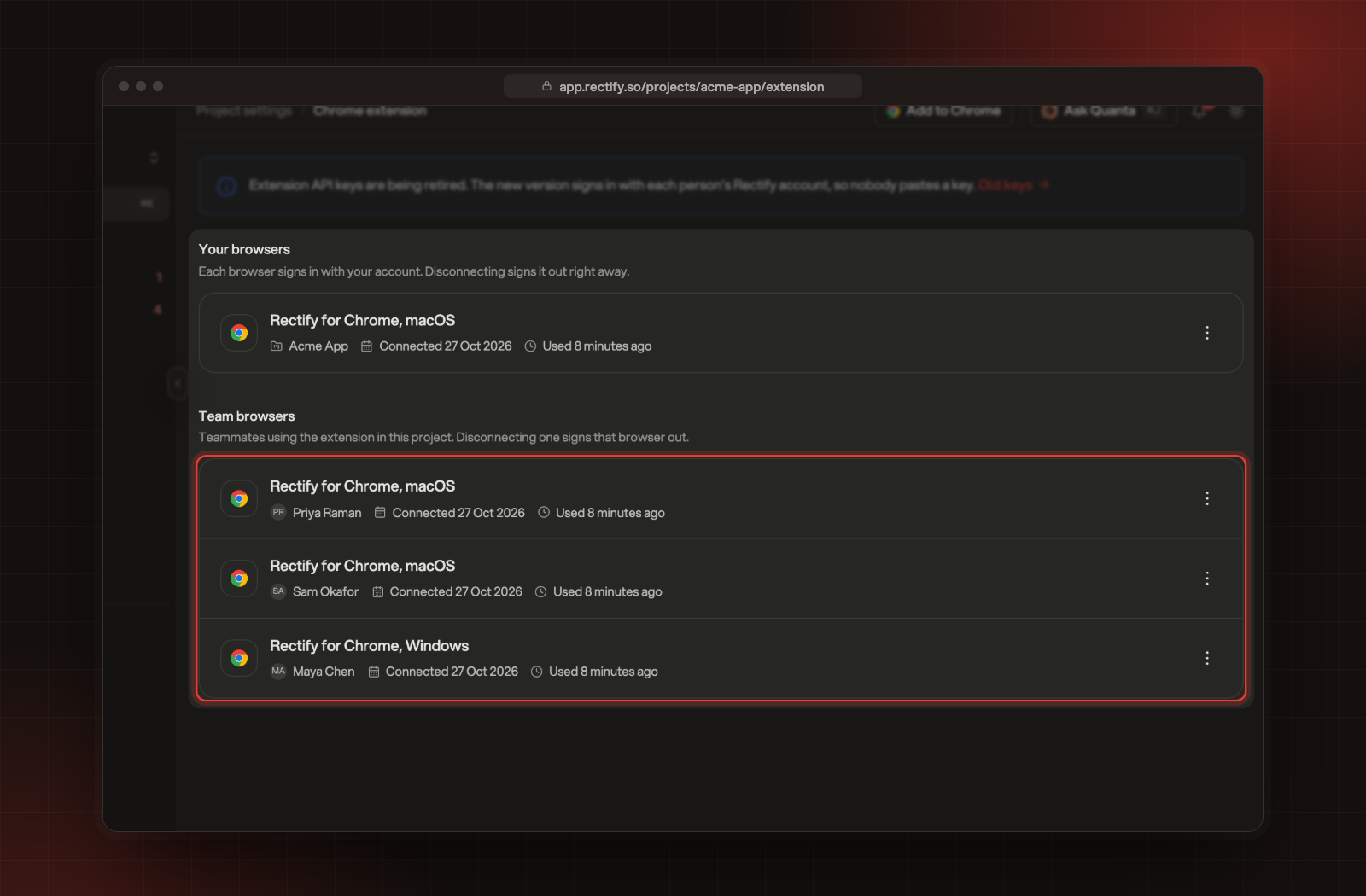
Your browsers lists every browser you've connected, with its project, when it was connected and when it was last used.
•
Team browsers shows Owners and Admins the teammates whose extension is set to this project.
The browsers connected to Acme App, under Team browsers.
Disconnect a browser
1.
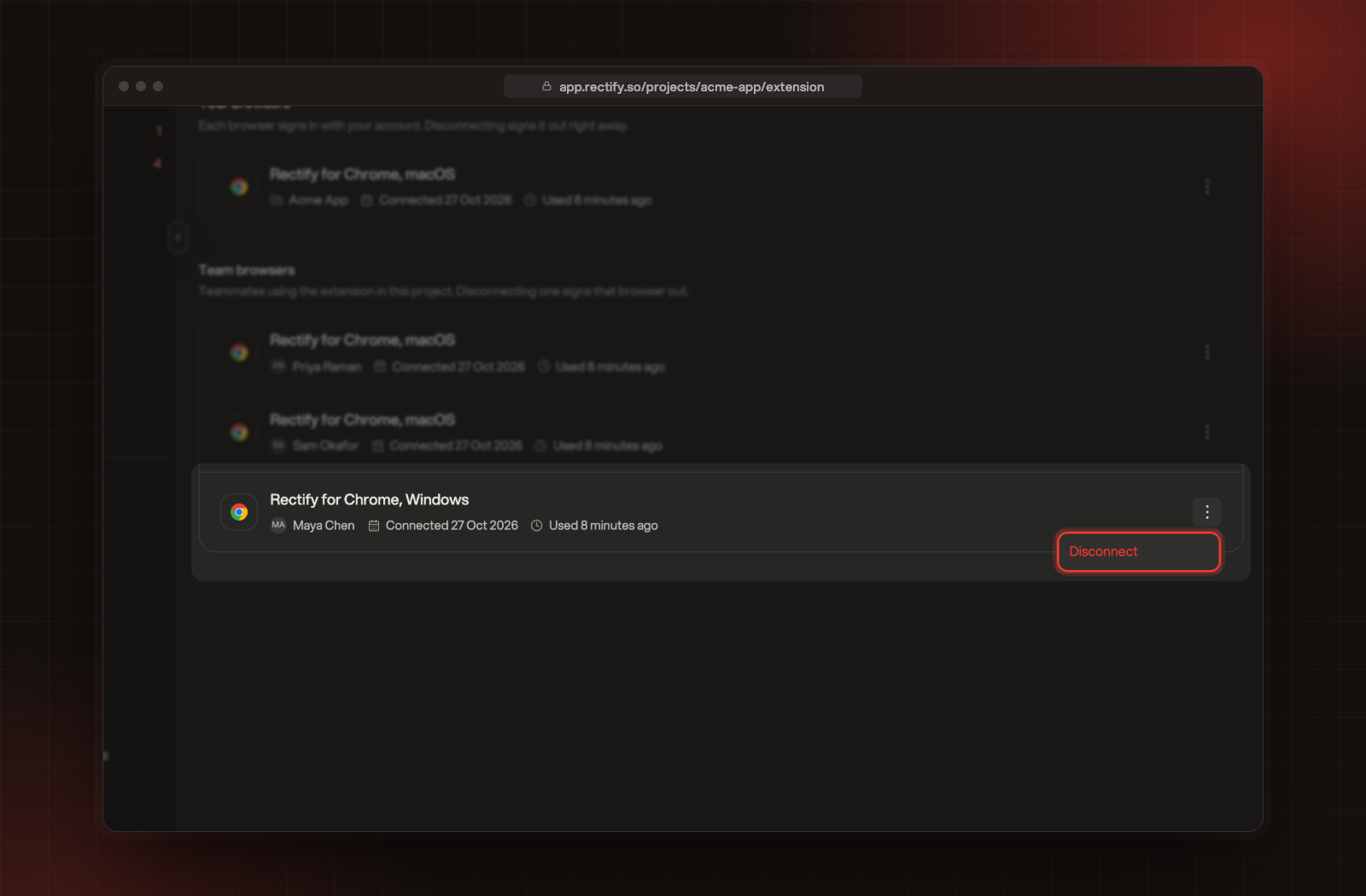
On the Chrome extension page, open the menu on the browser.
2.
Select Disconnect.
3.
Confirm with Disconnect.
Disconnect, in the menu of a teammate's browser.
That browser is signed out of Rectify straight away. Its owner can connect it again from the extension with Sign in with Rectify, as long as they still have access to the project.
Each person can also disconnect their own browsers from their profile, under Signed-in devices. Sign out everywhere else there signs out every connected extension too.
Good to know
•
One allowance for the organization. Every saved session counts toward your organization's extension sessions for the month, whoever recorded it and in whichever project. Compare plans and what each one includes lists them.
•
Recording settings belong to each browser.Hide what people type and Keep request and response bodies are set by each person in their extension's Settings.
•
Up to 10 browsers each. Connecting an eleventh signs out the one used longest ago.
•
No more extension keys. Older versions of the extension used project API keys. This version doesn't need them, and the Chrome extension page links to Old keys if you want to review the ones left over.
A teammate doesn't see our project in the extension
They can only pick projects they can open in Rectify. Give them access under Organization settings, Members, then ask them to pick the project from the name at the top of the Rectify popup.
I don't see Team browsers
Only Owners and Admins see it, and only when a teammate's extension is set to this project. Members see their own browsers only.