Use one snippet on several sites and give each site, or some of its pages, its own launcher and its own choice of what a click opens.
5 min readUpdated 5 days ago
Before you start. Owners, Admins and Members can change the widget. Every plan can give sites and pages their own launcher. Up to 20 sites can have settings of their own, each with up to 20 page settings.
When the same snippet runs on more than one site, for example your marketing site and your app, every site shows the launcher you set under Look. You can give one site, or some pages on it, a launcher of its own: show or hide it, move it, restyle it, or change what a click opens.
A site keeps only the settings you change for it and follows your default launcher for the rest. Pages work the same way inside their site. When more than one setting covers a page, the most specific one wins: the page, then the site, then the default.
Give a site its own launcher
1.
In your project, open Publish, then Widget. Look opens first.
2.
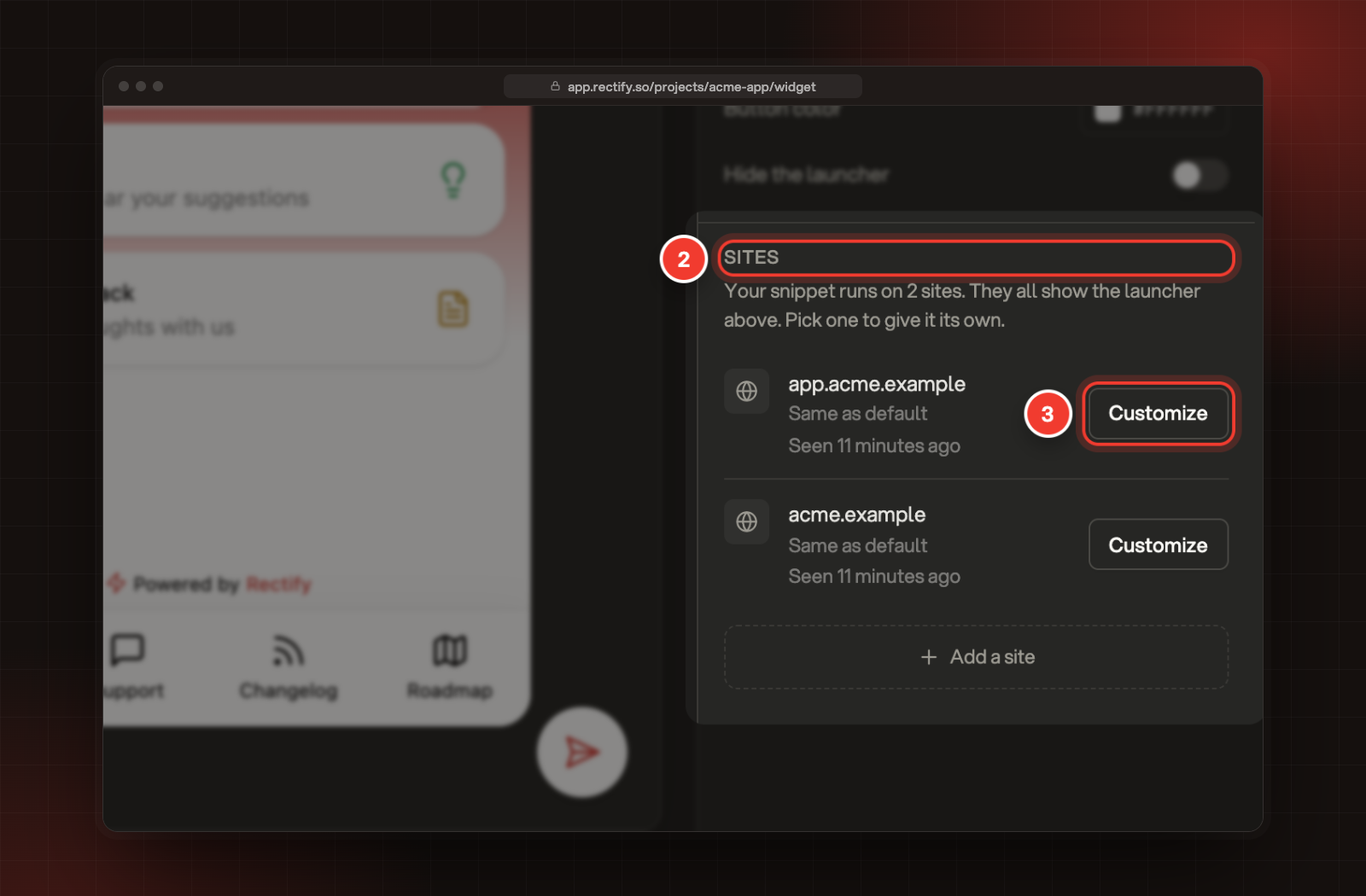
Scroll to Sites, under the launcher settings. Every site the widget has loaded on is listed, with when it was last seen.
3.
Select Customize next to the site.
2 Sites. 3 Customize.
4.
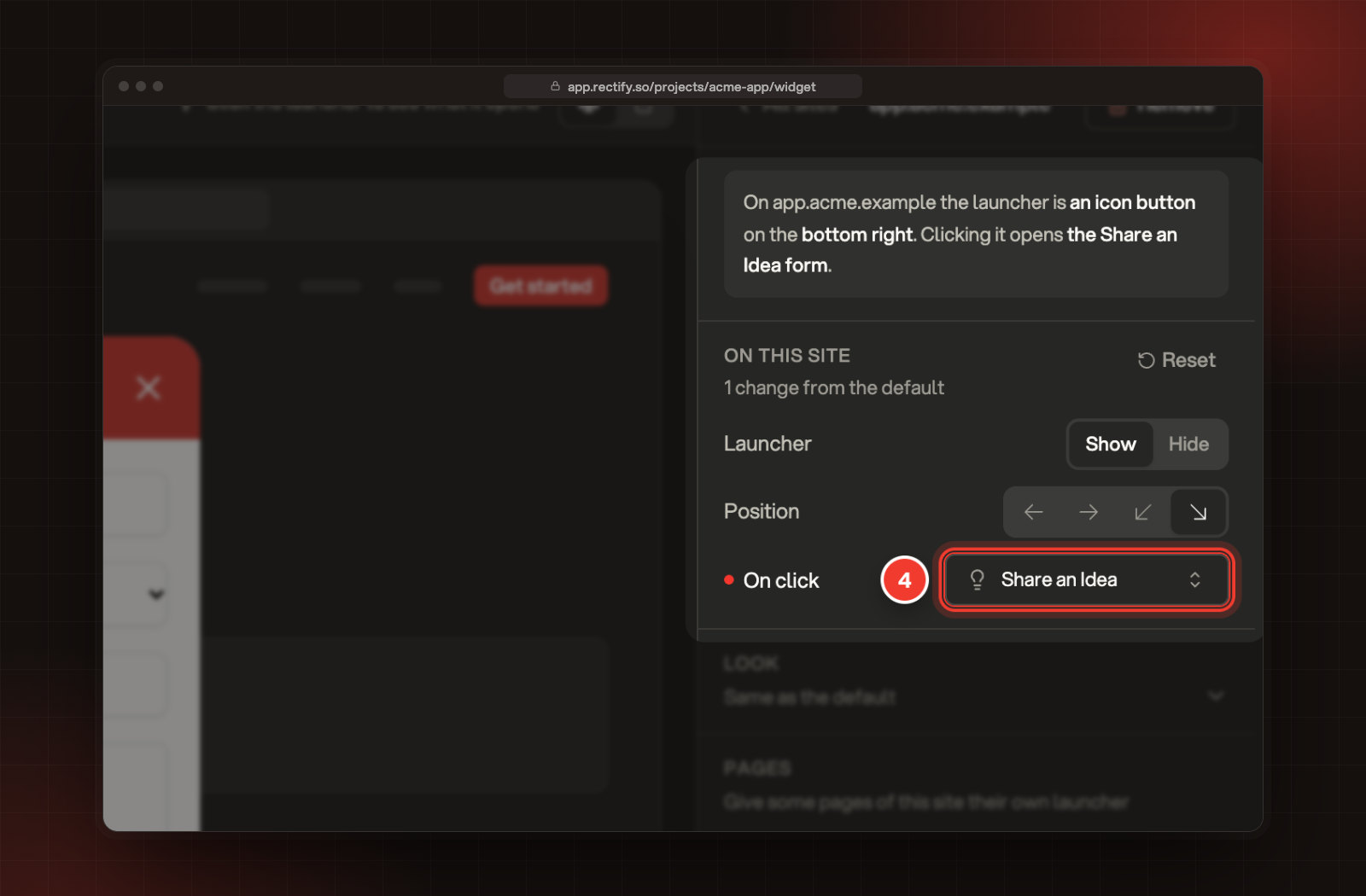
Change what you need. Launcher shows or hides it, Position moves it and On click picks what opens. Open Look for the style, label, icon and colours. The sentence at the top says what the launcher on that site does.
4 On click, set to the Share an Idea form. The sentence above it follows your changes.
5.
Select Save in the bar at the bottom.
A dot marks every setting that differs from your default launcher, and Reset puts the site back in line with it. Select All sites at the top of the panel to go back to the list.
Give some pages their own launcher
1.
Open the site, as above.
2.
Under Pages, select Add a page.
3.
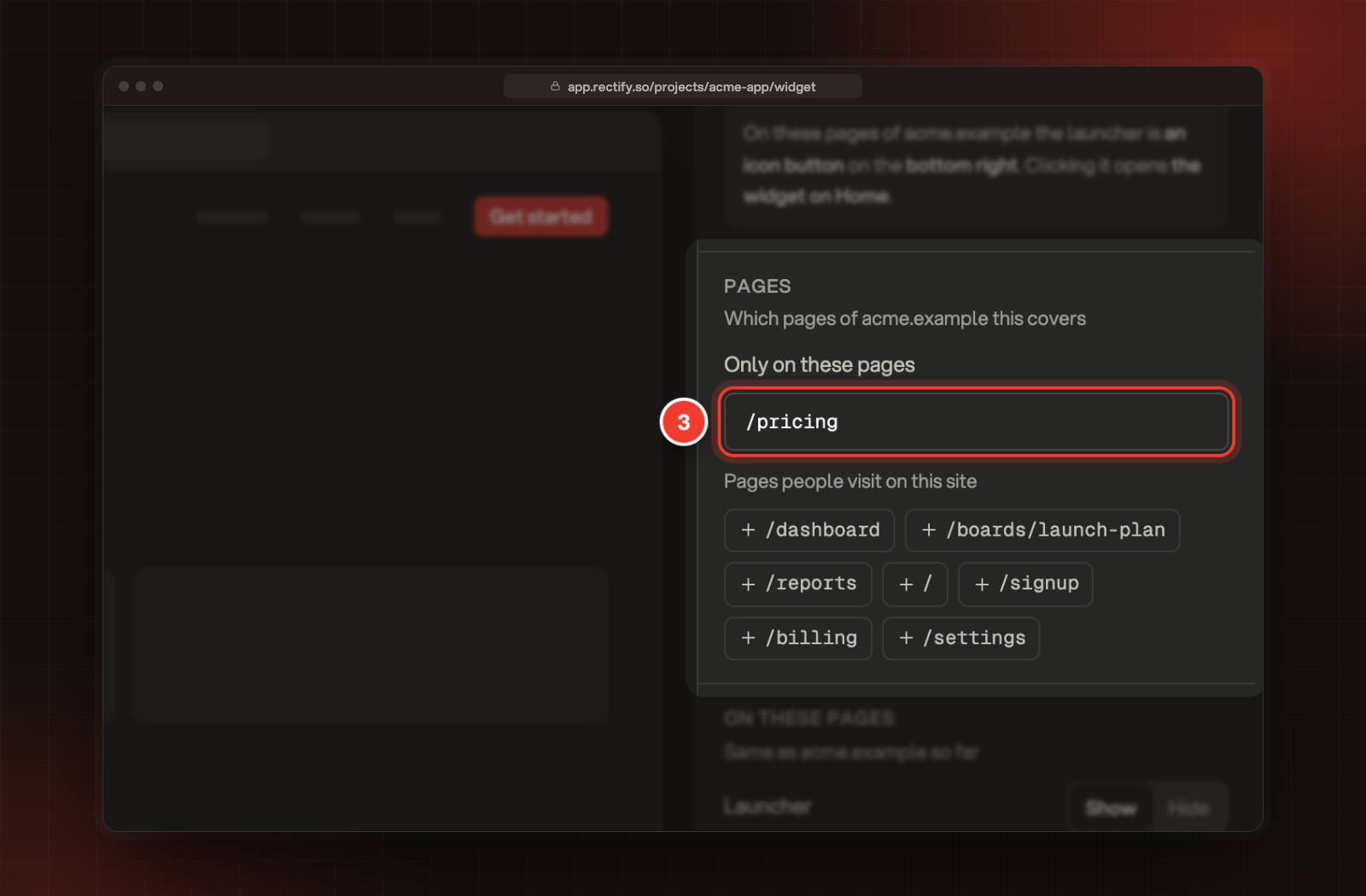
In Only on these pages, list the pages, with commas between them, or select one of the Pages people visit on this site.
3 Only on these pages, here /pricing, picked from the pages people visit on that site.
4.
Set the launcher for those pages. For example, select Hide next to Launcher to show no launcher there.
5.
Select Save.
How the list matches pages:
•
/pricing covers that page only.
•
* stays inside one folder: /docs/* covers /docs/setup, not /docs/setup/install.
•
** goes across folders: /docs/** covers every page under /docs.
•
Anything after a ? in the address is ignored, unless your list has a ? too.
•
If two page settings cover the same page, the first one in the list wins.
Choose what a click opens
On click is in every site and page setting, and under Look for your default launcher too. Pick a tab under Open a tab, or a form under Open a form to take visitors straight to it, such as Share an Idea or Report a Bug. Only the tabs and forms that are switched on are listed.
Until you change it, a click opens the widget as before, on its opening tab. If you later switch off the tab or form you picked, a click simply opens the widget, and the setting shows (off) after its name.
Add a site by hand
A site shows up on its own the first time the widget loads there. To set one up before that:
1.
Under Sites, select Add a site.
2.
Enter the Site address, for example app.yoursite.com, and select Add a site.
3.
Change its launcher, then select Save.
Preview a site
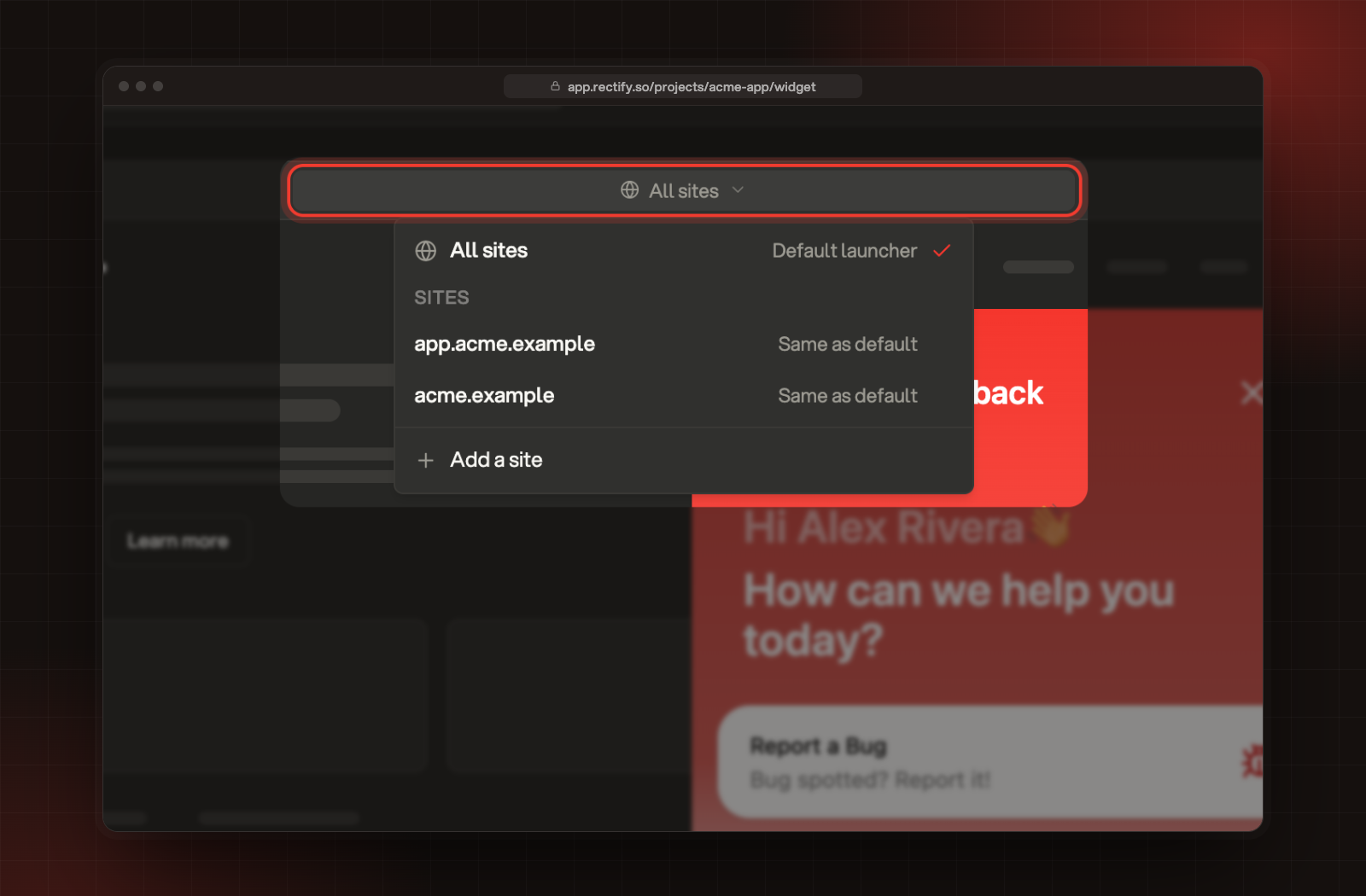
The address bar above the preview picks the site. Select it, then pick All sites to see your default launcher, or a site or one of its page settings. With a site picked, click the launcher in the preview to see what it opens.
The site picker in the address bar above the preview.
Quanta can do this too. Ask it, for example, "Hide the launcher on the login page of app.yoursite.com". It shows you the change and saves it only after you select Confirm.
Remove a site's settings
Open the site, select Remove at the top of the panel, then select Save. To remove one page setting, open it, select Delete, then Save. The site or page follows the level above again.
Check it worked
After you select Save, open the site in a new tab and refresh it. The launcher shows that site's settings. Go to one of the pages you listed to see the page setting.
Troubleshooting
My site isn't in the list
A site appears the first time the widget loads there. Open a page of that site, then refresh the Widget page. You can also add it by hand with Add a site. A site the widget hasn't loaded on for 90 days drops off the list, unless it has settings of its own.
The launcher on my site didn't change
Settings load each time a page loads, so refresh the page. Check that the address under Sites matches the one in your browser. www. is dropped, but app.yoursite.com and yoursite.com are two different sites.
A page setting doesn't apply
Check the list under Only on these pages. * never crosses a /, so use ** for pages further down, like /docs/**. If two page settings cover the page, the first one in the list wins. When the list is empty, the note "List at least one page, or this setting applies nowhere." shows under it.
It says "Use an address like app.yoursite.com"
Enter just the site's address, like app.yoursite.com or yoursite.com. A path after it is dropped.
I can't pick a middle position
The Pill launcher only sits in a bottom corner, so the middle positions are greyed out. Choose Icon button or Text tab under Look to use them.