Keep the replies, templates and prompts you retype, and insert them in any text box on the web with one shortcut.
3 min readUpdated 24 days ago
Before you start. Snippets belong to a project, and there's no limit on any plan. Anyone who can open the project can create them. A snippet set to Only me is visible to you alone; a shared one is visible to everyone who can open the project. To use them in Chrome, sign in to the extension and pick the project.
Insert a snippet
1.
Click in a text box on any website.
2.
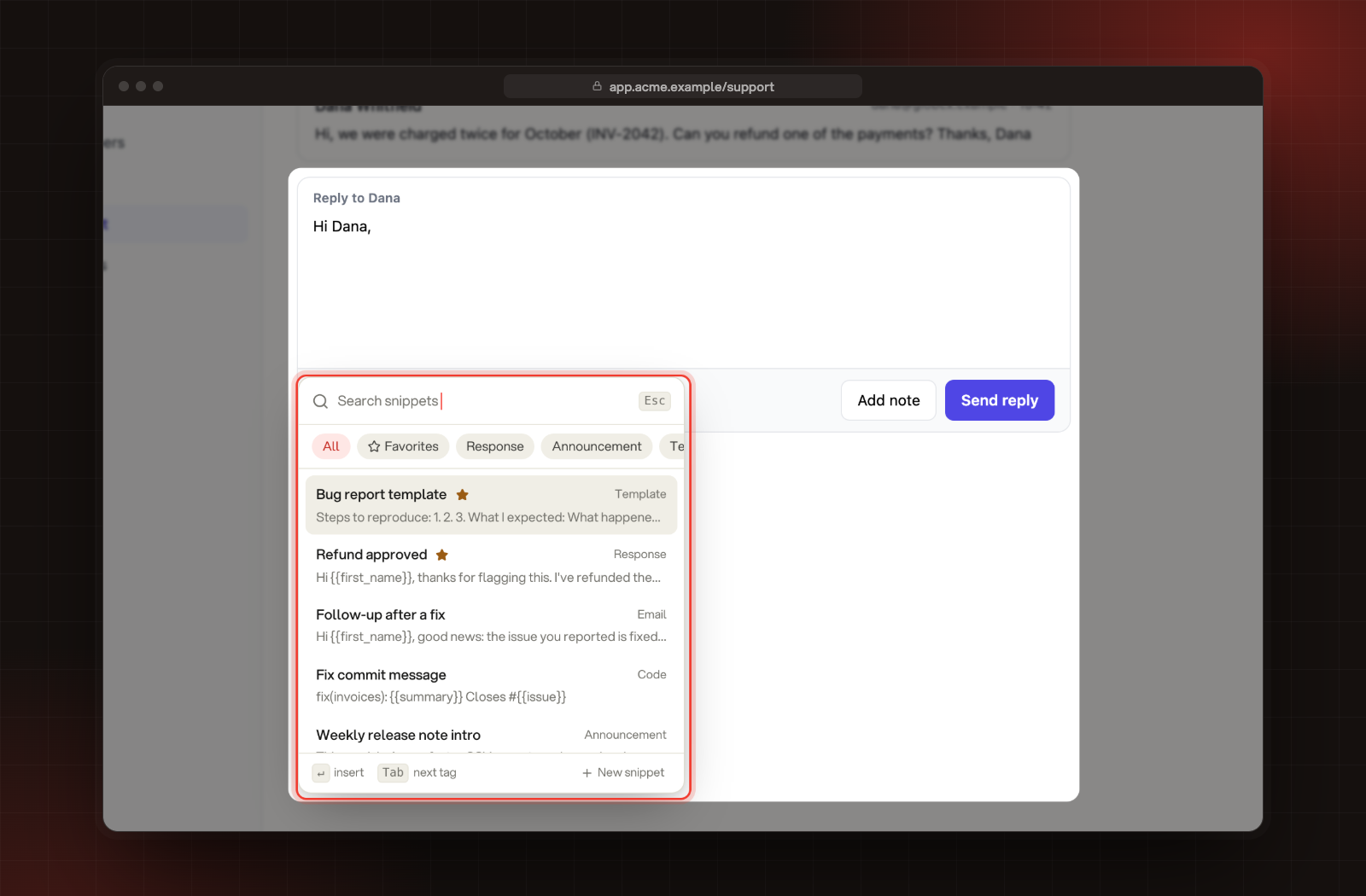
Press Ctrl+\ to open the snippet picker. Ctrl is the Control key on a Mac too.
The snippet picker, open in a reply box.
3.
Type to search your snippets by title or text. Press Tab to move between All, Favorites and your most used categories.
4.
Use the arrow keys and press Enter, or click a snippet. It goes in where your cursor was.
Favorites come first, then the snippets changed most recently. Press Esc to close the picker without inserting anything.
Placeholders such as {{first_name}} go in exactly as written, so fill them in before you send.
Save a new snippet from the picker
1.
In a text box, press Ctrl+\ and select New snippet at the bottom of the picker.
2.
Name the snippet and type the text it inserts. The name needs at least 2 characters.
3.
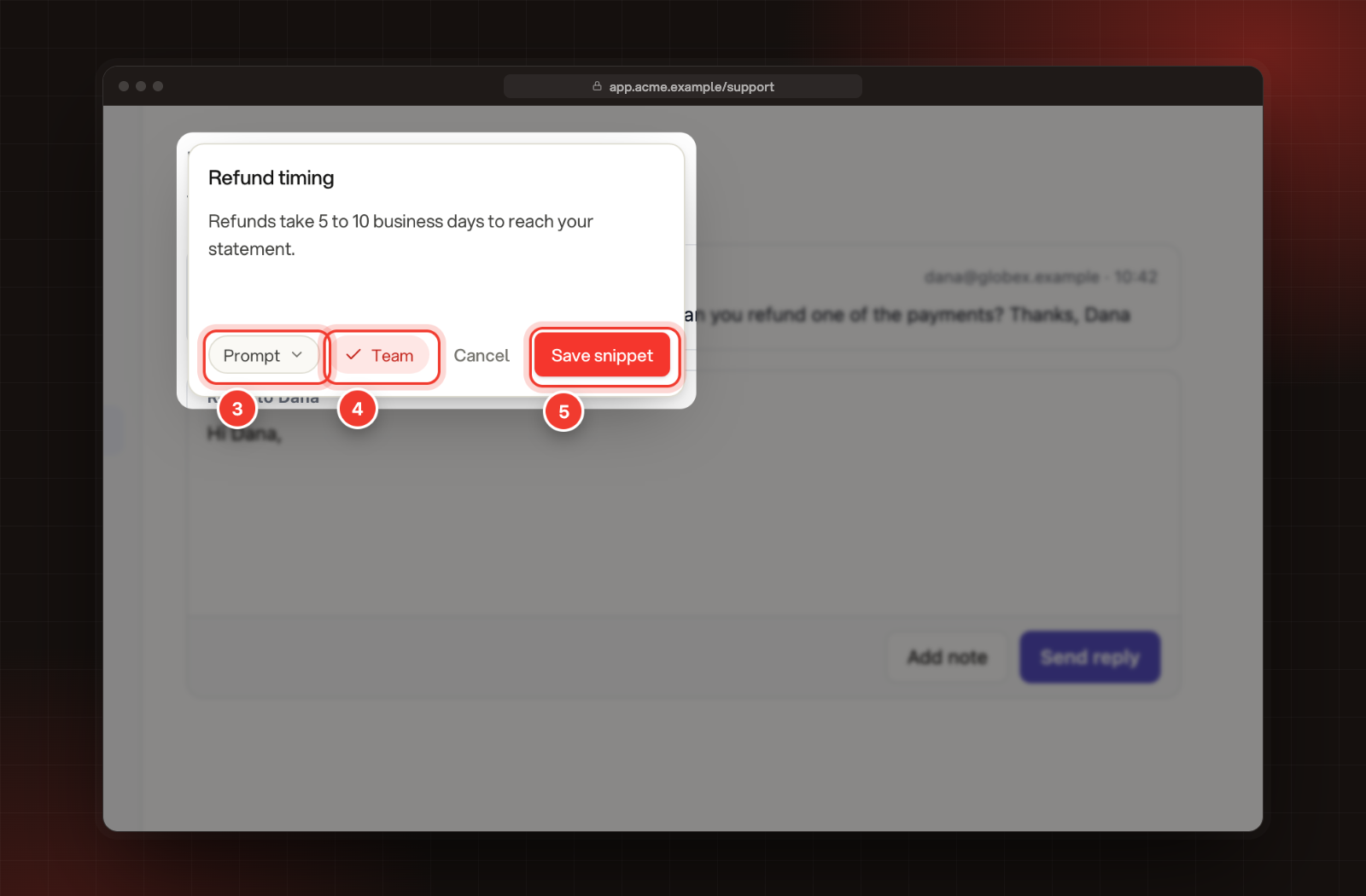
Pick a category. It starts at Prompt.
4.
Select Team to share it with everyone in the project. Leave it off to keep it to yourself.
5.
Select Save snippet, or press Ctrl+Enter (⌘ Enter on a Mac).
3 Category. 4 Team. 5 Save snippet.
Save text from any page
1.
Open the Rectify popup, select the gear for Settings, and turn on Save button on selected text.
2.
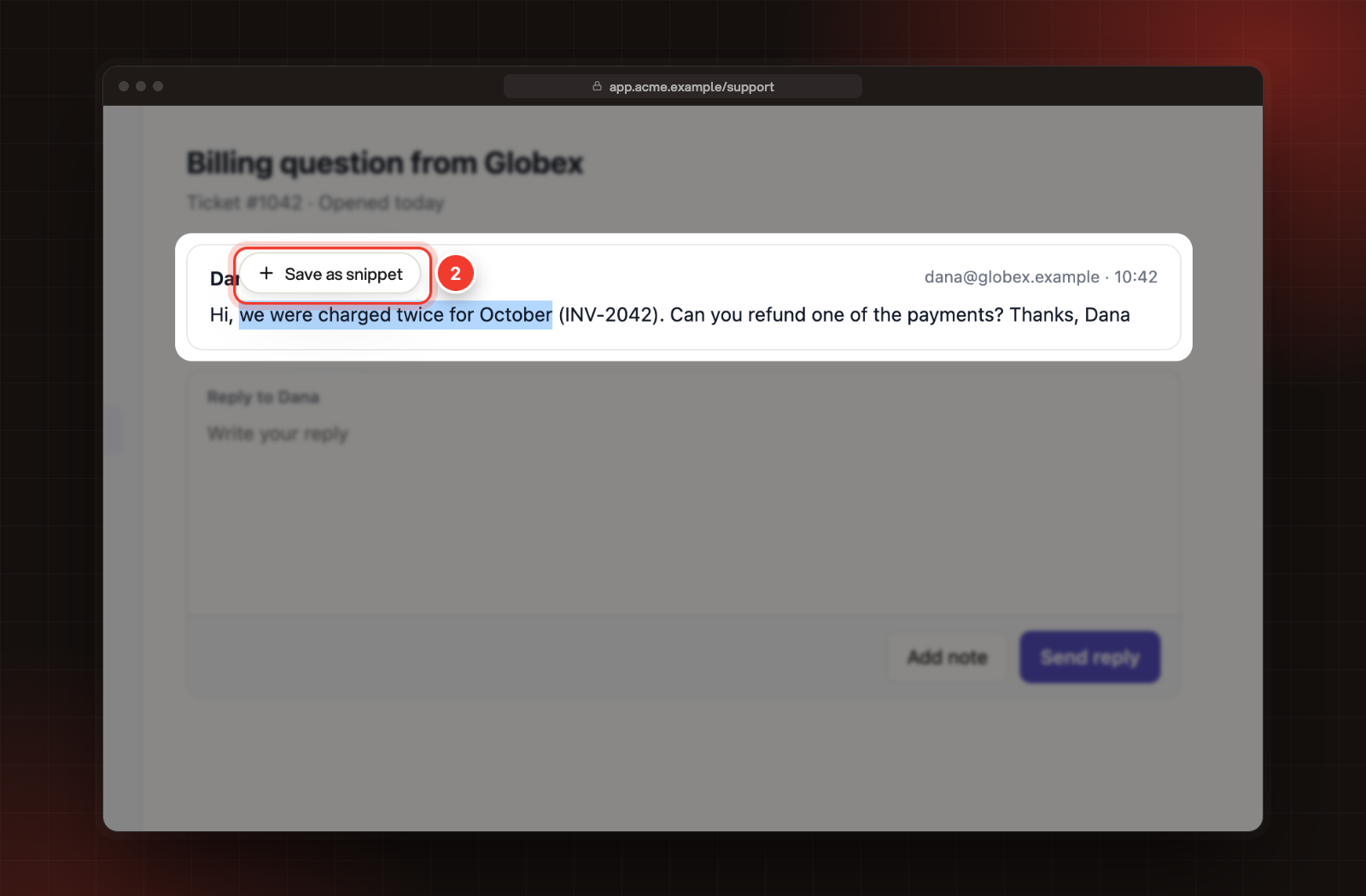
Select some text on a page, outside a text box, then select Save as snippet.
2 Save as snippet, next to the selected text.
3.
Name it, pick a category, choose Team if you want to share it, and select Save snippet.
Rectify confirms with Snippet saved. Insert it anywhere with your snippet shortcut.
Manage snippets in Rectify
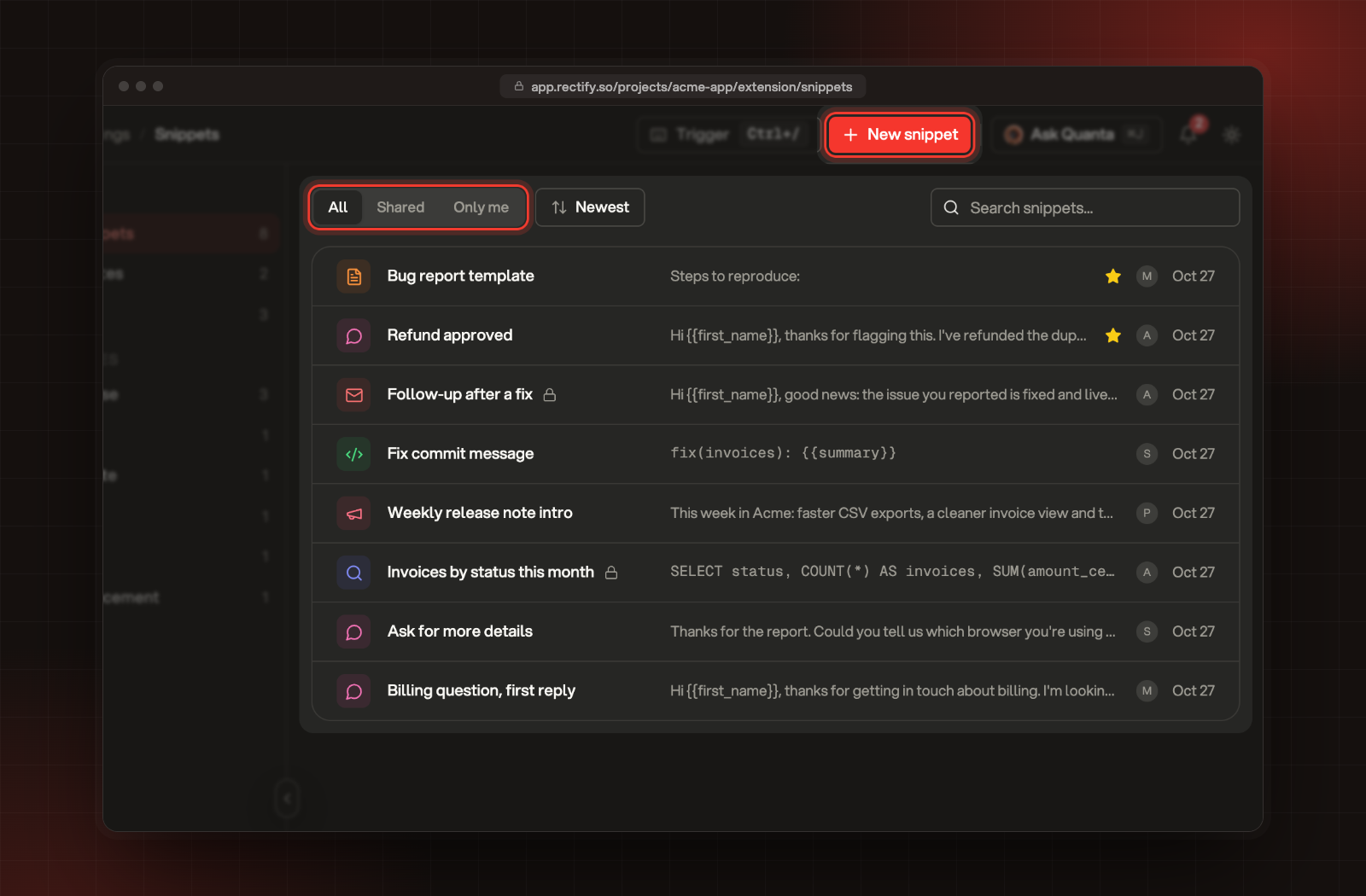
Open Project settings, then Snippets. Switch between All, Shared and Only me, sort by Newest, Recently updated or Title A to Z, or search. A lock marks the snippets only you can see.
All, Shared and Only me, and New snippet, on the Snippets page.
Open a snippet's menu to View it or Add to favourites. Favourites stay at the top of the list and of the picker. You can Edit and Delete only the snippets you created. Deleting one removes it from the library and from everyone's extension straight away, and it can't be undone.
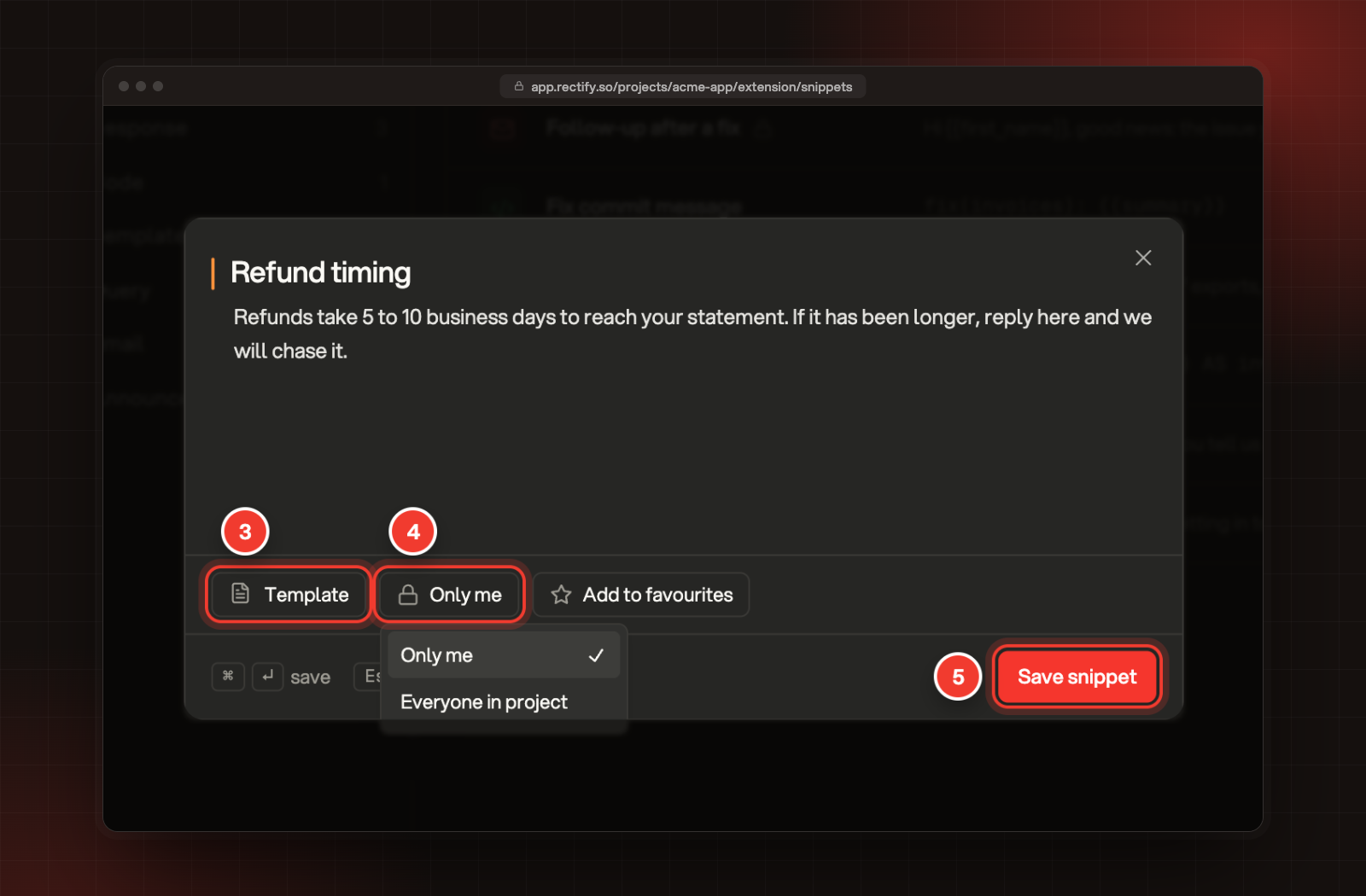
To create a snippet here:
1.
Select New snippet.
2.
Name it and type the text. Placeholders like {{first_name}} are fine.
3.
Pick a category.
4.
Choose Only me or Everyone in project.
5.
Select Save snippet.
3 Category. 4 Only me or Everyone in project. 5 Save snippet.
Change the shortcut or turn snippets off
In the popup's Settings, under Shortcuts, select the keys next to Open snippets and press the new combination. It needs at least one of Ctrl, Alt, Shift or ⌘, plus one other key.
To turn snippets off, use the Snippets switch under On every page in the popup. That also hides Save as snippet.
Nothing happens when I press the shortcut
Click into a text box first; the picker only opens where you can type. Check that Snippets is switched on in the popup and that you're signed in.
A teammate can't see my snippet
It's set to Only me. Open it in Project settings, Snippets, select Edit and choose Everyone in project. Your teammate also needs access to the same project, and their extension needs that project picked.
The picker says "No snippets yet"
Nobody has shared a snippet in this project and you haven't saved one. Select New snippet in the picker, or create one in Rectify.