Let Claude, ChatGPT, Cursor, VS Code and other AI apps read and update your Rectify project through the hosted MCP server.
5 min readUpdated 24 days ago
Before you start. The MCP server needs the Build plan or higher. Anyone on your team can connect an app. The app works as you, with your role, in the project you pick.
MCP is the standard way AI apps use outside tools. Once connected, your AI app can work on your feedback, roadmap, changelog, help center, inbox, monitoring, contacts, analytics and more, with 142 tools across 23 areas.
Every app connects to the same hosted server:
Plain text
https://api.rectify.so/v1/mcp
Two ways to connect
•
Sign in with Rectify. Claude, ChatGPT, Claude Desktop, Cursor, VS Code, Kiro and Antigravity open Rectify in your browser. You pick the project and approve, and no key is needed.
•
Use a key. Claude Code, Windsurf and other MCP clients send an MCP key in a header. Create one first, as Manage MCP keys and connected apps shows.
Connect an app
1.
In your project, open Project settings, then MCP server.
2.
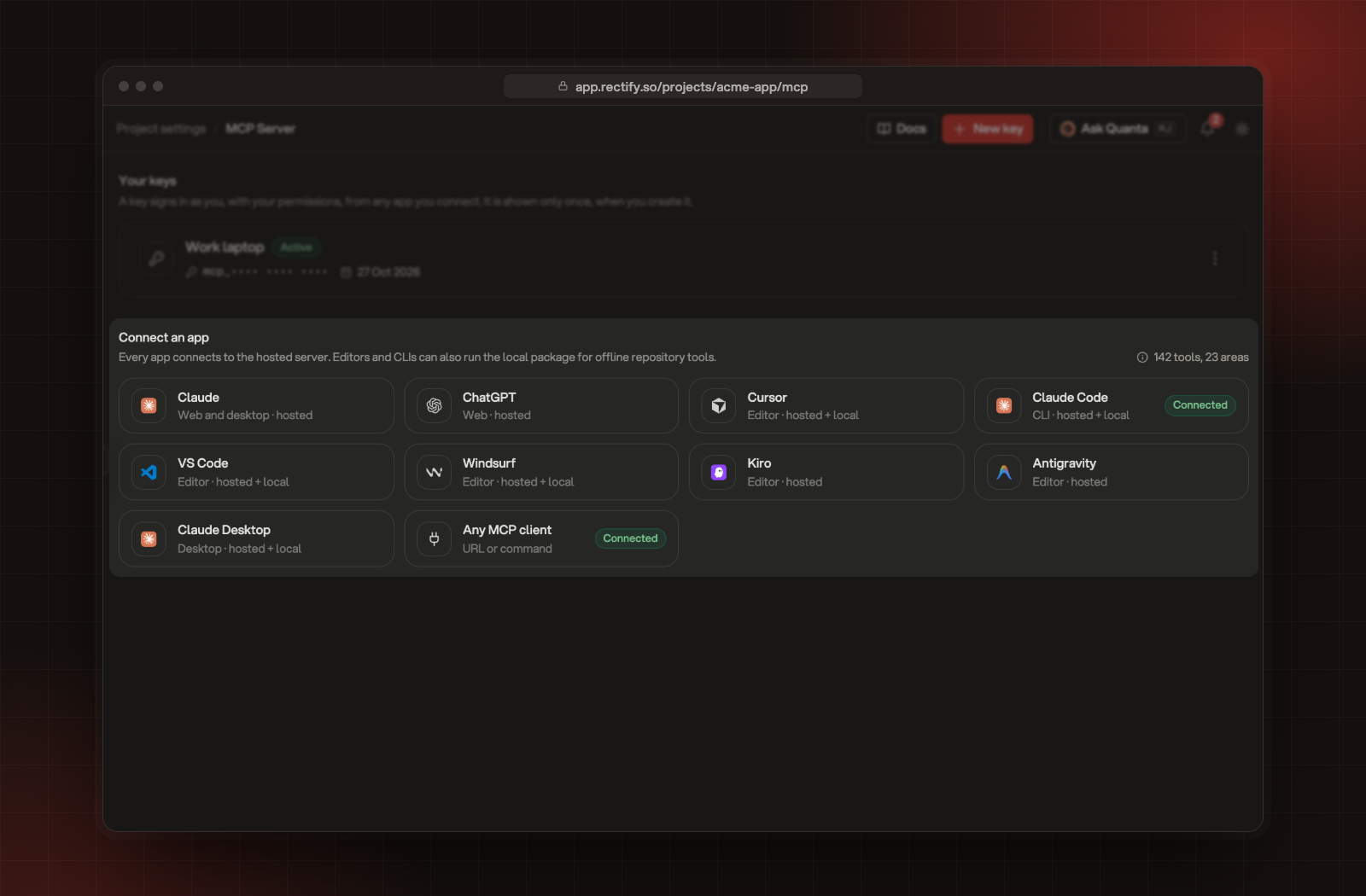
Under Connect an app, select your app.
The apps under Connect an app, on the MCP Server page.
3.
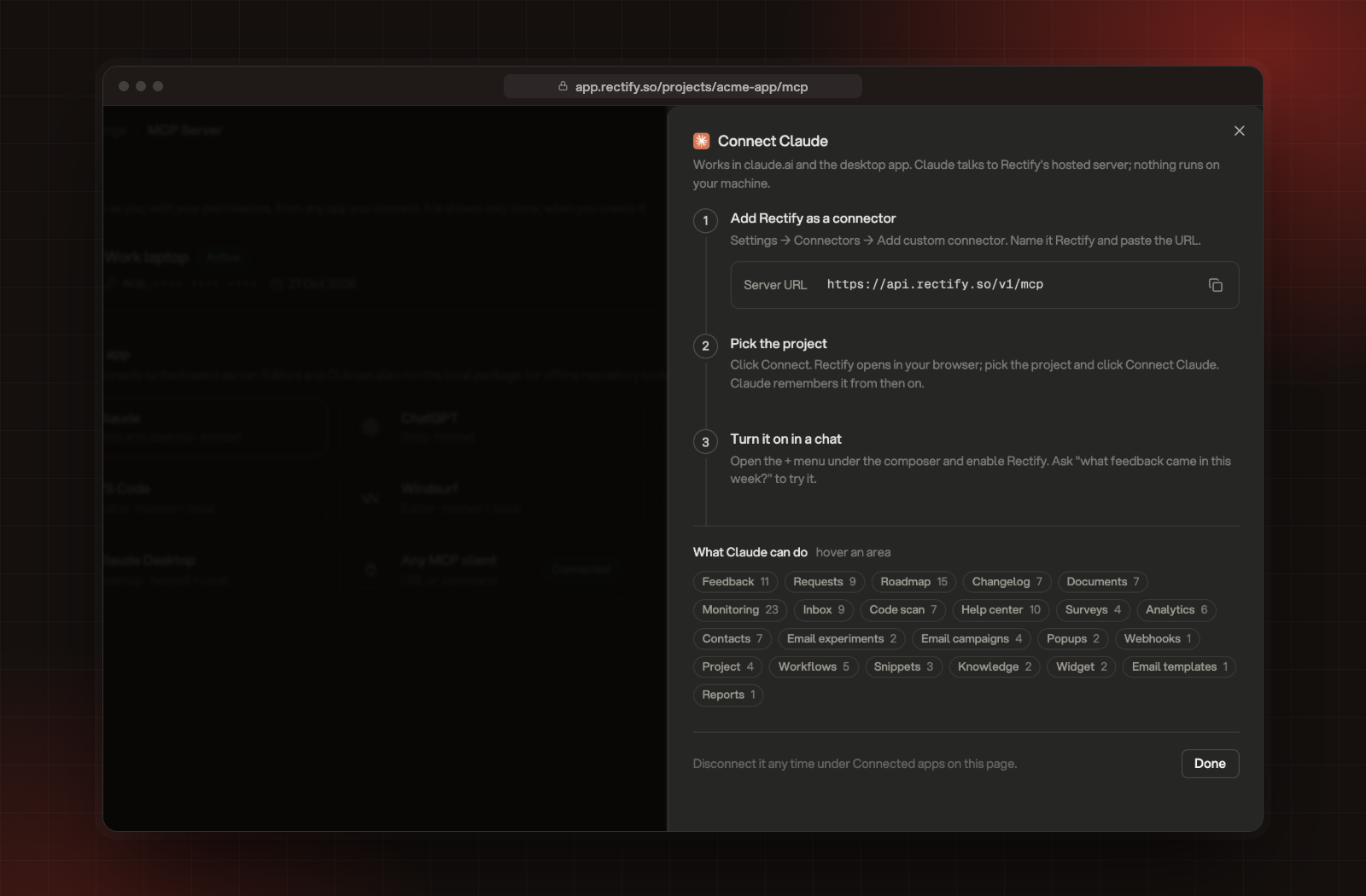
Follow the steps in the panel that opens. They're written for that app, and the next sections repeat them.
Connect Claude, with the server URL to paste.
The panel also lists what the app can do, by area. Hover an area to see its tools.
Approve the connection
Apps that sign in send you to a Rectify page called Connect with the app's name.
1.
Check you're signed in as the right person. If not, select Switch account.
2.
Pick the Organization, if you belong to more than one, and the Project.
3.
Check the note that says where Rectify sends you back. For an app Rectify doesn't recognise, it adds Only connect apps you trust.
4.
Select Connect with the app's name, for example Connect Claude.
Rectify sends you back to the app. Select Cancel to stop instead. The link from your app works for 15 minutes. If it expires, start again from the app.
Claude and Claude Desktop
1.
In Claude, open Settings, then Connectors, and select Add custom connector.
2.
Name it Rectify and paste https://api.rectify.so/v1/mcp as the URL. Leave the OAuth client ID empty.
3.
Select Connect, pick the project in your browser and select Connect Claude.
4.
In a chat, open the + menu under the message box and turn on Rectify.
A connector added on claude.ai also shows in Claude Desktop.
ChatGPT
1.
Open Settings, Connectors, Advanced and turn on Developer mode.
2.
Select Create. Name it Rectify, paste https://api.rectify.so/v1/mcp and choose OAuth.
3.
Pick the project in your browser and select Connect ChatGPT.
4.
In a chat, turn it on under Tools.
Cursor, VS Code and Kiro
Select Add to Cursor, Add to VS Code or Add to Kiro in the app's panel. The app adds Rectify, then opens Rectify in your browser to pick the project.
To add it by hand instead, paste this into ~/.cursor/mcp.json for Cursor or ~/.kiro/settings/mcp.json for Kiro:
Any other client that supports remote MCP servers over HTTP: use the server URL with the header Authorization: Bearer YOUR_RECTIFY_KEY. The panel for Any MCP client shows both, with your key filled in right after you create it.
Keep the key out of shared files and out of git. Editors that open your MCP settings in a repository folder can commit them by accident.
What the app can do
The app acts as you. It sees what you can see in the project, and changes are made in your name. Some tools need an Owner or Admin, for example publishing help articles, writing changelog posts, sending email campaigns, approving or merging requests, assigning feedback, starting a fix, and changing roadmap boards, columns, tags or workflows. For a Member, those tools answer "Only workspace owners and admins can do this."
Check it worked
Ask your app "What feedback came in this week?". It answers from your project. On the MCP Server page, the app shows Connected, and apps that signed in show under Connected apps.
Troubleshooting
My app asks for an OAuth client ID
Leave it empty. Rectify signs you in without one. If you paste a key there, Rectify refuses the connection.
"Your Rectify MCP session has expired"
The connection was idle or the server restarted. Reconnect Rectify from your app's settings, usually with a reconnect button next to it.
"This connection was disconnected or has expired"
Someone selected Disconnect under Connected apps, the app wasn't used for 90 days, or you signed out everywhere or reset your password. Connect again from the app.
"MCP key not found or inactive"
The key was revoked or deleted, or it was mistyped. Create a new key and update your app.
"This key belongs to another teammate"
Each person needs their own key. Create one on the MCP Server page.
I can't select Claude Code, Windsurf or Any MCP client