Connect your GitLab.com account so each new feedback report opens an issue in the GitLab project you choose.
3 min readUpdated 24 days ago
Before you start. Rectify works with GitLab.com. Self-managed GitLab isn't supported. You need a GitLab.com account that can create issues in the project you want to use. Everyone who can open the Rectify project can connect GitLab, on every plan.
With GitLab connected to a project:
•
Each new feedback report opens an issue in your GitLab project. The report's title and description become the issue's title and description.
•
The Create GitLab Issue workflow step adds issues to the same project.
GitLab is connected per project. To use it in another project, connect it there too.
Connect GitLab
1.
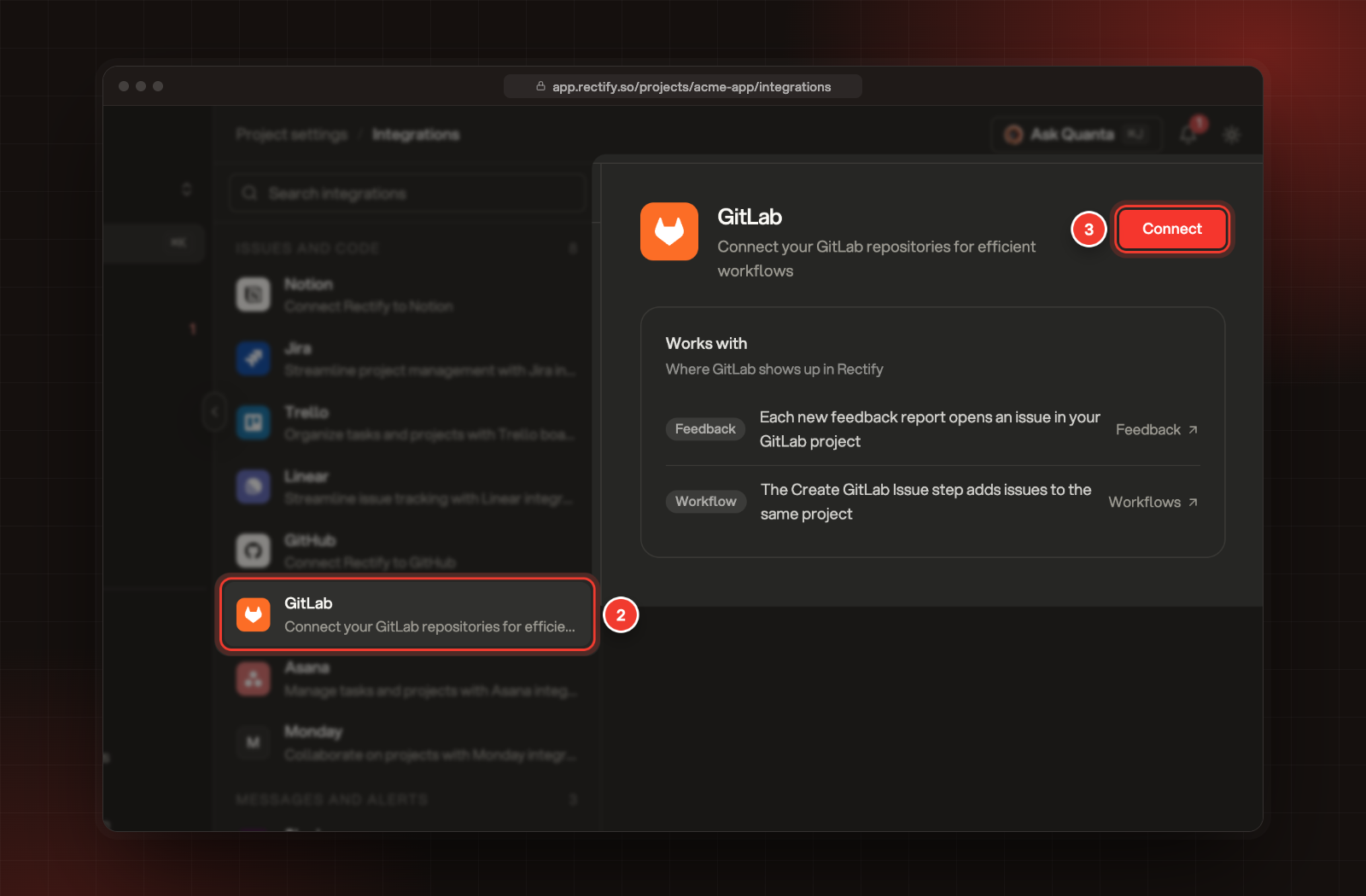
Open Project settings, then Integrations.
2.
Select GitLab.
3.
Select Connect. GitLab.com opens.
2 GitLab. 3 Connect.
4.
Sign in to GitLab, if it asks.
5.
Check what Rectify asks for and authorize it.
GitLab then sends you back to GitLab in Integrations, now marked Connected.
Choose the GitLab project
Rectify starts with the first of your own projects. To use another one:
1.
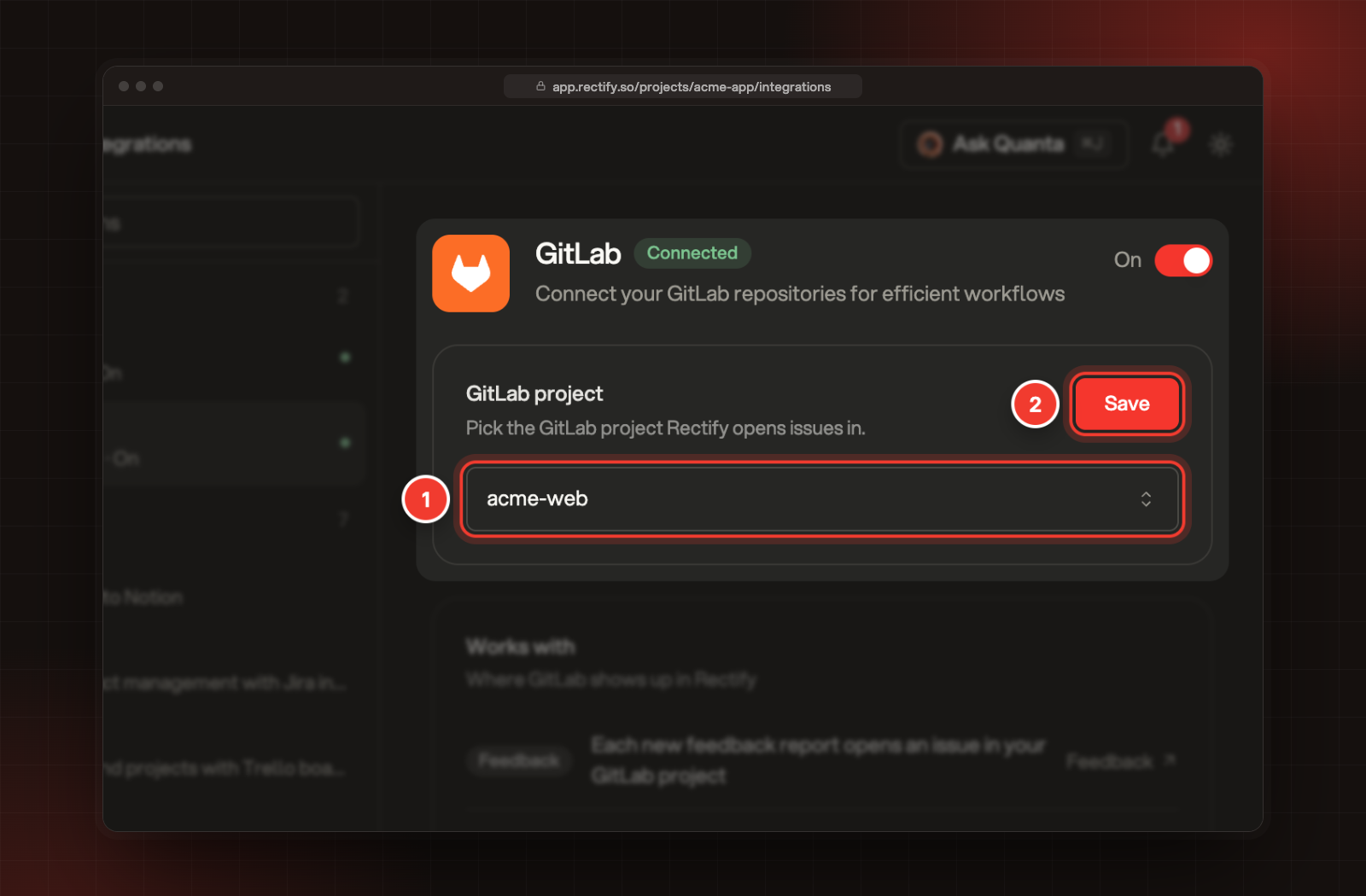
Pick it under GitLab project. The list has your own projects and the projects in your GitLab groups.
2.
Select Save. You see GitLab project configured successfully.
1 GitLab project. 2 Save.
From then on, each new feedback report opens an issue in that project as soon as it arrives. Every type of report is sent. Changes made later, in Rectify or in GitLab, aren't synced either way.
Pause or disconnect GitLab
To pause, turn the switch at the top of the GitLab page to Off. New reports stop opening issues and the Create GitLab Issue step stops working until you turn it back On.
To disconnect, select Disconnect under Disconnect GitLab. It happens straight away, with no confirmation, and you see GitLab integration removed successfully. Rectify forgets the connection but doesn't withdraw the access you gave it on GitLab. To withdraw that too, revoke Rectify under the authorized applications in your GitLab settings.
Troubleshooting
No issues appear in GitLab
Check that GitLab shows On in Integrations, and that GitLab project is the one you expect. The GitLab account you connected with must be able to create issues in that project. Only reports that arrive after you connect are sent.
My GitLab project isn't in the list
The list shows the projects your GitLab.com account owns and the projects in groups you belong to. A project you were added to on its own, outside one of your groups, doesn't show. Ask for access to its group, then come back and pick it.
A workflow run fails with "GitLab integration not enabled for this project"
GitLab is turned off or not connected in this project. Turn it On, or connect it, and run the workflow again.