Turn on Rectify's push notifications, choose which alerts you get, and read and act on your notifications in the Rectify app.
4 min readUpdated 5 days ago
Before you start. Push notifications reach every phone where you're signed in to the Rectify app and have allowed notifications. Your alert choices are your own, set separately for each organization, and they apply on every device where you get Rectify notifications. Members only get alerts for the projects they can open.
Turn on push notifications
If your phone hasn't asked about Rectify notifications yet, the app offers Turn on notifications after you sign in. Tap it, then allow notifications when your phone asks.
To turn them on later, or to check them:
1.
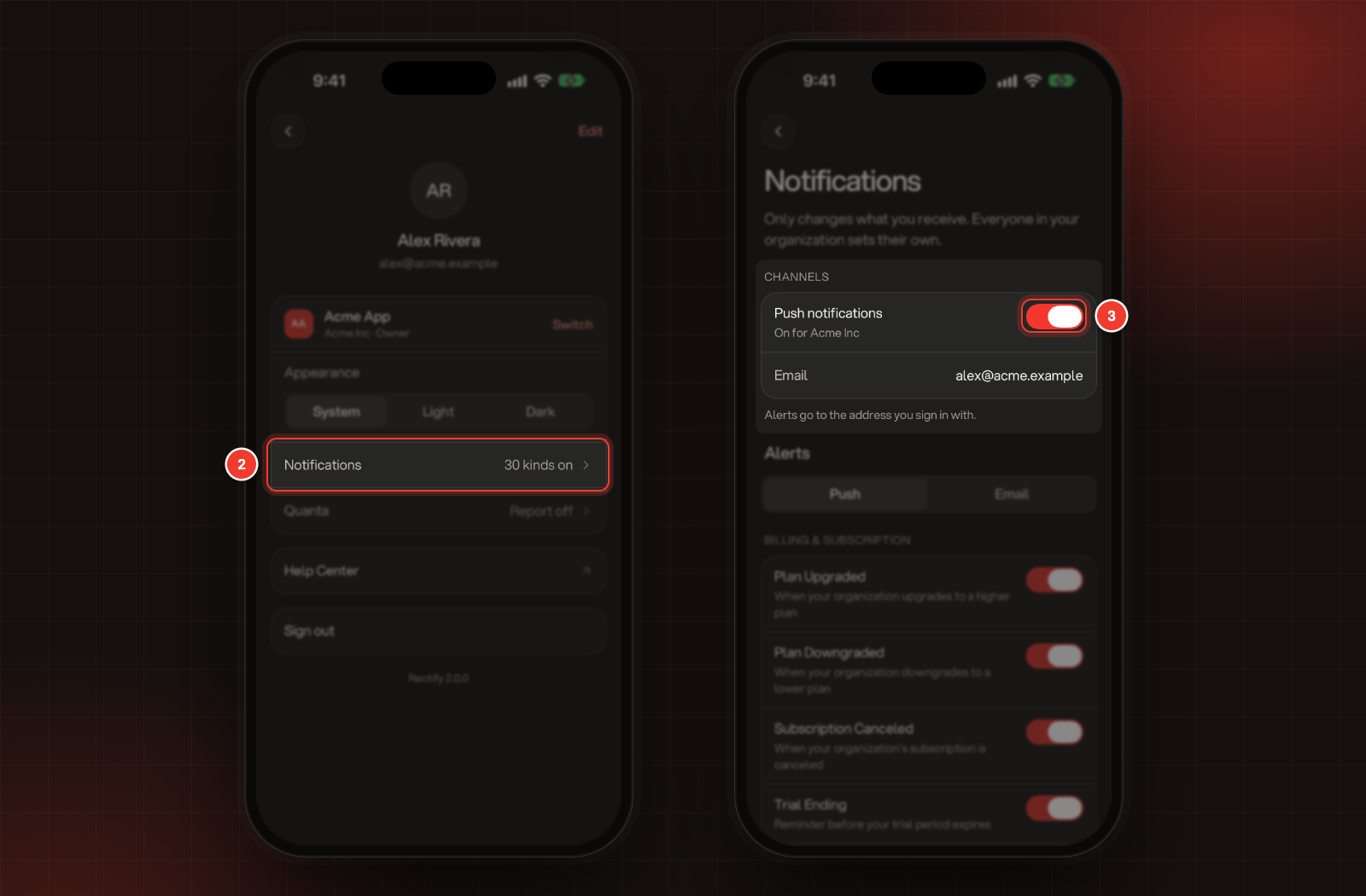
Tap your photo at the top of Home or Inbox.
2.
Tap Notifications.
3.
Turn on Push notifications.
2 Notifications. 3 Push notifications.
When it's on, it says On for and your organization's name. If it says Turned off in your phone's Settings, your phone is blocking Rectify: tap Open Settings and allow notifications there. On Android 12 and earlier, notifications are on unless you turn them off in your phone's settings.
Push notifications covers the whole organization, not only this phone. Turning it off stops push notifications from this organization on all your devices, and Rectify on the web shows it as off too.
Rectify links your phone to your account when you sign in. Sign out on the You screen stops push notifications on that phone.
Choose which alerts you get
1.
Tap your photo, then Notifications.
2.
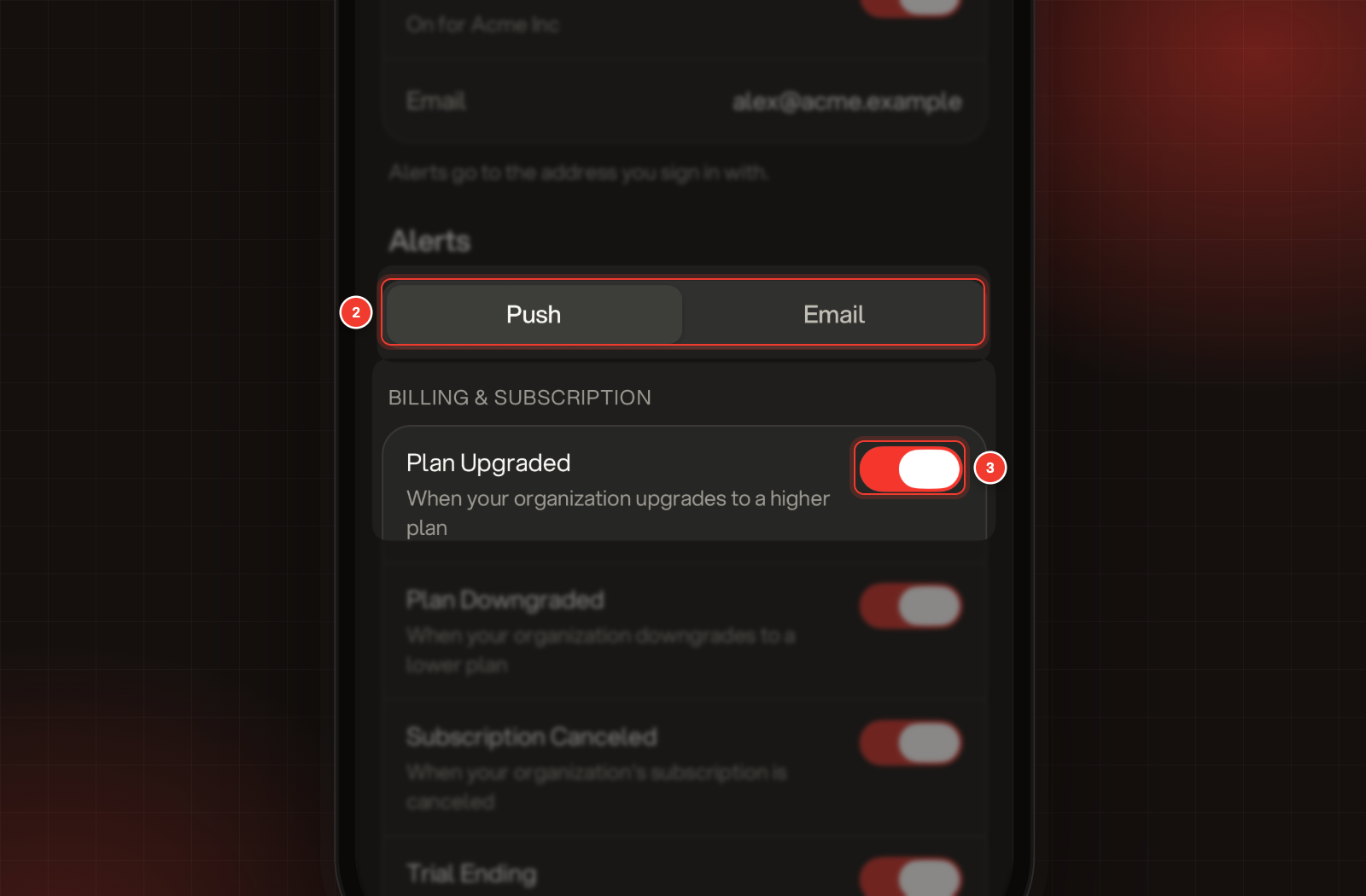
Under Alerts, keep Push selected, or tap Email for the alerts you get by email.
3.
Switch each alert on or off. Changes save straight away.
2 Push or Email. 3 An alert's switch.
Push alerts are grouped into Billing & Subscription, Team, Feedback, Feature Requests & Roadmap, Support, Automation & AI, Code Analysis, Monitoring and Changelog. Email alerts go to the address you sign in with. Most alerts start switched on. The same choices show in Rectify on the web; Your profile and notification settings covers that page.
Quanta can also send a push when one of its scheduled checks finds something that needs you. The organization's Owner turns this on with Push under Tell me by in Quanta's settings. Heartbeat: scheduled check-ins and urgent alerts explains how it works.
What happens when you tap a notification
•
Support alerts open the conversation, ready for your reply.
•
Feedback alerts open the feedback.
•
Quanta's alerts, like a Project Report, open the chat.
•
Everything else opens Notifications, with that alert open.
If the alert belongs to another organization or project, the app switches to it first and tells you, for example "Switched to Acme Inc".
Read your notifications in the app
Tap the bell at the top of Home or Inbox. A red dot on the bell means you have unread notifications.
•
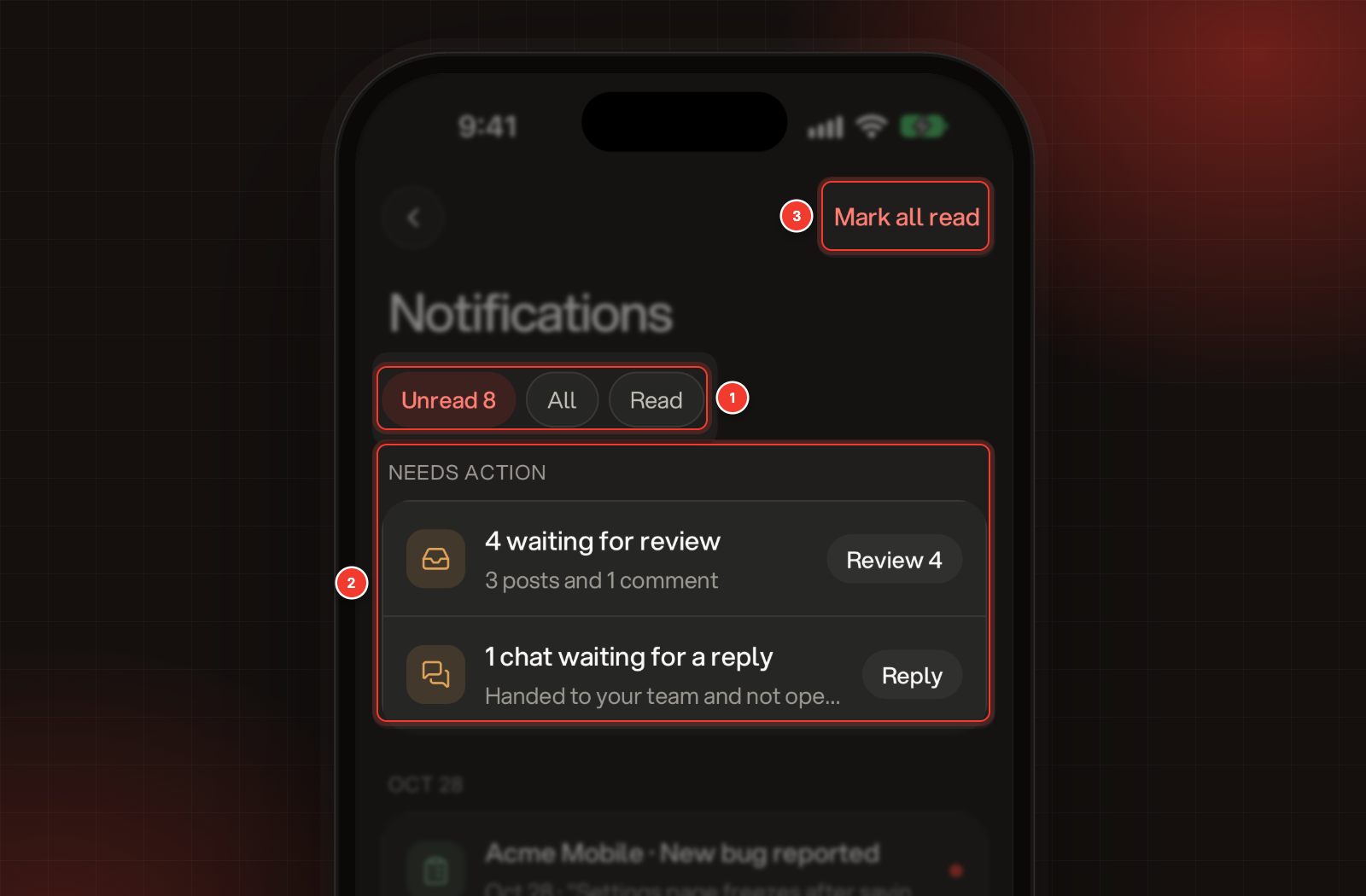
Unread, All and Read at the top filter the list. Unread shows how many there are.
•
Needs action at the top lists what needs you in this project, with a button to act on each, like on Home.
•
Tap a notification to mark it read. Support, feedback and Quanta notifications open where they point; the others open up to show the full message, who it's from and when.
•
Swipe a notification to the left and tap Read to mark it read without opening it.
•
Mark all read at the top marks everything read.
1 Unread, All and Read. 2 Needs action. 3 Mark all read.
Pull the list down to refresh it. Older notifications load as you scroll. The list shows the organization you're in; switch to a project in another organization to see its notifications.
Troubleshooting
I don't get any push notifications
Check these in order:
1.
Notifications for Rectify are allowed in your phone's settings.
2.
You're signed in to the app with the same account you use on the web.
3.
Push notifications is on under You, Notifications. Check it while you're in a project of the organization you expect alerts from, since each organization has its own setting.
4.
The alerts you expect are switched on under Alerts, Push.
The alert switches are greyed out
Push notifications is off, or your phone is blocking Rectify. Turn it on, or tap Open Settings to allow notifications.
Alerts from one project never arrive
As a Member, you only get alerts for projects you can open. Ask an Owner or Admin to give you access to that project.
Tapping a notification says "You don't have access to this organization"
You're no longer a member of the organization that sent it. Ask one of its Owners or Admins to invite you again. If it says "You don't have access to this project", ask them for access to that project.