Turn on Quanta's scheduled reports, choose how often it checks and how it tells you, and read the Project Report.
4 min readUpdated 5 days ago
Before you start. Only the organization's Owner can turn reports on and change Heartbeat settings. Everyone who can open the project can read the Project Report. Each check uses AI, from your own provider key or your Rectify credits.
Heartbeat is Quanta checking your project on a schedule while you're away. Each check ends in a short report in the Project Report chat, and urgent problems are posted there as they happen.
Turn on reports
1.
Open Quanta in the sidebar.
2.
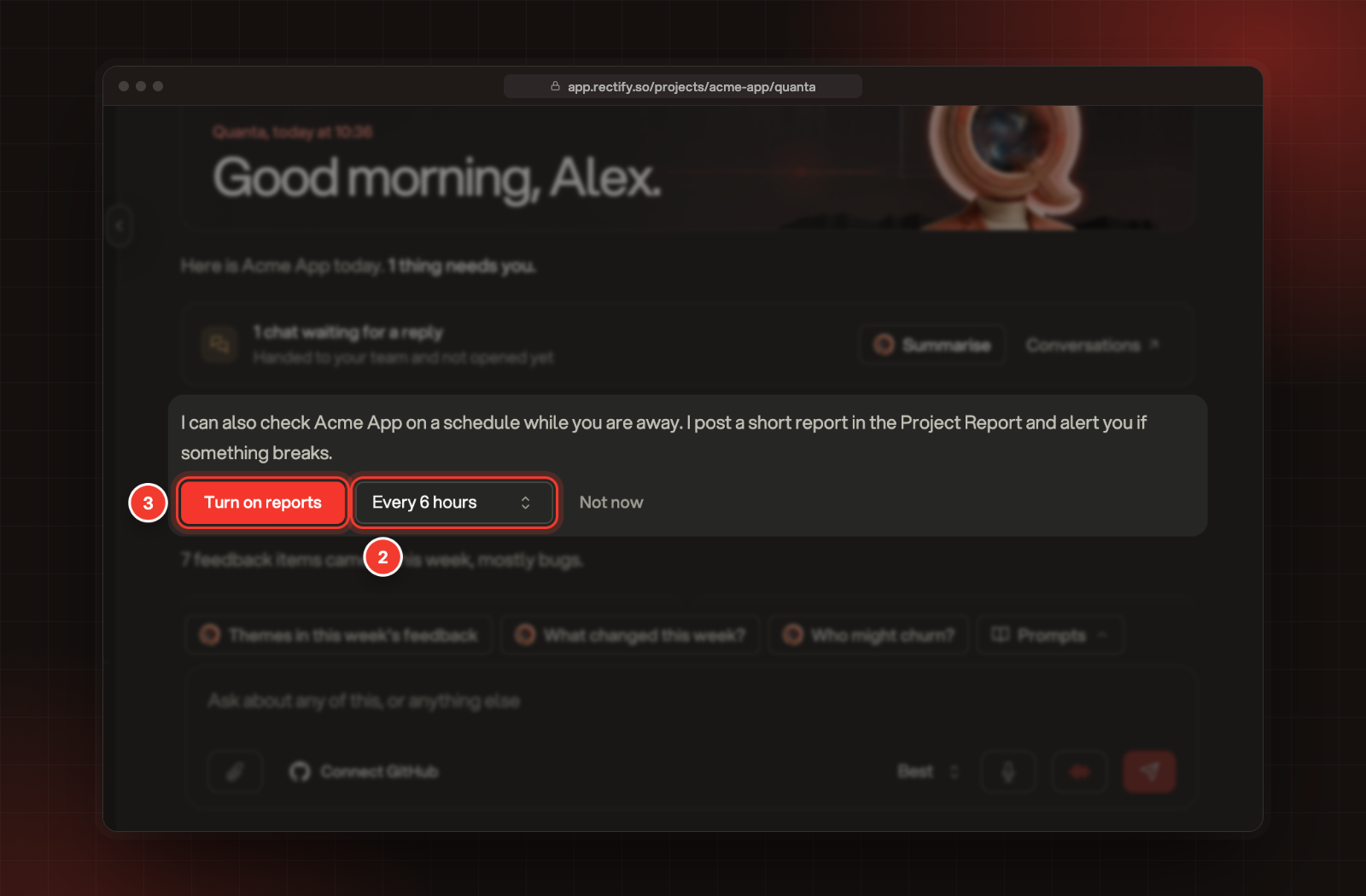
Pick how often Quanta checks, from Every 10 minutes to Every 24 hours.
3.
Select Turn on reports.
2 How often Quanta checks. 3 Turn on reports.
Quanta runs the first check straight away, and its report is ready in about a minute. Not now hides the offer until you come back to the page.
Choose how often and how Quanta tells you
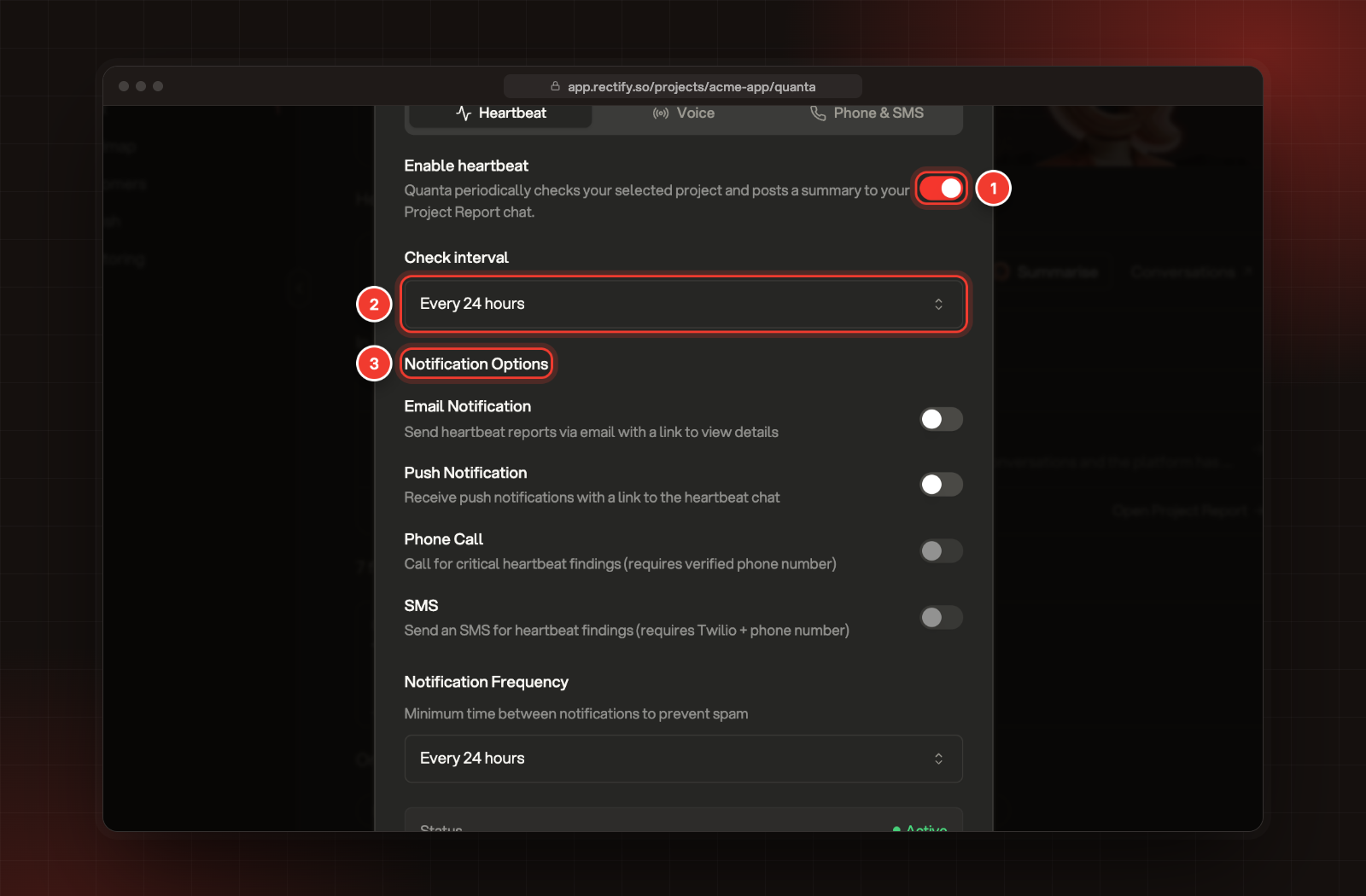
Select the gear at the top of the Quanta page. Quanta Settings opens on the Heartbeat tab.
1.
Turn on Enable heartbeat.
2.
Pick a Check interval. It starts at Every 6 hours.
3.
Under Notification Options, turn on the ways Quanta should reach you.
4.
Under Notification Frequency, pick the shortest time between two messages on the same channel. It starts at Every 24 hours.
A call for critical findings. Needs Twilio, a destination number and Enable phone alerts on the Phone & SMS tab
SMS
A text message. Needs Twilio and a destination number on the Phone & SMS tab
All of them start switched off. Quanta uses them when a check finds something that needs you, not for every report. Talk to Quanta with your voice shows how to connect Twilio and add your number.
The box at the bottom of the tab shows the Status, when the last check ran and when the next one is due.
Read the Project Report
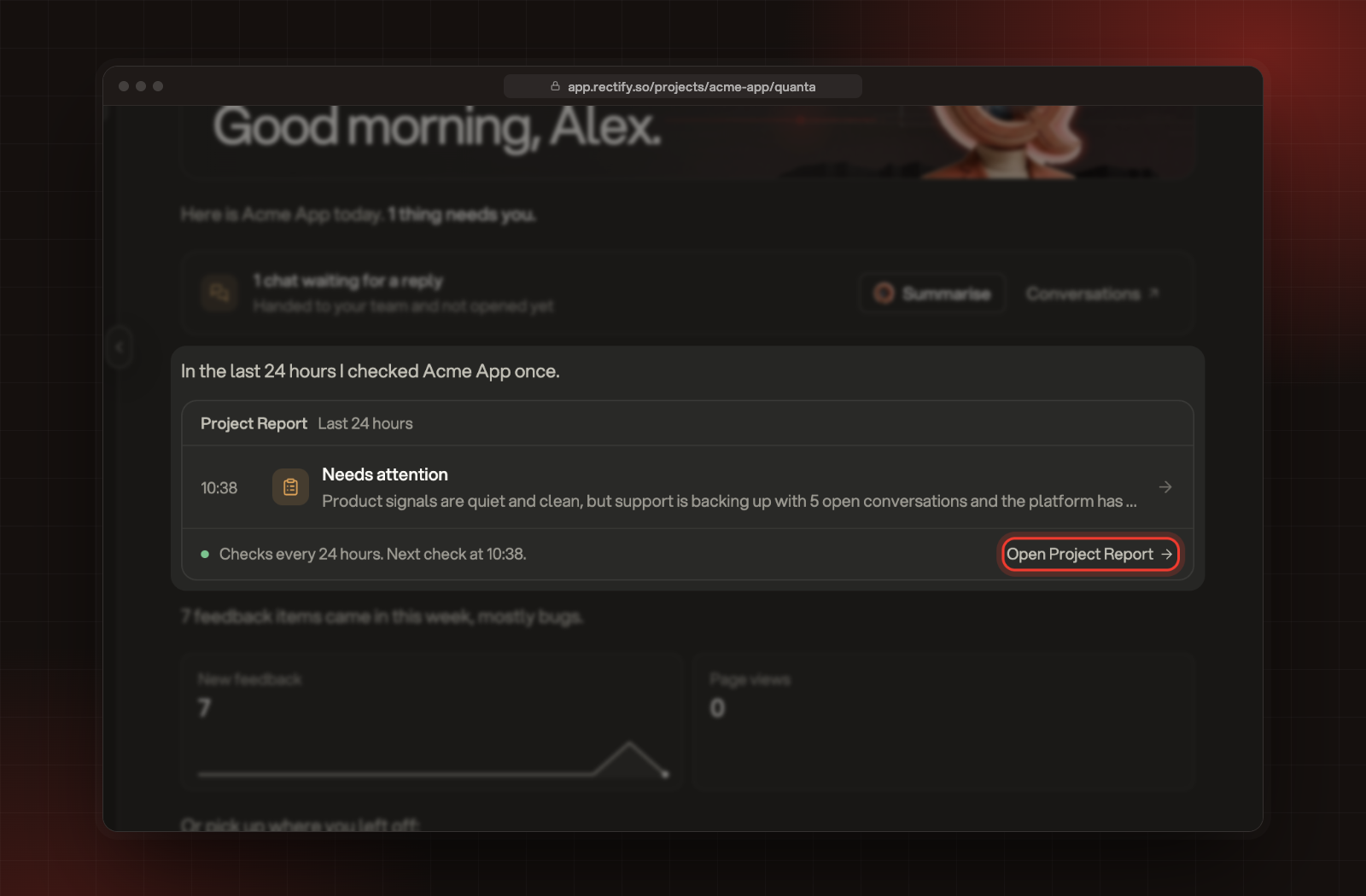
Open it from History, where Project Report is always at the top, or select Open Project Report under the report card on the Quanta page.
The last 24 hours of reports on the Quanta page.
Each report starts with a status, All clear, Needs attention or Action required, followed by a summary, the highlights and what Quanta recommends you do. On the Quanta page, the card lists the reports and alerts from the last 24 hours.
The Project Report opens on the latest day with reports. Reports are grouped by day, under Today, Yesterday or the date, and each one shows the time it came in. To read older ones, select Show earlier reports at the top. Each time you select it, one more day loads, and the button shows which day comes next.
On each check, Quanta looks at your monitors and incidents, new feedback, code scans, support conversations waiting for a reply, the review queue, analytics, failed workflows, survey scores, Help Center gaps and roadmap changes.
Urgent alerts
Once the Project Report exists, Quanta also posts these to it as they happen, while Heartbeat is on:
•
A monitor goes down, or comes back up
•
An incident is escalated to critical
•
A new bug is reported with critical priority
•
A visitor asks to talk to a person
•
A workflow fails
•
A code scan finds issues, or fails
•
An analytics alert fires
A critical incident, an escalation to critical and a critical bug also call you, if you've set up phone alerts. These alerts are posted to the Project Report only; they don't send email, push or text messages. The same alert is posted once even if it repeats within 5 minutes.
Turn reports off
1.
Select the gear at the top of the Quanta page.
2.
Turn off Enable heartbeat.
3.
Select Save.
The Project Report and its earlier reports stay in History.
What it costs
Each check is an AI request, paid from your own provider key or your Rectify credits. How much a check uses depends on how much is happening in your project, so a longer Check interval uses less. Checks are listed as Heartbeat on the Usage page of Quanta. If your organization has no AI key and no credits left, checks are skipped.
Teammates see "Reports are off for this project"
Only the organization's Owner can turn reports on. Ask them to select Turn on reports on the Quanta page.
The settings say "Only the organization owner can change Quanta settings."
You can see the settings, but only the Owner can save them.
I turned reports on but there's no report yet
The first check runs within a minute or two. If nothing arrives, check that your organization has an AI key connected or Rectify credits left under Organization settings, AI providers.