Add FAQs, websites, documents and API sources for Quanta to answer customers from, keep some private to your team, and turn unanswered questions into new FAQs.
7 min readUpdated 5 days ago
Before you start. Everyone who can open a project can add and edit its sources. Only Owners and Admins can delete them. Each project has its own knowledge base, and nothing in it is published to your Help Center or portal.
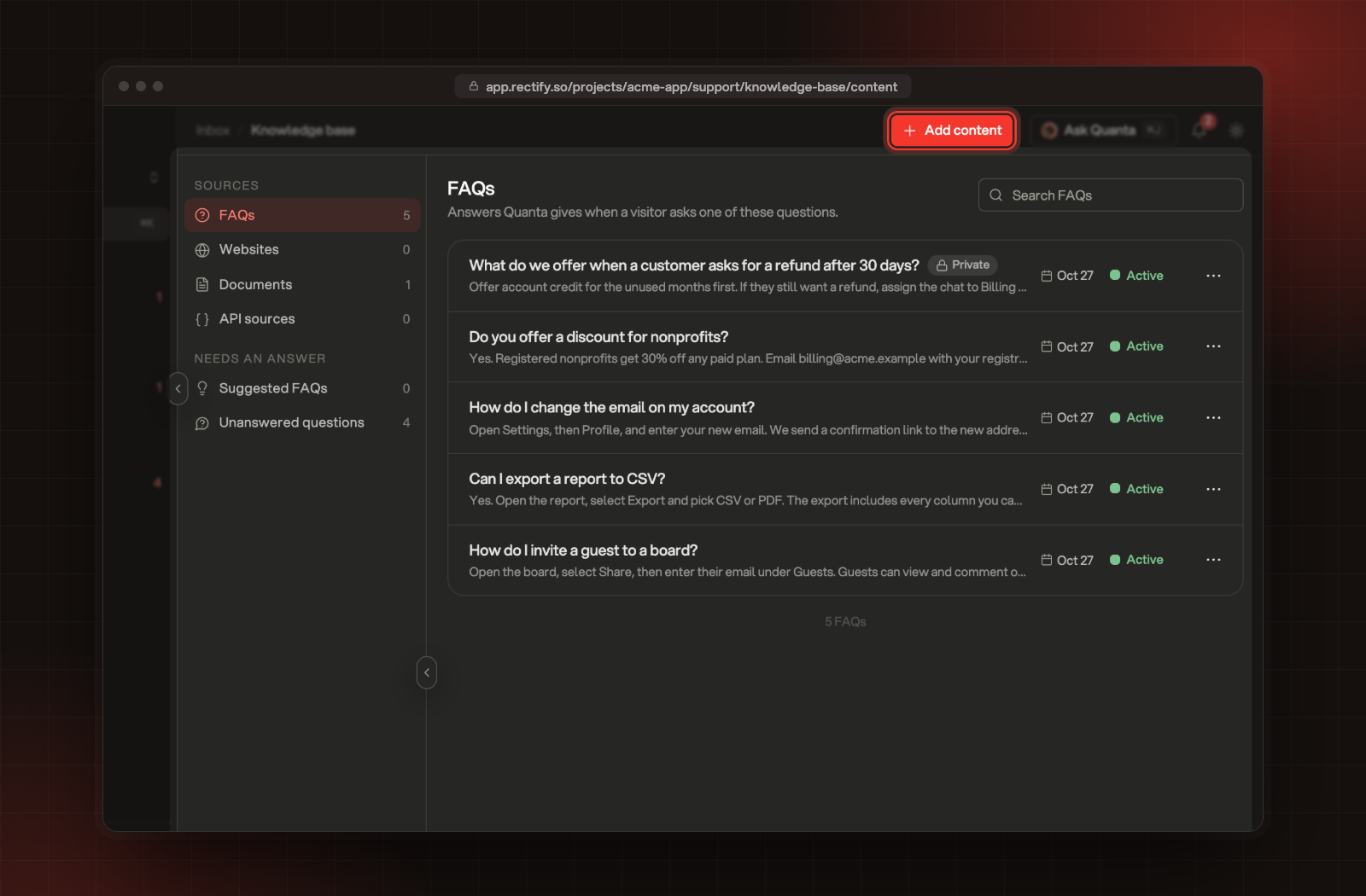
The knowledge base holds what Quanta answers from besides your Help Center: questions and answers, websites, documents, and API sources that look up live details. To open it, select Inbox, then Knowledge base. Each type has its own list under Sources, and Needs an answer collects the questions Quanta couldn't answer.
The Knowledge base, with Add content at the top.
What you can add
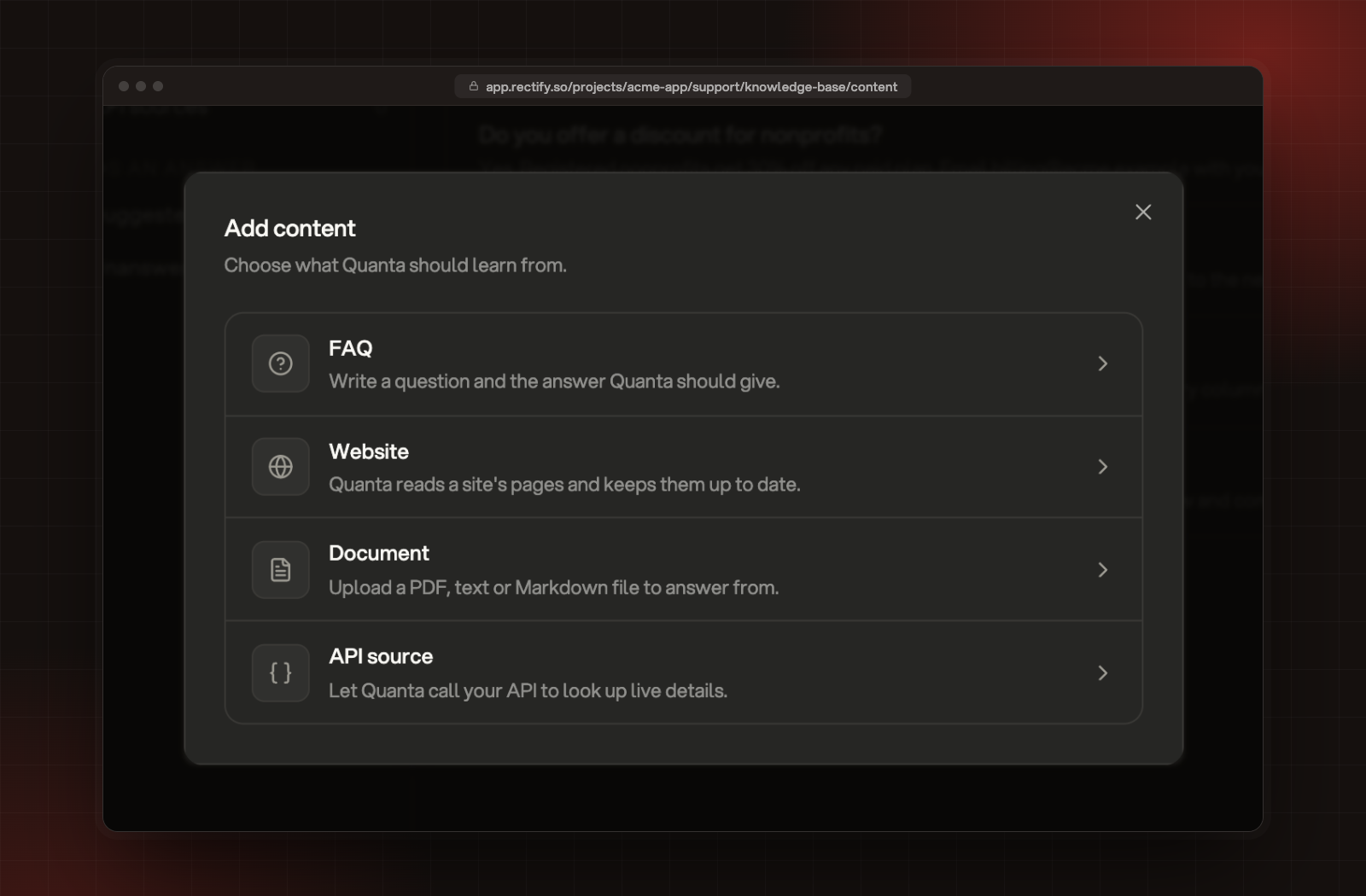
Select Add content and pick a type.
Type
What Quanta does with it
Private
Read more link
FAQ
Gives your answer when a customer asks that question
Yes
Yes
Website
Reads the site's pages and keeps them up to date
No
Links the page it read
Document
Answers from the text of a PDF, text or Markdown file
No
Yes, once uploaded
API source
Calls your API to look up live details for a customer, like an order status
Yes
No
The four types in Add content.
Add an FAQ
1.
Select Add content, then FAQ.
2.
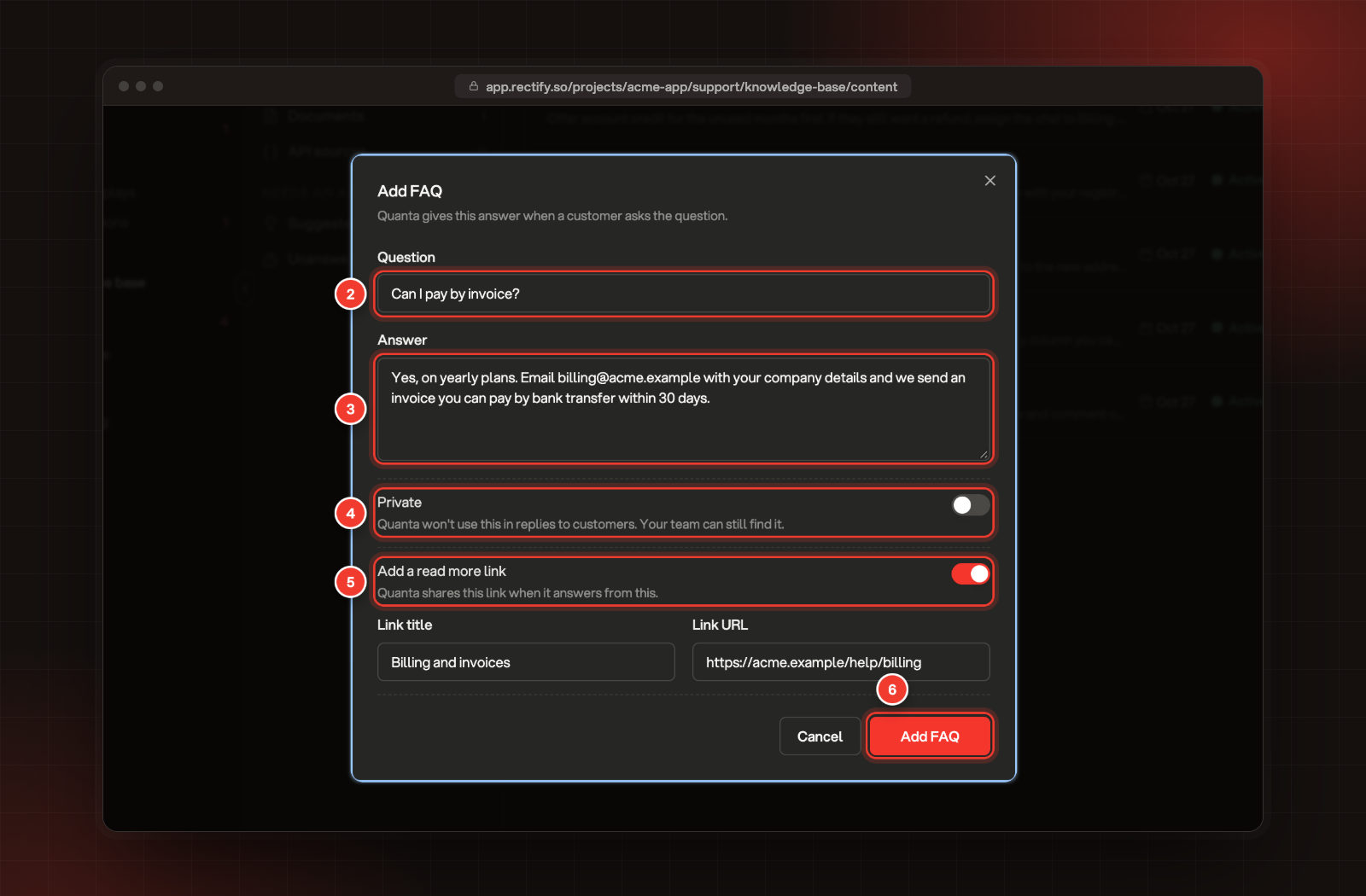
Enter the Question, as your customers would ask it.
3.
Enter the Answer Quanta should give. The more detail, the better.
4.
Optional: turn on Private to keep this out of answers to customers.
5.
Optional: turn on Add a read more link, then fill in Link title and Link URL. Quanta shares this link when it answers from the FAQ.
6.
Select Add FAQ.
2 Question. 3 Answer. 4 Private. 5 Add a read more link. 6 Add FAQ.
To change an FAQ, open the menu (...) on its row, select Edit, make your changes and select Save changes.
Add a website
1.
Select Add content, then Website.
2.
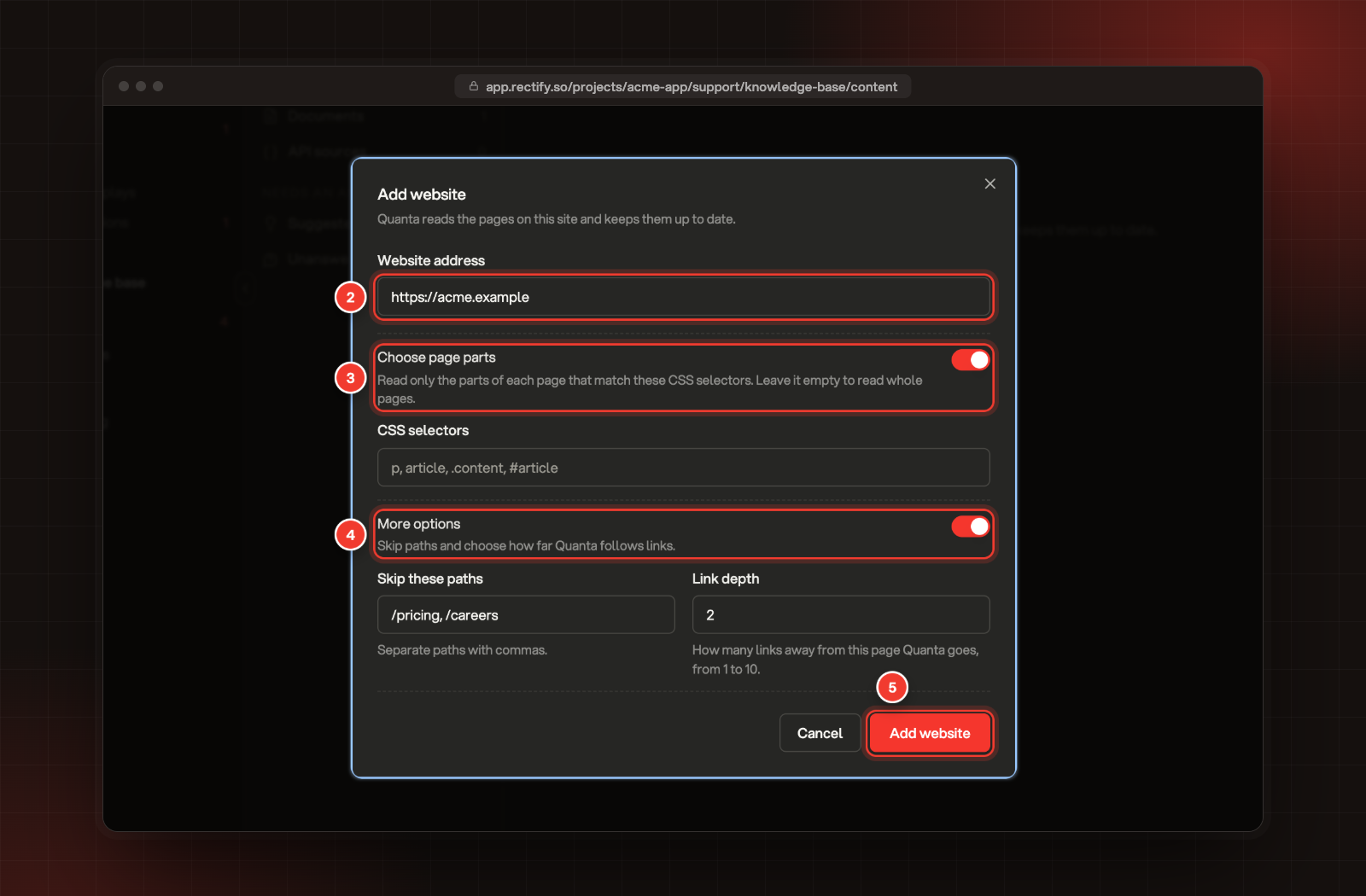
Enter the Website address.
3.
Choose page parts is on to start with. To read only part of each page, enter CSS selectors. Leave it empty to read whole pages.
4.
Optional: turn on More options to fill in Skip these paths, separated by commas, and the Link depth: how many links away from the address Quanta goes, from 1 to 10. Each path you skip is added to the website address, so /pricing on https://acme.example skips https://acme.example/pricing.
Quanta starts reading straight away. The website shows Reading pages with a count, then Active with the number of pages read and when it last read them. Quanta reads up to 500 pages, and only pages on the same site. It checks every day and reads each website again every 7 days.
To read a website again now, or change its options, select Read again, then Save changes. The address can't be changed. To read a different address, add it as a new website.
Upload a document
1.
Select Add content, then Document.
2.
Drop a file in the box, or click to choose one. It can be a PDF, TXT or Markdown file, up to 20 MB.
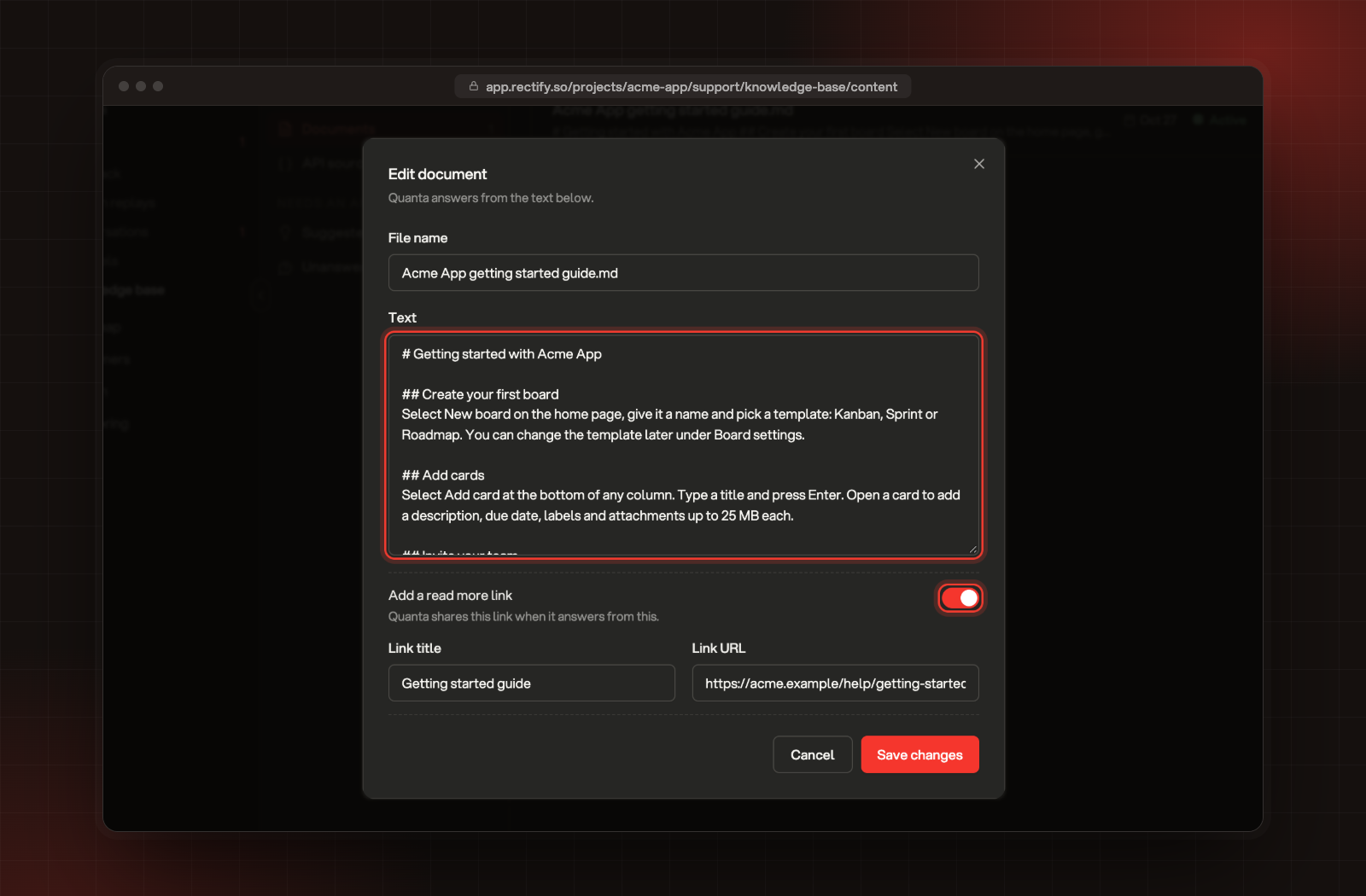
Quanta turns the file into text and answers from it. To fix that text or add a read more link, open the menu (...) on the document and select Edit. Change the Text, turn on Add a read more link if you want one, then select Save changes.
The text Quanta answers from, and a read more link.
Add an API source
An API source lets Quanta look up something live for a customer, like where their order is. When a customer asks for it, Quanta shows them a short form. When they send it, Rectify sends a POST request with their answers to your endpoint, and Quanta explains the reply in the chat.
1.
Select Add content, then API source.
2.
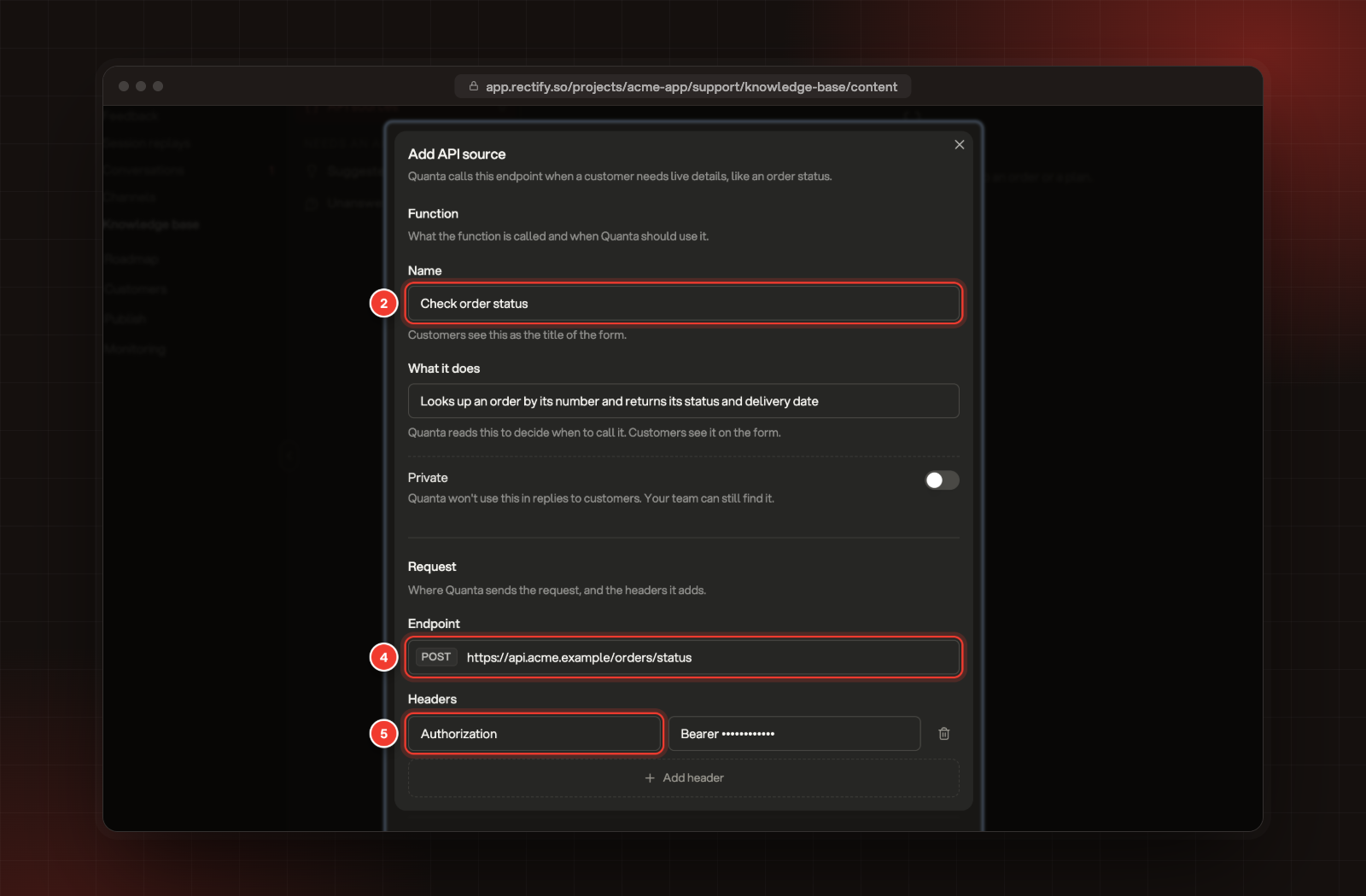
Under Function, enter a Name. Customers see it as the title of the form.
3.
Enter What it does. Quanta reads it to decide when to use the source, and customers see it on the form.
4.
Under Request, enter the Endpoint. Requests are always sent as POST.
5.
To add a header your API needs, like Authorization, select Add header and fill in its name and value. You can add up to 10.
2 Name. 4 Endpoint. 5 A header.
6.
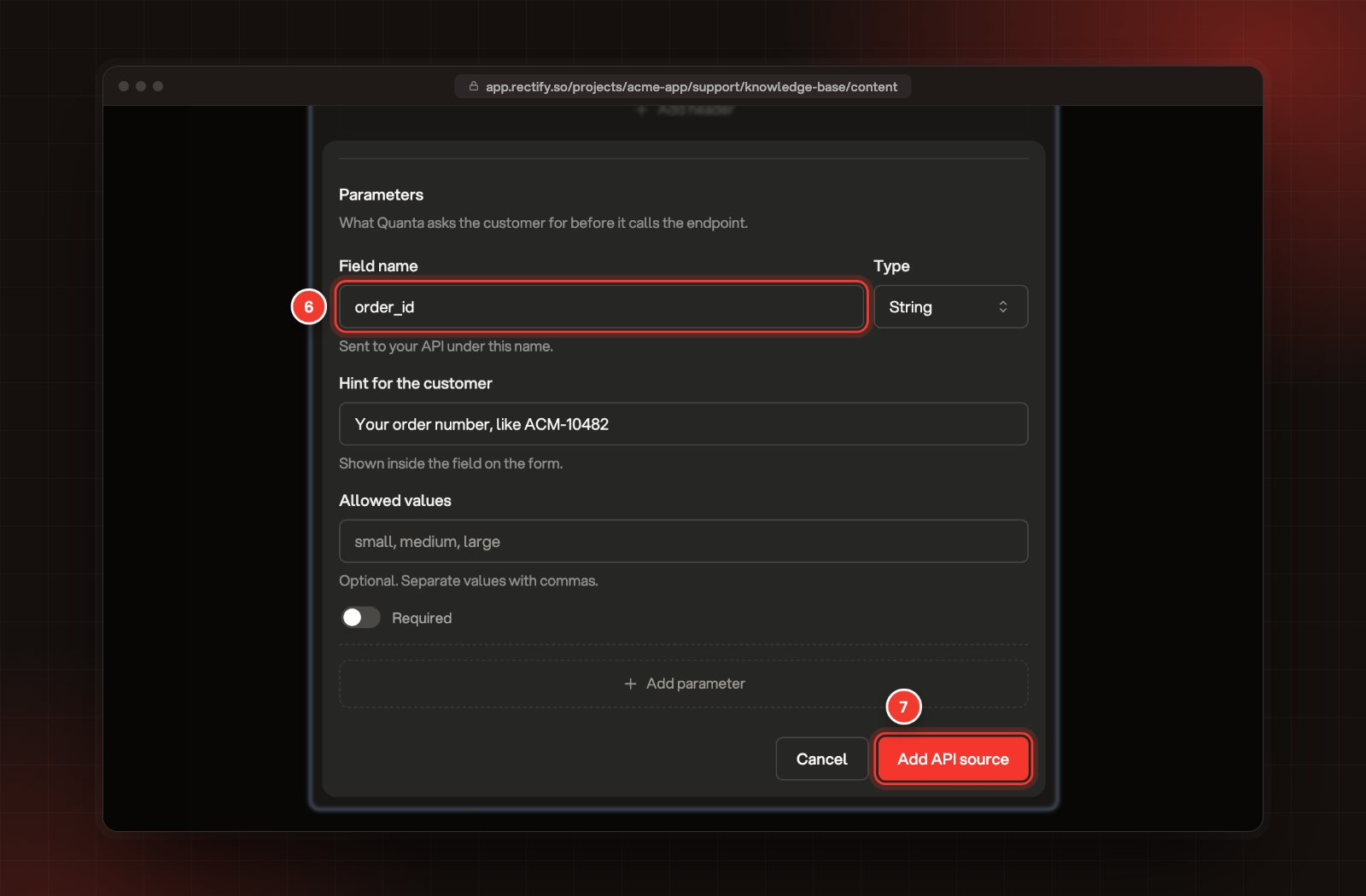
Under Parameters, describe each field the customer fills in:
•
Field name: sent to your API under this name.
•
Type: String, Number or Boolean.
•
Hint for the customer: shown inside the field on the form.
•
Allowed values: optional, for String fields. Separate them with commas.
•
Required: turn on if the customer must fill it in.
•
Add parameter: adds another field.
7.
Select Add API source.
6 Field name. 7 Add API source.
Use a key that can only reach what Quanta needs. Everyone who can open the project can see the headers when they edit the source.
Keep a source private
FAQs and API sources have a Private switch. A private source:
•
is never used when Quanta answers customers, and Quanta never offers a private API source's form
•
shows a Private tag in the list
•
can still be found by your team, including Quanta on the Quanta page.
Websites and documents don't have the switch. To keep one out of customer answers, delete it.
How Quanta uses your sources
•
In the widget: before it answers, Quanta searches your published Help Center articles and every knowledge base source that isn't private. When the answer comes from a source with a link, Quanta can list the link under its answer. How Quanta answers your customers covers this in detail.
•
In Conversations: chats Quanta is answering from your sources show in the list with Quanta's face next to them. Choose who answers first: Quanta or your team explains how a chat moves to your team. When you ask Quanta to draft a reply there, it works from the conversation and the customer's earlier chats and feedback, not from the knowledge base.
•
On the Quanta page: Quanta searches every source, private ones too, when your question needs them. You can also ask it to add an FAQ. It asks you to confirm first.
Turn unanswered questions into FAQs
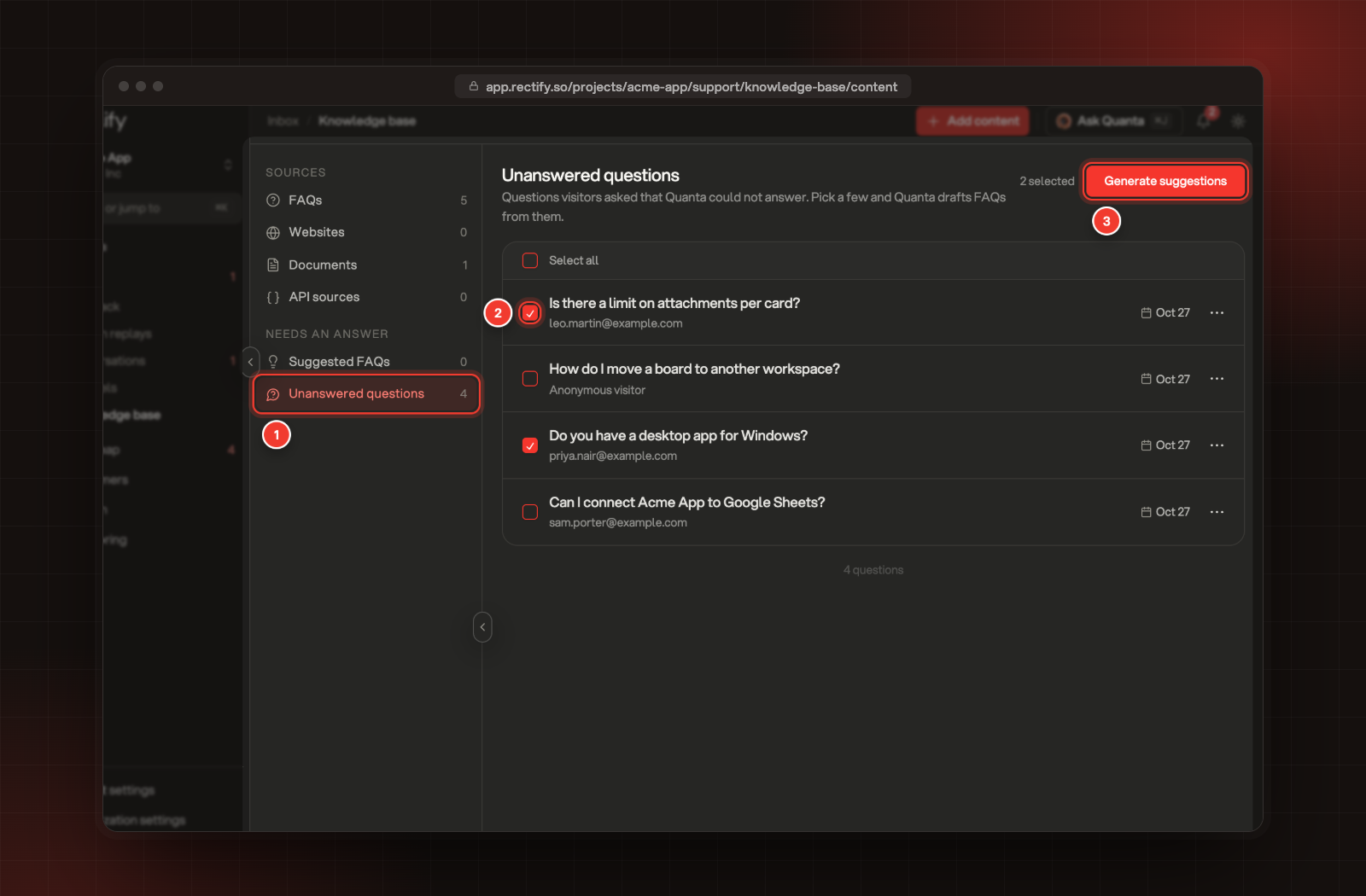
When Quanta finds nothing that answers a customer's question, it saves the question with the customer's email, or Anonymous visitor.
1.
Under Needs an answer, select Unanswered questions.
2.
Tick the questions you want to work on, or Select all.
Open Suggested FAQs. Quanta has merged questions that ask the same thing into clear ones.
5.
Open the menu (...) on a suggestion and select Edit.
6.
Write the Answer, then select Add FAQ. The suggestion moves to your FAQs.
Generating suggestions runs on your AI provider or your Rectify credits. Unanswered questions and suggestions are kept for a year.
Limits
Limit
FAQ question
3 to 200 characters
FAQ answer
10 to 2,000 characters
Link title and Link URL
Up to 200 characters each
Document upload
One PDF, TXT or Markdown file at a time, up to 20 MB
Document text when you edit it
10 to 8,000 characters
Website
Up to 500 pages on the same site, link depth 1 to 10
API source
Up to 10 headers, POST requests only
Check it works
Open your site, open the widget and select Support. Ask something one of your FAQs answers. Quanta answers from it, with your read more link if you added one. You can also ask the same question on the Quanta page.
Troubleshooting
A website shows Failed
Quanta reads public pages only. Check the address opens in a private browser window without a sign-in, then select Read again and Save changes.
It says "Use a comma followed by a single space." under CSS selectors
With More options on, CSS selectors only takes plain element names, like p, article. To use a class or ID like .content, turn off More options.
It says "File content cannot exceed 8000 characters"
Edits to a document's text save up to 8,000 characters. For a longer file, change the file itself and upload it again.
Customers see "I encountered an error while processing your form submission"
Your endpoint returned an error or couldn't be reached. Check the Endpoint and headers on the API source, and that your API accepts a POST request with the fields you set up.
Delete is greyed out
Only Owners and Admins can delete sources and suggestions. Ask one of them, or turn on Private for an FAQ or API source instead.