Choose which feedback forms visitors see, edit their fields and thank-you screen, and decide what bug reports record.
5 min readUpdated 20 days ago
Before you start. Owners, Admins and Members can change the forms. Session replays count towards a monthly limit on your plan, and console, network and action logs need the Build plan or higher.
Each card on the widget's home screen opens its own form. Three are on when you start: Report a Bug, Share an Idea and General Feedback. A fourth, Share Your Experience, is there for testimonials but starts switched off.
Choose which forms show
1.
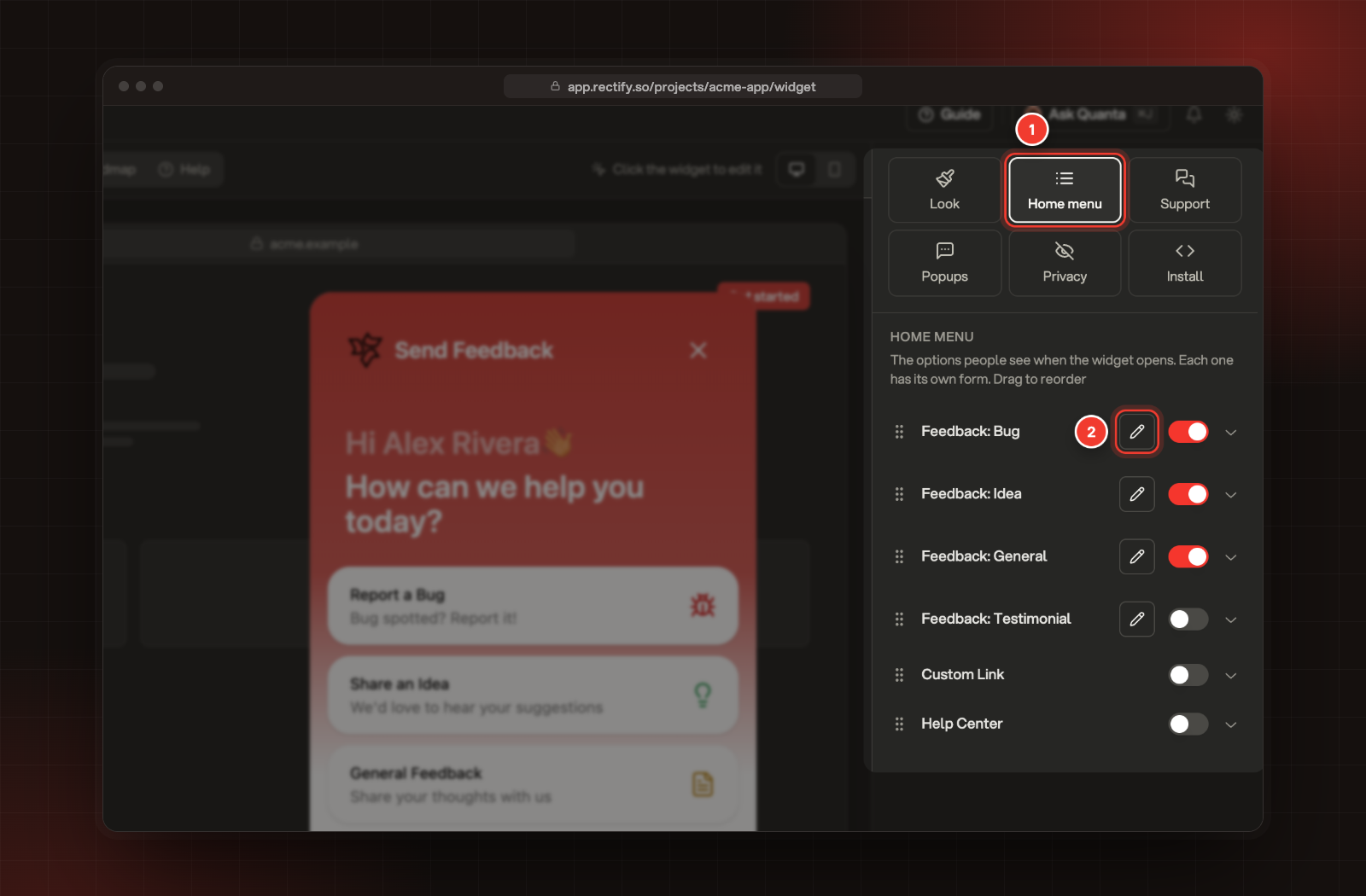
In your project, open Publish, then Widget, and select Home menu.
2.
Use the switch next to a card to show or hide it. In this list the cards have their own names, for example Feedback: Bug for Report a Bug.
3.
To change a card's text, select its name and edit the Title and Description. You can also pick its Icon and Icon color.
4.
Drag a card by the handle on its left to change the order.
5.
Select Save in the bar at the bottom.
The same list has Custom Link, a card that opens one of your own pages in a new tab, and Help Center, a card that opens your help articles.
It also has Support, a card that starts a chat with you. It starts switched off and only shows while the Support tab is on. Choose the widget's layout explains how to use it.
Edit a form
1.
Open Publish, then Widget, and select Home menu.
2.
Select the pencil button next to the card you want to change.
1 Home menu. 2 The pencil button for Feedback: Bug.
3.
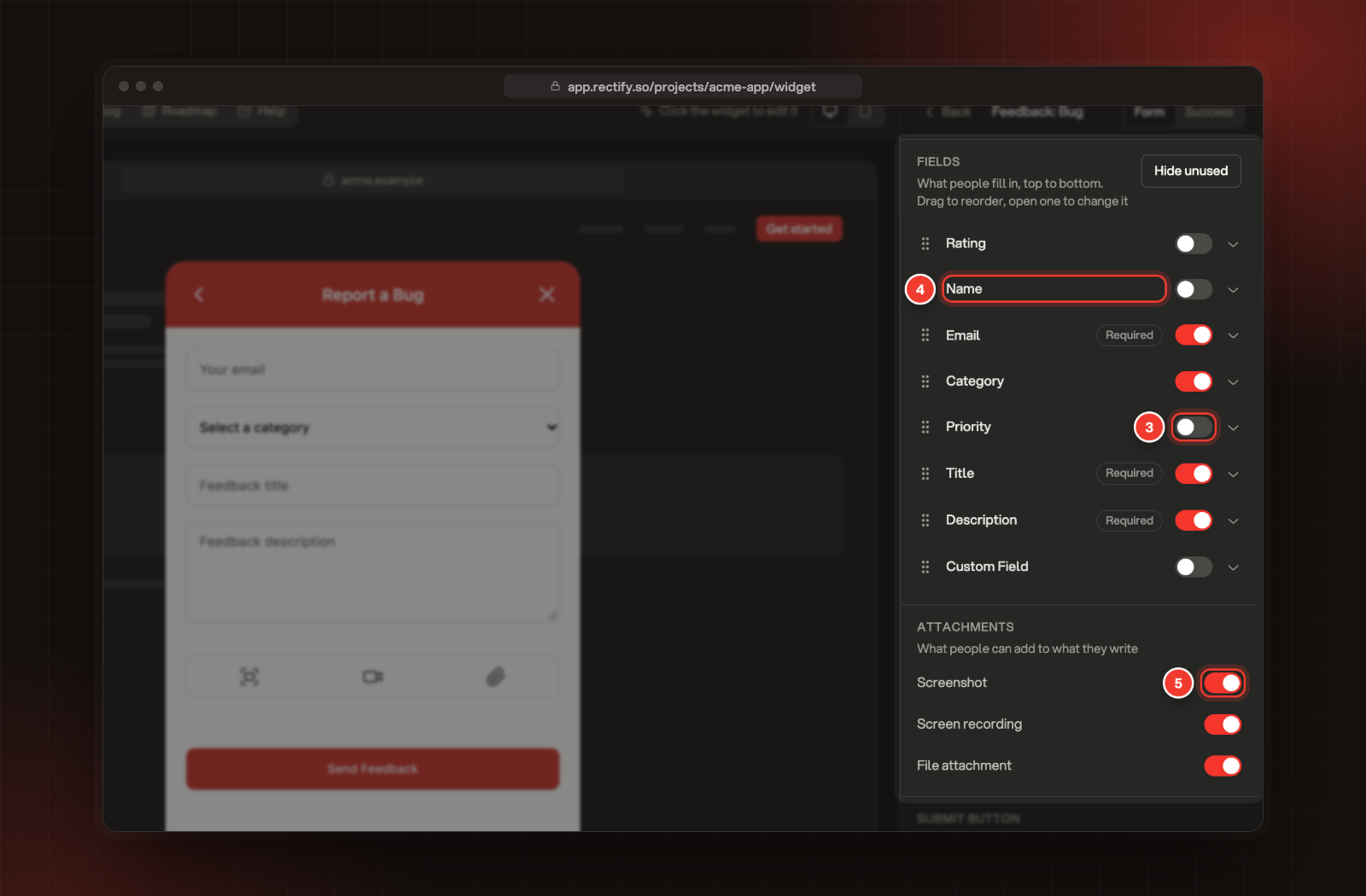
Under Fields, use the switch next to a field to show or hide it. Drag a field by its handle to change the order.
4.
Select a field's name to change its Placeholder, the hint inside the empty field, and turn Required on or off. For Rating, pick the Scale: Stars, Hearts, Faces or Numbers.
5.
Under Attachments, choose what people can add: Screenshot, Screen recording and File attachment.
3 The switch for Priority. 4 Open a field. 5 The attachment switches.
6.
Under Submit button, change the Label, up to 40 characters.
7.
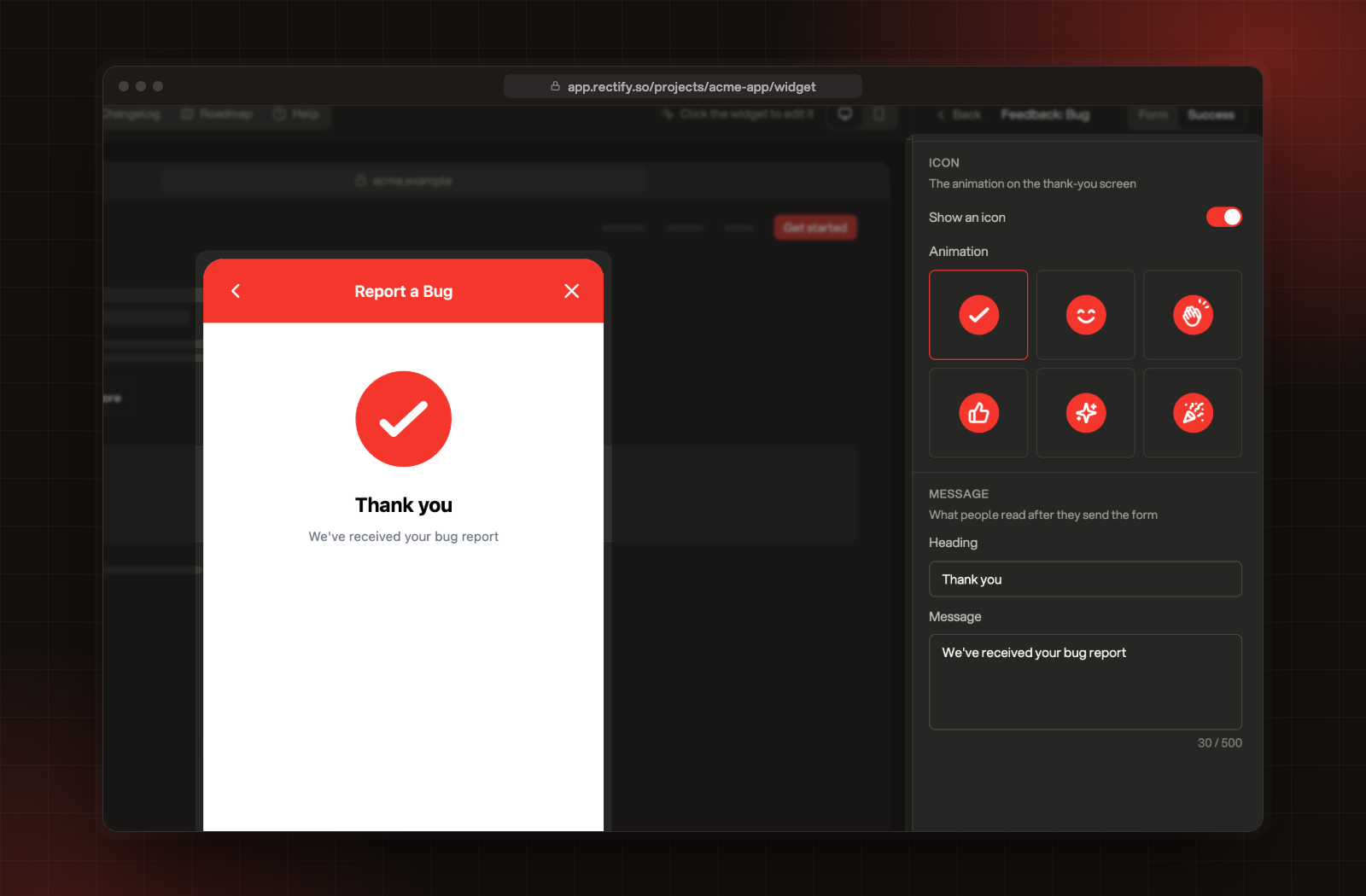
Select Success at the top to change the thank-you screen. Turn Show an icon on or off, pick an Animation, and write a Heading and a Message.
The thank-you screen settings, with the preview on the left.
8.
Select Save in the bar at the bottom.
When you start, every form asks for an Email, a Title and a Description, which are required, and a Category, which is optional. Rating, Name, Priority and Custom Field are switched off.
Add a checkbox or a line of text
Switch on Custom Field, select its name and choose a Kind:
•
Checkbox: a box with your text beside it, for example to agree to your terms.
•
Disclaimer text: a line of text with nothing to fill in.
Write the Text, up to 500 characters. Links work in Markdown, like [terms](https://example.com). Turn on Required to make visitors tick the checkbox before they can send.
What visitors fill in
Visitors open a card, fill in the fields you've switched on and select the submit button. If your site tells the widget who they are, their name and email are already filled in.
•
Screenshot lets them capture the page they're on and draw on it before adding it. They can add up to 10.
•
Screen recording records their screen with Loom. A report can have screenshots or a recording, not both.
•
File attachment adds one file, up to 10 MB.
After they send it, they see the thank-you screen you set up.
Record what happened before a bug
For Report a Bug, the widget can attach a replay of the visit and technical logs, so you can see what went wrong.
1.
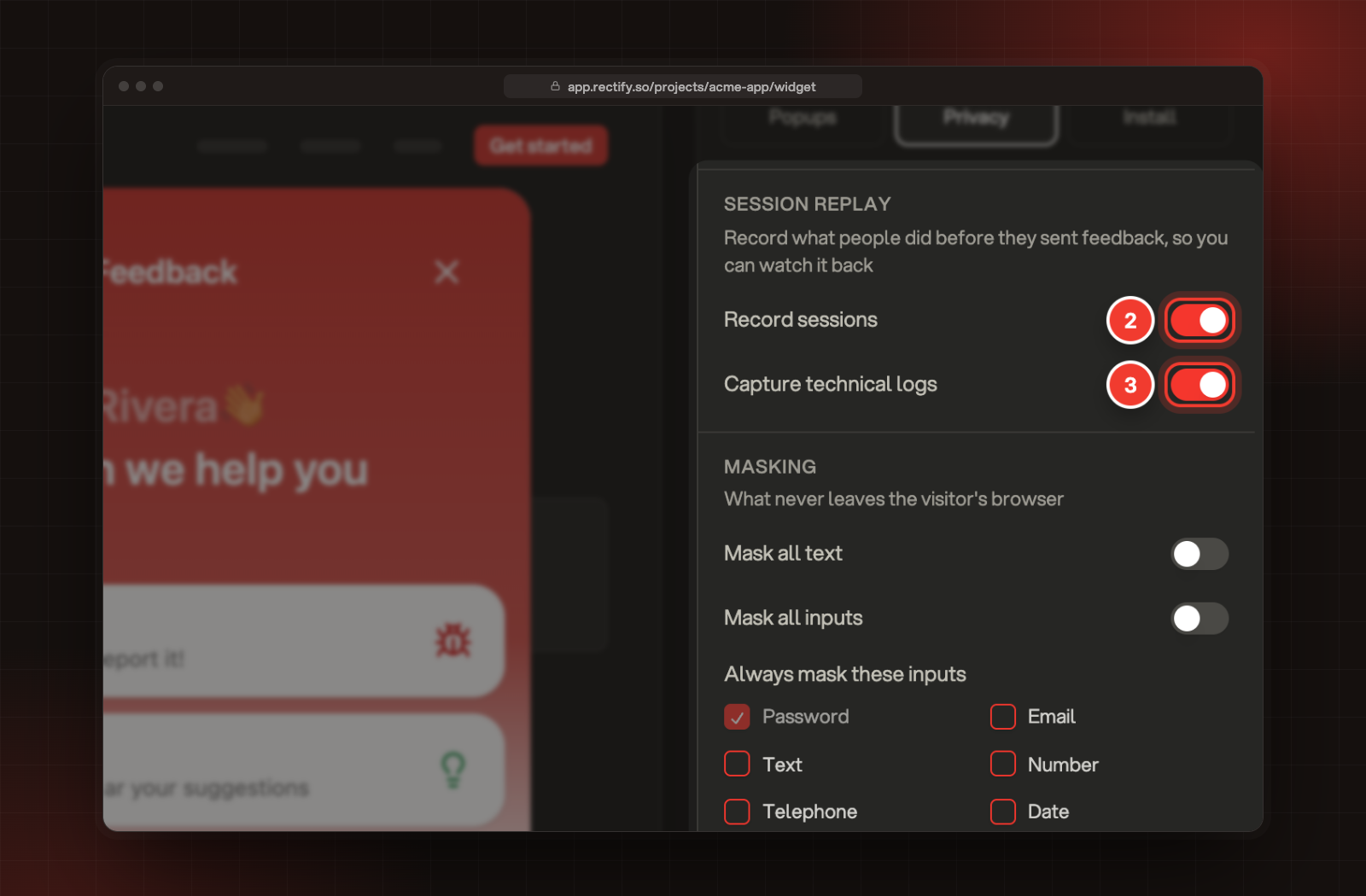
Open Publish, then Widget, and select Privacy.
2.
Turn Record sessions on for a visual replay of the visit, attached to each bug report.
3.
Turn Capture technical logs on for console logs, network requests and user actions.
2 Record sessions. 3 Capture technical logs.
4.
Under Masking, choose what never leaves the visitor's browser: Mask all text, Mask all inputs, or the field types under Always mask these inputs. Passwords are always masked. You can also hide parts of your page by CSS class with Mask by class, Block by class and Ignore by class.
5.
Select Save.
Both start switched on. Only bug reports carry a replay and logs. Ideas and general feedback don't.
Plan
Session replays a month
Idea
10
Build
100
Launch
1,000
Accelerate
5,000
Enterprise
Unlimited
When you reach your plan's limit, bug reports still arrive, without a replay.
Where reports go
Every report lands in Inbox, Feedback. Bug reports with a replay are also listed under Inbox, Session replays.
Check it worked
Open your site, open the widget and send a test report from the card you changed. It appears under Inbox, Feedback.
Troubleshooting
A visitor sees "Please rate your experience"
Rating is required on that form and they didn't pick a rating. Make it optional if you don't need it.
A bug report has no session replay
Check that Record sessions is on under Privacy, and that the report came from Report a Bug. If your plan's monthly replays are used up, reports arrive without one.
An attachment is missing from a report
Files over 10 MB aren't attached. Ask the visitor for a smaller file.
A visitor sees "Too many uploads. Please try again in a few minutes."
The widget limits how many files can be uploaded from one network in 15 minutes. They can send the report again a little later.