What Quanta can do for your project, where to find it, and how you approve the changes it makes.
3 min readUpdated 5 days ago
Quanta is the AI teammate built into every project. It knows your feedback, roadmap, customers and monitors, and it can:
•
answer questions about your project, like "What changed this week?" or "Who might churn?"
•
make changes for you, like adding a roadmap card or drafting a changelog entry, once you confirm them
•
answer your customers in the widget, from your Help Center and your Knowledge base
•
check your project on a schedule and post a short report.
Open Quanta
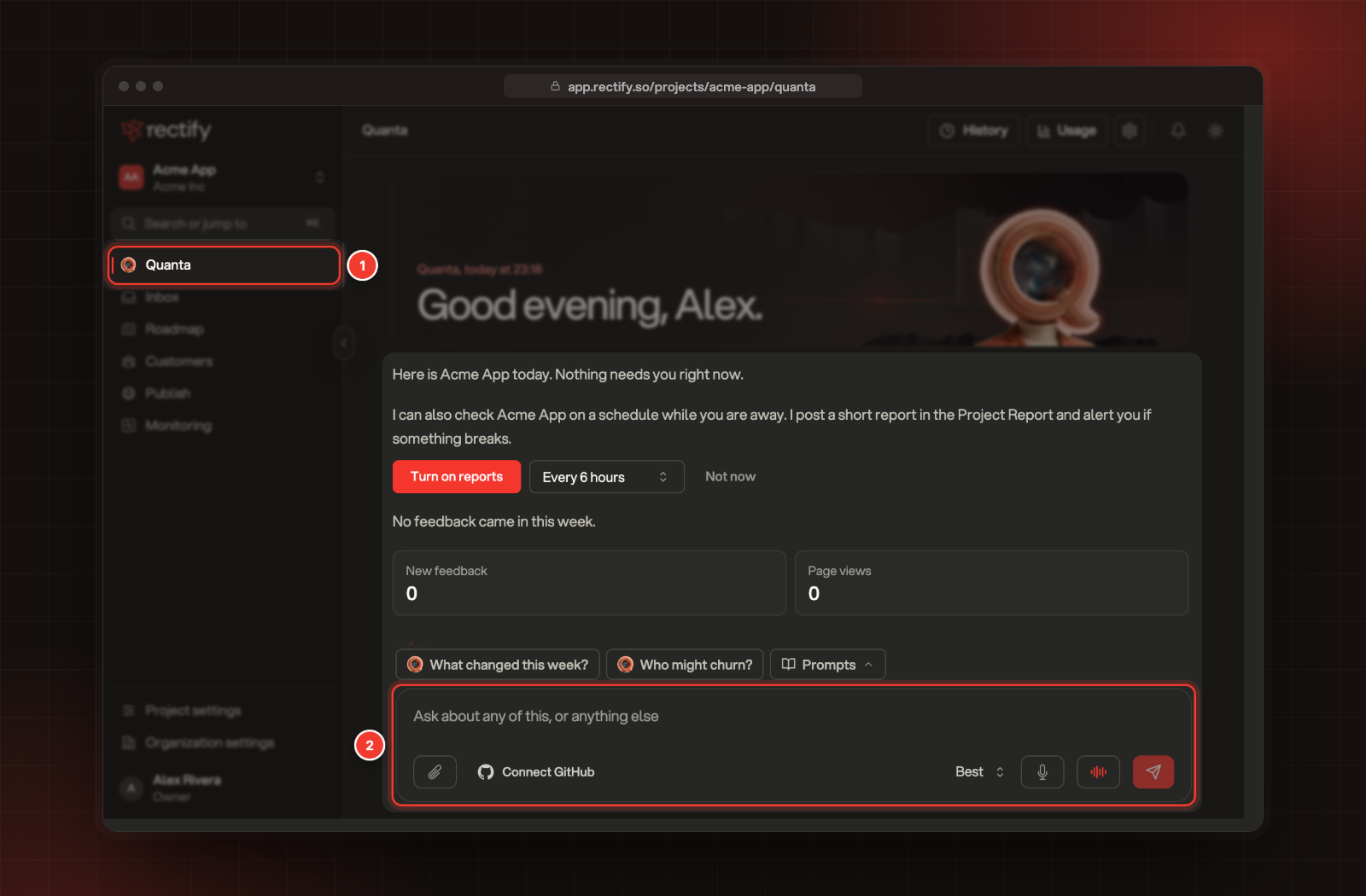
Every project opens on Quanta. You can also select Quanta at the top of the sidebar, or Ask Quanta in the top bar of any project page (⌘J on a Mac, Ctrl J on Windows).
The page starts with a short briefing: what needs you today and your latest numbers. Type in the box at the bottom to ask anything, or pick a suggestion above it.
1 Quanta in the sidebar. 2 Ask anything here.
History at the top lists your earlier chats, and Usage shows what Quanta has used.
Approve what Quanta changes
Quanta doesn't change anything until you say so.
1.
Ask Quanta for a change, for example "Add a roadmap card for dark mode".
2.
A card appears under Quanta's reply. It sums up the change and lists what will be saved.
3.
Select Confirm to go ahead. To leave it, select Cancel instead. Nothing changes until you confirm.
A card waits 30 minutes. After that, ask Quanta to prepare the change again.
When Quanta asks you a question with a short form and you answer it, small follow-up changes go ahead without a card to confirm. Deleting, archiving, unpublishing, merging, sending and stopping always ask first.
Get a report on a schedule
On the Quanta page, the organization's Owner can select Turn on reports and choose how often Quanta checks, from every 10 minutes to every 24 hours. Quanta posts a short Project Report and alerts you if something breaks. Open it any time from History.
Let Quanta answer your customers
1.
Open Publish, then Widget, and select Support.
2.
Under Answered by, pick who answers:
•
Quanta first: Quanta answers first and hands over to your team when it can't help. This is the default.
•
Quanta only: fully automated. Customers can't reach your team from the chat.
•
Team only: only your team answers.
Quanta answers from your Help Center articles and your Knowledge base, so the more you publish, the better its answers get.
What Quanta runs on
Quanta runs on your own AI provider key, or on the Rectify credits that come with paid plans. Connect a key and set a monthly limit under Organization settings, AI providers. Set a monthly spend limit on your AI keys explains how.
It says "No AI provider is configured"
Your organization has no AI key connected and no Rectify credits left. Ask an Owner or Admin to connect a provider under Organization settings, AI providers.
It says "Action not found or expired"
The card waited more than 30 minutes. Ask Quanta to prepare the change again.